

Version5.0.0
Introduction to Lua
Why Lua
Lua is a small programming language that was designed, from its very first day, to live inside other programs. It was created in 1993 at a university in Brazil, and the goals were modest and clear: be small, be fast, and be easy to embed into software written in C, which is just another programming language.
Those qualities made it a favourite of the games industry, where a large engine is written in C++ and the behaviour of the game itself is scripted in Lua. The same qualities made it at home in music software. Renoise, REAPER and Ardour let you script them in Lua, and the monome norns runs its whole instrument layer in it. If you have ever installed a script in one of those, you have already met the language we are about to learn.
Electra One follows the same idea. The firmware is written in C and C++ and compiled into the .srec file you upload when you update the controller. That code is fast, close to the hardware, and not something you would want to touch for every small idea. Lua sits on top of it. Your script is not compiled at all; a Lua interpreter inside the firmware reads it and runs it the moment it arrives. You write a few lines, send them to the controller, and they are running. If they are wrong, you change them and send them again. That short loop is what makes Lua pleasant to learn on a MIDI controller.
Where a script lives
Every preset can carry one Lua script. It is part of the preset the same way the pages and controls are: saved with the project, sent to the controller together with the preset, and started again from the top every time the preset is loaded.
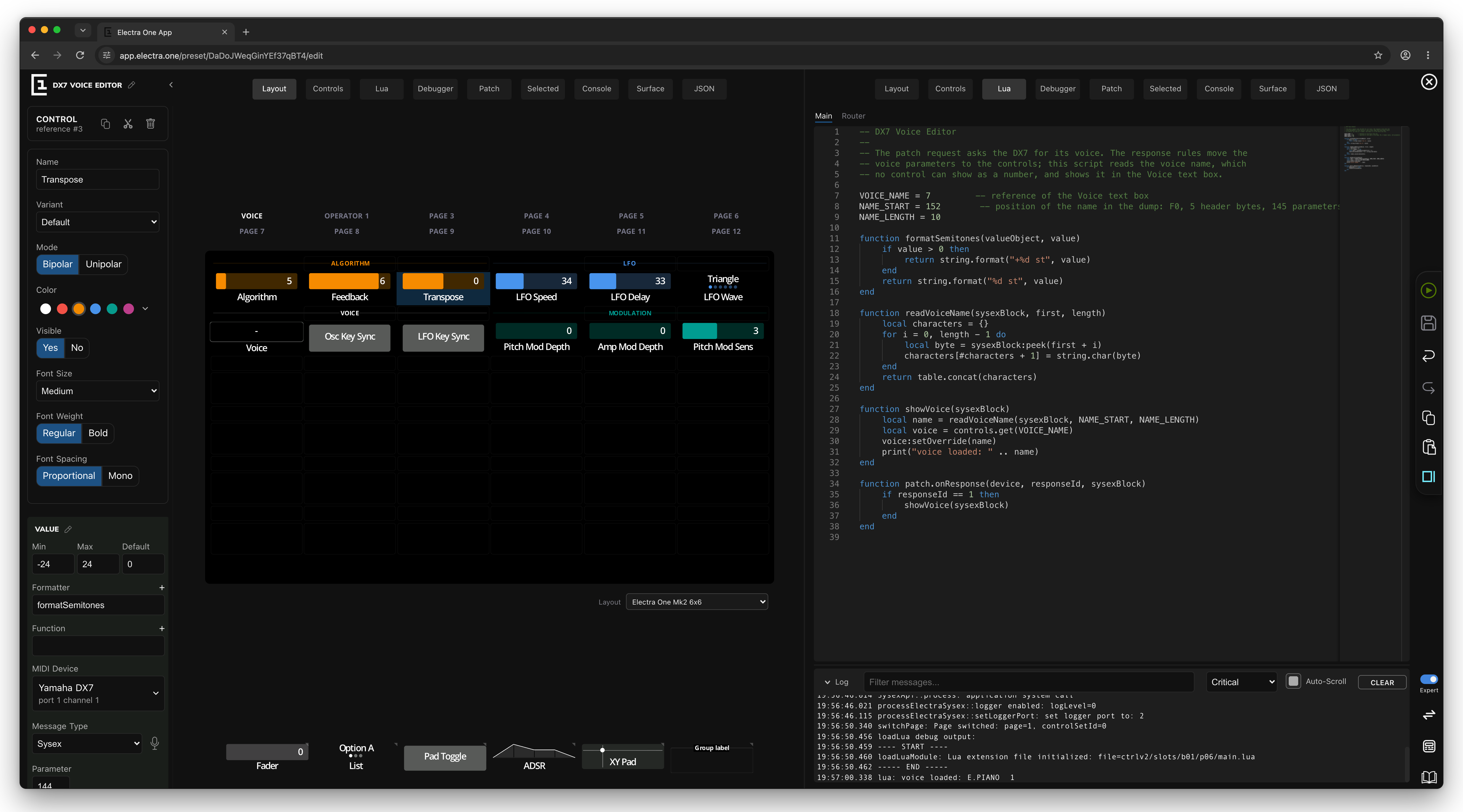
In principle the script is just a text file, and you could write it in any editor and push it to the controller as a SysEx message. Hardly anybody does that during development. The Electra One web editor, which Zdenek and I maintain, has a Lua tab with a proper code editor, completions for every function the controller offers, and the controller's log right underneath it. That is the tool we will use for the rest of this book.
Running the examples
Every example in the following chapters can be run on your controller, and I would like you to run them rather than read them. Here is the routine, once, so that the chapters do not have to repeat it.
Open the web editor with the controller connected and create a new, empty preset, exactly as we did at the start of the MIDI Messages chapter. Nothing on the page is needed for most of the examples; the empty preset is only a place for the script to live.
Click the Lua tab along the top of the editor. The large area is the script, and the narrow strip under it is the log: everything the controller reports about the script arrives there, including every error and everything the script prints.
Paste this into the script:
lua
print("Hello from Electra One")Click Send to Electra. The preset and the script go to the controller, the script starts, and within a moment the log shows:
lua: Hello from Electra One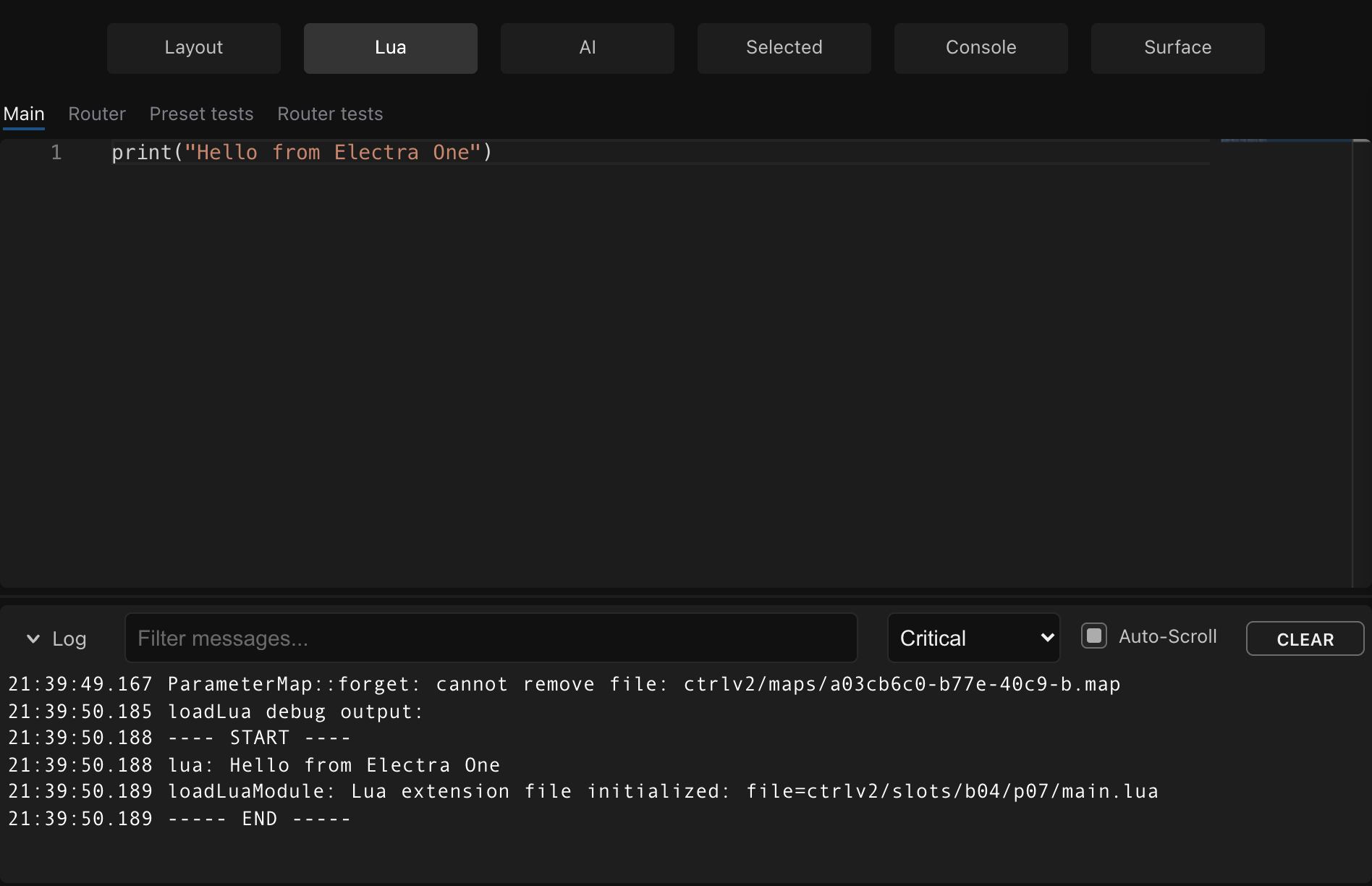
That is the whole method. For each example: replace the script, send, read the log. A few things are worth knowing before you start:
print()is your window into the script. Whatever you give it appears in the log, prefixed withlua:. If you give it two things, as inprint(a, b), each one arrives as a separate line. To put several values on one line, glue them with.., which you will meet in the next chapter.- The script runs from the top every time you send it. Anything written outside a function runs immediately, once. That is why a plain
printat the top level works as a test. - If the log stays empty, check the level selector above it. At Disabled nothing is shown; any other level shows what a script prints.
- A mistake in the script does not harm the controller. It writes a line to the log with the line number, and the preset carries on without the script. Read the log first; it usually says exactly what is wrong.
Some examples need a control on the page, for instance a formatter that turns a number into text. Those examples say so, and tell you which field of the control to fill in. Everything else runs in an empty preset.
Running a single line
In Expert mode, the Debugger tab has a command line at the bottom. A line of Lua typed there runs inside the script that is already on the controller, and the answer appears in the log. It is a quick way to try one expression without sending the whole preset again.
What is ahead
The chapters that follow introduce Lua in the order I would want to learn it: values, decisions, repetition, tables, functions, and finally the ways Lua code is organised into modules and objects. None of them is long. Each one takes something we have already seen on the controller, a MIDI byte, a patch name, a page of knobs, and shows the few lines of Lua that handle it.
By the end you will be able to read the scripts in the tutorials and in the Electra One preset library, and to write your own. Let's start with the simplest question there is: what is a value?