

Version5.0.0
Firmware update Electra One Mini
Firmware updates for Electra One Mini are normally handled through the Electra One online web application, which is the recommended and simplest method, and from firmware 5.0.0 on the application is also where the firmware files are downloaded from. However, the controller also includes a built-in bootloader that allows you to update the firmware manually if needed.
Note
If you encounter any issues during the firmware update, please don’t hesitate to contact us via the Electra One Forum or by email. We’re happy to assist you.
The firmware update procedure
1. Get the firmware file
From firmware 5.0.0 on, the firmware files are published in the Electra One web application, not in this documentation. Open app.electra.one, go to CONTROLLER, and on the Update firmware tab take the image for the Mini from the Downloads list under the release notes. Earlier 5.x versions are under Earlier releases.
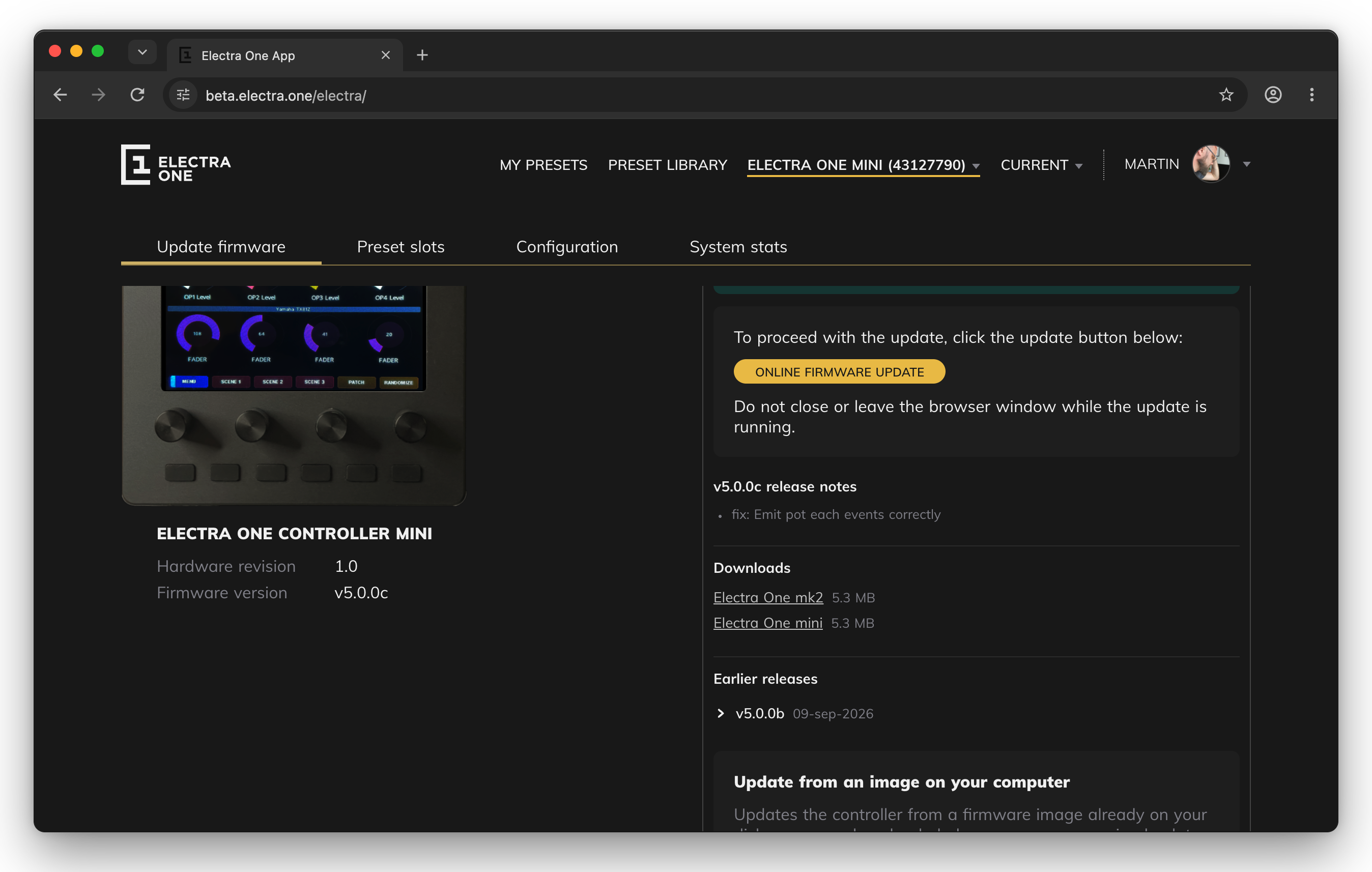
Save it where you can find it again - it is the file the bootloader installs.
Firmware 4.1.4 and earlier
The 4.x firmware files stay where they were, on the Downloads page of the 4.1 documentation. The app only carries firmware from 5.0.0 on.
2. Start the controller in the bootloader mode
Follow the steps below to start the controller in the bootloader mode:
- Disconnect Electra One Mini from your computer.
- Press and hold
[BUTTON 3], the second button from the right on the front panel. - While holding the button, connect the controller to your computer using a USB cable.
- Release the button once the controller is connected.
Make sure you are using the same computer on which the firmware file was downloaded.
WARNING
The bootloader installs any firmware file you copy, without checking which model it is for. Use only a firmware file for Electra One Mini.
3. Use the Mini's USB disk
When the controller starts in bootloader mode, the display will show: USB DISK MODE. Electra One Mini will appear on your computer as a USB storage device:
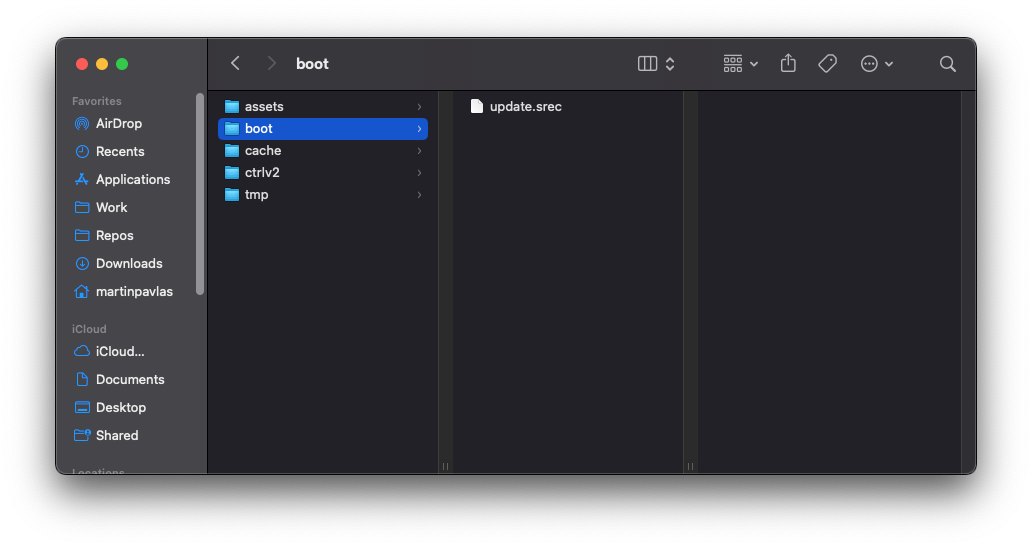
- Rename the file you downloaded to
update.srec - Copy the
update.srecfile into the/bootfolder on the Electra One Mini USB disk.
4. Eject the disk and restart
After the file has been copied:
- Safely eject the Electra One Mini USB disk using your operating system.
- Restart the controller by disconnecting and reconnecting the USB cable.
5. Performing the update
After restarting, Electra One Mini will automatically detect the update.srec file in the /boot folder and begin the firmware update process.
The update progress is indicated on the display by an UPDATING FIRMWARE progress bar. Once the update is complete, the controller will restart automatically and run the newly installed firmware.
6. Verify the new version
After the controller is restarted, hold [MENU] for one second to open the System window, and check that the Firmware version is the one you installed.
WARNING
If you encounter any issues while running the update, feel free to contact Martin on the forum or by email.
Notes
- The firmware update typically takes 2 to 3 minutes. If the process takes significantly longer, it may indicate a problem. In that case, try power cycling the controller.
- Files starting with
._are automatically created by macOS. The controller deletes them from thebootfolder when it starts.