

Version5.0.0 beta
Bootloader
Electra One Mini includes a built-in bootloader — a low-level application that runs independently of the main firmware. It lets you update the firmware by hand and reach the files stored on the controller's internal SD card.
Firmware updates for Electra One Mini are normally handled through the Electra One online web application, which is the recommended and simplest method. The bootloader is there for the times when you need to do it yourself.
Key Features
- Firmware Update – Install new firmware versions by copying a firmware file onto the controller.
- USB Disk Mode – Access the controller's SD card as a USB drive for file transfer and management.
Entering Bootloader Mode
On Power-On
The Mini enters the bootloader with a hardware button held while it is powered on:
- Disconnect Electra One Mini from your computer.
- Press and hold
[BUTTON 3], the second button from the right on the front panel. - While holding the button, connect the controller to your computer using a USB cable.
- Release the button once the controller is connected.
Make sure you are using the same computer on which the firmware file was downloaded.
WARNING
The bootloader installs any firmware file you copy, without checking which model it is for. Use only a firmware file for Electra One Mini.
Bootloader screen
When the controller starts in bootloader mode, the display shows USB DISK MODE. The Mini's bootloader has no on-screen buttons and no firmware image tiles; everything is done through the USB disk.
USB Disk Mode
In bootloader mode, Electra One Mini appears on your computer as a USB storage device:
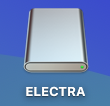
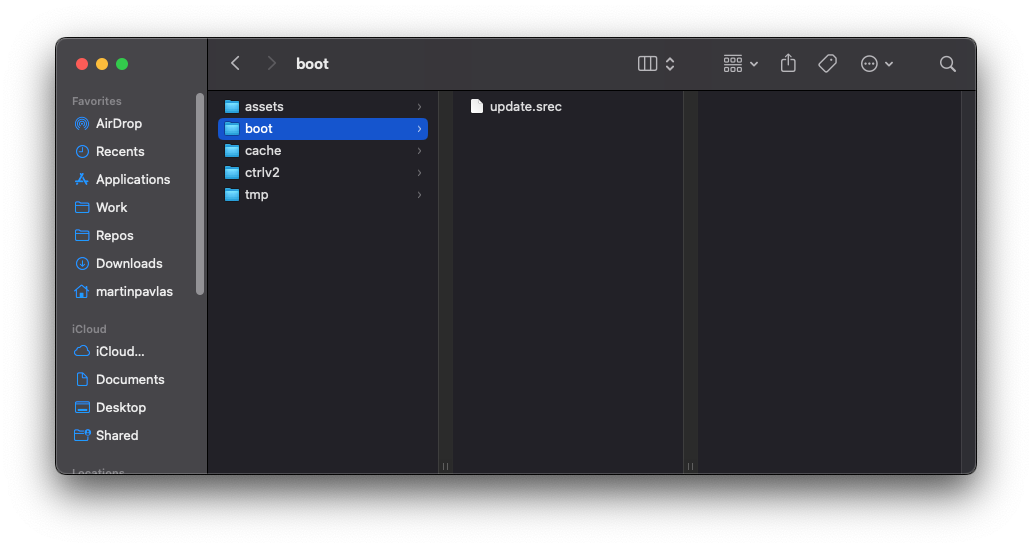
The disk holds the controller's SD card, with the boot folder for firmware files:
Always eject the disk safely before unplugging or restarting the controller, to avoid file corruption.
Files starting with ._ are automatically created by macOS. The controller deletes them from the boot folder when it starts.
Firmware Update
To update the firmware through the bootloader, copy the firmware file into the boot folder of the USB disk under the name update.srec, eject the disk and restart the controller. After restarting, the Mini detects update.srec in the boot folder and begins the update; the display shows an UPDATING FIRMWARE progress bar, and the controller restarts automatically into the new firmware when it is done.
The whole procedure, with the download link and the steps in order, is in Firmware update.