

Version5.0.0 beta
Control Settings
Select a control, and its settings open in the sidebar, or across the whole view on the Selected tab. This page explains them: what a control shows, what it sends, and how the two are related.
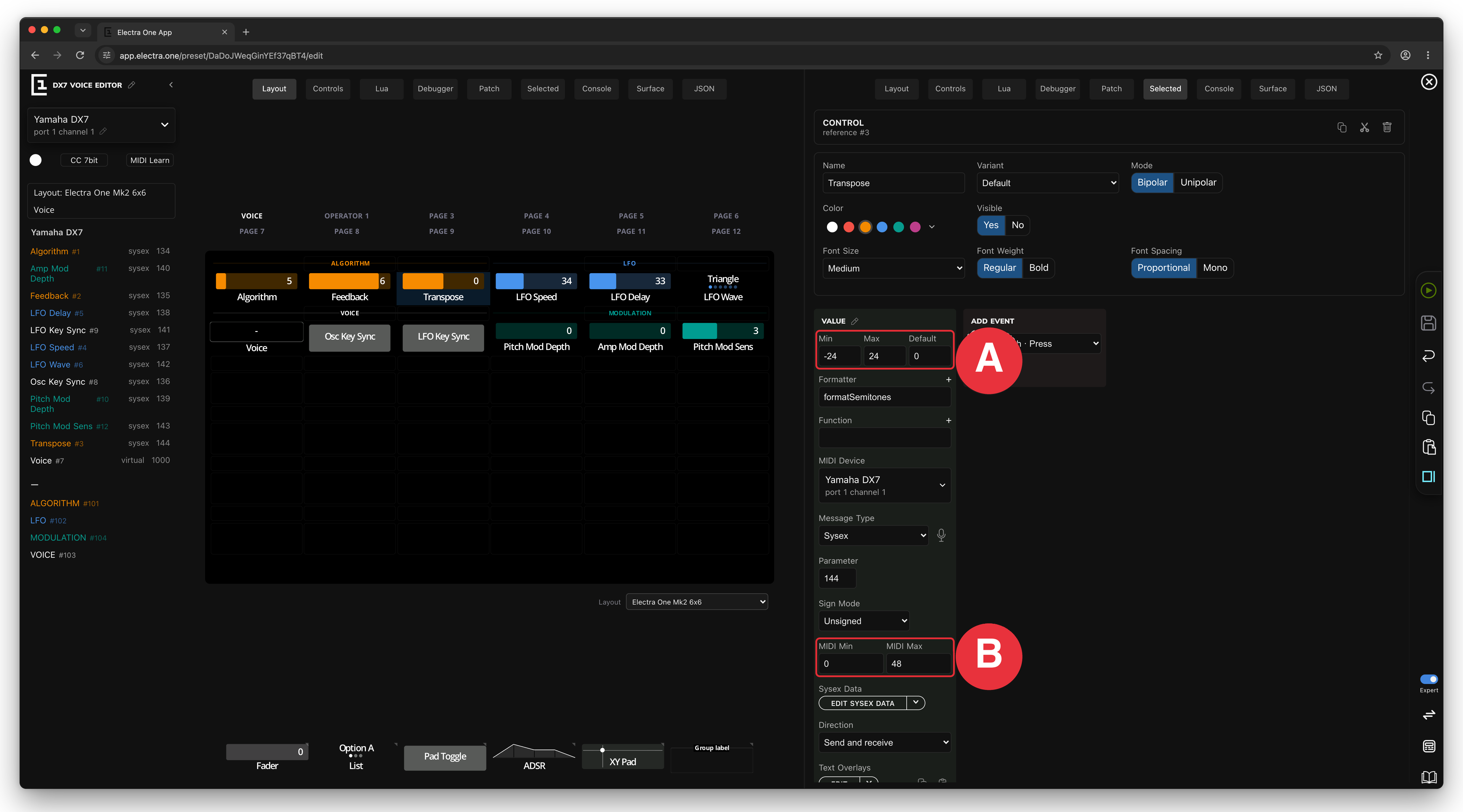
The settings are arranged in cards:
- The control card: the control's name, look and behaviour.
- A value card for each value of the control, with the message the value sends. A fader has one value; an ADSR envelope has four, for attack, decay, sustain and release.
- Events (Expert): what pressing or touching the knob does.
At the top, CONTROL shows the control's reference number, and the icons Copy control, Cut control and Remove control.
The control card
| Setting | What it does |
|---|---|
| Name | The name shown under the control, up to 14 characters. |
| Variant | How the control looks. Faders: Default, Thin or Dial. Lists: Default or Value only, which shows only the selected item and steps through the items when tapped. Pads: Pad, Checkbox or Value only. Text boxes: Box with name or Text only. |
| Mode | Pads: Toggle switches on and off with each press, Momentary is on only while pressed. Faders: Bipolar draws the bar from zero when the range goes below zero, Unipolar always from the left. |
| Color | One of the six Electra colours, or, with More colors, one of 81 colours or any colour typed as Hex. |
| Width, Height | Text boxes and custom controls only: how many slots the control covers. |
| Placeholder | Text boxes only: the text shown while the box holds no text, up to 20 characters. |
| Font Size, Font Weight, Font Spacing | Faders, lists and text boxes: the size of the value text, regular or bold, and a proportional or monospaced (Mono) typeface. |
| Value assigned to knob | Expert. Controls with several values: which value the knob changes on the page. The others are changed in the control's detail window. |
| Category | Expert. A category for sorting controls, when the project has categories. |
| Visible | Expert. Shown when the preset has a Lua script: No hides the control until the script shows it. |
| Pots | Expert. Custom controls only: which knobs change which of the control's values. Each pot has a name, which the custom control's Lua functions receive. |
| Change type | Turns the control into another type of control. See Changing the type. |
Reference numbers
Every control has a reference number, shown as reference #N. It identifies the control in the preset, in Lua (controls.get(7)) and in events. In Expert mode, click the number to change it, to any number from 1 to 1023. The picker says whether the number is free or which control uses it. Two controls with the same reference cannot be sent to the controller until one is changed.
Changing the type
A control does not have to be removed and built again when it turns out to be the wrong type: a fader that should have been a list, a list of two items that should have been a pad. Click Change type, the last line of the control card.
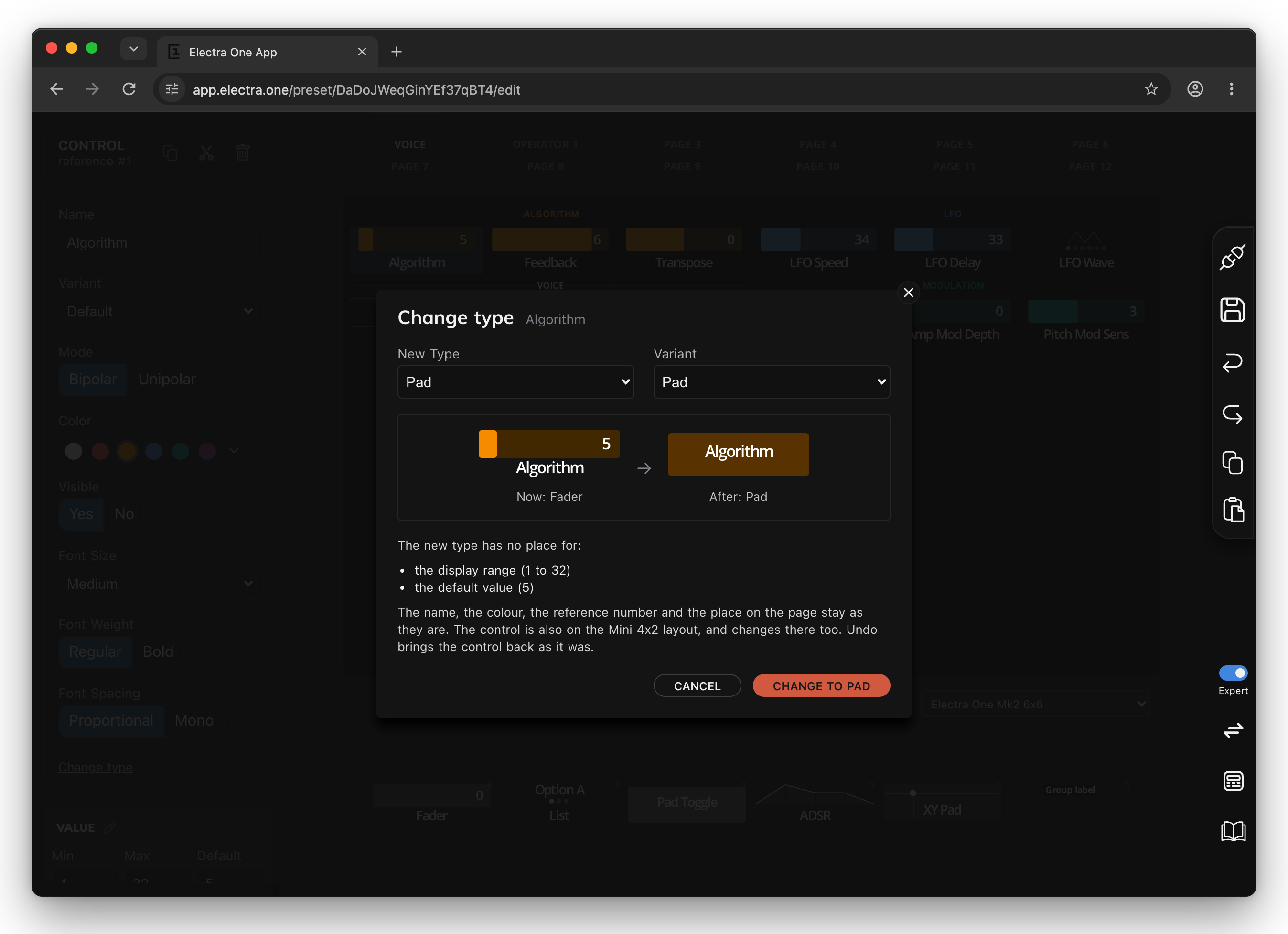
- Choose the New type, and its Variant if the type has variants.
- Compare the two pictures: the control as it is now, and as it will be.
- Read the list under them. It names everything the new type has no place for. When the list is empty, nothing is lost.
- Click Change to type, or
CANCELto leave the control as it is.
The control stays the same control. Its name, colour, reference number and device are kept, and so is its place on the page. A control that is placed on both layouts changes on both, and the window says so. Lua scripts and events that use the reference number keep working.
What is kept of the values depends on the two types:
| Change | What happens |
|---|---|
| Between faders and lists | The message is kept. A fader's text overlays become the list items, and the other way round. A list has no display range, so a fader's Min and Max are lost when they differ from the MIDI range, and the Default is converted to a MIDI value. |
| To a pad | The MIDI Min and Max become the OFF value and ON value. For a list, the first and the last item become the two states, with their State Labels, and the other items are lost. A numeric Default is lost. |
| From a pad | The OFF value and ON value become the MIDI Min and Max. The State Labels become list items or text overlays. A Default State of On is lost. |
| To a relative control | The ranges and the Default are lost: a relative control sends steps, not values. |
| Between envelopes, the XY pad and the V fader | Values with the same name keep their messages: an ADSR changed to an AR keeps attack and release, and loses decay and sustain. Other values are moved in order. Values the new type adds get new messages, as if the control had been dragged from the repository. |
| A single value to an envelope, or back | The fader's value becomes the first value of the envelope. An envelope changed to a fader keeps its first value and loses the others. |
List items, text overlays and state labels are lost by every type that does not show them: envelopes, the XY pad, the V fader, relative and custom controls and text boxes. The font is kept by faders, lists and text boxes, the Width and Height by text boxes and custom controls, and the Placeholder by text boxes. A message type the new type does not offer, such as a pad's Note, is replaced by the default message type.
The change is one step of Undo: undo brings the control back with everything it had.
Values: display and MIDI
This is the most important idea in the control settings. A control's value has two sides:
- the display value, the number you see on the controller, and
- the MIDI value, the number the control sends to the instrument and receives from it.
They are often the same, 0 to 127 on both sides. But instruments rarely think in 0 to 127. The DX7's Transpose is sent as 0 to 48, while the musician thinks of it as −24 to +24 semitones. Its Algorithm is sent as 0 to 31, while the manual and the front panel number the algorithms 1 to 32. A preset should show what the musician knows, and send what the instrument expects.
So a value card has two ranges:
- Min and Max (A in the picture above) are the display range.
- MIDI Min and MIDI Max (B) are the MIDI range.
Electra One maps one range onto the other in a straight line: the display minimum sends the MIDI minimum, the display maximum sends the MIDI maximum, and everything in between is spread evenly and rounded to whole numbers. The same mapping works backwards: when the instrument sends a MIDI value, the control shows the matching display value.
Some typical settings:
| Parameter | Min | Max | MIDI Min | MIDI Max | What the musician sees |
|---|---|---|---|---|---|
| a CC parameter | 0 | 127 | 0 | 127 | the MIDI value itself |
| DX7 Algorithm | 1 | 32 | 0 | 31 | algorithms numbered as on the synth |
| DX7 Transpose | −24 | 24 | 0 | 48 | semitones up and down |
| DX7 Detune | −7 | 7 | 0 | 14 | detune around the centre |
| a pan | −64 | 63 | 0 | 127 | left, centre and right |
| a percentage | 0 | 100 | 0 | 127 | 0 % to 100 %, rounded |
A few rules to keep in mind:
- Negative numbers belong to the display range. MIDI Min and MIDI Max are 0 or more; to show negative numbers, give Min a negative value.
- The ranges don't have to be the same size. With a display range wider than the MIDI range, several display values send the same MIDI value, and the knob moves in visible steps. With a narrower display range, each display step jumps over several MIDI values.
- Default is a display value: the value the control starts with when the preset loads. Electra One does not send it when the preset loads, so the instrument keeps its own sound until a knob is turned. On the Mk2, a double tap on a fader, list, envelope or XY pad resets it to the default and sends it, unless the controller's double-tap setting has been changed. Pads, relative and custom controls are not reset.
- Formatters and overlays see the display value. See Formatters and functions and Lists and overlays.
Signed values
Expert. Some instruments send negative numbers as bits, not as an offset: −1 is sent as 127 in a 7-bit byte (two's complement), or as 65 with a sign bit. When Min is below zero, and the message is not Pitchbend, the value card offers Sign Mode:
| Sign Mode | −1 in 7 bits | What it does |
|---|---|---|
| Unsigned | – | the normal mapping between the two ranges |
| Two's complement | 127 | negative numbers counted down from the top of the range |
| Sign bit | 65 | the highest bit is the sign, the rest the size |
With a sign mode, Bit Width says how many bits the number has, and the display value is sent as that signed number; MIDI Min and MIDI Max are not used.
Lists
A list's items each have a label and a value. The value is the MIDI value the item sends. The DX7's LFO Wave has six items, Triangle = 0 to S/Hold = 5, so choosing Sine sends 4. A list has no display range; its Default MIDI value is the MIDI value of the item selected when the preset loads.
When the instrument sends a value that no item has, the list keeps showing the item it had.
Pads
A pad sends one value when it turns on and another when it turns off:
- ON value and OFF value are the MIDI values. Leave one empty to send nothing in that direction, for example to send only on press.
- Default State (toggle pads) is On or Off when the preset loads. A momentary pad always starts off.
- State Labels give the two states a name, such as Off and On or Mono and Poly, for the Value only variant. They can be typed once both the ON and OFF values are set.
With the Note message, a pad sends Note On (velocity 127) when it turns on and Note Off when it turns off; on a momentary pad, that is press and release. With Program change, it sends the program in Program when pressed. Start, Stop and Tune are offered for momentary pads.
Relative controls
A Relative control (in the faders group) sends a change, not a value: "one step up", "three steps down". It is for software and hardware that expect endless encoders, such as a DAW's plugin mappings. It has no position: it shows the size and direction of the last step it sent, and 0 when the knob is let go. A Relative control always sends CC, whatever message type is chosen.
Expert. Relative CC Mode chooses how the change is written, since programs disagree:
| Relative CC Mode | One step up | One step down |
|---|---|---|
| Sign bit | 65 | 1 |
| Sign bit 2 | 1 | 65 |
| Binary offset | 65 | 63 |
| Two's complement | 1 | 127 |
Acceleration Enabled sends bigger steps when the knob is turned quickly.
CC Relative can also be chosen as the message type of other controls. They then send steps in the Sign bit form, without acceleration, and don't offer these two settings.
The message
Each value card ends with the message the value sends and receives:
| Setting | What it does |
|---|---|
| MIDI Device | The device the message goes to: its port and channel. See Devices. |
| Message Type | The kind of message, see the table below. The type chosen here also becomes the default for new controls. |
| The microphone | MIDI learn for this value: turn a knob on the instrument from one end to the other, and the message type, number and MIDI range are taken from it. |
| Parameter | The number of the controller, NRPN or SysEx parameter. For NRPN and RPN, MSB and LSB can be typed instead, as in many manuals. |
| MIDI Min, MIDI Max | The MIDI range, see above. |
The message types:
| Message Type | Sends | Notes |
|---|---|---|
| CC | Control Change | Bits: 7 bits, or 14 bits sent as two controllers, the parameter and the parameter + 32 |
| NRPN | Non-Registered Parameter Number | a 14-bit parameter and value |
| RPN | Registered Parameter Number | a 14-bit parameter and value |
| Sysex | a SysEx message built from a template | see SysEx Templates |
| Note | Note On and Note Off | pads |
| Program change | Program Change | on faders and lists the value is the program; on pads the Program is sent on press |
| Aftertouch Poly | polyphonic pressure | the parameter is the note |
| Aftertouch Channel | channel pressure | |
| Pitchbend | Pitch Bend | 14 bits |
| Song Position | Song Position Pointer | 14 bits |
| Start, Stop, Tune | the real-time or system message | momentary pads |
| CC Relative | a relative Control Change | see Relative controls |
| Virtual | nothing | the value lives only in the preset, for Lua scripts and events |
| None | nothing | a control that shows something, such as a text box |
Expert adds:
- Base for NRPN and RPN: type the numbers in decimal or in hexadecimal.
- Byte Order: for 14-bit CC and NRPN, MSB first (the standard) or LSB first, for instruments that swap the two.
- Reset NRPN Parameter: whether an NRPN is followed by the reset message (CC 101 and 100 set to 127). Some instruments need it, some don't. It is Yes by default; an RPN is always followed by the reset.
For Sysex, the message has two more settings: Sysex Data, the template, edited with EDIT SYSEX DATA, and Direction. Both are described in SysEx Templates.
Messages from the instrument
A control listens as well as sends. When the instrument sends a CC, NRPN or other channel message on the device's port and channel, the control with that message follows it. SysEx is received when its template's Direction says so, or when a patch response maps it.
Lists and overlays
Lists have List Items, and faders can have Text Overlays: names shown in place of some values, such as "Off" at 0 or "Centre" at 0 on a pan. The value card shows the first items; EDIT opens the editor, and the copy and paste icons move a whole list from one control to another.
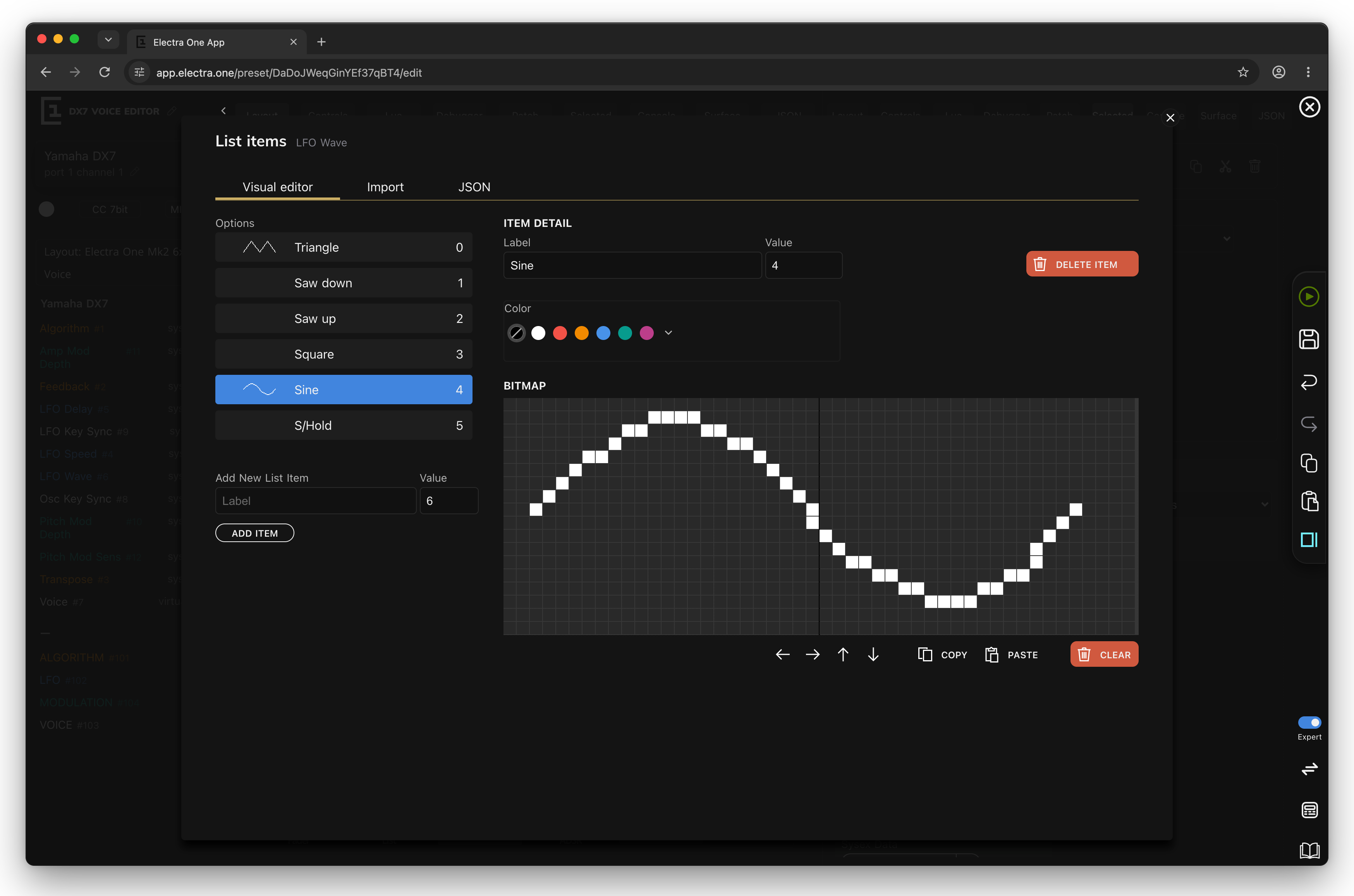
The editor has three tabs:
Visual editor. The items in order, each with its bitmap, colour, label and value.
- Add new list item (or Add new text overlay): type a Label and a Value, and ADD ITEM. The value is filled in with one more than the highest value in the list.
- Drag an item to change the order. The controller shows the items in this order.
- Select an item to change its label, value and Color, or to DELETE ITEM. An item's colour replaces the control's colour while that item is selected.
- BITMAP draws a 48×18 picture shown in place of the label, for waveforms and symbols. Drag to draw, start on a lit pixel to erase, Shift-click to draw a line. The arrows move the picture, COPY and PASTE move it between items, CLEAR erases it.
Import. Paste a list, or OPEN TEXT FILE (.txt, .csv, .tsv), one item per line: a label, then optionally a value and a colour, separated by tabs, commas, semicolons or |. APPEND adds the items, REPLACE replaces the list (ADD ITEMS when the list is empty). Labels longer than 14 characters are shortened. Handy for long lists of patch names or effect types copied from a manual.
JSON. The items as JSON.
Values are checked: a text overlay against the fader's Min and Max, a list item against the message's MIDI range, and two items may not share a value. The visual editor marks a problem; Import and JSON refuse it. The values of list items are MIDI values; the values of text overlays are display values, so an overlay on the Transpose fader for "0 st" is at 0, not at 24.
Precedence
When a value has both an overlay item and a formatter, the overlay wins. Use overlays for a few named values and a formatter for a whole range.
Formatters and functions
Expert. Formatter and Function connect a value to the preset's Lua script:
- A formatter is a Lua function that turns the display value into the text the controller shows. The DX7 Voice Editor's Transpose uses
formatSemitones, which shows +12 st instead of 12. - A function is a Lua function called whenever the value changes, to do something more: send other messages, show or hide controls, update a label.
Type the function's name. The + next to the field adds an empty function of that name to the end of the script, ready to fill in:
lua
function formatSemitones(valueObject, value)
    -- your code goes here and it must return a value to display
    return(value)
end
value is the display value. For a list, it is the index of the selected item, for a pad 0 or 1, and for a relative control the step it sent. The function is not called when the preset loads; the formatter is. See Value formatters in the Lua reference.
Events
Expert. Events decide what happens when the knob of a control is pressed, released, touched or let go. There are two sources:
- Knob touch. The knobs of both the Mk2 and the Mini are touch-sensitive, so touch events work on both.
- Knob switch. The Mini's knobs can also be pressed like a button, and a switch event runs on the press. The Mk2's knobs cannot be pressed, so there a tap on the control on the screen acts as the press.
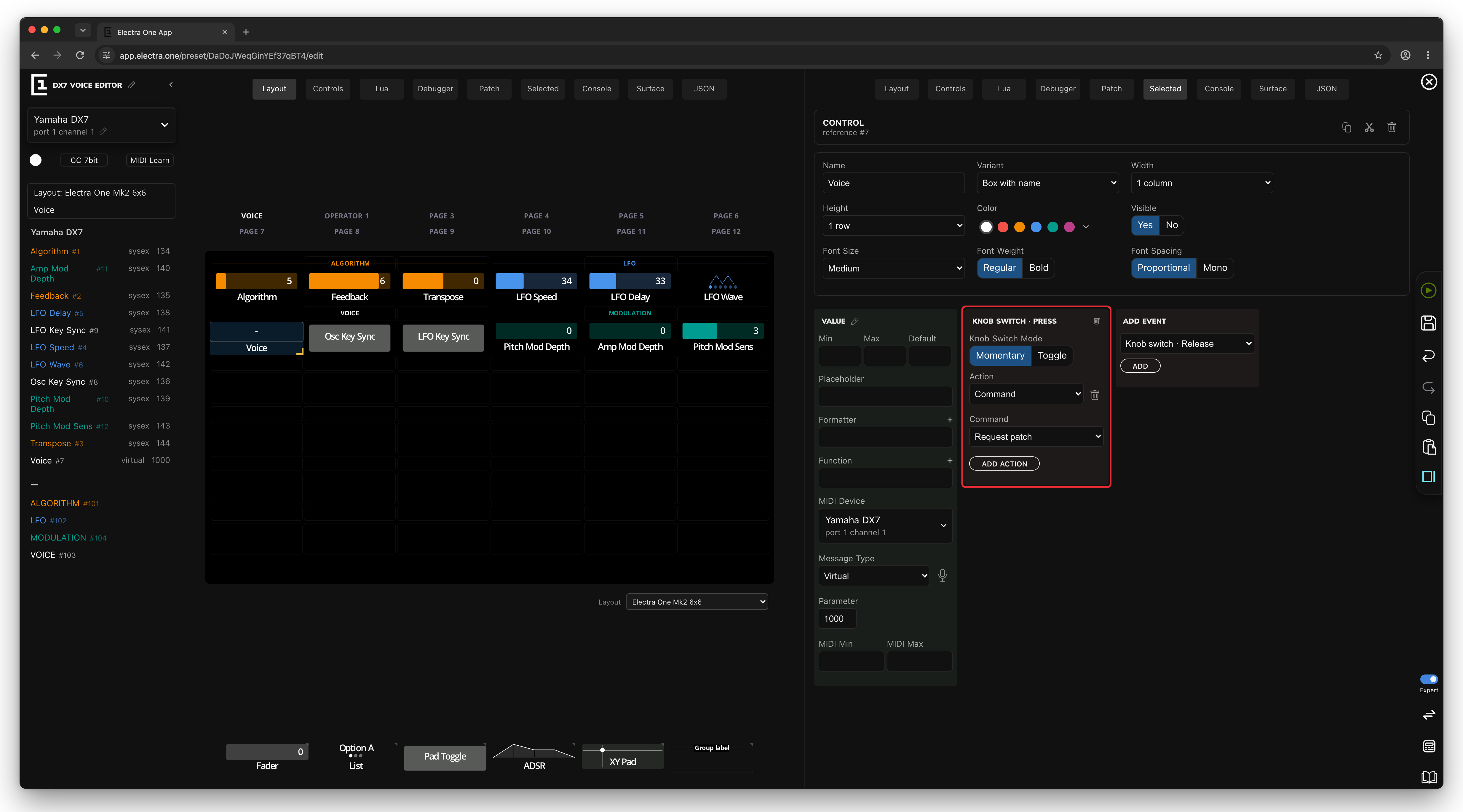
- ADD EVENT chooses the gesture: Knob switch · Press, Knob switch · Release, Knob touch · Begin or Knob touch · End, and ADD.
- Knob switch mode or Knob touch mode: Momentary or Toggle.
- ADD ACTION adds what happens, in order. An Action is one of:
- MIDI message: a device, a message type, a parameter and a Value, either a number or a Lua function that returns one,
- Lua function: a function of the script, called with the control, the gesture (its source and event), the pot, the value id and the value,
- Command: one of Electra One's commands, such as Request patch, Switch to page, Open snapshots or Set default value. Commands that act on a control act on this one when Control is left empty.
- Remove action removes an action, Remove event the whole event.
A Knob switch event replaces what a press or tap on the control normally does: a pad no longer toggles and a fader no longer opens its detail. A switch event with no actions therefore disables the gesture for that control. In Toggle mode, the presses alternately run the Press and the Release actions. Knob touch events only add actions; the control keeps working as before. On the Mini, the four buttons under the page fire the switch events of the pad or list above them.
The DX7 Voice Editor uses an event on its Voice text box: Knob switch · Press runs the Request patch command, so tapping the voice name asks the DX7 for its current voice. The patch request itself is described in Patch Requests and Responses.