

Version5.0.0 beta
Performance
The Performance page is an optional, extra page that can be added to any existing preset. Its purpose is to give users a dedicated space for quick access to key preset controls, without altering the original preset.
On this special page, users can place references to existing preset controls. These references behave as linked copies: they reflect the current value of the original control, and any changes made via the Performance page are immediately propagated back to the original control.
The Performance page is particularly useful in live performance or studio recording contexts, where having essential controls gathered in one place can improve speed, focus, and flexibility.
The page holds up to 36 controls: twelve knobs in each of the three control sets, on the same 6 × 6 grid as an ordinary preset page. A control of the preset can be placed on the page only once. Controls that are already there are not offered again when you add a new reference.
The Performance page belongs to the preset slot, not to the preset. The same preset loaded into two different slots therefore has two separate Performance pages, and removing the preset from a slot removes that slot's Performance page with it. Every control you add or remove is written to the SD card straight away, so there is no save step.
In addition to simple one-to-one references, the Performance page also supports multi-references. These allow a single on-screen macro control affect multiple preset controls at once. This enables the creation of macro-style controls, similar to those found on advanced MIDI controllers and grooveboxes.
Electra One extends the functionality of macros, allowing you to:
- Set the absolute value of linked controls
- Modulate the current value of linked controls
- Modulate linked controls using outputs from other presets (e.g., an LFO)
The Performance page also fully supports the Remote Knobs feature, meaning all activity on the Performance page can be:
- Recorded to a DAW as MIDI CC automation
- Replayed during sessions
- Or controlled live via an external MIDI controller
Simple References
A simple reference allows you to place a copy of any control from your preset onto the Performance page. This type of reference is ideal for gathering frequently used controls in one place, without altering the original preset layout.
When added to the Performance page, a simple reference mirrors the following properties of the original control:
- Control type (e.g., fader, button, list)
- Variant
- Color
- Current value
- Name
- Assigned MIDI messages and linked Lua functions
Any change in the value of a referenced control, whether adjusted from the Performance page or the original preset page, is reflected in both locations in real time.
Macros
Macros are a powerful extension of the Performance page. Unlike simple references, which mirror individual preset controls, a macro is a new control that can be used to modulate or control the values of multiple preset controls simultaneously.
Rather than referencing entire controls, a macro targets individual values within linked controls in the original preset. For example, you can:
- Use a single macro to simultaneously adjust the Attack and Release of an ADSR envelope.
- Control multiple faders together with a single macro-style knob.
- Apply modulation across several parameters using one dynamic source.
Value Mapping Modes
Each value targeted by a macro can be assigned one of three value mapping modes, allowing for flexible control behaviors:
- Set Value - the value of the original control is set directly, proportionally to the macro’s current position.
- Modulation - the original control’s base value remains unchanged, but a modulation is applied based on the macro’s value.
- Datapipe - similar to Modulation mode, but the modulation amount is calculated as a product of: The macro’s value, and a dynamic signal (e.g. LFO) from a Datapipe source, such as a LFO preset.
Fixed Layout
Performance page references and macros are intentionally isolated from dynamic layout changes made to the original control via Lua. This means the position, size, and visibility of a reference on the Performance page remain constant, even if those attributes are dynamically modified in the original preset.
This behavior ensures that controls on the Performance page maintain a stable visual layout, which is essential for live use, and for features like Remote Knobs, where grid position determines MIDI CC mapping. Users can rely on each reference to remain in a fixed slot, ensuring predictable and consistent behavior.
Toggling Performance
The Performance page is designed for quick access and it behaves as just another other preset page.
Accessing Performance
There are two ways to open the Performance page on the Electra One controller:
- Page Selection - the Page selection screen comes with a
[PERFORMANCE]button that can be used to switch between standard pages and the performance page. - Hardware Button Assignment - assign the
Toggle performancecommand to any of the controller’s hardware buttons via the button settings. Pressing the assigned button will switch between the current preset page and the Performance page.
When the Performance page is active, it is clearly indicated by:
- The word Performance displayed as the page title in the bottom bar.
- An orange-colored bottom bar, distinguishing it from standard preset pages
Leaving Performance
To return to the regular preset page:
- Use the Page selection screen to switch to another page or toggle the Performance off. When toggled off, the previously active preset page will be shown.
- Or press the same hardware button mapped to the
Toggle performancecommand.
Either method will close the Performance page and bring you back to your last viewed preset page.
Editing the Performance
To make changes to the Performance page, you need to enable the Edit Mode on the controller. This can be done from the Preset Menu screen.
Tap the [EDIT MODE] button to enable the Edit mode: 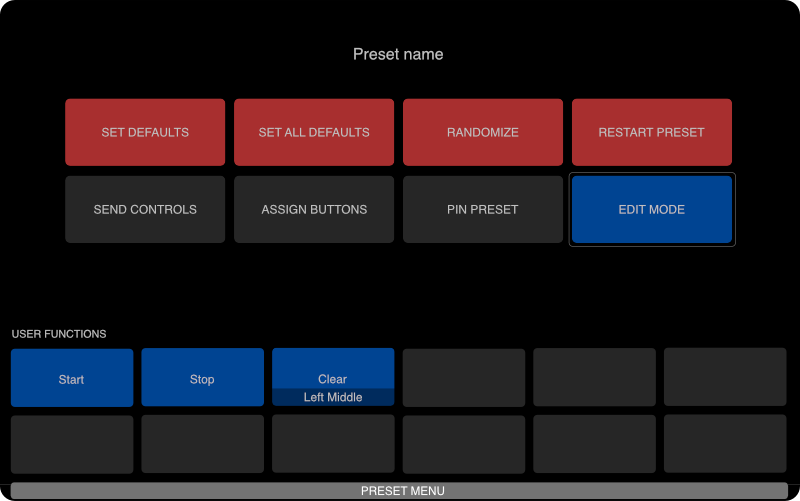
Edit Mode takes effect when the Preset Menu closes. Close the window and the Performance page displays control placeholders for all empty slots. Nothing changes while you are still looking at the menu.
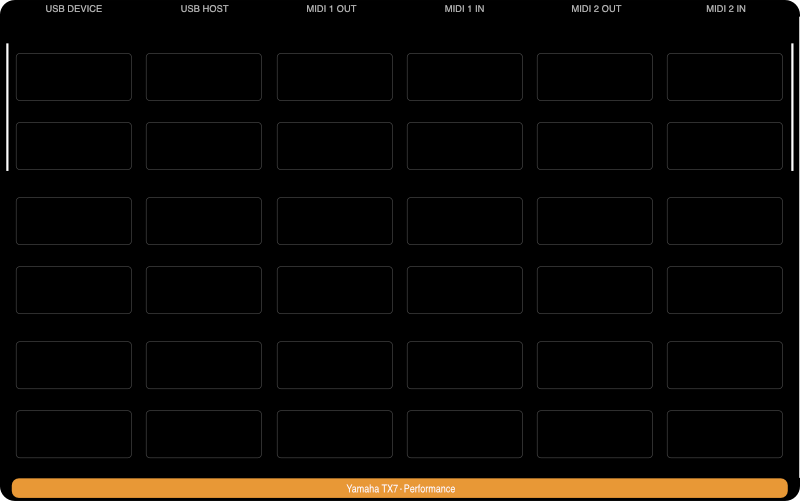
Tapping a placeholder allows you to add new control references and macros.
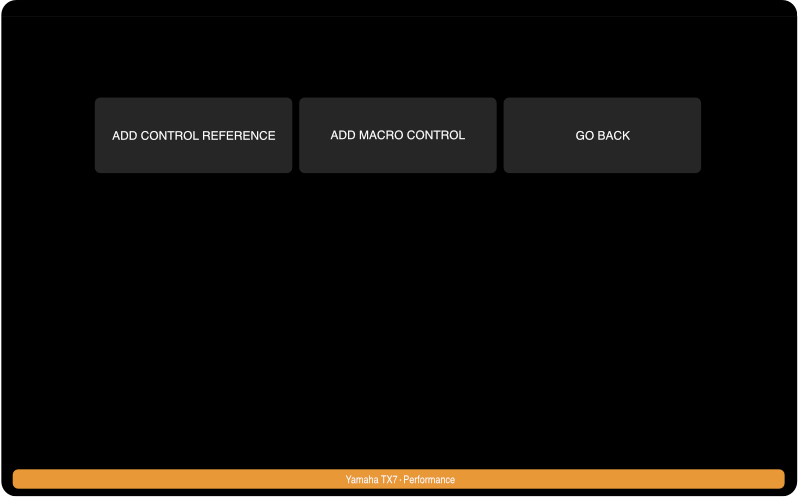
The three buttons on the screen allow you to:
ADD CONTROL REFERENCE- create a simple reference to a preset control. The button is not shown when every control of the preset is already on the Performance page.ADD MACRO CONTROL- create a macro to adjust multiple preset controlsGO BACK- return to the Performance page without creating anything
Pressing and holding an already created control reference or macro will open a screen to edit it or to remove it. This works on the Performance page in Edit Mode only.
Editing a Control Reference
Adding or modifying a simple control reference is straightforward. Select the control you want to place in the chosen slot. If the preset includes multiple pages, you may need to select the desired page first.
The screen has two fields, Page and Control. Tapping them opens the Choose page and Choose control lists. The Choose control list offers only the controls of the selected page that are not on the Performance page yet.
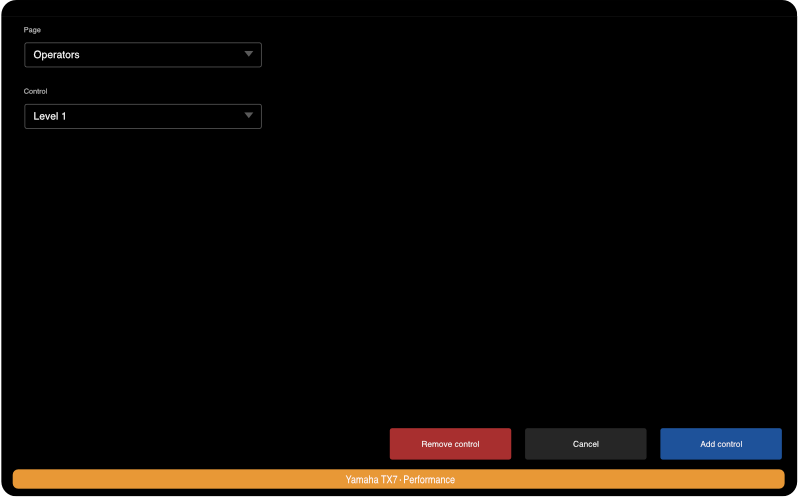
The buttons at the bottom of the screen are [Add control], [Cancel] and [Remove control]. When you are editing an existing reference rather than adding a new one, [Add control] reads [Save changes] and [Remove control] is available to delete the reference.
Editing a Macro
A macro is a special control that can change several control values at once.
For example, moving one macro fader can adjust multiple faders, lists, or pads in a preset. You can think of it as a “master control” for several linked controls.
When you edit a macro, you typically do two things:
- Set up general information — the macro’s name, color, and mode of operation
- Manage the controls that the macro affects (called linked control values)
When you open the macro editor, you will see a sidebar on the left. The top item represents the Macro itself. The other items in the sidebar represent controls that are linked to the macro.
If the macro does not have any linked controls yet, an [Add control] button appears.
Tapping a [Macro fader] item in the sidebar opens a screen where you can edit the macro's general settings.
Here, you can:
- Rename the macro
- Change its color
- Adjust how it behaves (its mode)
- Save or delete the macro
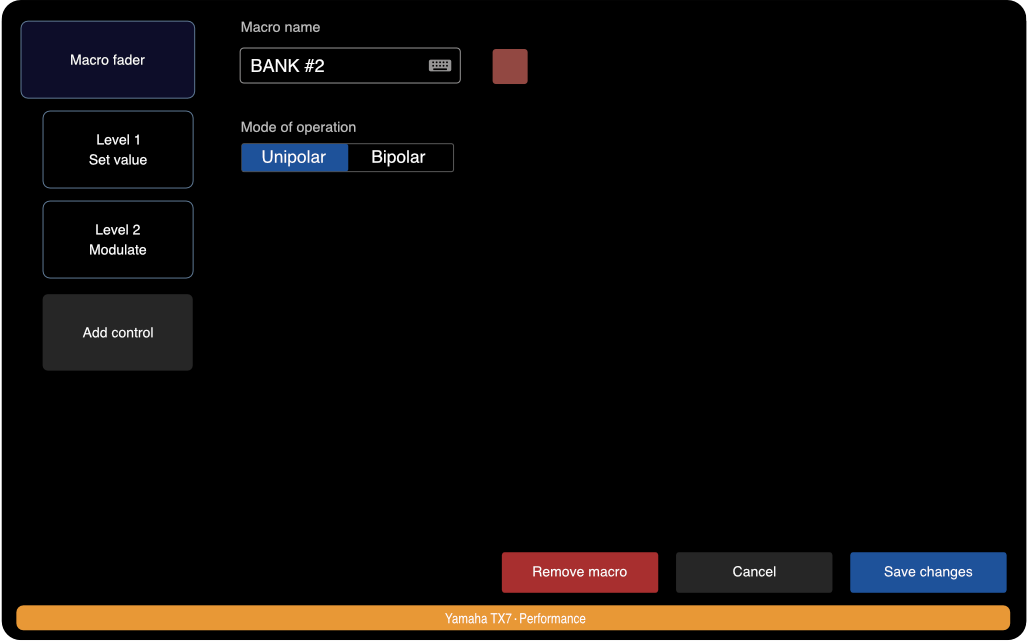
Tapping any linked control entry opens a different screen that lets you fine-tune how that control responds to the macro.
The form you see when editing a linked control depends on the mode you select. You will always choose:
- Which page and control to link
- Optionally, a specific value (for example, an ADSR envelope stage)
For simple one-value controls such as faders, the value selection list does not appear.
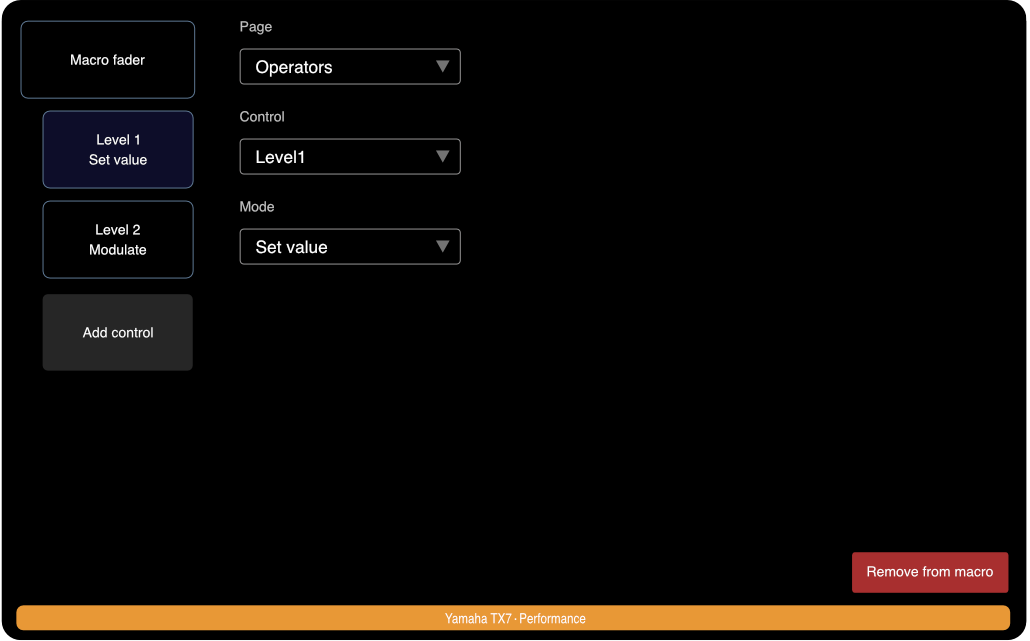
Set value
In Set Value mode, the macro directly changes the linked control's value. This is a one-to-one mapping — moving the macro fader moves the linked control across its full range. There are no extra options for this mode. It is perfect for simple connections like “Macro 1 controls all Level faders.”
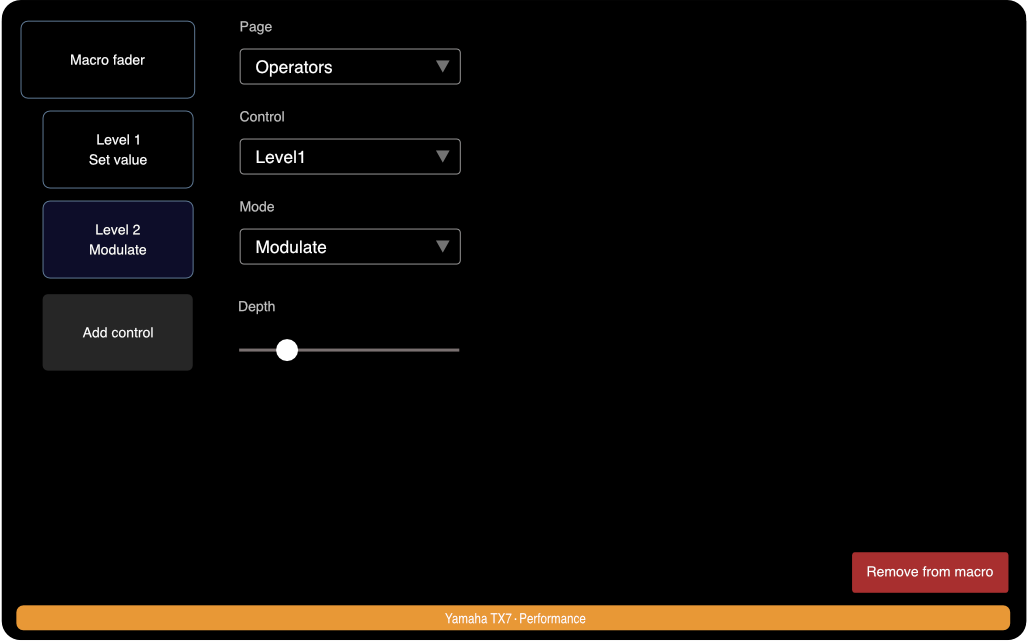
Modulation
Modulation mode adds movement or variation to the linked control instead of directly setting its value. If the macro is unipolar, it adds modulation in one direction (increasing the value). If it is bipolar, it applies modulation both above and below the current value (±50%).
You can also adjust the modulation depth, which controls how much the linked control changes as the macro moves.
Receive pipe
Is a special case of modulation. But instead of modulating the control's value directly by the macro, the macro sets depth of the modulation coming from a preset that generates Datapipe stream of data. That is anothor preset on running on the controller, such as an LFO.
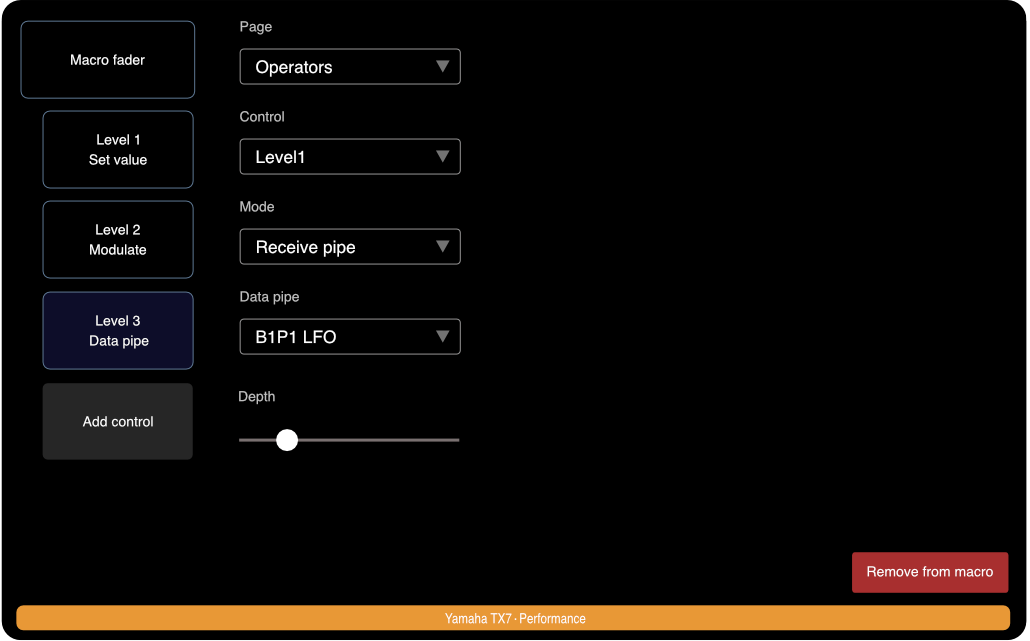
Receive Pipe mode is a special kind of modulation. Instead of the macro itself changing the control's value, it adjusts the depth of modulation that comes from another preset. That other preset sends a Datapipe stream — a flow of data, such as a low-frequency oscillator (LFO) or other modulation source running on the controller.
In this mode, the macro essentially controls how much of that external modulation affects the target control.
Use the Data Pipe selection list to select from the currently running and pinned presets that broadcast a Datapipe stream.
Removing a Control from the Macro
The [Remove from macro] button will remove currently selected control from the macro.