

Version5.0.0 beta
Patch Requests and Responses
Electra One sends a value when you turn a knob. But when you load a different sound on the synthesizer, the controls still show the old one: they don't know what the synthesizer is doing. A patch request fixes this. Electra One asks the instrument for its current sound, the instrument answers with a patch dump, and Electra One reads the dump and sets every control to the value the instrument has.
This page is a tutorial. It builds the patch request of the DX7 Voice Editor, a preset for the Yamaha DX7, step by step: from the page of the DX7 manual to controls that follow the synthesizer. The same steps work for any instrument that can send its sound as SysEx.
Before you start
- The patch editor is shown in Expert mode. Switch the toggle at the bottom of the toolbox to Expert.
- The preset needs a device for the instrument, with the right port, channel and interfaces. See The device.
- SysEx messages are written in hexadecimal bytes. If bits and bytes are new to you, read SysEx Templates first.
How it works
- The request is a SysEx message that asks the instrument for its sound. Electra One sends it when you ask it to.
- The response, or patch dump, is the instrument's answer: a SysEx message with all the parameters of the sound.
- The header is the first few bytes of the response. Electra One compares every incoming SysEx message with the header, and a message that starts with those bytes is the response.
- The rules say where each parameter is in the response: "the Algorithm is in byte 134, bits 0 to 6". Electra One applies them and the controls show the values. The preset's Lua script can then read the rest of the dump itself.
Step 1: Read the manual
Everything starts with the instrument's MIDI implementation, usually at the end of its manual. You need two things: how to ask for the sound, and what the answer looks like.
For the DX7, the manual says:
| Message | ||
|---|---|---|
| Request | F0 43 2n 00 F7 | n = MIDI channel − 1; format 00 is "1 voice" |
| Response | F0 43 0n 00 01 1B data checksum F7 | 01 1B is the size, 155 bytes |
The data is the voice: 155 bytes, one byte per voice parameter, in the order of the parameter numbers. The DX7 stores operator 6 first, then operators 5 to 1, then the voice parameters: the pitch envelope, algorithm (byte 134), feedback (135), LFO (137 to 143), transpose (144), and the voice name in bytes 145 to 154.
That is all Electra One needs. The DX7 is a friendly example because it keeps each parameter in a byte of its own. Many instruments pack several parameters into one byte or spread one over two bytes; the same steps handle those, see Values in several bytes.
Step 2: Open the patch editor
- Select the device in the sidebar: click an empty part of the page to clear the selection, then choose Yamaha DX7 in the device box.
- Click the Patch tab. The heading shows the device the patch editor is editing.
The patch editor has four tabs:
| Tab | What it does |
|---|---|
| Protocol | the requests and the headers of their responses |
| Mappings | the rules that move the bytes of a response into the controls |
| Messages | the device's library of SysEx messages, see Device messages |
| JSON | all of it as JSON |
Step 3: Enter the request
On the Protocol tab, Requests and Responses lists the requests, each with its responses underneath. A new device has one, Default request, with one Default response.
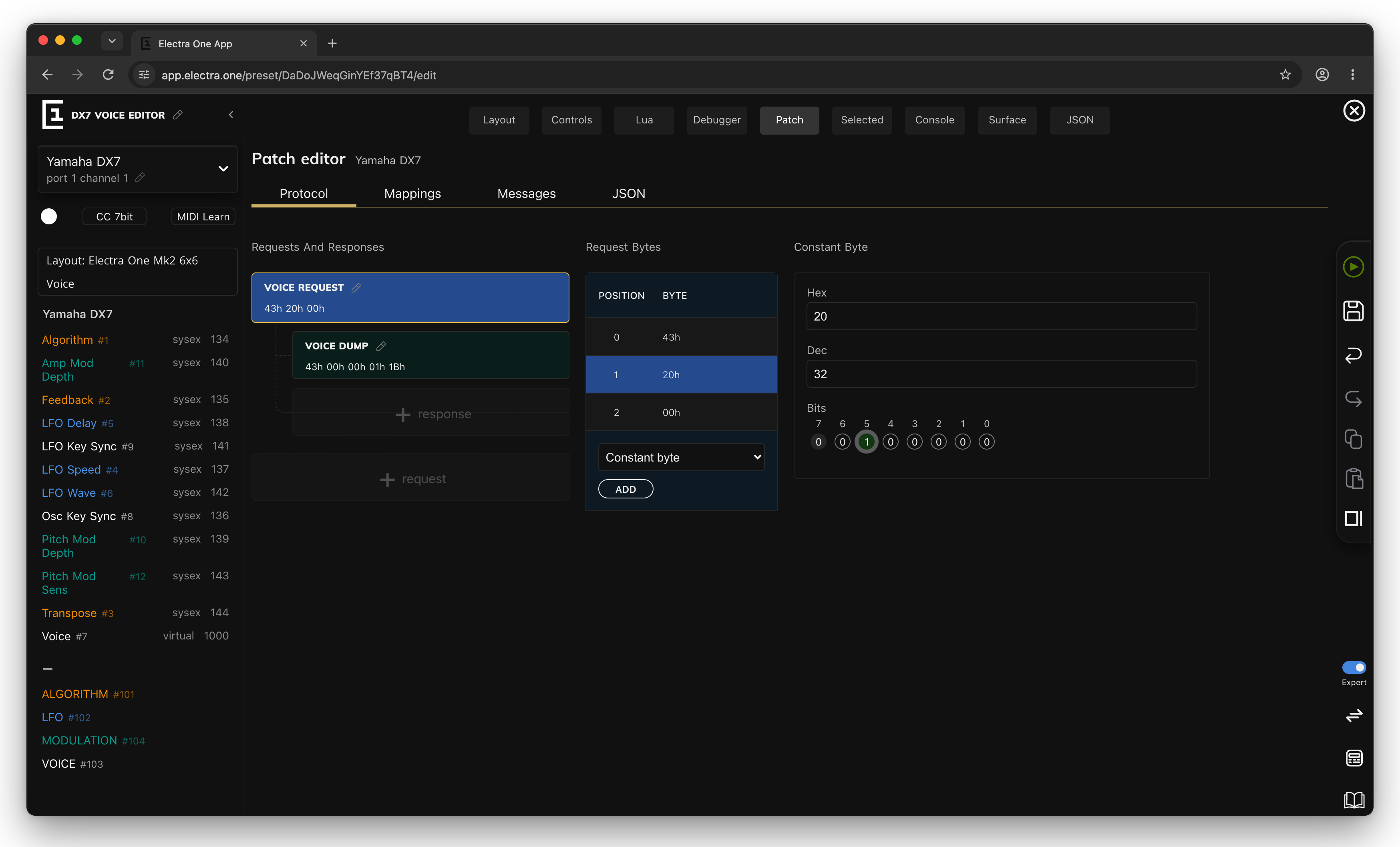
- Click the request to select it. Its bytes appear in Request Bytes.
- For each byte, choose Constant byte, click ADD, and type the byte in Hex:
43,20,00. - Click the name to rename the request, for example "Voice request".
Leave out F0 and F7: Electra One adds them. The DX7 on channel 1 is asked with F0 43 20 00 F7.
A request can also contain a Lua function byte, computed by the preset's script, for example a channel the user can change. Some instruments need more than one request, such as one for the sound and one for the global settings: + request adds another.
Step 4: Enter the response header
- Click the response under the request.
- In Response Bytes, add the header as constant bytes:
43,00,00,01,1B. Again withoutF0. - Rename it, for example "Voice dump".
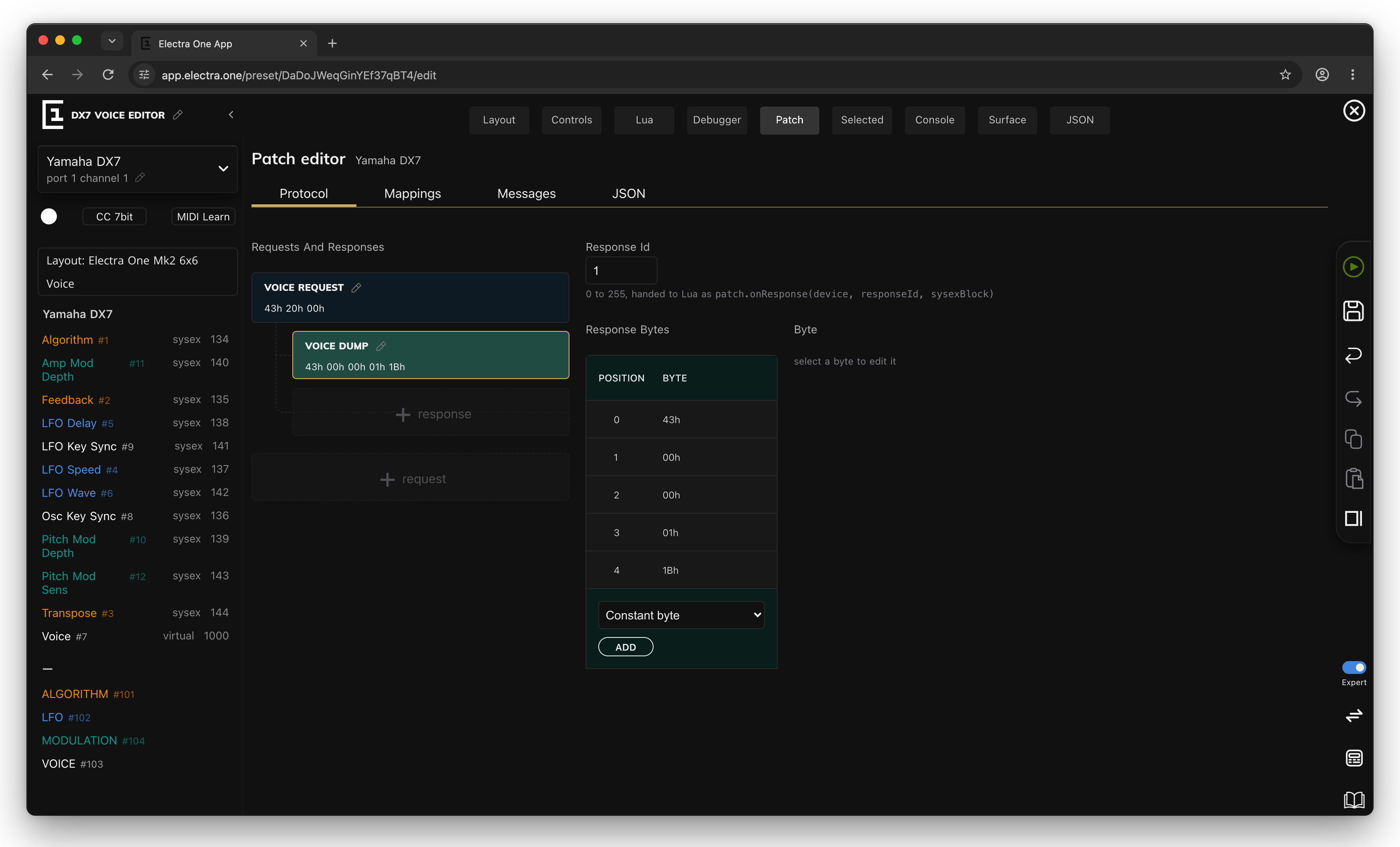
The header should contain the bytes that are always the same in this response, and enough of them to tell it apart from other messages: here the manufacturer, the channel, the format and the size. Don't include bytes that change from dump to dump.
Response Id is a number from 0 to 255. Electra One passes it to the Lua function patch.onResponse so a script can tell responses apart. The DX7 Voice Editor uses 1.
An instrument that answers with several messages gets a response for each, added with + response.
Step 5: Send the preset and capture a dump
The rules are easiest to make from a real dump. The patch editor can show dumps the controller receives, bit by bit.
- Click Send to Electra, so the controller has the request.
- Open the Mappings tab. Check that Request and Response show the request and response you made.
- Click the microphone in the menu, Enable MidiLearn. The controller now passes every SysEx message it receives to the editor.
- Click REQUEST PATCH. The controller sends the request, and the DX7 answers. You can also send the voice from the DX7's own front panel.
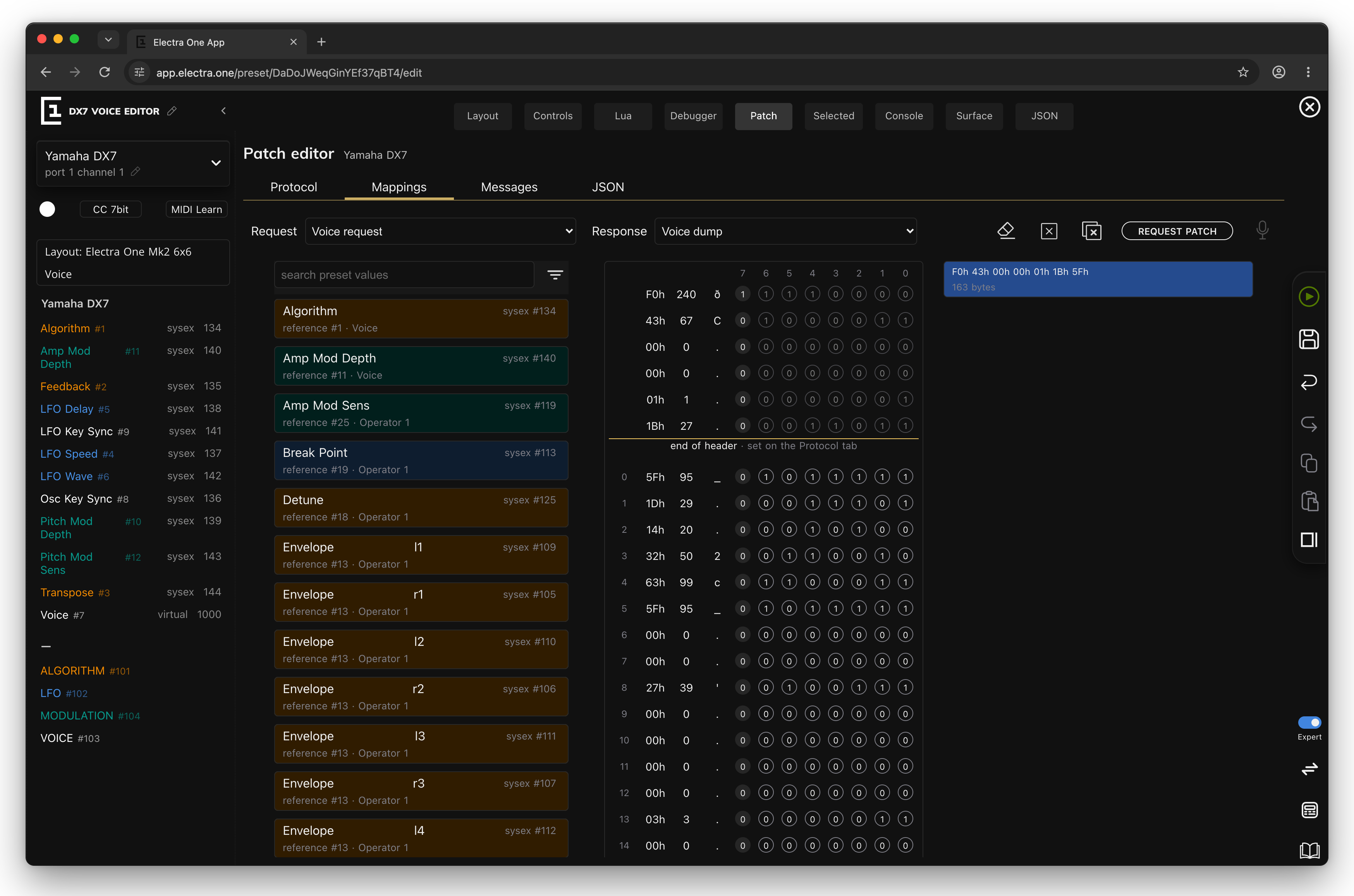
The dump appears in the list on the right, "F0h 43h 00h 00h 01h 1Bh 5Fh, 163 bytes", and in the middle column byte by byte:
- the header on top, down to the line end of header,
- then the data bytes, numbered from 0, the first byte after the header,
- each with its value in hex, decimal and as a character, and its 8 bits.
Look at the character column at bytes 145 to 154: the voice name is there, "E.PIANO.1", with spaces shown as dots. It's a quick way to confirm you're looking at the right data.
Nothing arrives?
- Check that the device's port and interfaces are where the instrument is connected. The controller only listens for responses on the interfaces the device is wired to.
- Check that the instrument receives SysEx: many instruments have a setting for it, often called "SysEx receive" or "Memory protect".
- Watch the traffic in the MIDI Console. A SysEx message in the console can be added to the captured messages with its Add to captured button.
- If the dump appears but the data bytes are all zero, it did not match the header. Compare the header with the first bytes of the dump.
Step 6: Map a parameter
Now connect the bytes to the controls. The list on the left holds the values of the preset's controls; the filter button next to the search field chooses between This device only and All devices.
- Click Algorithm in the list.
- Find byte 134 in the middle column.
- Click its bits 0 to 6, one by one. Bits next to each other join into one rule.
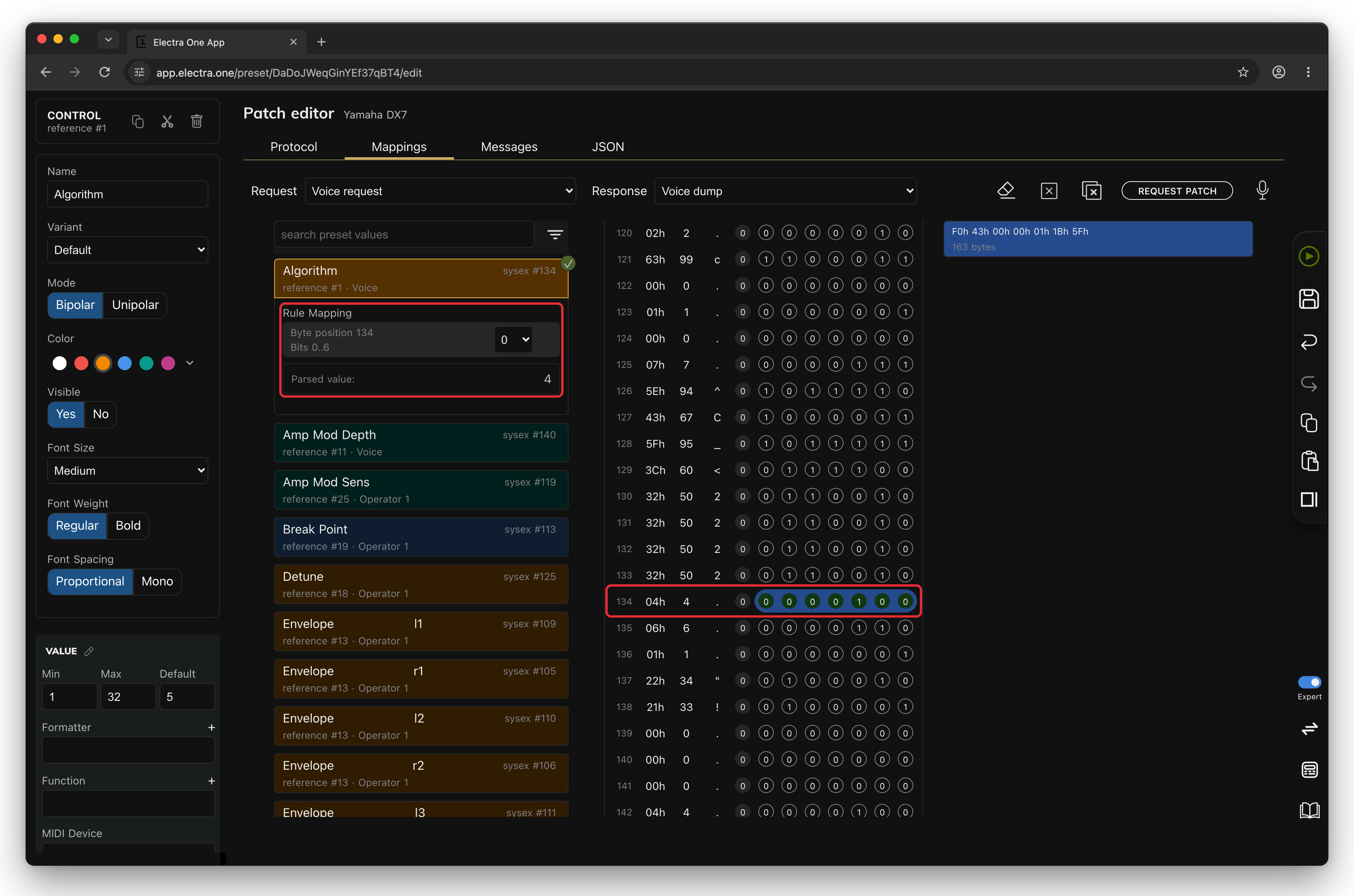
Under the value, Rule Mapping shows the rule: Byte position 134, Bits 0..6, and the selector for where the bits go in the value (0 here). Parsed value is what the rule reads from the captured dump: 4.
The parsed value is a MIDI value. The Algorithm control shows it through its display range: MIDI 0 to 31 as algorithms 1 to 32, so 4 is algorithm 5, exactly what the DX7 shows. This is why the display and MIDI ranges matter; see Values: display and MIDI.
A value with a rule gets a tick in the list. Repeat this for every control: Feedback in byte 135, LFO Speed in 137, Transpose in 144, and so on. A bit that already belongs to a rule selects that rule's value when clicked; to remove a rule, click its bin.
Step 7: Find a parameter the manual doesn't list
Not every manual describes its dumps, and some describe them wrongly. The patch editor can find a parameter for you:
- Click the eraser, Clear marked bits.
- On the instrument, change one parameter, for example the feedback from 6 to 3.
- Request the patch again, or send the voice from the instrument.
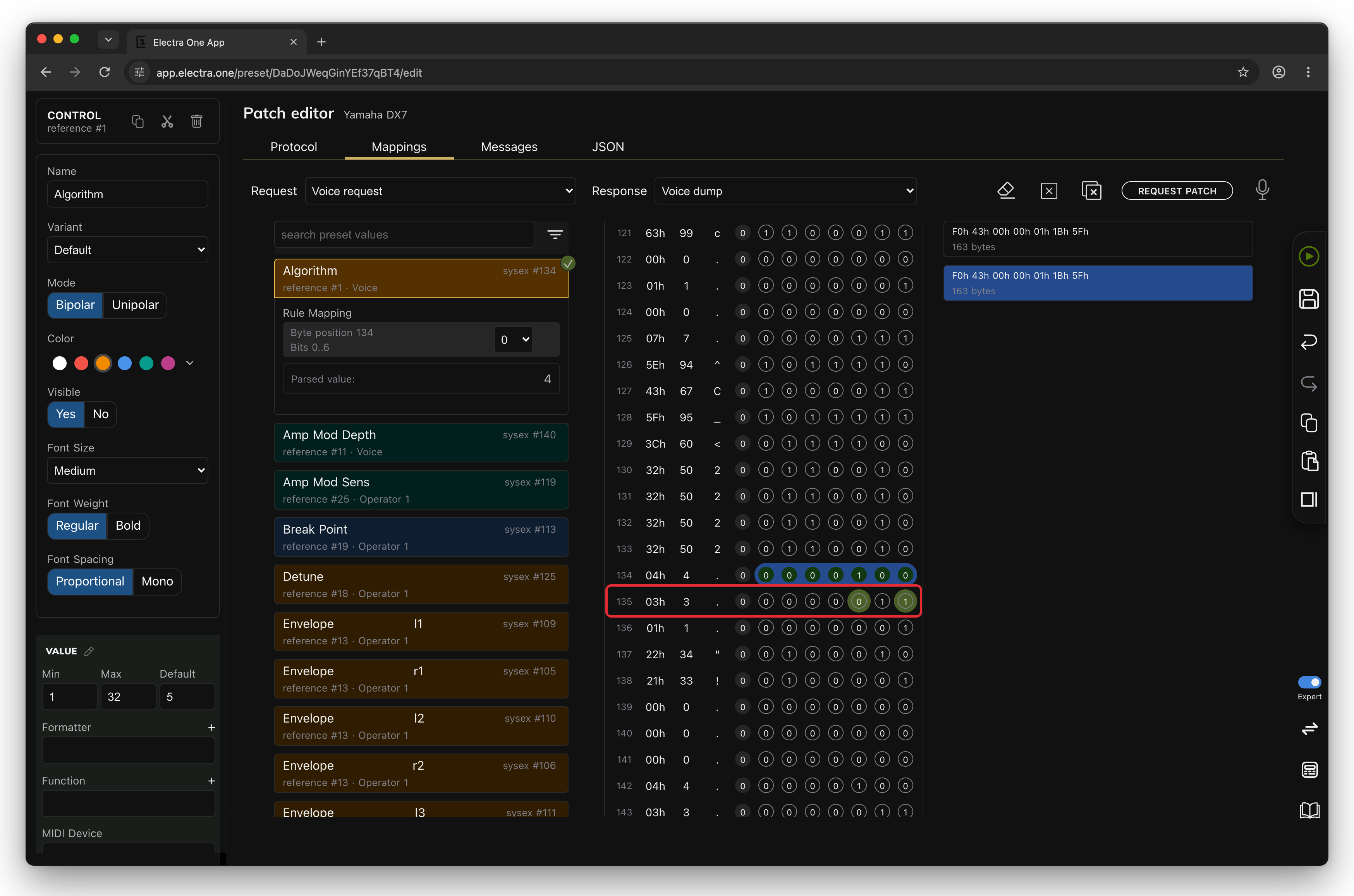
The bits that changed since the previous dump are marked in green. Here they are in byte 135: that is where the feedback lives. Marks add up until you clear them, so clear them before each experiment.
Step 8: Try it
- Click the microphone to turn MIDI learn off. While it is on, the controller passes dumps to the editor instead of applying them.
- Click Send to Electra, so the controller has the rules.
- Load another voice on the DX7 and press REQUEST PATCH on the Mappings tab, or on the controller: the PATCH REQUEST button in the Mk2's main menu, a hardware button, a MIDI control command or an event set to the Request patch command.
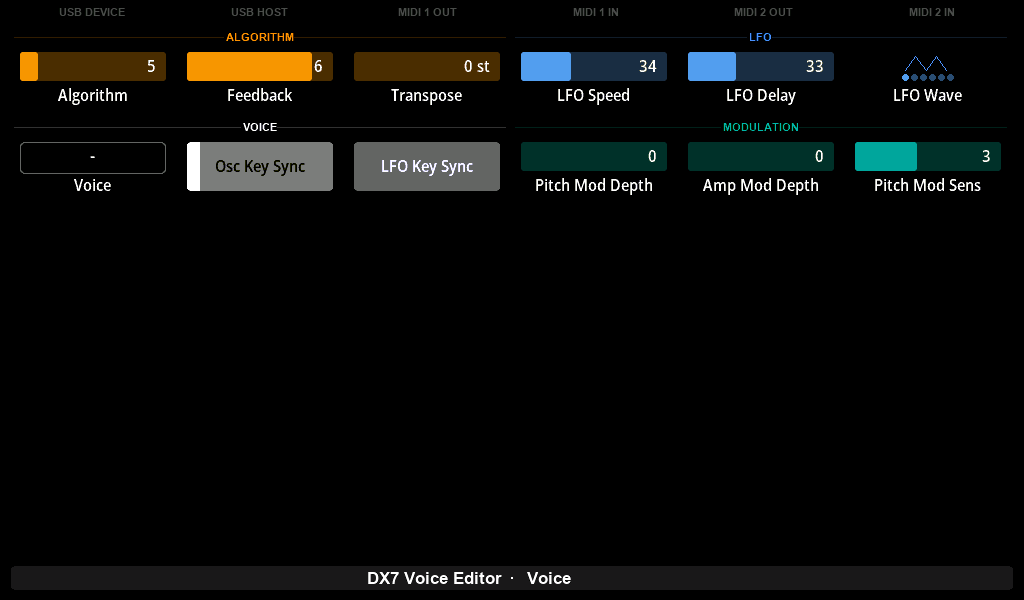
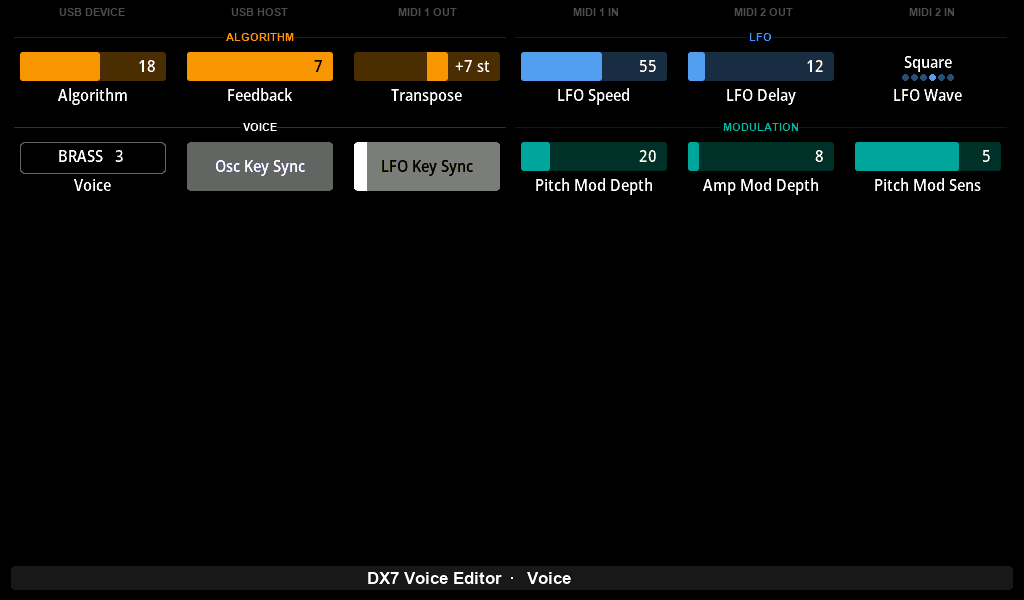
Every mapped control jumps to the instrument's value. Electra One does not send these values back to the instrument; they came from it.
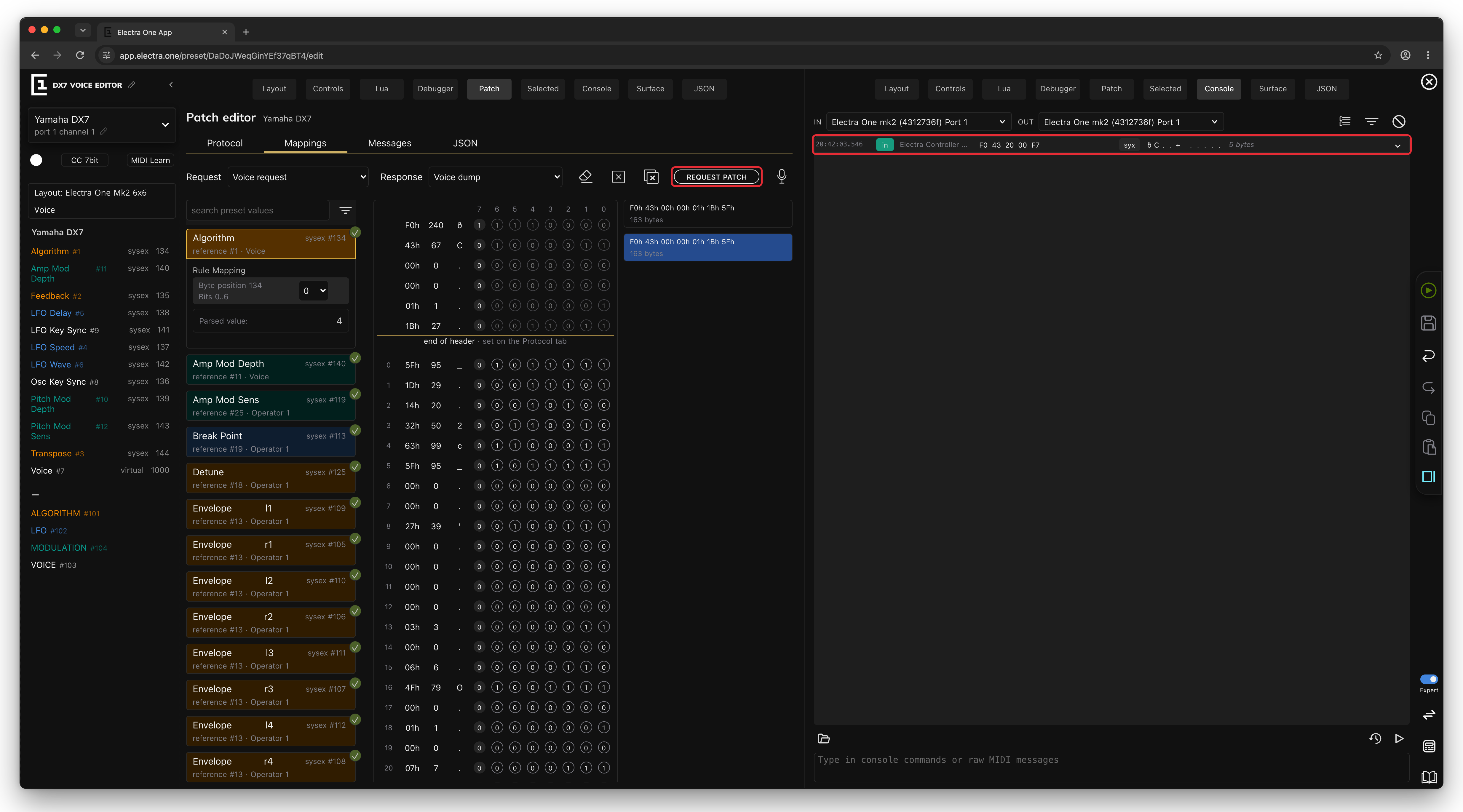
The MIDI Console in split view shows the request leaving the controller:
Beyond the rules: Lua
Rules move numbers into controls. Everything else in a dump, such as the voice name, can be read by the preset's Lua script. After the rules have been applied, Electra One calls patch.onResponse with the device, the response id and the whole message. The rule values are applied to the controls a moment later, so read what you need from the message itself:
lua
function patch.onResponse(device, responseId, sysexBlock)
    if responseId == 1 then
        showVoice(sysexBlock)
    end
end
The DX7 Voice Editor reads the ten characters of the voice name and shows them in its Voice text box. How to write and debug such a function is described in Lua Editor and Debugger. The functions for patches are in the Patch section of the Lua reference.
A script can also send requests itself, with patch.requestAll() or patch.request(device), for example when a page opens.
Values in several bytes
Many instruments don't keep one parameter in one byte. The same clicking handles them:
- Several parameters in one byte. Select the first value and click its bits, then select the next value and click its bits in the same byte. Each gets its own rule.
- One value over several bytes. A 14-bit value, such as a filter cutoff of 0 to 16383, is often sent as two bytes of 7 bits. Click the bits of both bytes for the same value. Each byte becomes a rule, and the parameter bit position selector says where its bits go: the lower byte at 0, the upper byte at 7. The first byte you click starts at 0, and a byte clicked later goes above it, so click the lower byte first, or correct the position with the selector.
A rule takes at most 7 bits of a byte and puts them into a value of at most 14 bits.
What to know
- Requests are sent only when asked for: by the Request patch command, a button, an event, the editor's REQUEST PATCH button or Lua. Loading a preset doesn't send them.
- Requests go to the devices of the preset on screen, one after the other.
- A response only updates values of its own device. A rule mapped, with All devices in the list's filter, onto another device's value does nothing.
- A response header can be up to 64 bytes long, of Constant byte and Lua function bytes. The header rows of a captured message take no rules.
- Responses are read whenever they arrive, requested or not, from any interface the device is wired to. A synthesizer that sends its voice when you select it keeps Electra One in step without any request.
- A device's responses are tried in order, and the first whose header matches is used.
- The values of the mapped parameters are set to 0 first, then the rules fill them in.
- A checksum in the dump is not checked.
- The request and response names are for you; the controller doesn't use them.
- The REQUEST PATCH button of the editor runs the preset's Lua function
patch.requestAll(), so it needs a preset with a Lua script. The controller's own PATCH REQUEST button always works.
Reference: the Mappings tab
| Control | What it does |
|---|---|
| Request, Response | the request and response whose rules are shown |
| Clear marked bits (eraser) | removes the green marks and starts comparing from the dump on screen |
| Clear message | clears the selected message and the marks; the newest captured message that matches the header is shown instead |
| Clear captured messages | empties the list of captured messages |
| REQUEST PATCH | asks the controller to send the preset's patch requests; shown while a controller is connected |
| Enable MidiLearn / Disable MidiLearn (microphone) | passes the SysEx the controller receives to the editor, instead of applying it |
| search preset values, filter | finds values by name; filters by device, by whether a value is read from a dump, and by category |
| Rule Mapping | the rules of the selected value, with Parsed value |
| captured messages | up to 50 captured SysEx messages; click one to show it, if it starts with the response's header |
The JSON tab edits the device's patch and messages as JSON, in the format described in Preset JSON.