

Version5.0.0 beta
Buttons and Contexts
Electra One Mini has six buttons under the display. On a preset page, [MENU] and [CONTEXT] always do the same thing, and the other four change their job with the context, so a few buttons give you access to many functions. In menus and windows, all six do what their labels say.
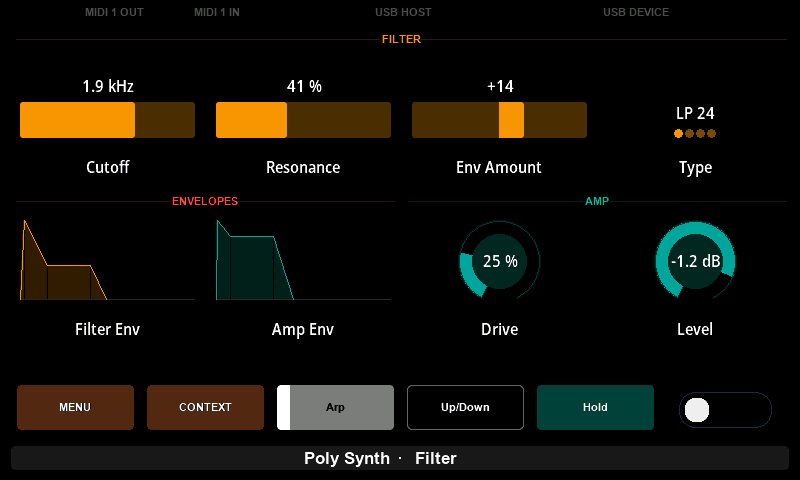
Most screens show a label along the bottom edge above each button. Read the label to see what a button does right now.
[MENU]
- Press
[MENU]to open the menu: page selection, with the way to presets, snapshots, captures and preset functions. The menu opens when you let go of the button. - Hold
[MENU]for one second to open the Settings window. It opens while you are still holding the button. - In a window,
[MENU]is labelledBACKand closes the window. - In a detail window,
[MENU]closes the detail window.
[CONTEXT]
[CONTEXT] switches the four buttons next to it between the preset's own controls and context actions. Press it once to show a context, press it again to go back to the preset's controls.
Which context appears depends on what you are doing when you press it:
When you press [CONTEXT] | The context |
|---|---|
| without touching a knob | Controller context |
| while touching the knob of a control | Control context |
| while the snapshot tool bar is active | Snapshot context |
| while the capture tool bar is active | Capture context |
The name of the context is shown above the four buttons. [CONTEXT] has no action when held.
[BUTTON 1] to [BUTTON 4]
On the preset page
When no context is shown, the four buttons belong to the preset. They play the pads and lists that the preset has placed in the button row. See The controls on the buttons. A button with no control under it does nothing.
Controller context
The Controller context gives you actions that work on the whole controller or the whole preset. Press [CONTEXT] without touching a knob to show it.
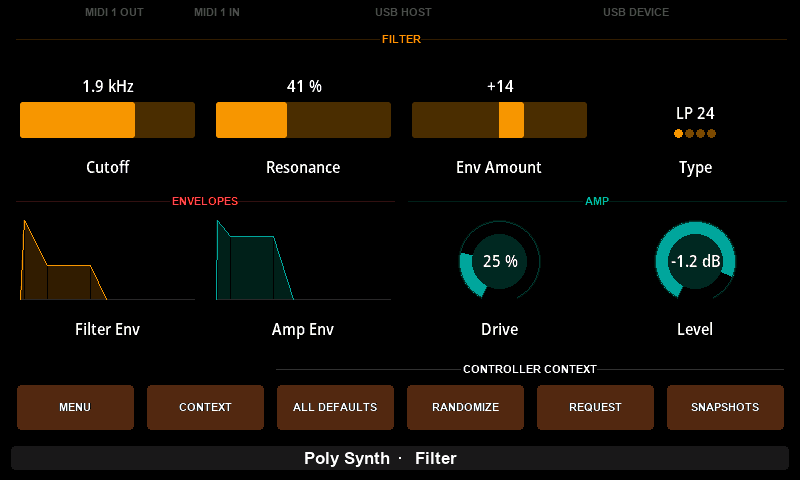
The default actions are:
| Button | Label | What it does |
|---|---|---|
[BUTTON 1] | ALL DEFAULTS | sets every control of the preset to its default value |
[BUTTON 2] | RANDOMIZE | gives every control of the preset a random value |
[BUTTON 3] | REQUEST | sends the preset's patch request, so the instruments send back their current settings |
[BUTTON 4] | SNAPSHOTS | opens the Snapshots window |
ALL DEFAULTS and RANDOMIZE send the new values to your instruments at once. There is no undo, so save a snapshot first if you want to come back to the sound. REQUEST does something only when the preset has a patch request; see Patch Requests and Responses.
Control context
The Control context gives you actions for the control you are touching. Touch the knob of a control, keep your finger on it and press [CONTEXT].
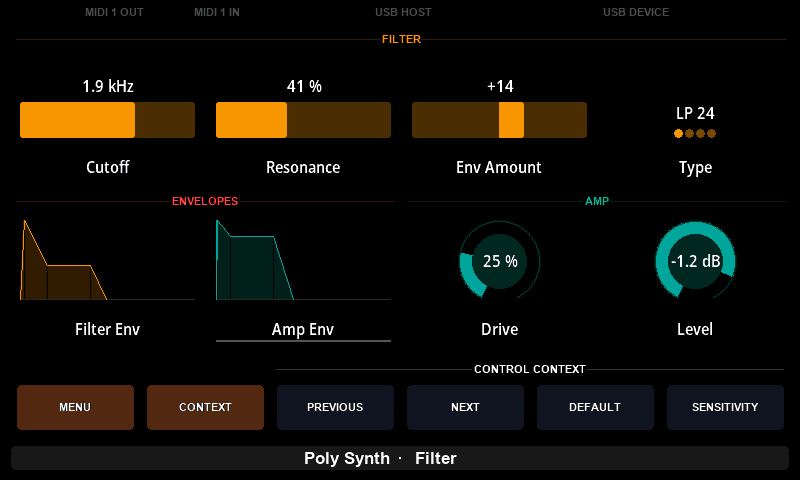
The default actions are:
| Button | Label | What it does |
|---|---|---|
[BUTTON 1] | PREVIOUS | selects the previous value of a multi-value control, such as the previous stage of an envelope |
[BUTTON 2] | NEXT | selects the next value of a multi-value control |
[BUTTON 3] | DEFAULT | sets the selected value of the touched control to its default value |
[BUTTON 4] | SENSITIVITY | switches low knob sensitivity on or off |
The actions work on the knobs you are touching at the moment you press the button. PREVIOUS and NEXT change every touched multi-value control. DEFAULT resets one value: the selected value of a multi-value control, such as the stage of an envelope you chose with PREVIOUS and NEXT. With several knobs touched, it acts on the lowest-numbered one. PREVIOUS and NEXT are described in Changing active value of multi-value controls.
Low sensitivity makes every knob move values more slowly, for fine adjustments. It stays on until you switch it off or restart the controller, and a knob icon on the left of the bottom bar shows that it is on.
If you press [CONTEXT] while touching a knob that has no control, you get the Controller context.
Snapshot and capture context
When you start a snapshot or capture session by holding a knob in the Snapshots or Captures window, the four buttons become a tool bar for that session, and the row shows SNAPSHOT CONTEXT or CAPTURE CONTEXT.
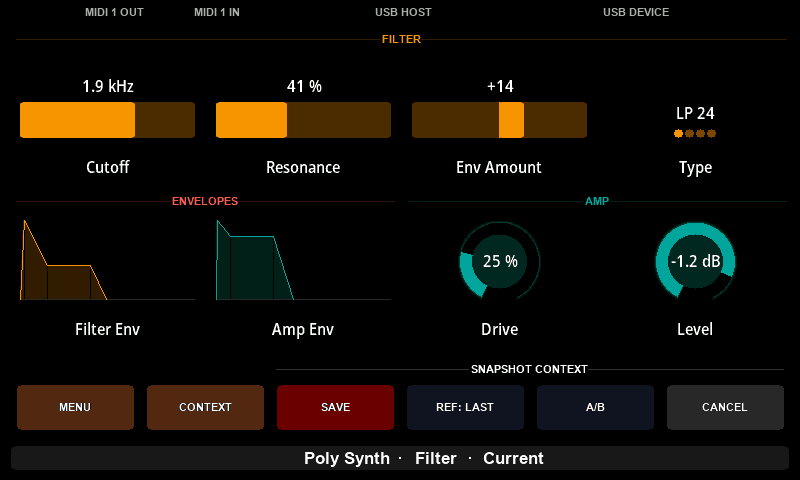
As long as the tool bar is active, [CONTEXT] shows and hides this row instead of the other contexts. The tool bars are described in The snapshot tool bar and Recording with the capture tool bar.
Leaving a context
- Press
[CONTEXT]again. - Sending a preset from the Electra One app also closes the context.
Changing the page or switching to another preset keeps the context open. While a context is shown, the knobs keep working as usual, but the preset's controls on the four buttons cannot be reached.
Choosing the actions
You choose the actions of the Controller context and the Control context in the Electra One app, on the Controller page, Configuration tab, Buttons section. See Buttons.
As long as no action is assigned there and Use default button layout is on, the buttons use the default actions described above. As soon as you assign one action, the whole default layout is replaced by your own: buttons you left at None show no label and do nothing.
The actions you can choose:
| In the app | On the button | What it does |
|---|---|---|
| Controller context | ||
| Open menu | MENU | opens the menu, as [MENU] does |
| Open presets | PRESETS | opens preset selection |
| Open snapshots | SNAPSHOTS | opens the Snapshots window |
| Open captures | CAPTURES | opens the Captures window |
| Open functions | FUNCTIONS | opens the Preset Menu |
| Open system | SETTINGS | opens the Settings window |
| Next page, Previous page | NEXT PAGE, PREV PAGE | shows the next or previous page that has controls; stops at the first and the last page |
| Next preset, Previous preset | NEXT PRESET, PREV PRESET | loads the next or previous slot, even an empty one; stops at slot 1 and slot 40 |
| Set all default values | ALL DEFAULTS | sets every control to its default value |
| Randomize values | RANDOMIZE | gives every control a random value |
| Toggle sensitivity | SENSITIVITY | switches low knob sensitivity on or off |
| Request patch | REQUEST | sends the preset's patch request |
| Touch context (the Control context) | ||
| Previous handle, Next handle | PREVIOUS, NEXT | selects the previous or next value of the touched multi-value control |
| Set default value | DEFAULT | sets the selected value of the touched control to its default value |
| Open detail | OPEN DETAIL | opens the detail window of the touched control |
| Toggle sensitivity | SENSITIVITY | switches low knob sensitivity on or off |
The app calls the Control context the Touch context.
MIDI control
The same functions, and a few more, can be triggered by MIDI messages from another controller or a DAW. See MIDI Control.