

Version5.0.0 beta
Preset Editor
The Preset Editor is where presets are made. It runs in the browser, as part of the Electra One Account, and it edits everything a preset consists of: its pages and controls, the MIDI messages the controls send and receive, the devices they talk to, the SysEx messages of your instruments, and the preset's Lua script.
The Preset Editor chapter is split into several pages:
| Page | What it covers |
|---|---|
| Preset Editor (this page) | the editor window, Basic and Expert mode, the views, saving, and split view |
| Layouts, Pages and Controls | placing controls on pages, groups, copying, devices, MIDI learn, the Controls view, Surfaces |
| Control Settings | what a control does: display values and MIDI values, message types, lists and overlays, formatters, events |
| SysEx Templates | building the SysEx messages a control sends and receives |
| Patch Requests and Responses | asking an instrument for its sound and showing it on the controls, as a tutorial |
| Lua Editor and Debugger | writing the preset's script and stopping it on the controller to look inside |
| MIDI Console | watching and sending MIDI messages |
Project and preset
The editor works on a project. A project is everything you edit: the controls, their layouts for the Mk2 and the Mini, the Lua script, the description and the history. A preset is what the editor makes of a project for one controller model and sends to it. You save projects; the controller runs presets.
Opening the editor
Open the editor from your account:
CREATE NEW PRESETon My presets creates an empty project for the connected controller's model, or for the Mk2 when no controller is connected, and opens it.EDITon a preset's page opens that preset.
The editor needs Chrome or Edge, and a connected controller for everything that talks to the controller: sending the preset, MIDI learn, the log, the debugger and the MIDI console.
The editor window
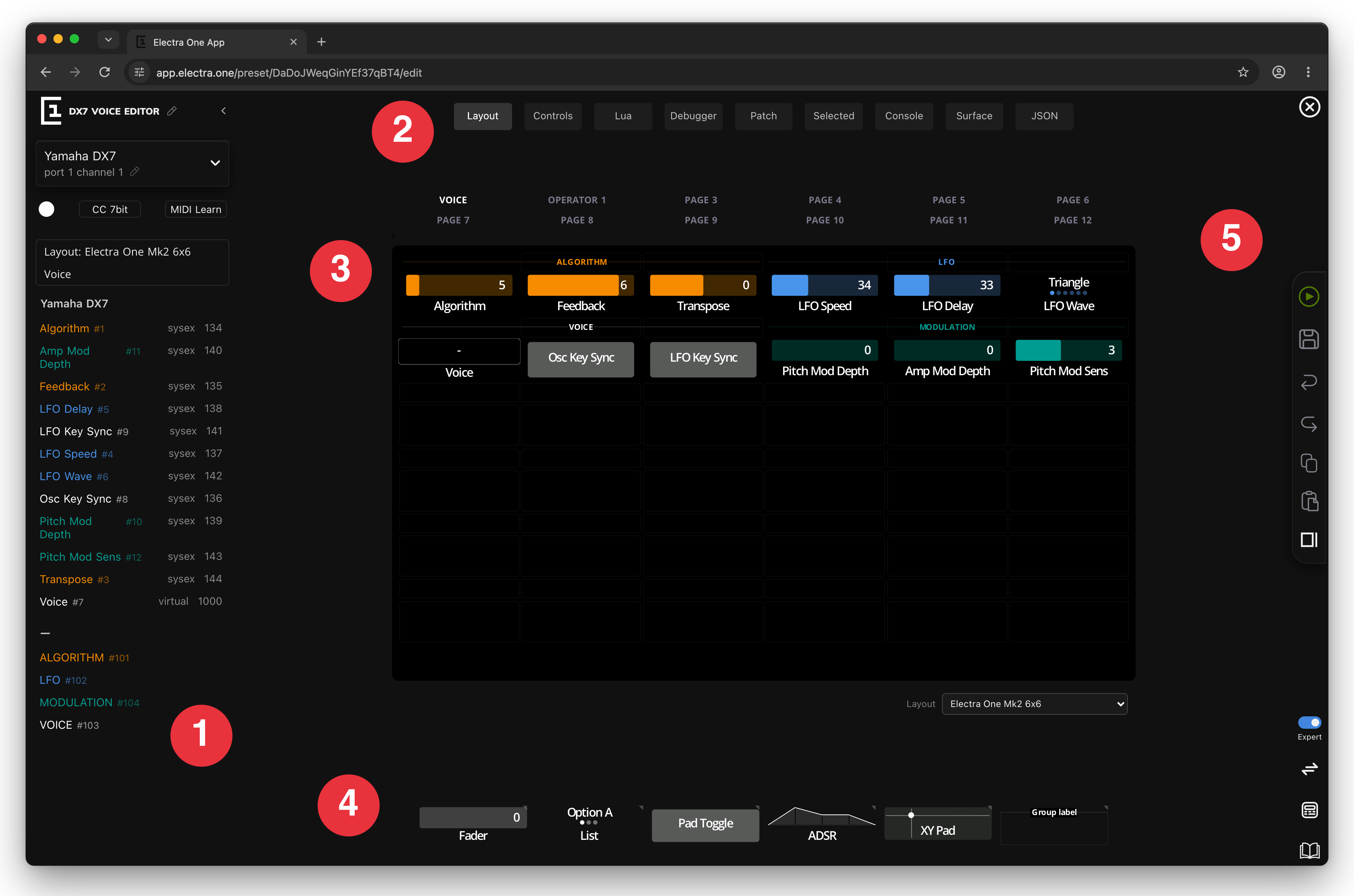
- The sidebar. The preset name at the top, then the device, the defaults for new controls and a list of the controls on the page. When a control is selected, the sidebar shows its settings instead. The chevron next to the name hides the sidebar, to leave more room for the views; click the narrow strip to show it again.
- The view tabs choose what the large area shows: the layout, the Lua script, the patch editor and so on. See Views.
- The view. Here, the Layout view with one page of the preset.
- The control repository, under the layout, holds the controls you drag onto the page.
- The toolbox on the right holds the actions for the whole project. See The toolbox.
The preset name is at the top of the sidebar. Click the pencil next to it to rename the preset. A name can have up to 20 characters.
Basic and Expert mode
The editor has two modes, switched with the Basic / Expert toggle at the bottom of the toolbox.
- Basic mode shows what most presets need: control placement, names, colours, ranges, MIDI messages and value lists, the Lua script, and the MIDI console. It is suitable for anyone starting with the Electra One, as well as users without in-depth knowledge of MIDI or scripting. Basic mode keeps the UI simple and focused on essential functionality.
- Expert mode shows every setting the editor has. It gives user a powerfull suite of tools to work with the Electra One controllers and MIDI in general.
The mode only decides what is shown. Switching to Basic mode moves a view that shows an Expert tab back to Layout. A preset made in Expert mode keeps all its settings when you switch to Basic mode, and the controller uses them the same way. The mode is remembered by the browser, not by the preset, and a new browser starts in Basic mode.
Expert mode adds:
| Where | What Expert mode adds |
|---|---|
| View tabs | Controls, Debugger, Patch and JSON |
| Control repository | the Custom control |
| Control settings | the reference picker, Category (when the project has categories), Value assigned to knob, Visible (when the preset has a Lua script), Pots of custom controls, and events |
| Value settings | Formatter, Function and the value name |
| Message settings | Sign mode and Bit width, Relative CC Mode and acceleration, Byte order, Reset NRPN Parameter, and Base for NRPN and RPN numbers |
| Groups | the reference picker and Follows parameter |
Throughout these pages, a setting that needs Expert mode is marked Expert.
Views
Each view shows the project from one side. Switching views never changes the project.
| Tab | Mode | What it shows |
|---|---|---|
| Layout | Basic | the pages of one layout, where controls are placed and selected. See Layouts, Pages and Controls. |
| Controls | Expert | a searchable list of every control in the project. See The Controls view. |
| Lua | Basic | the preset's Lua scripts and the controller's log. See Lua Editor and Debugger. |
| Debugger | Expert | the Lua debugger. See The debugger. |
| Patch | Expert | the patch editor of the selected device. See Patch Requests and Responses. |
| Selected | Basic | the settings of the selected control, over the whole width of the view. See Split view. |
| Console | Basic | the MIDI console. See MIDI Console. |
| Surface | Basic | a control surface of your own, for remote knob mappings. See Surfaces. |
| JSON | Expert | the project and the preset as JSON. See The JSON view. |
The toolbox
From top to bottom:
| Button | What it does |
|---|---|
| Leave editor | Closes the editor and opens the preset's page, as does the logo at the top of the sidebar. Unsaved changes are saved first, as a revision called "Saved automatically when closing editor". |
| Send to Electra | Sends the preset and its Lua scripts to the connected controller, into the slot the controller is on, and loads it. The preset is built from the layout for the connected model. If the project has unsaved changes, they are saved at the same time, as a revision called "Saved automatically when uploading preset". Without a controller, the button is replaced by a red unplugged-connector icon, "Electra not connected". |
| Save | Opens the save dialog. It is enabled when there are unsaved changes. See Saving. |
| Undo / Redo | Undo and redo the last changes. |
| Copy to clipboard | Copies the selected controls and groups. |
| Paste from clipboard | Pastes the copied controls into the selected slot. |
| Split view / Exit split view | Opens a second view next to the first. The button is shown when the window is wider than 1440 pixels. See Split view. |
| Basic / Expert | Switches the mode. See Basic and Expert mode. |
| Open session | A window with the commands queued for the controller. It shows what the editor is sending, which helps when a transfer seems to hang. |
| Open converter | The number converter: a number in decimal, hexadecimal and binary, with its bits to click, read as unsigned, two's complement or with a sign bit. Handy when working with SysEx. |
| Open documentation | Opens this documentation. |
Send to Electra is disabled, with the reason in its tooltip, when:
- the layout you are looking at is for another model than the connected controller, for example the Mini layout while a Mk2 is connected,
- two controls have the same reference number. A message above the view names the reference; give one of the controls another number,
- the controller is still busy with the previous command. A spinner next to the preset name shows this.
TIP
If both a Mk2 and a Mini are connected, choosing a layout in the Layout selector also chooses the controller: pick the Mini layout and Send to Electra sends to the Mini. Clicking into a view that already shows the other layout does not switch the controller; choose the layout in its selector again, or pick the controller in the Controller menu of your account. See Using several controllers.
Saving
Save opens the dialog "Save a preset revision":
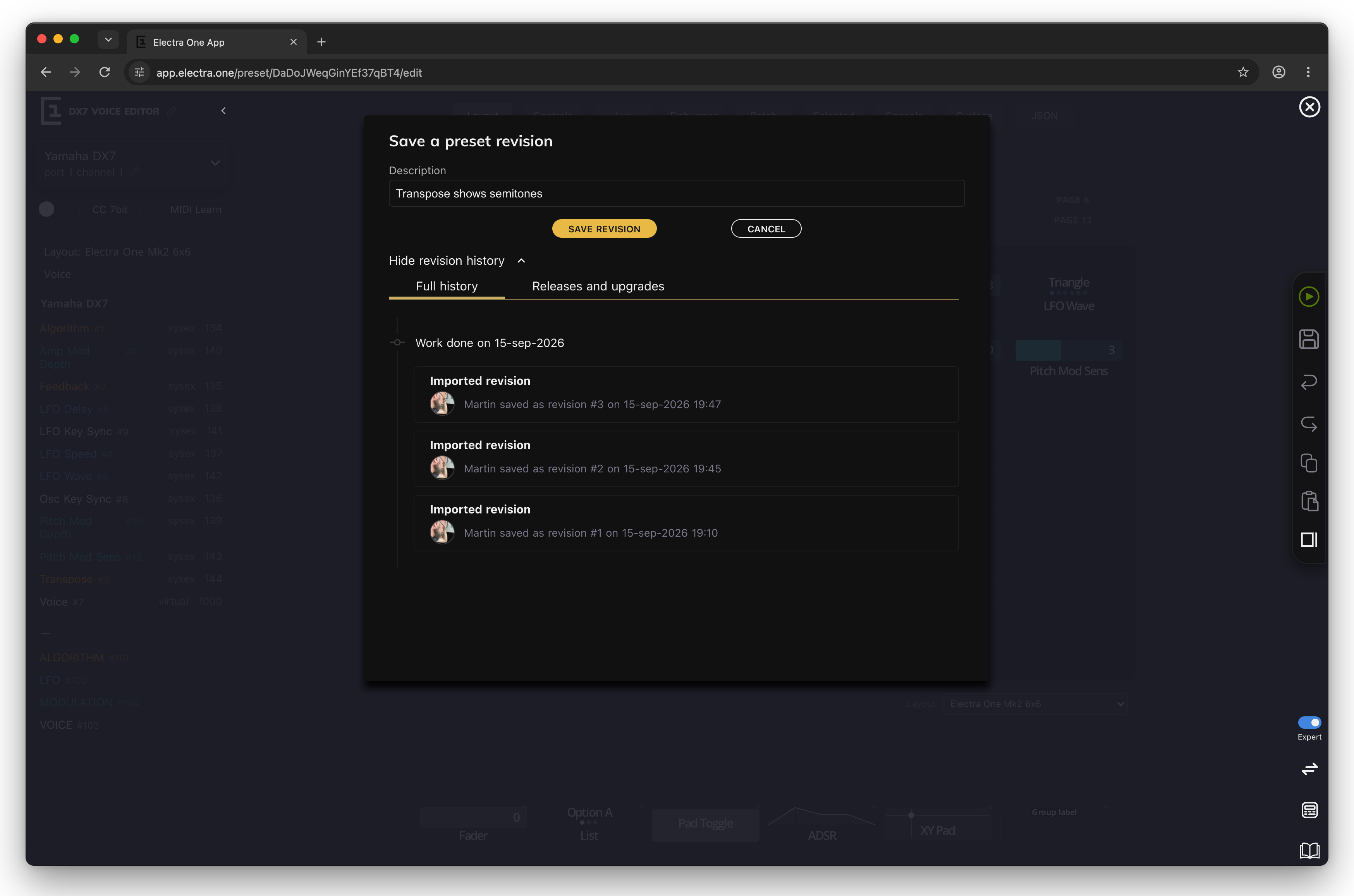
- Description lets you enter a short note describing what you changed. It is similar to a commit message in a version control system such as Git. Press Enter or
SAVE REVISIONto save. CANCELcloses the dialog without saving.- Show revision history lists the revisions saved so far.
Saving with a description saves the project and records a revision, a version you can go back to later. Saving with an empty description saves the project without recording a revision. The editor also records a revision by itself when you send a changed preset to the controller and when you leave the editor with unsaved changes. The history of a project, and how to publish a version of it as a release, is described in Revisions and releases.
Undo goes back up to 20 steps. The editor remembers a step when something has changed, at most every two seconds, so a quick series of changes may undo together.
If saving fails, the editor says "The preset was not saved" and the changes stay unsaved; try again.
If you close the browser tab or reload the page with unsaved changes, the browser asks whether to leave the page. The changes are lost if you leave.
Split view
Split view divides the editor into two views, side by side, each with its own tab. It is one of the editor's most useful features, because most work on a preset involves two things at once: the controls and the script that drives them, a SysEx dump and the rules that decode it, the Mk2 page and the Mini page of the same controls.
Open it with Split view in the toolbox. Drag the divider between the two views to share the width. Each view is at least 600 pixels wide when the window allows it, so split view wants a wide window: the button is shown when the window is wider than 1440 pixels, and it disappears in a narrower window even while split view is open, so widen the window to close it. The editor remembers whether split view was open, the width and the tab of each view.
Each view can show any tab, and both can show the same one. Some combinations worth knowing:
The Mk2 layout next to the Mini layout. Put a Layout view on each side and choose a different layout in each. Drag a control from one layout to the other, and both layouts use the same control: change its name, range or message in one, and it changes in both. This is how one project serves both models. See Using one control on both models.
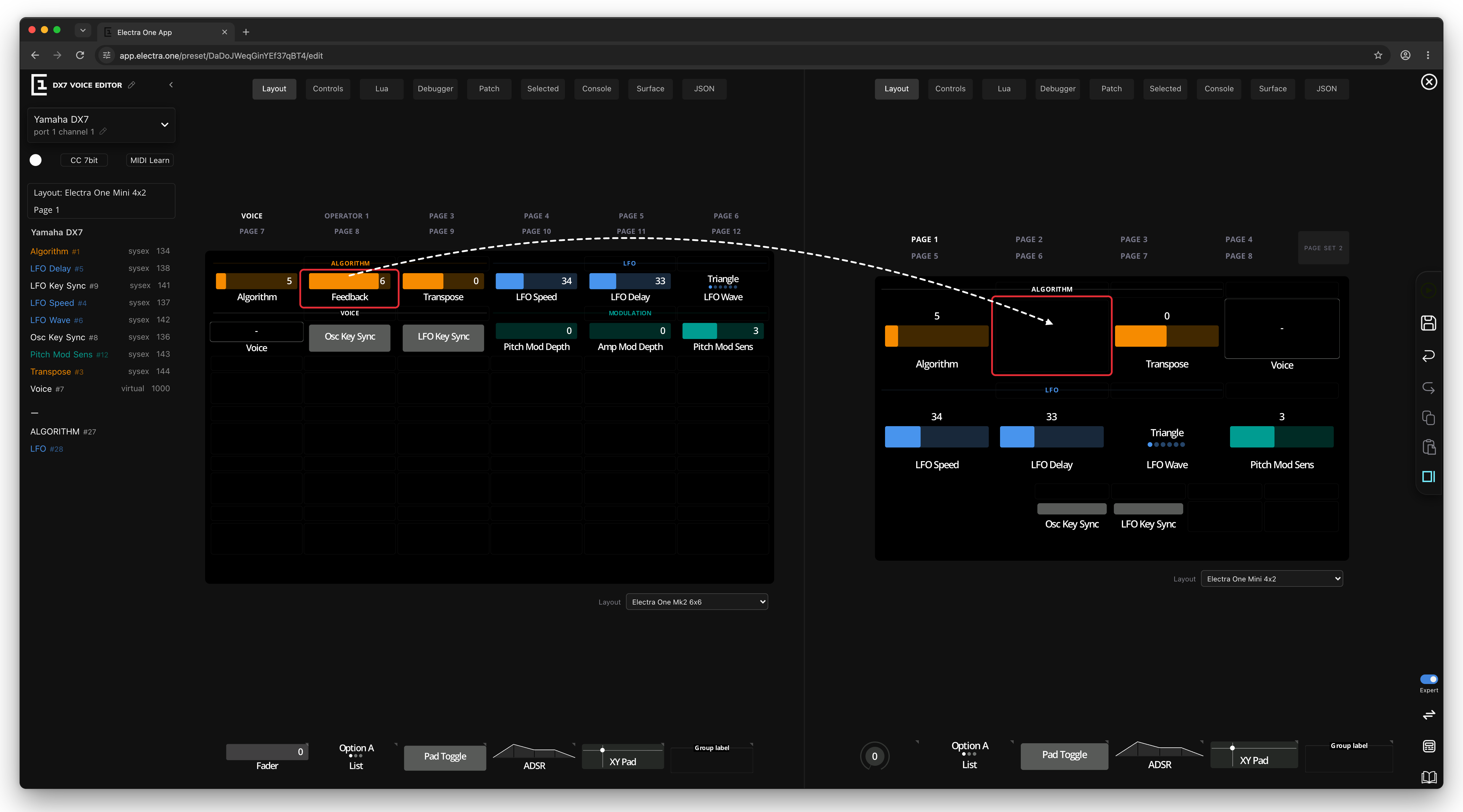
Two pages of the same layout. Each view keeps its own page, so a control can be dragged from one page to another.
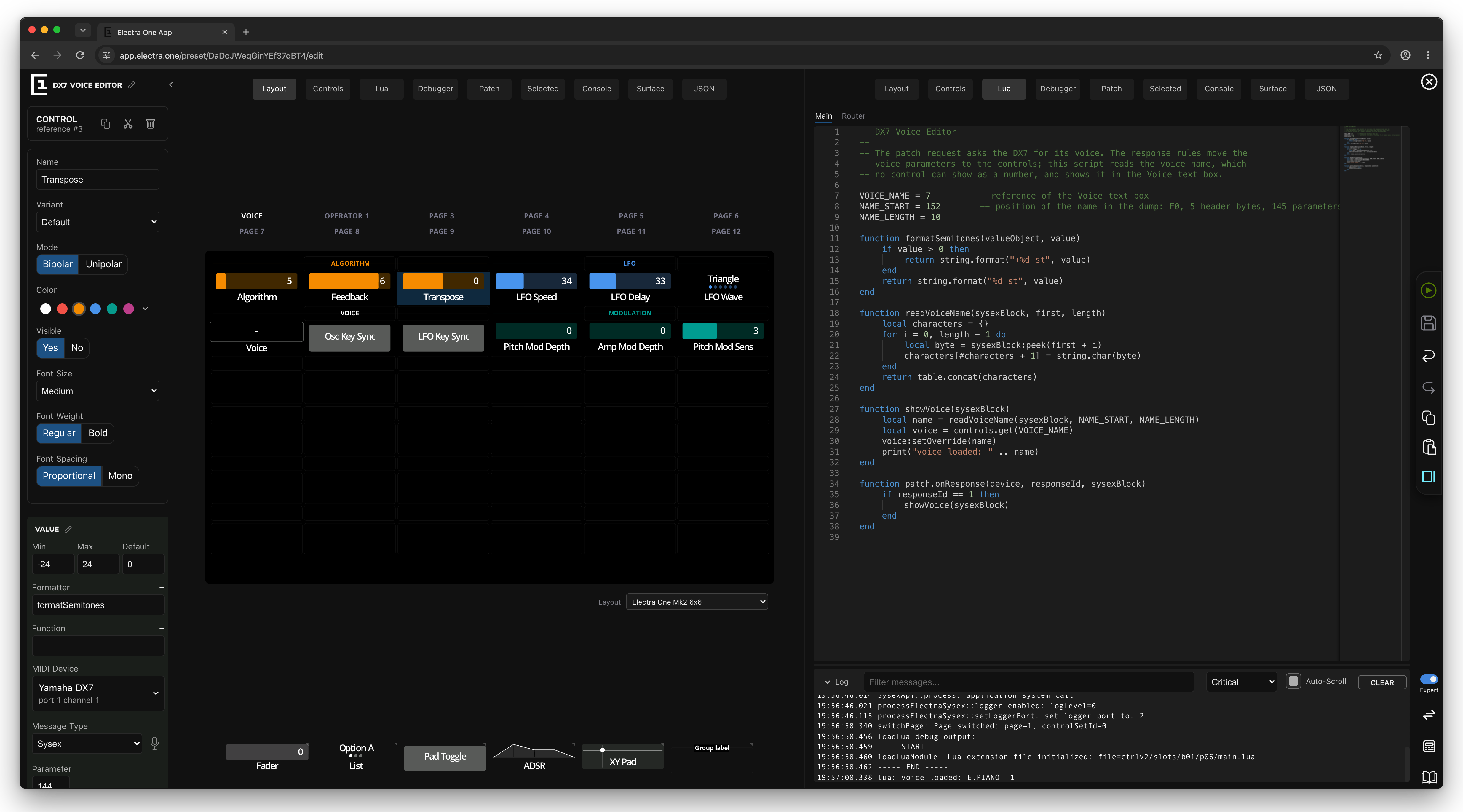
The layout next to the Lua script. Select a control on the left and write its formatter on the right, then send the preset and watch the log under the script.
The Lua script next to the debugger. Set breakpoints in the script on one side, and see the call stack and the variables on the other, while the script is stopped on the controller. See The debugger.
The patch editor next to the MIDI console. Send a request to the instrument in the console, and turn its reply into mapping rules in the patch editor. See Patch Requests and Responses.
A wide inspector. The Selected tab shows the settings of the selected control over the whole width of a view, with every value side by side. While a view shows it, the sidebar keeps showing the defaults and the page overview.
Editors beside the layout. The SysEx template editor (EDIT SYSEX DATA) and the list and overlay editors (EDIT) can open over the whole window or in a view. The arrow next to the button offers Edit, over the whole window, and Edit in selected, beside the grid; the button then carries the chosen label, and the choice is remembered. Edit in selected opens the editor on the Selected tab of the right-hand view (of the other view when the button is itself in a view) and keeps the layout visible. It opens split view even when the window is too narrow for the Split view button. Close, and go back returns the view to the tab it showed before, and closes split view again if opening the editor had opened it.
The JSON view
Expert. The JSON view shows the data behind the project. The JSON selector at the top chooses what is shown:
- Project is the project as the editor stores it. It can be edited: the status under the text says whether the JSON is valid, and
APPLY CHANGESreplaces the project in the editor with it. With invalid JSON, it applies the last valid version of the text, so check the status first. - Preset is the preset the editor builds from the project, for the layout chosen in the Layout selector. It is read-only, and shows exactly what Send to Electra would send.
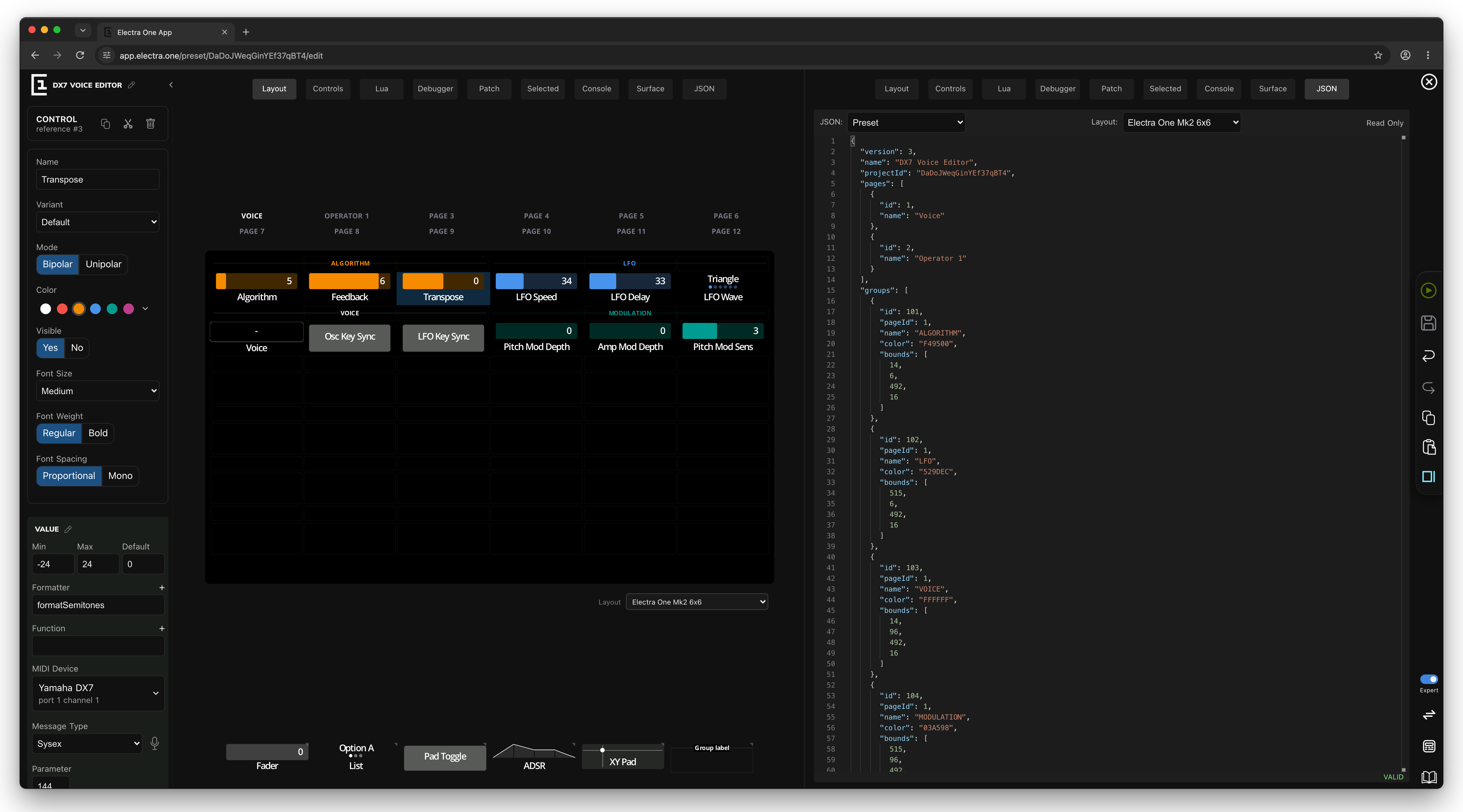
The format of presets is described in Preset format.
Keyboard shortcuts
| Keys | Action |
|---|---|
| ⌘ S / Ctrl S | Open the save dialog |
| ⌘ ⇧ S / Ctrl ⇧ S | Send to Electra |
| ⌘ Z / Ctrl Z | Undo |
| ⌘ ⇧ Z / Ctrl ⇧ Z, Ctrl Y | Redo |
The shortcuts for working on the layout are listed in Keyboard shortcuts on the layout. In text fields and in the Lua editor, ⌘ Z and ⌘ ⇧ Z undo and redo the typing.