

Version5.0.0 beta
Devices
In the previous chapter you saw that a control sends its message to a device. This chapter explains what a device is, how it connects your presets to your instruments, and what else a device can do for you: read a synthesizer's current sound, keep a library of SysEx messages, and adapt a preset to your studio without changing the preset itself.
What a device is for
A device is Electra One's name for one of your instruments: a hardware synthesizer, a drum machine, an effects unit, a sampler, a software plugin or your DAW. It says where that instrument is connected and which MIDI channel it uses.
Controls never store a port or a channel of their own. Each control's message simply says "send this to the Prophet-6", and the device knows how to reach it. This has a few pleasant consequences:
- If you move an instrument to another channel or port, you change it once, in its device, and every control follows.
- One preset can play many instruments at the same time. Each instrument gets its own device, and each control picks the device it belongs to.
- Two identical instruments, say two Juno-106s, are simply two devices with different channels.
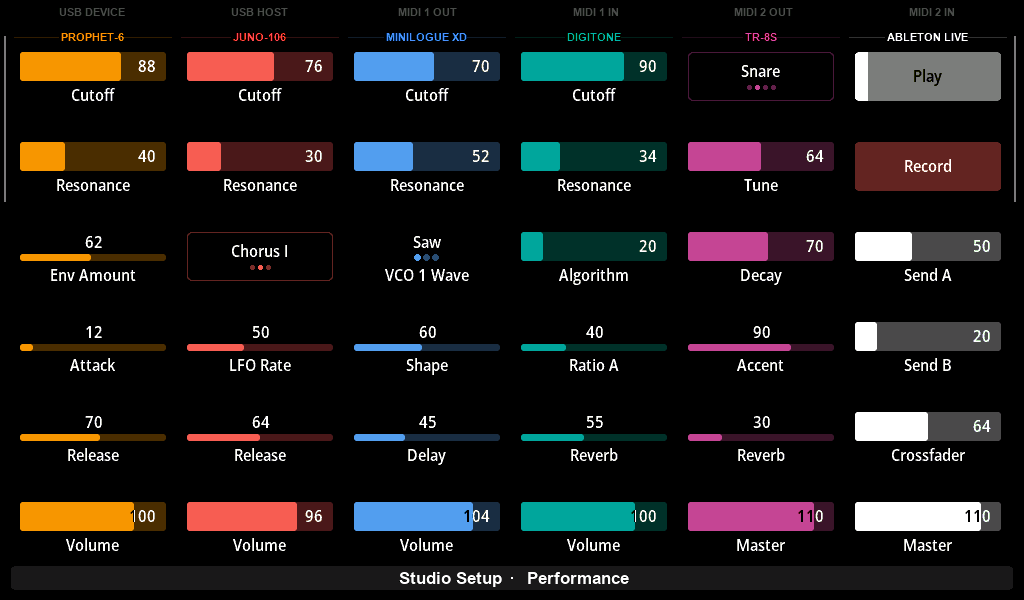
A preset can have up to 32 devices. In the preset editor they are already there when you start: "MIDI Device 1" to "MIDI Device 32", one for every port and channel. You give the ones you use a name and, if needed, move them to another port or channel.
Devices, MIDI interfaces and ports
Electra One has three kinds of MIDI connections, called interfaces:
| Interface | What is connected there |
|---|---|
<MIDI IO> | instruments with classic MIDI sockets (DIN on the Mk2, TRS on the Mini) |
<USB DEVICE> | your computer: the DAW, plugins, MIDI applications, and the Electra One app |
<USB HOST> | USB MIDI instruments and controllers plugged into Electra One |
Across these interfaces, Electra One offers two MIDI ports, Port 1 and Port 2. A port is like a bus that runs through all three interfaces at once. A device on Port 1 sends its messages to:
- the
MIDI 1 OUTsocket, - the "Electra Port 1" MIDI port your computer sees, and
- the USB instruments assigned to Port 1.
A device on Port 2 does the same on the second port. The Mk2 has two pairs of MIDI sockets; the Mini has one, so on the Mini a Port 2 device reaches your computer and USB instruments only.
The channel is the MIDI channel of the instrument, 1 to 16. Electra One uses it in both directions: to send messages to the instrument, and to recognise the messages that come back from it. A message that arrives on a port and channel that no device uses is ignored by the preset's controls.
Routing
Which MIDI messages travel between the interfaces and ports, for example from your computer to a synthesizer, is decided by the MIDI router. It is described in its own chapter.
What a device remembers
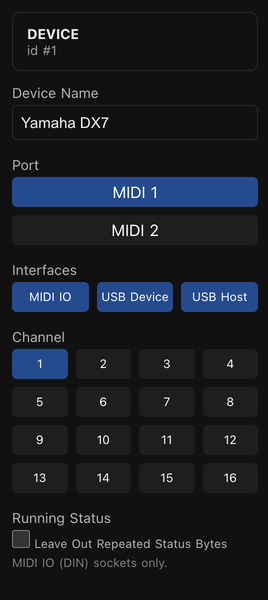
Every device has a name, so the preset reads like your studio: "Prophet-6" rather than "Port 1, channel 1". The name appears in the editor wherever you choose a device for a control.
The port and channel tell Electra One where the instrument is, as described above. Together they are the address of the device.
By default a device uses all three interfaces. You can switch some of them off. A synthesizer plugged into the <MIDI IO> sockets does not need its messages copied to your computer as well, and restricting it keeps the USB connection free for other traffic. The choice works both ways: a device limited to <MIDI IO> also listens only to messages arriving there. It even lets two devices share one port and channel, as long as they use different interfaces.
Running status is a MIDI shorthand. When several messages of the same kind follow each other, for example a stream of Control Changes on one channel, the repeated status byte can be left out and every message becomes a third shorter. This matters only on the classic MIDI sockets, which are slow, and only for older instruments that expect it or for very dense streams. Electra One always understands running status in messages it receives on <MIDI IO>. For messages it sends, you switch it on per device in the preset editor. Even then Electra One repeats the status byte every tenth of a second, so an instrument that is switched on later still understands the stream.
Devices also have a rate, meant to slow down messages for instruments that cannot keep up. This setting is currently not in effect, and the editor does not show it.
The status bar
The status bar at the top of the screen shows every interface and lights up a label whenever MIDI travels through it. It is the quickest way to check that a device is really sending, and where.


The MIDI socket labels light separately for outgoing and incoming messages. The USB labels light for both directions. When a USB instrument is plugged in, the USB HOST label shows its name, and with two instruments it reads 2 HOST DEVICES.
Device messages
Most controls send standard MIDI messages, such as a Control Change. Many instruments, however, are edited with System Exclusive (SysEx) messages: long, manufacturer-specific messages that carry a parameter and its value in a format of their own.
A SysEx message can be written directly on a control. That is fine for a one-off message. But a synthesizer usually uses the same format for hundreds of parameters, with only the parameter number and the value changing. Writing it out again on every control would be tedious and hard to fix later.
This is what device messages are for. A device can keep a small library of SysEx message templates. A control then refers to a template by its name and supplies its own parameter number, and Electra One fills in the rest. Change the template once, and every control that uses it changes with it.
Each device message also has a direction:
- Send only: Electra One sends it when a control changes.
- Send and receive: Electra One also recognises the same message when the instrument sends it, and updates the control. Turn a knob on the synthesizer and the control on Electra One follows.
- Receive only: a message Electra One only listens for.
When a fixed template is not enough, for example because an instrument packs several parameters into the bits of one byte, or needs a checksum calculated in its own way, a Lua function can compute those bytes and bits, both in the messages Electra One sends and in the ones it receives.
Patch requests and responses
A control shows what your instrument is doing only once it knows the instrument's values. When you load a different sound on the synthesizer, the controls would still show the old one. Patch requests solve this.
A request is a SysEx message that asks the instrument to send its current sound. The instrument answers with a response, often called a patch dump: a long SysEx message that contains every parameter of the sound. Electra One reads the dump and updates all the controls at once.
To read a dump, Electra One needs to know where each parameter is inside it. The device describes this with rules. A response starts with a header, a few bytes that identify it, and each rule then says "the value of this parameter is in byte 134, bits 0 to 4". Rules can take a whole byte, a few bits of a byte, or combine several bytes into one larger value.
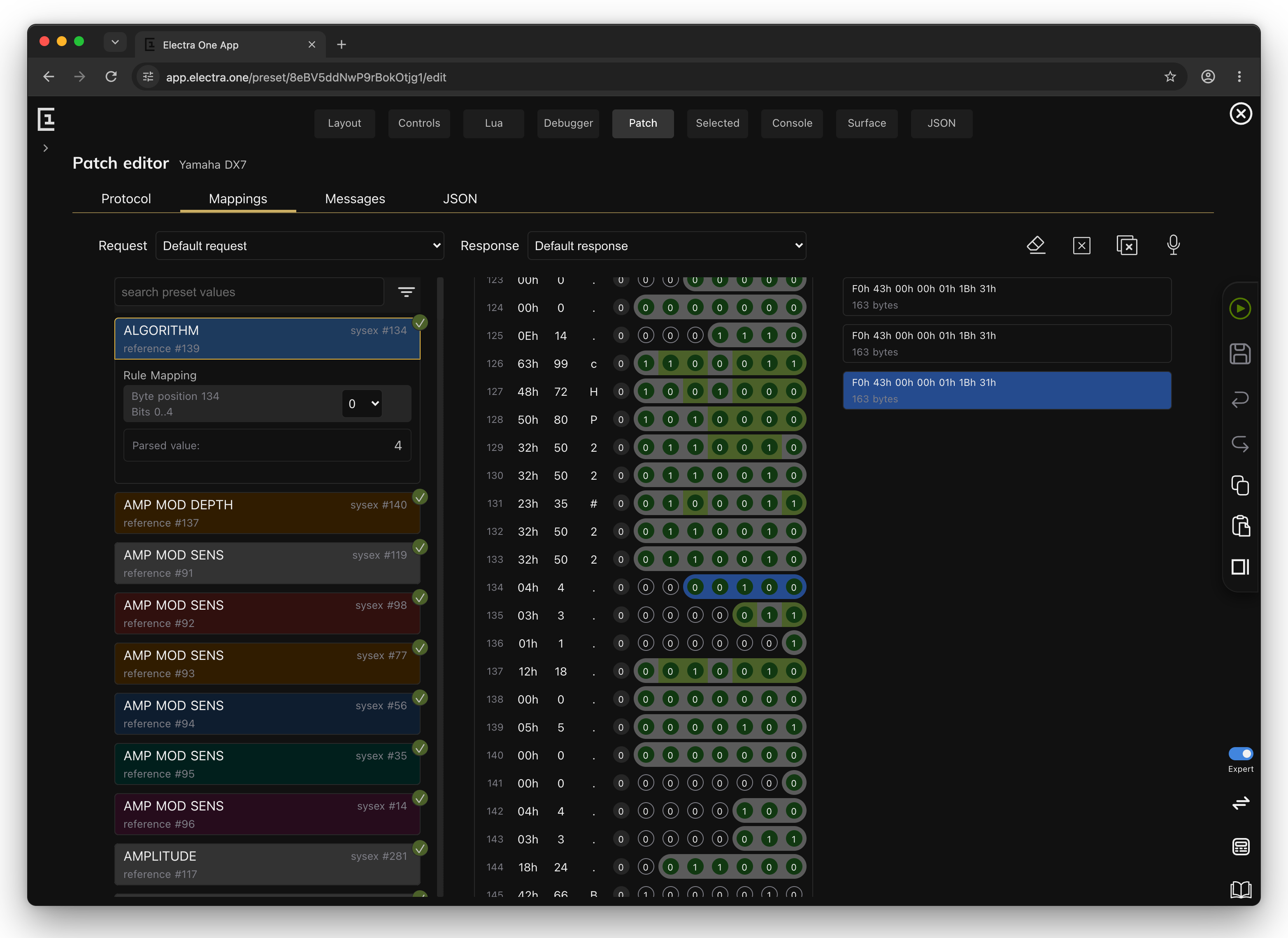
You do not need to be a programmer to build these rules. The preset editor's Patch tab (in Expert mode) shows a received dump byte by byte and bit by bit. You pick a control on the left and click the bits that belong to it. When you request the dump again after changing a parameter on the instrument, the bits that changed light up, which makes it easy to find where a parameter lives, even for an instrument whose SysEx format is not documented anywhere. What you do need is an understanding of SysEx messages, bytes and bits.
Bits and bytes
If hexadecimal numbers, bytes and bits are new to you, the Bits & Bytes chapter of the MIDI and Lua course explains them from the ground up.
A few things are good to know:
- Electra One does not request the patch by itself when a preset loads. You request it with a hardware button set to Request patch (on the Mk2, the PATCH REQUEST button or menu item), with a control event that runs that command, or from Lua.
- Electra One reads a matching dump whenever it arrives, requested or not. Many synthesizers send a dump when you press a button on their front panel.
- Some instruments need more than rules: a patch name, values stored in an unusual way, or a request that is not SysEx at all. A Lua script can handle those requests and responses in any way the instrument needs.
Device overrides
A preset from the Preset Library was made for its author's studio. Their synthesizer might be on Port 1, channel 1, while yours is on Port 2, channel 5. You could copy the preset and change its devices, but then you would have to do it again every time the author publishes an update.
Device overrides solve this. They change the port, channel, and interfaces of a preset's devices on your controller only. The preset itself stays exactly as its author made it.
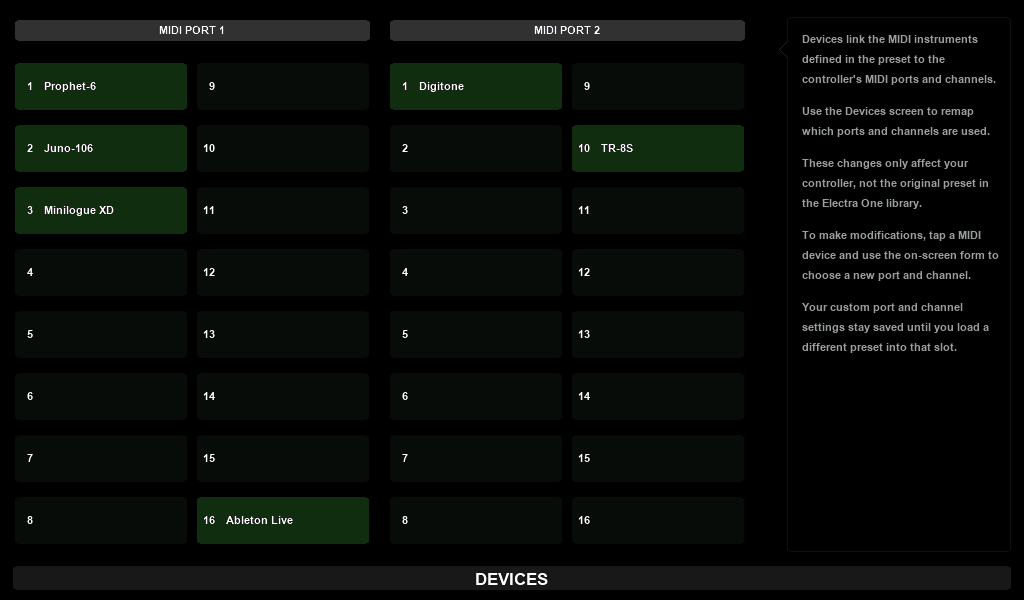
On the Mk2, open DEVICES from the main menu. The screen lists the preset's devices under MIDI PORT 1 and MIDI PORT 2, by channel. Tap a device and choose its new interfaces, port and channel. If you pick a port and channel another device already uses, the two devices swap places. The overrides are saved when you close the screen.
The Mini has no screen for this. You manage its overrides in the Electra One app instead: open the preset's page and choose the Overrides tab. The same tab works for a Mk2 too.
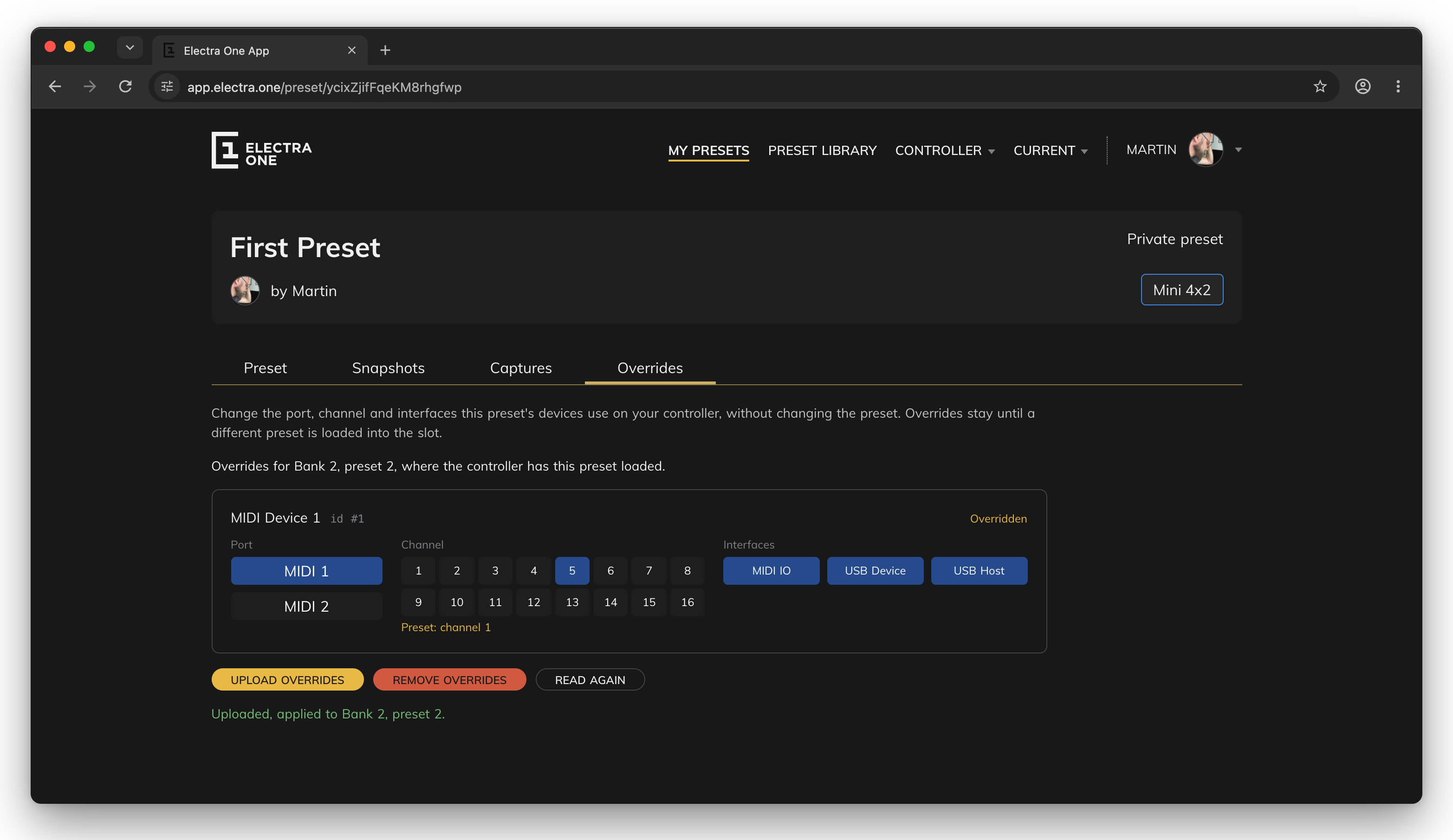
The tab works with the preset that is loaded on your controller right now, so send the preset to the controller first. For each device the preset uses, you can choose the port, the channel and the interfaces. A device you have changed is marked Overridden, and the preset's own setting is shown under the new one.
- UPLOAD OVERRIDES sends them to the controller, and they apply straight away.
- REMOVE OVERRIDES deletes them from the controller, so the preset's own devices apply again.
- READ AGAIN shows what the controller has stored at the moment.
Running status is not part of the overrides. It always comes from the preset.
Overrides belong to the preset slot on your controller, and they are applied every time the preset in that slot loads. It is important to know when they go away:
| What you do | Overrides |
|---|---|
| Load the preset, switch slots, restart the controller | kept |
| Send an update of the same preset to the slot | kept |
| Send a different preset to the slot, including a copy of the preset | removed |
| Clear the slot | removed |
| Remove them on the Overrides tab | removed |
Overrides change only where the devices send and listen. A device's name, its messages and its patch rules always come from the preset.