

Version5.0.0 beta
MIDI Console
The MIDI console watches the MIDI messages that reach your computer and sends messages you type. It is a MIDI monitor built into the editor, like MIDI Monitor or MIDI-OX, and it is useful whenever you need to see what really goes over the wire: what a control sends to the computer, what an instrument answers, what a DAW receives.
The console is the Console tab of the editor, available in Basic and Expert mode. The same console opens in a window of its own from the Electra One Account: Controller menu, Midi console, shown while a controller is connected. The window keeps its own port choice and list, and has no Add to captured.
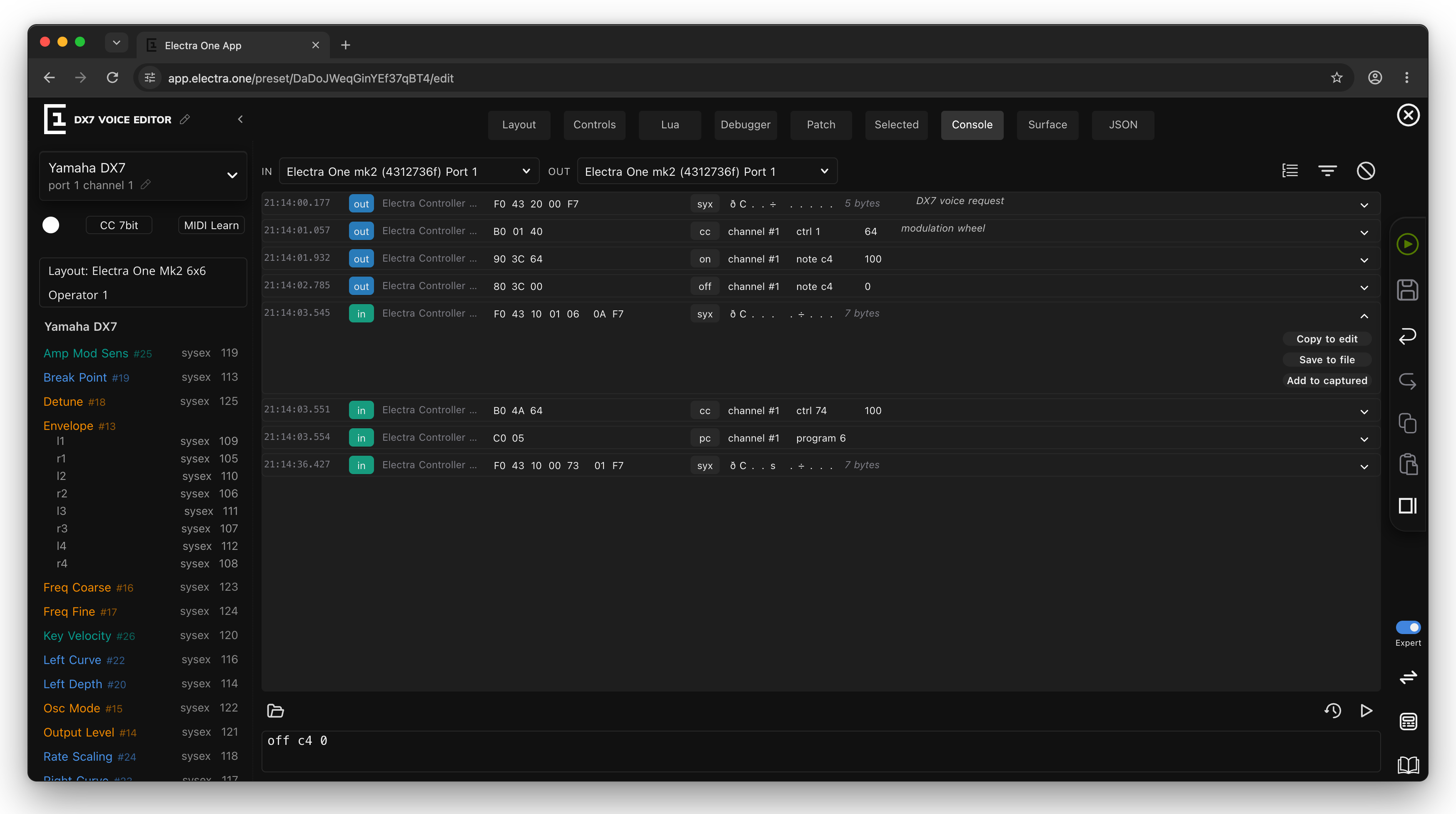
Choosing ports
The bar at the top chooses where the console listens and where it sends:
- IN: the MIDI input ports to watch. Tick as many as you like; the ports are grouped by device, and a connected Electra One is shown by its name.
- OUT: the one MIDI output port the console sends to.
If a port named like Electra One's Port 1 is found, IN and OUT start on it. The console watches what the computer receives and sends: the messages Electra One sends to the computer on the chosen port, and the messages you send from the console. Messages between Electra One and instruments on its MIDI sockets don't pass through the computer and don't appear.
The message list
Each line is one message:
| Column | What it shows |
|---|---|
| time | when the message arrived or was sent, to the millisecond |
| in / out | received (green) or sent (blue) |
| port | the port it came from or went to |
| bytes | the message in hexadecimal |
| type | cc, on, off, pc, pb, syx and so on |
| details | the channel, controller or note and value; for SysEx the text characters and the length |
| comment | the text after -- of a message you sent, or a description of Electra One's own messages |
The list keeps the last 50 messages. Click the arrow at the end of a line to expand it:
- Copy to edit puts the message's bytes into the command line, to change and send again.
- Save to file saves the message's bytes as
savedmessage.syx. - Add to captured (SysEx messages) adds the message to the captured messages of the Expert patch editor, to build mapping rules from it.
The buttons on the right of the top bar:
| Button | What it does |
|---|---|
| Prepare an export | Adds a checkbox to every line. Tick the messages to keep, then click Export N marked messages to save them as a MIDI session file, midi-session.json, with their times. |
| Filter messages | Chooses which kinds of incoming messages are shown. |
| Clear messages | Empties the list. |
Filtering
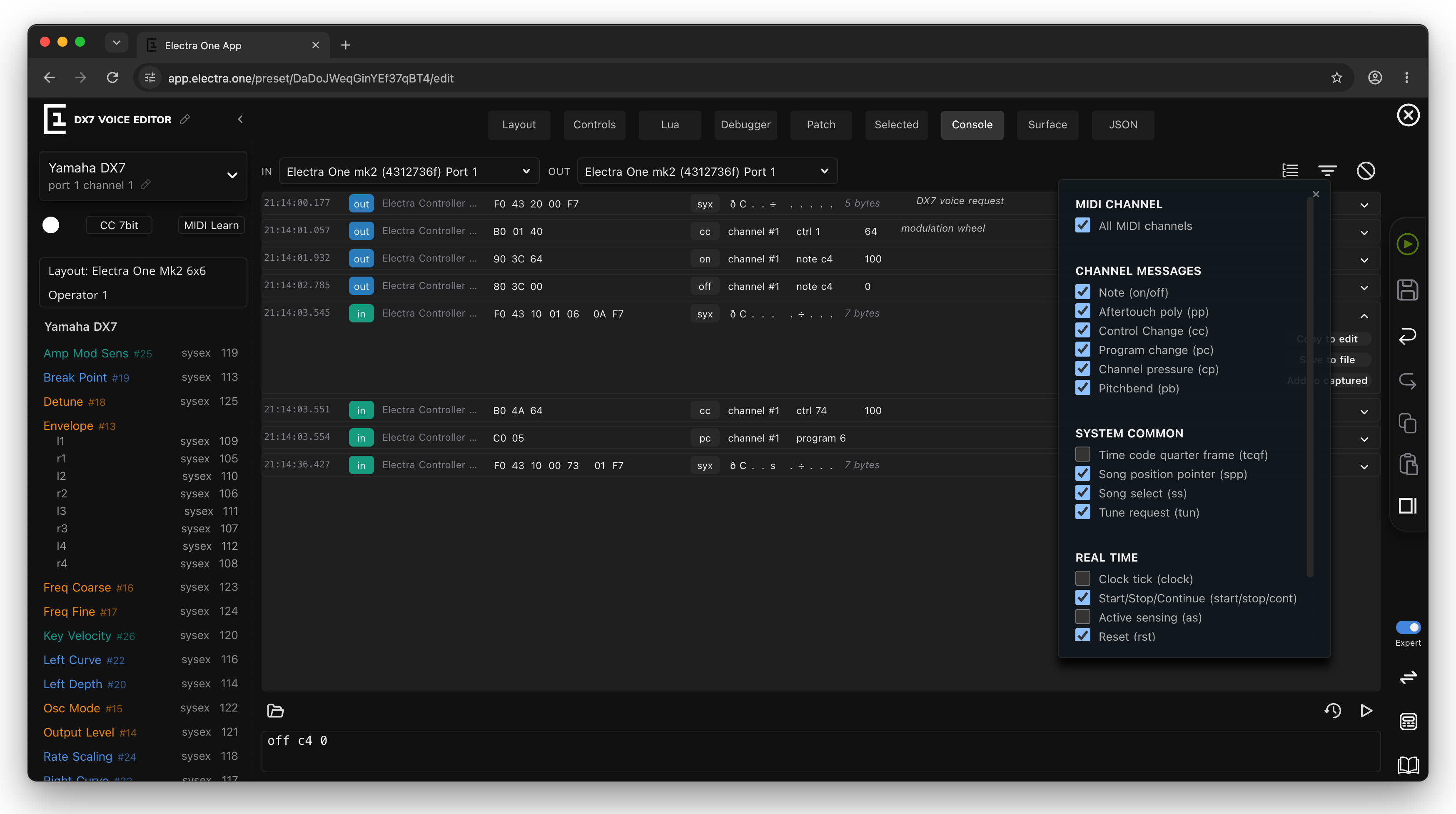
The filter chooses which incoming messages the console keeps:
- MIDI CHANNEL: All MIDI channels, or untick it and choose one channel.
- CHANNEL MESSAGES: notes, poly aftertouch, control changes, program changes, channel pressure, pitch bend.
- SYSTEM COMMON: time code, song position, song select, tune request.
- REAL TIME: clock, start/stop/continue, active sensing, reset.
- SYSTEM EXCLUSIVE: SysEx.
Clock, active sensing and time code are off by default: a DAW sends clock 24 times per beat, which would push everything else out of the list. The filter applies to messages as they arrive, and messages you send are always shown.
Sending messages
Type a message into the command line at the bottom and press Enter, or click Send. A message can be written with keywords or as bytes:
cc 74 100
ch 2 on c4 100
pc 5
syx 43h 20h 00h -- DX7 voice request
b0h 4ah 64h
The rules:
Keywords start a message. The first seven are channel messages and go to the current channel:
Keyword Message onnote velocityNote On offnote velocityNote Off ppnote pressurepoly aftertouch cccontroller valueControl Change pcprogramProgram Change cppressurechannel pressure pblsb msbpitch bend syxbytesSysEx; F7is addedtcqfbytetime code quarter frame spplsb msbsong position pointer sssongsong select tuntune request clocktiming clock startstart contcontinue stopstop asactive sensing rstreset chN sets the channel, 1 to 16, for the channel messages after it on the line. Without it, messages go to channel 1.Numbers are decimal (
100) or hexadecimal withhor0x(64h,0x64).Notes can be written as names:
c4is 60 (middle C),f#3,eb5, fromc-1tog9.Case doesn't matter, and any spaces or tabs separate the parts.
Several messages can be written on one line and are sent together:
cc 1 0 cc 7 100. The list shows them as one line.Comments follow
--and are shown with the message in the list.clearon its own empties the list.
The console checks the line before sending. If a part is not understood, a value is out of range, a message is incomplete or no OUT port is chosen, it says what is wrong under the command line and sends nothing.
The buttons around the command line:
| Button | What it does |
|---|---|
| Load sysex (folder) | Opens a file of SysEx messages, such as a .syx patch file, sends it to the OUT port and puts its bytes into the command line. |
| Sent commands (clock) | Lists the last 50 commands entered, the newest first, including ones that were not sent. Click one to put it back into the command line. The Up and Down arrow keys in the command line do the same. |
| Send (play) | Sends the command line, like Enter. |
Console and patch editor side by side
Put the console in one view of split view and the patch editor in the other. When the controller and the instrument talk through the computer, you see the request and the instrument's answer, and you can add the answer to the captured messages with one click.