

Version5.0.0 beta
Snapshots
A snapshot stores the current values of all controls of a preset. When you load the snapshot later, the controls are set back to these values and Electra One sends them to your instruments. This chapter explains what snapshots are, how they are organized, and how to morph and randomize them to create new sounds.
What a snapshot is
A preset defines the pages, the controls and the MIDI messages the controls send. A snapshot stores the values of those controls, for example the cutoff, the resonance, the envelope settings and whether the arpeggiator is on.
When you load a snapshot, Electra One sets all the controls to the stored values and sends the values to your instruments. If any Lua functions are bound to the saved values, Electra One calls them accordingly. The screen shows the new values, and the instruments play the sound you saved.
Saving or loading a snapshot does not change the preset. One preset can have many snapshots.
Snapshots are useful for:
- Storing sounds. Save the sounds you create and load them again later.
- Live performance. Save one snapshot for each part of a song and switch between them while you play.
- Instruments without memory. Many older synthesizers and effect units cannot store sounds, or only a few. Snapshots on Electra One can store them instead.
- Experimenting. Save the current sound before you change it, so you can go back to it at any time.
Banks and slots
Snapshots are kept on Electra One, in slots. Slots are grouped in banks, so you can keep the sounds of a project, a song or a style together.
| Electra One Mk2 | Electra One Mini | |
|---|---|---|
| Banks per preset | 12 | 8 |
| Slots in a bank | 36 | 8 |
| Snapshots per preset | 432 | 64 |
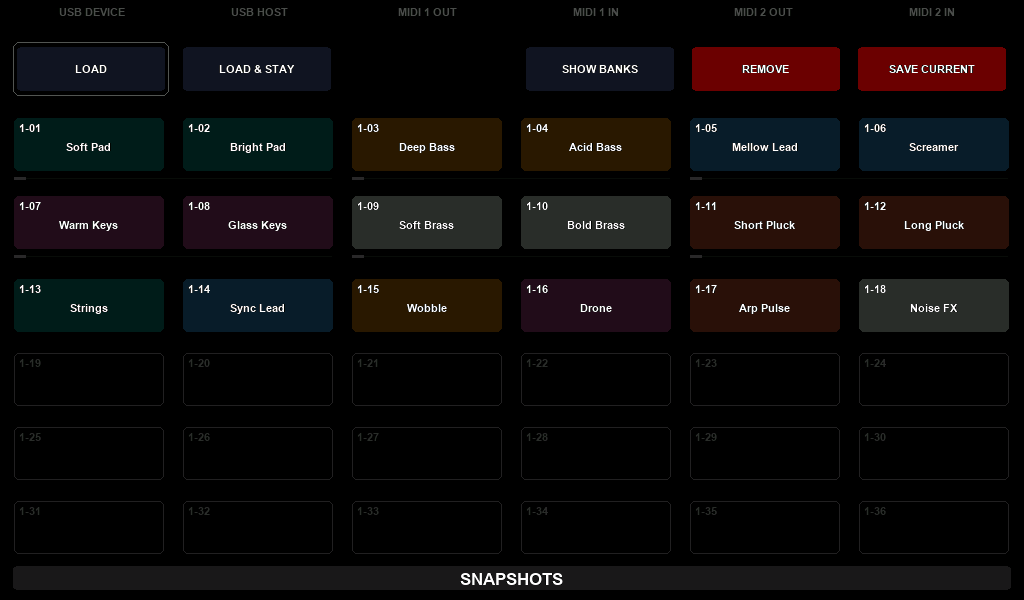
Each slot is labelled with its bank and position, for example 1-05 for the fifth slot of bank 1. A saved snapshot also has a name and a colour, so you can tell your sounds apart at a glance. Banks can have names too, such as "Live Set" or "Film Score".
Snapshots belong to the preset they were saved with, not to the preset slot it is in. Every preset has its own banks, so the snapshots of your synthesizer preset never mix with those of your drum machine preset. When you send an updated version of the same preset to Electra One, its snapshots stay. A different preset, including a copy of the preset, starts with empty banks of its own.
The same preset in several slots shares its snapshots
If you send the same preset to more than one preset slot, all of those slots use the same snapshot banks. A snapshot you save in one slot shows up in the others, and removing it in one slot removes it from all of them. To keep separate snapshots, for example one set for the studio and one for a live show, make a copy of the preset with DUPLICATE in the Electra One app and send the copy to the second slot. The copy starts with empty banks.
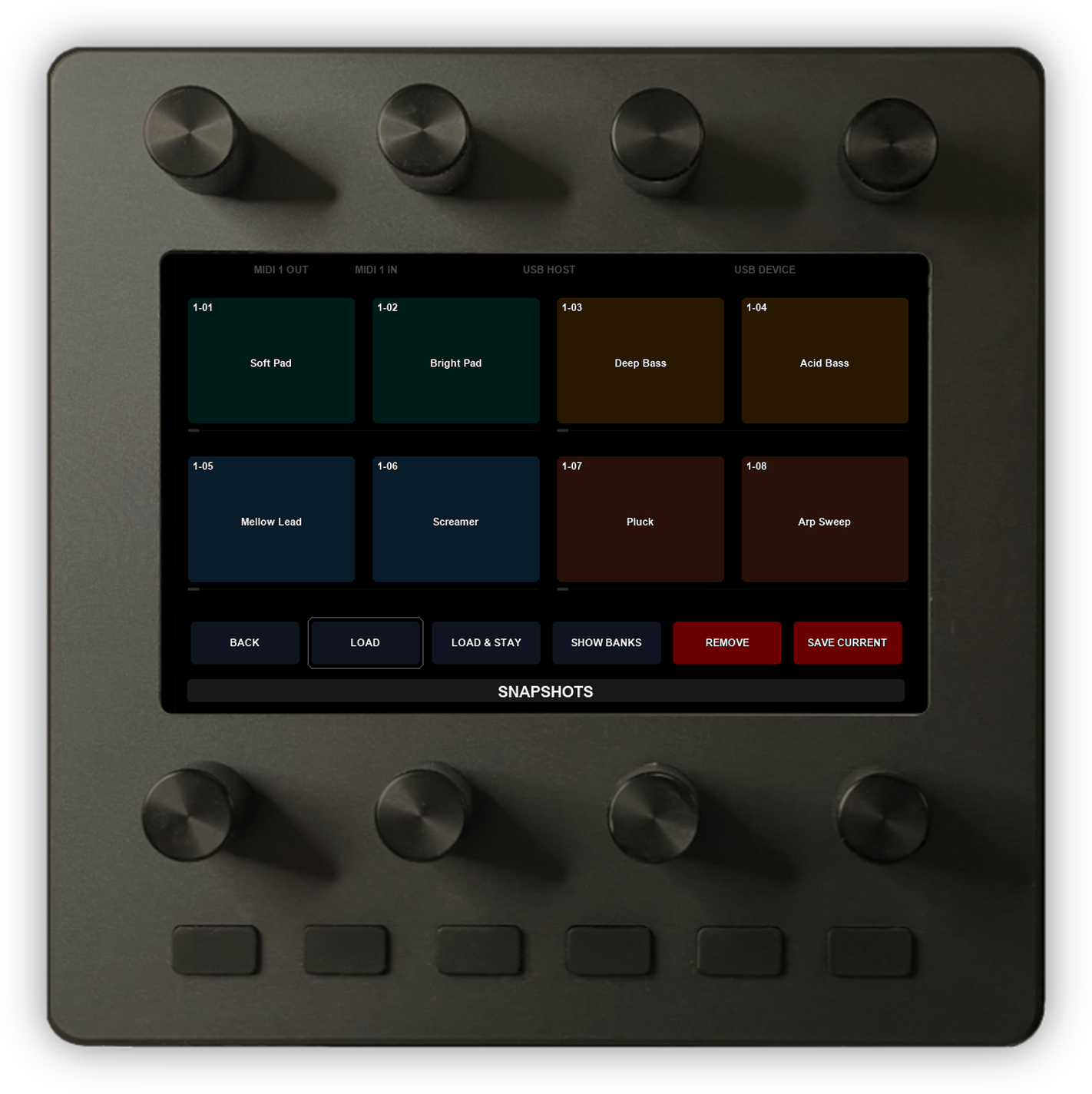
On the controller, the SNAPSHOTS window shows one bank at a time. In the window you choose what a touch on a slot does: load the snapshot and close the window (LOAD), load it and keep the window open to try more sounds (LOAD & STAY), clear the slot (REMOVE), or save the current values into it (SAVE CURRENT). SHOW BANKS switches to another bank. On the Mk2 you touch the slots; on the Mini you press the knob next to a slot.
Snapshots can also be loaded without opening the window: from another MIDI device or your DAW, as described in External MIDI Control, or from a control's event.
Morphing
Loading a snapshot changes all values at once. Morphing changes them gradually from the values of one snapshot to the values of another.
Morphing works with pairs of neighbouring slots. On the Mk2 these are the slots of the first two rows: 1 and 2, 3 and 4, and so on, six pairs in all. On the Mini all eight slots form four pairs. A thin slider under each pair shows where you are between its two snapshots.
Every pair has two knobs of its own. On the Mk2, knobs 1 and 2 work the first pair, knobs 3 and 4 the second, and so on up to knob 12. On the Mini, the two knobs next to a pair work it. The first knob of the pair morphs. With the knob all the way to the left you hear the left snapshot, all the way to the right the right snapshot, and in between a blend of the two. Each control moves in proportion: halfway between a cutoff of 20 and a cutoff of 100 is 60.
A morph uses the controls that have a value in both snapshots. Controls that are the same in both do not move at all, so a pair of snapshots that differ only in the filter morphs only the filter. This makes a pair a precise tool: save two versions of a sound that differ in exactly the parameters you want to sweep.
Randomization
The second knob of each pair randomizes. Instead of blending, it gives every control a new random value, but only within limits that you set with the two snapshots.
For each control, the left snapshot is the starting point and the right snapshot marks how far the randomness may go. With the knob all the way to the left, nothing changes. As you turn it to the right, the range grows from the left snapshot's value towards the right snapshot's value, and each control picks a value somewhere in that range. Turn the knob a little further, and you get a new set of random values.
Because the two snapshots set the limits, the random values stay within a range you choose. A control that has the same value in both snapshots never changes. For example, if both snapshots have the same volume, tuning and oscillator waveforms, only the filter and envelope values are randomized.
Saving the result
Morphing and randomization change the current values of the controls, just as turning their knobs would. When you hear something you like, save it into a free slot with SAVE CURRENT, or use the Snapshot tool bar described below.
On the Mini, one of the hardware buttons gives every control of the preset a completely random value, without any limits, in its default setup.
Morphing and randomization can also be driven by MIDI messages, for example by an LFO in your DAW. External MIDI Control explains how.
Quick variations with the Snapshot tool bar
The Snapshot tool bar helps you create variations of a sound. It saves each variation into the next slot and lets you compare it with the snapshot you started from, without opening the SNAPSHOTS window again.
To start, choose SAVE CURRENT in the SNAPSHOTS window and hold a free slot: keep your finger on it on the Mk2, or keep the knob next to it pressed down on the Mini. A tap or a short press is not enough - that only saves the snapshot, and the window stays open without the tool bar. Hold for at least a second, until the window closes and the tool bar appears, and only then let go. Electra One saves the current sound into that slot and shows the tool bar on the page. On the Mk2 it takes the row above the controls; on the Mini it appears as the SNAPSHOT CONTEXT above the buttons.
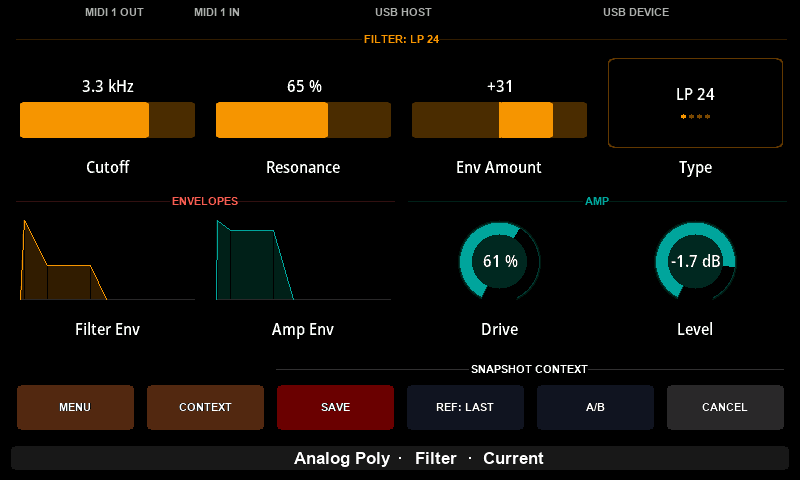
The first snapshot, the one you held, is your starting point. From then on you play and turn knobs as usual, and use the four buttons of the tool bar:
SAVEsaves the current sound as a new variation, into the next slot of the bank. Press it every time you like what you hear. When the bank's last slot has been used, the button readsRETAKE: press it to start over from the first slot after your starting point. Your starting point itself is never overwritten.A/Bswitches between the reference and your current sound. Press it once to hear the reference, and again to return to your current sound, exactly as you left it.REF: LASTandREF: FIRSTchoose the reference forA/B: the variation you saved last, or the snapshot you started from.CANCELcloses the tool bar. Everything you saved stays in its slot.
Your current sound is whatever you are working on, saved or not. If you change something while A/B plays the reference, the changed sound becomes your current sound: the next press of A/B keeps it and plays the reference again, so no edit is lost.
While the tool bar is open, the bottom bar says what you are hearing, after the preset and page names: A0 First or D3 Last while A/B plays the reference, and Current otherwise. Each save is confirmed there for about two seconds, for example Snapshot D0 saved, with the name the new snapshot was given. On the Mk2, a tool bar button lights up when you touch it.
Opening the SNAPSHOTS window again closes the tool bar, as CANCEL does.
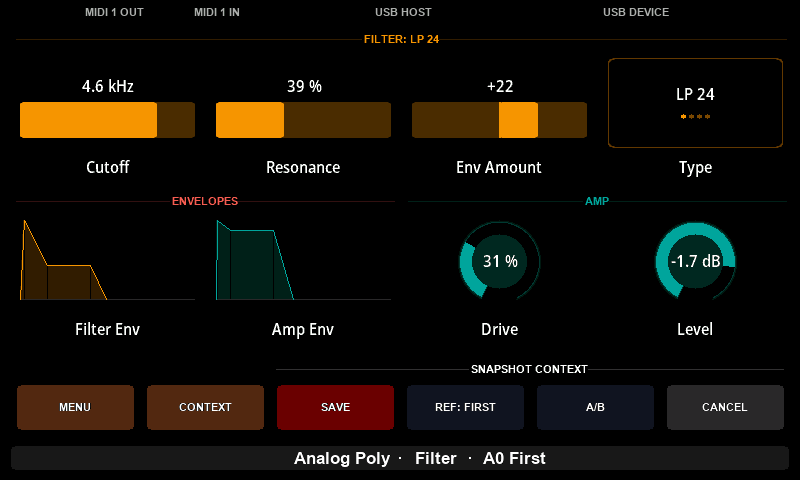
For example: hold a slot to save the current sound, raise the cutoff and press SAVE, add resonance and press SAVE again. Then press A/B with REF: FIRST to hear the original sound, and press A/B again to return to the new one. The variations get simple names such as B0 and C0 and the colours of their slots, and you can rename and recolour the ones you keep.
Snapshots in the Electra One app and in Lua
Snapshots live on the controller, but you do not have to manage them there. The Electra One app shows the snapshots of a preset on its page, where you can rename and recolour them, move them between slots and banks, and save them to files on your computer, for example as a backup or to share a sound with a friend.
Snapshots can also be controlled from a preset's Lua script. The snapshots library offers a complete set of functions: save, load, rename, recolour, move, swap and remove snapshots, read which slots are used, and name banks. A preset can use it, for example, to save a snapshot automatically at the press of a pad, or to step through a bank of sounds in time with the music.