

Version5.0.0 beta
Mini Presets in the Editor
Presets for Electra One Mini are made in the Preset Editor of the Electra One app, the same editor used for the Mk2. This chapter describes what is special about the Mini's layout. The editor itself is described in Preset Editor, and page layout in general in Layouts, Pages and Controls.
The Mini layout
Every project has a layout for each controller model. The Mini's layout is called Electra One Mini 4x2. Choose it in the Layout selector under the page. When the editor opens with a Mini connected, it shows the Mini layout.
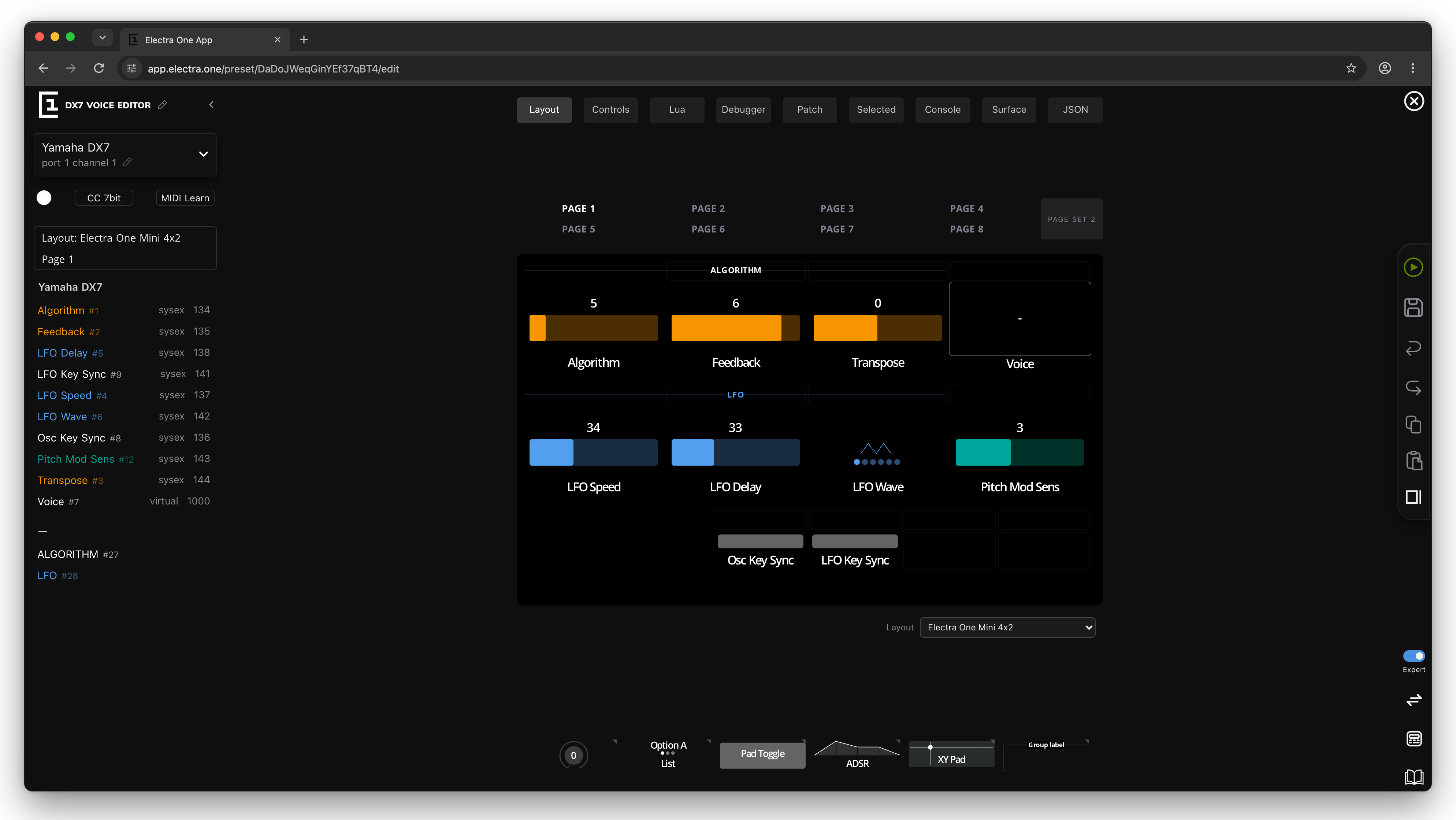
A project doesn't have to be created for the Mini: you can open any project and choose the Mini layout. A control that is placed in both the Mk2 and the Mini layout is one control with the same settings, so a preset can work on both models. See Using one control on both models.
The preview in the editor is the Mini's screen, 800 by 480 pixels.
The grid
A Mini page has six rows of slots:
| Row | What it holds |
|---|---|
| label row | group labels over the top row |
| knob row 1 | controls for KNOB 1 to KNOB 4 |
| label row | group labels over the bottom row |
| knob row 2 | controls for KNOB 5 to KNOB 8 |
| label row | a thin group label over the buttons |
| button row | controls for [BUTTON 1] to [BUTTON 4] |
The position of a control decides its knob: the control in the second slot of knob row 2 is on KNOB 6. You don't assign knobs to controls.
The button row sits under the third to sixth buttons of the Mini's bottom row; the first two are MENU and CONTEXT.
The button row
The button row takes pads and lists only. The editor refuses to drop or paste another control there and says so.
- A pad on a button is switched by pressing the button. A momentary pad is on while the button is held.
- A list on a button selects its next item with each press, and after the last item starts again at the first. The button shows the selected item's label, so give the items short names.
The button controls are shown on the controller only while no context is shown. If a preset needs a function on every page, place a copy of the pad or list on the button row of every page. Copies of a control that send the same parameter show the same value.
Sizes
- Controls take one slot. Only a Text box and a Custom control can be stretched over several slots, and only within the two knob rows.
- A group label can be up to four columns wide. Over knob row 1 it can be a thin line, one row or two rows high; over knob row 2 a thin line or one row; over the button row only a thin line.
Pages and page sets
A Mini preset has 16 pages. The page strip over the grid shows eight of them, with a button to switch to the other half:
- PAGE SET 2 shows pages 9 to 16.
- PAGE SET 1 shows pages 1 to 8.

The controller shows the pages in the same two sets, on the eight pads of its page selection. A page without controls is not offered on the controller.
To move a page to the other set, drag it onto the PAGE SET button and hold it there until the set changes, then drop it on a page.
The Mini has one control set, so the page settings have no Default Control Set.
The control palette
The palette is the same as for the Mk2, with one difference: the faders group starts with the Dial, which suits the Mini's small screen.
All control types work on the Mini. What pressing a knob does with each of them is described in Pressing a knob. Faders, dials, lists and relative controls have no detail window on the Mini.
Inputs of custom controls
Expert. A Custom control chooses the inputs it reacts to in its Pots setting. On the Mini, inputs 1 to 8 are the knobs and inputs 9 to 12 are the four buttons. A custom control can react to a button this way even if it is on a knob row, while no context is shown.
Knob presses in events
Expert. A control's events can run actions when a knob is touched or pressed, for example to switch to another page or run a Lua function. The Mini's knobs all have push switches, so the Knob switch source works on every knob, and on the four buttons for controls in the button row. When a control has an event for the knob switch, the event replaces what the press normally does. See Events and actions.
User functions
The pads of the controller's Preset Menu window come from the preset's Lua script. On the Mini, the keys pot1 to pot8 of preset.userFunctions belong to KNOB 1 to KNOB 8; pot9 to pot12 are not shown.
Sending to the Mini
Send to Electra sends the Mini layout when a Mini is connected. If the Mk2 layout is selected while only a Mini is connected, Send to Electra is disabled, and its tooltip says that no Mk2 is connected. If both a Mk2 and a Mini are connected, choosing the Mini layout also makes the Mini the controller that Send to Electra sends to.
Before sending, load the slot where the preset should go on the controller; the preset in that slot is replaced. See Loading a new preset.
A preset that has controls in the Mini layout appears with the Mini in the preset library. The download menu of a preset offers Download preset Mini, the preset file for the Mini.