

Version5.0.0 beta
External MIDI Control
Electra One can be controlled with MIDI messages from other devices: a footswitch, a pad controller, a keyboard, or software such as a DAW. This chapter describes the three ways it does that:
- The CTRL port understands a fixed set of messages that switch presets, recall, morph and randomize snapshots, and trigger captures.
- MIDI Control runs Electra One commands, such as switching pages, when MIDI messages you choose arrive.
- Remote knobs let the knobs, faders and pads of another controller move the controls of a preset, and send the values back to it.

A message one of the three acts on stays with Electra One and does not reach the preset's controls. A message they have no use for carries on as if the route were not there: a Control Change no MIDI Control mapping and no remote knob names still moves the preset's controls. Routes between interfaces (see Router) forward every message regardless, so the same message can control Electra One and be passed on to another device at the same time.
The CTRL port
The <USB DEVICE> interface offers three MIDI ports to your computer: Port 1, Port 2 and CTRL. On macOS they appear as Electra Port 1, Electra Port 2 and Electra CTRL; on Windows the CTRL port may be listed as MIDIIN3 / MIDIOUT3.
Electra One always listens to the CTRL port for the messages described below. No configuration is needed. A USB device plugged into <USB HOST> can use the CTRL port too, when it is assigned to it in the USB host settings.
TIP
The quickest way to try the examples below is the MIDI Console of the Electra One app. Select the Electra CTRL port and type the commands into the message prompt.
| MIDI message | Channel | Action |
|---|---|---|
| Control Change 0 (Bank Select) | any | choose presets or a snapshot bank |
| Program Change | any | load a preset, or recall a snapshot |
| Control Change 60 and up | snapshot bank | morph or randomize a pair of snapshots |
| Note On 60 and up | capture bank | trigger captures |
| Note On | 16 | transpose capture playback |
Switching presets
Program Change messages load either presets or snapshots. The last Bank Select decides which. Bank Select 0 chooses presets, and Program Change then loads the preset with that number, counted from 0 across all preset banks. On the Mk2, program 13 is the second preset of bank 2.
Load the preset in bank 1, slot 3:
cc 0 0
pc 2
Recalling snapshots
Bank Select 1 to 12 (1 to 8 on the Mini) chooses a snapshot bank. Program Change 1 to 36 (1 to 8 on the Mini) then recalls a snapshot of that bank. Program Change 0 and empty slots are ignored.
Recall snapshot 3-04, and then 3-12:
cc 0 3
pc 4
pc 12
Morphing and randomizing snapshots
Control Change messages move the morph and randomize sliders of the snapshot pairs without opening the SNAPSHOTS window, so a DAW or an LFO can morph a sound over time.
- The channel is the snapshot bank: channel 1 for bank 1, and so on.
- The controller number is the pair:
60morphs the first pair,61randomizes it,62and63work the second pair, and so on. - The value is the slider position, from
0to127.
Morph the first pair of bank 3 halfway:
ch 3 cc 60 64Both snapshots of the pair must exist. When the SNAPSHOTS window shows the same bank, its slider follows the messages.
Triggering captures
Notes play the captures of the loaded preset.
- The channel is the capture bank: channel 1 for bank 1, and so on.
- The note follows the rows of the CAPTURES window. Each row takes one note per slot, then one note that plays the whole row, then one that plays the row and starts recording into the armed slot. On the Mk2 a row has six slots, so notes
60to65are the slots of row 1,66plays row 1,67plays it and records, and row 2 starts at68. On the Mini a row has four slots:60to63,64,65, and row 2 from66. - A Note On does what selecting the slot does, so a second note stops a looping capture. Note Off messages are ignored.
Play the capture in bank 2, slot 1, and then the whole of row 2 of bank 1:
ch 2 on 60 127
ch 1 on 74 127
Transposing capture playback
A note on channel 16 transposes capture playback. Captures play shifted by the distance between that note and their own root note, both the ones playing and the ones started later.
Play the capture in bank 1, slot 1 a fifth higher:
ch 16 on 67 127
ch 1 on 60 127
Model differences
| Electra One Mk2 | Electra One Mini | |
|---|---|---|
| Program Change, presets | 0 - 71 (6 banks of 12) | 0 - 39 (5 banks of 8) |
| Bank Select, snapshot banks | 1 - 12 | 1 - 8 |
| Program Change, snapshots | 1 - 36 | 1 - 8 |
| Control Change, morph pairs | 60 - 71 (6 pairs) | 60 - 67 (4 pairs) |
| Channels, capture banks | 1 - 12 | 1 - 8 |
| Note On, captures | 60 - 107 (6 rows of 8 notes) | 60 - 71 (2 rows of 6 notes) |
| Note On, transposition | channel 16 | channel 16 |
MIDI Control
MIDI Control runs Electra One commands when MIDI messages of your choice arrive. It suits a footswitch, the pads of a small controller, or a button in your DAW, whatever messages they send.
Each mapping connects one message to one command:
The message is a Control Change, a Note or a Program Change, with its number.
The command is one of Electra One's user interface commands, for example:
- switch to the next or previous page, or to a page by its number,
- switch to the next or previous preset, or to a preset by its number,
- switch the control set,
- open the menu, the preset and page lists, the SNAPSHOTS or CAPTURES window, the router, devices, USB host or settings, or close a window,
- toggle the performance page or the alt mode,
- send a patch request,
- reset values to their defaults, or randomize them.
The Mini has no control sets, performance page, alt mode, router, devices or USB host windows, so the app does not offer those commands for it. The Mini's list is in MIDI Control.
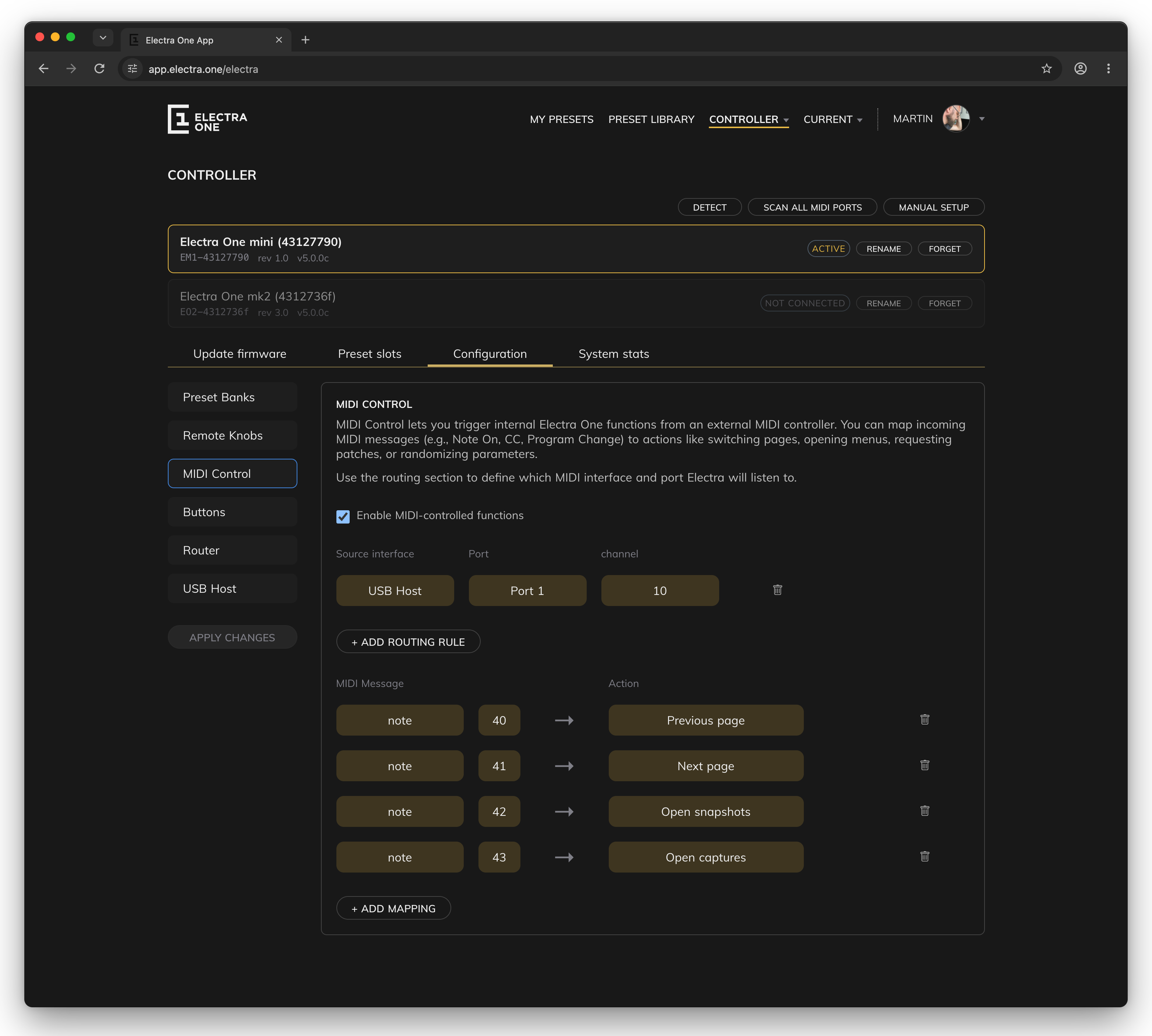
MIDI Control listens only to the inputs, ports and channels you route to it. On the Mk2 that is the CTRL column of the Router screen; in the Electra One app it is the routing section of the MIDI Control settings. The mappings belong to the controller, not to a preset, and work with every preset.
Only the messages that match a mapping are MIDI Control's. The rest of what arrives on its route reaches the preset as usual, so a controller can have two of its buttons switch pages while its other knobs and keys still play the preset. When a Note On runs a command, the Note Off of the same key is kept as well, so the preset never receives the release of a key it did not see pressed.
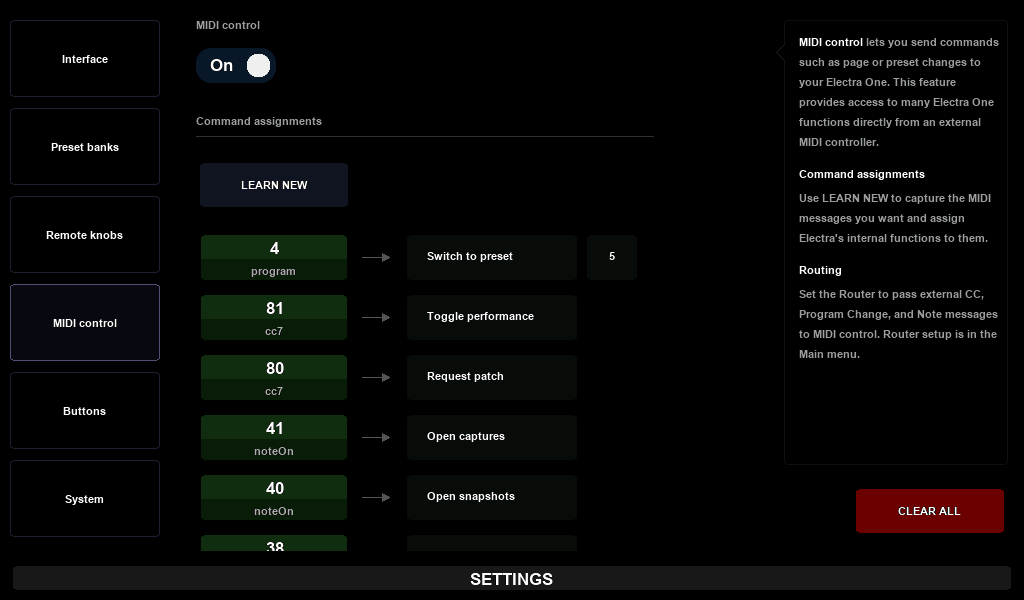
On the Mk2, mappings are made in Settings ▸ MIDI control: press LEARN NEW, send the message, and choose the command. On the Mini, and on the Mk2 as well, they are made in the Electra One app.
Remote knobs
Remote knobs connect the controls of a preset with another MIDI controller or with software. They work in both directions:
- In: a Control Change or a Note that arrives moves a control, as if you turned Electra One's own knob. The control sends its own message to your instrument, whatever that message is, SysEx included.
- Out: when a control moves on Electra One, its new value is sent back as a Control Change or a Note. A controller with motorised faders or LED rings follows along, and a DAW can record the movements as automation.
Because Electra One translates between the two, a DAW can automate an old synthesizer that only understands SysEx with ordinary Control Change messages.
Remote knobs listen only to the inputs, ports and channels routed to them, and send their values to the outbound destination set in their settings. There are two modes, and the loaded preset decides which one is in use.
Dynamic mode
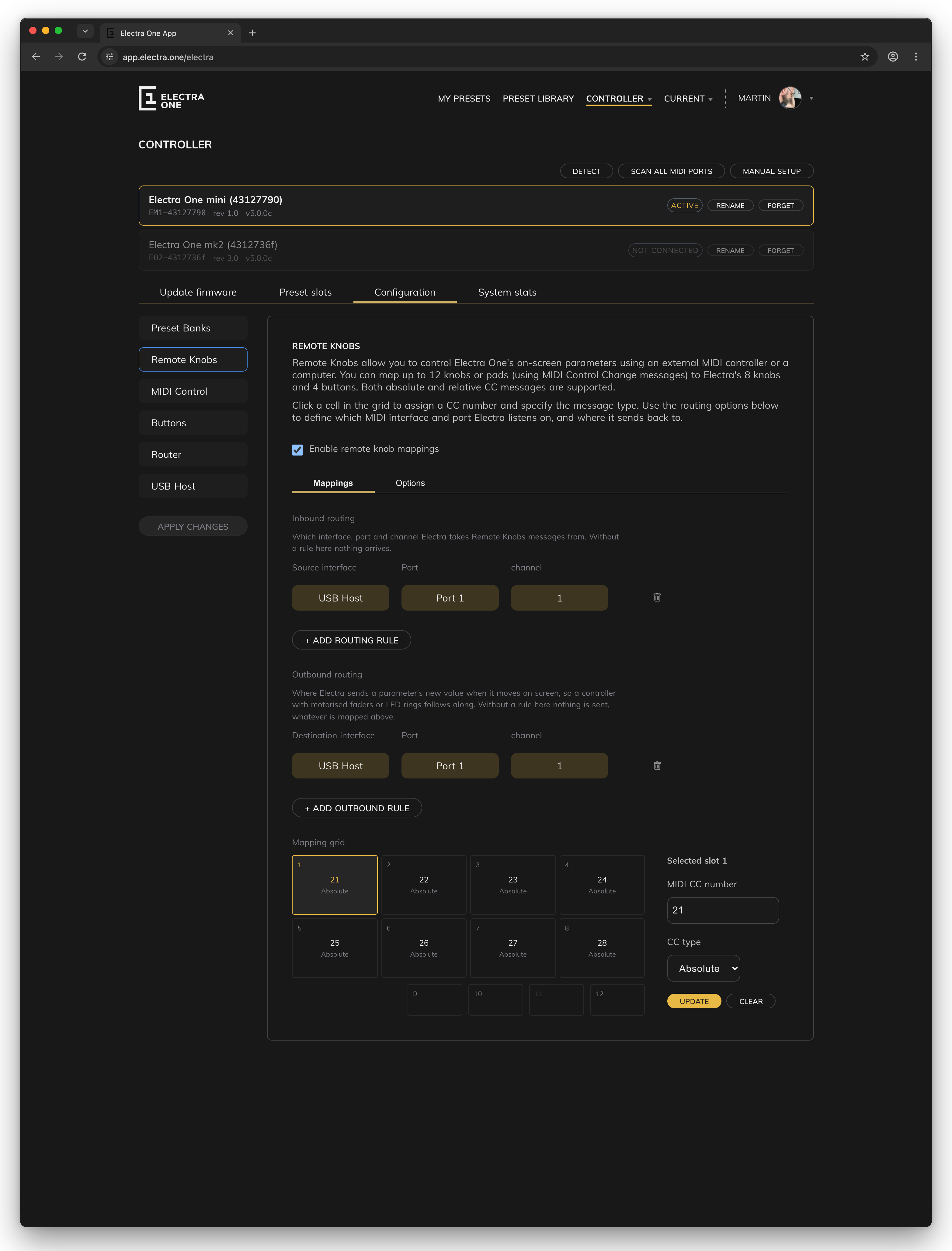
In Dynamic mode, a Control Change is mapped to a knob slot: a position of one of Electra One's own knobs. The Mk2 has 36 slots, twelve knobs in each of its three control sets; the Mini has 12, for its eight knobs and four buttons.
A slot drives whatever control sits at that position on the page you are looking at. When you turn the page or change the control set, the same message drives a different control. This is how an external controller extends Electra One's own knobs: one setup works on every page of every preset.
Each mapping is absolute, for faders and knobs that send a position, or relative, for endless encoders that send steps. When an absolute fader and a value disagree, the takeover setting decides what happens, as described in Remote knobs in The Concept of Control.
Dynamic mappings belong to the controller and are used by every preset that has no remote map of its own.
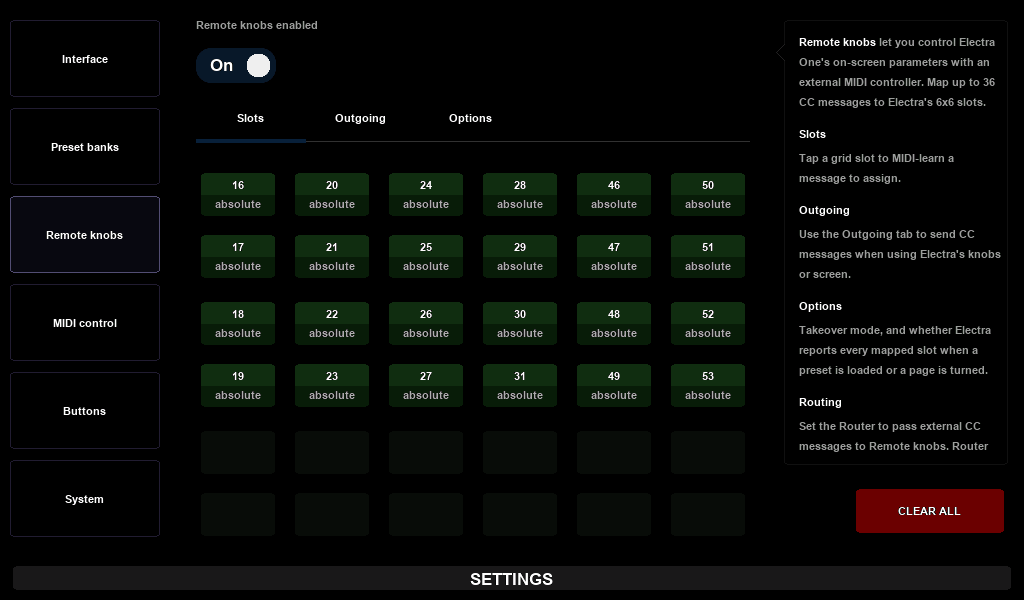
On the Mk2, the slots are set in Settings ▸ Remote knobs: tap a slot, press LEARN and move a knob on your controller. On the Mini they are set in the Electra One app.
Static mode
In Static mode, a message is mapped to a specific control of a preset. The mapping does not change with the page or the control set, and it reaches controls on any page, including controls that have no knob of their own.
Static mappings are stored in a remote map, a file that belongs to one preset slot. While a preset with a remote map is loaded, the map replaces the dynamic mappings. A remote map can hold:
- Control Change mappings, absolute or relative,
- Note mappings, as a momentary button, a toggle, or a value set by the velocity,
- its own takeover setting for each mapping.
One map holds up to 128 mappings, in any mix of Control Changes and Notes. Because the map is a separate file, it can be made for any preset, including one from the Preset Library, without changing the preset.
Remote maps are made in the preset editor, on the Surface tab. You draw your controller, or pick one, then move a knob or press a pad to learn its message, select the control it should drive, and upload the map to the preset slot.
BETA
The Surface tab is a beta feature of the Electra One app.