

Version5.0.0 beta
Preset Menu
The Preset Menu collects actions for the current preset. The window is titled PRESET MENU, and the button that opens it is labelled FUNCTIONS.
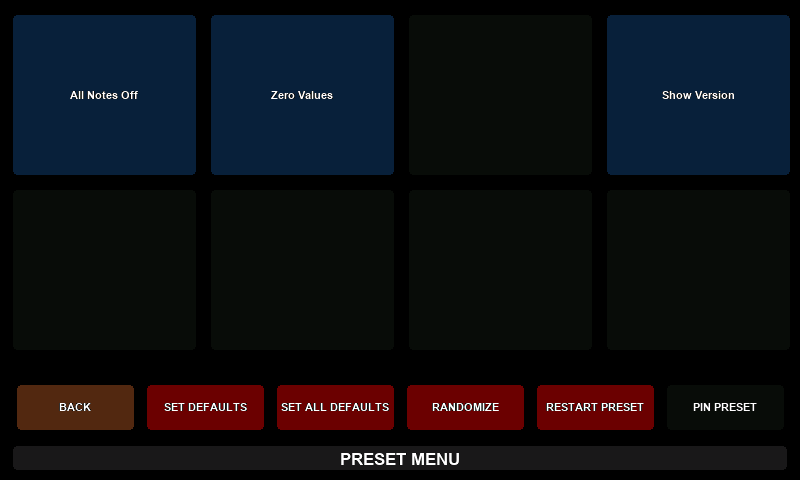
The buttons, from the left:
| Button | Label | What it does |
|---|---|---|
[MENU] | BACK | closes the window |
[CONTEXT] | SET DEFAULTS | sets the controls that have a default value in the preset to that value. Other controls keep their values. |
[BUTTON 1] | SET ALL DEFAULTS | sets every control to its default value |
[BUTTON 2] | RANDOMIZE | gives every control a random value |
[BUTTON 3] | RESTART PRESET | restarts the preset |
[BUTTON 4] | PIN PRESET | pins or unpins the preset |
All of them except PIN PRESET close the window. They act as soon as you press the button, and there is no undo. SET DEFAULTS, SET ALL DEFAULTS and RANDOMIZE change every control of the preset, on all pages.
The Mini's Preset Menu has no SEND CONTROLS, ASSIGN BUTTONS or EDIT MODE button; those are Mk2 actions.
Setting Defaults
Default values. A preset author can give each control a default value. SET DEFAULTS touches only those controls, so a preset can define which controls are reset and which are left alone. SET ALL DEFAULTS resets every control; a control without a default value goes to 0, or to its minimum when 0 is outside its range.
Randomize
Randomize gives faders a random value in their range, lists a random item and pads a random state, and sends the new values. To combine two sounds you like instead, use morphing.
Restart Preset
Restart preset loads the preset again, as if it had just been sent to the controller: the values return to their starting state and the Lua script starts again.
Pin Preset
When you load another preset, the previous one normally stops: it no longer reacts to MIDI, and its Lua script, timers and data pipes pause until you return to it.
A pinned preset keeps running in the background: it responds to MIDI, runs its Lua script and keeps its sequencers and modulations going while you work on another preset. Use it for a preset that sends clock, sequences notes or controls something you want to keep going.
- Press
PIN PRESETto pin the current preset. The button is highlighted while the preset is pinned. Press it again to unpin. - Pinned presets have a pin icon in preset selection.
- Sending a different preset to the slot, or deleting the preset, unpins it.
- Pins last until the controller is switched off. To keep them across a restart, press
SAVEin the Settings window.
User Functions
The eight pads show user functions: actions that the preset's author has written in Lua, such as sending a special message to an instrument. Pads with a function are blue and show its name; the other pads are empty.
- Press a knob to run the function on that pad.
- Some functions close the window when they are done; others leave it open, so you can run them again.
A preset without user functions shows eight empty pads, and pressing the knobs does nothing.
User functions are defined in the preset's Lua script, in the preset.userFunctions table. On the Mini, the keys pot1 to pot8 belong to KNOB 1 to KNOB 8:
lua
function allNotesOff()
    midi.sendControlChange(PORT_1, 1, 123, 0)
end

function showVersion()
    info.setText("Poly Synth 1.0")
end

preset.userFunctions = {
    pot1 = { name = "All Notes Off", call = allNotesOff, close = true },
    pot4 = { name = "Show Version", call = showVersion, close = false },
}
See preset.userFunctions in the Preset Lua Extension.
Toggling Preset Menu
Accessing Preset Menu
Press [MENU], then FUNCTIONS.
The window can also be opened from a button of the Controller context carrying the Open functions action, and by a MIDI message mapped to MIDI Control.
Leaving Preset Menu
Press [MENU], labelled BACK. Like every window opened from the menu, it returns to the preset page, not to the menu.
All the preset actions except PIN PRESET close the window themselves, and a user function closes it when its close attribute says so.