

Version5.0.0
Captures
A capture is a recording of MIDI messages stored on Electra One. It can hold notes, controller movements, SysEx messages and tempo information, and Electra One can play it back, loop it, transpose it and play several captures together. This chapter explains what captures are, what they are used for, and how recording and playback work.
What a capture is
Electra One stores every capture as a Standard MIDI File (SMF), the same .mid format that DAWs, sequencers and MIDI editors read and write. A capture keeps each message together with the time it happened, and it keeps the tempo and time signature too.
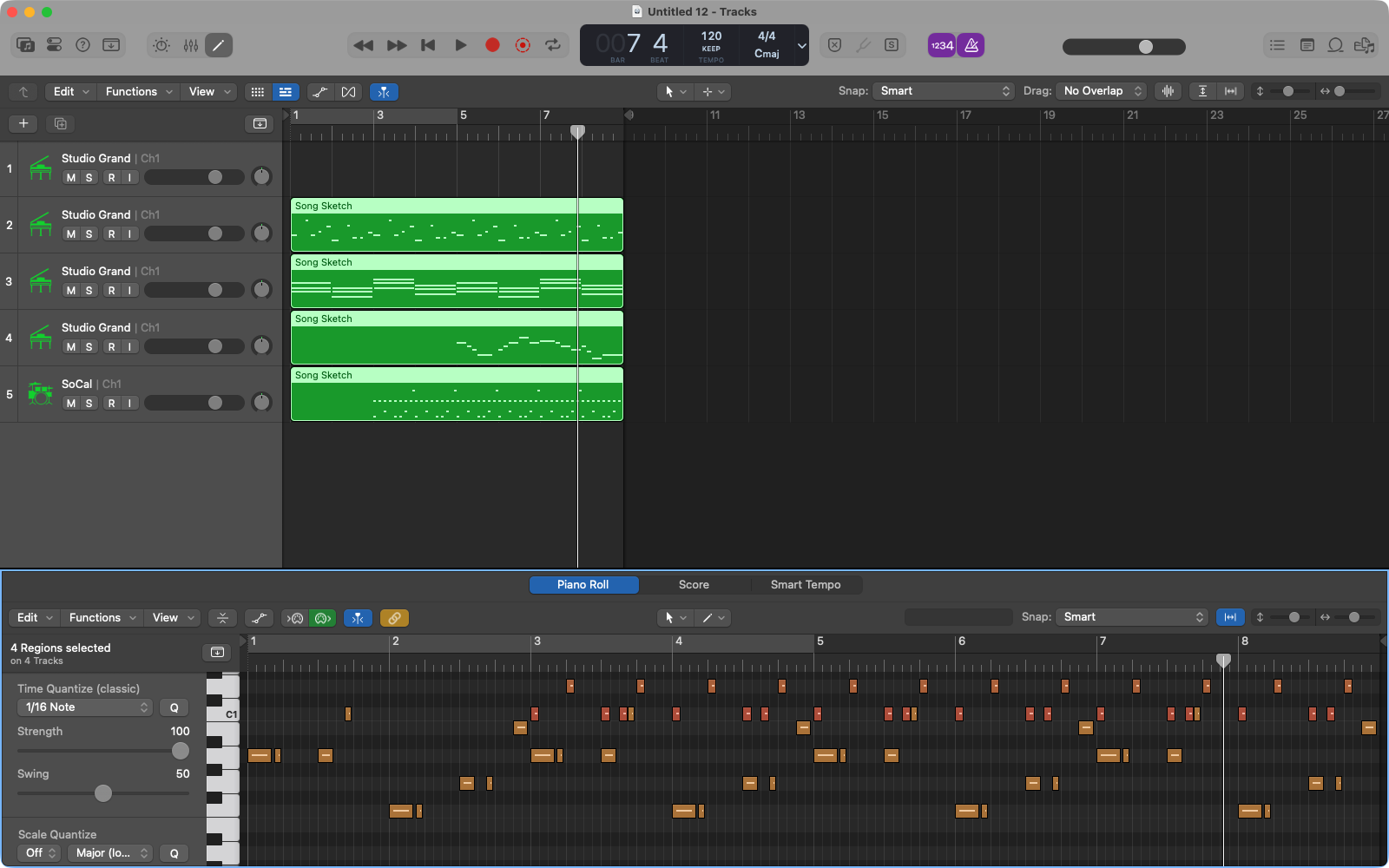
Because it is a MIDI file, a capture is not limited to a single message. One capture can hold a whole SysEx patch dump, a set of dumps for several instruments, or thousands of notes and controller changes. A capture can be up to 64 KB, which is room for several thousand MIDI events.
The file format also means that captures are not locked inside the controller:
- A capture recorded on Electra One can be downloaded and opened in a DAW or a MIDI editor, edited there, and sent back.
- A MIDI file created on the computer can be uploaded to Electra One and played as a capture.
What captures are used for
Captures serve three kinds of work. In each of them, the result can be played back on Electra One later, or opened on a computer.
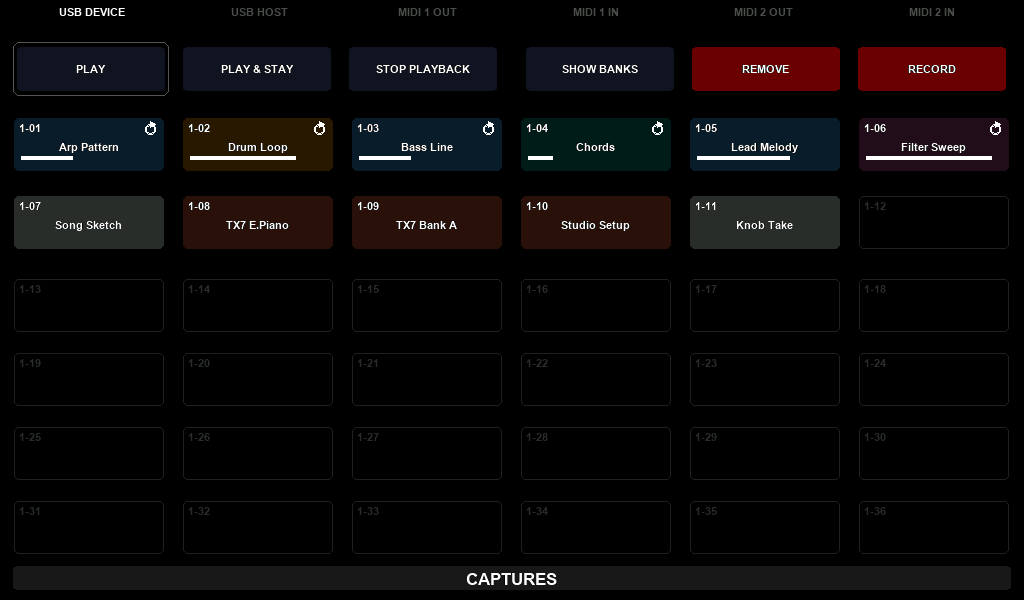
SysEx recorder. Many synthesizers and effect units send their sounds, sound banks and settings as SysEx dumps. A capture stores such dumps and lets you organize them in banks with names and colours: one capture for each patch, one for a whole bank of sounds, one for a studio setup that sends program changes and settings to several instruments. Playing the capture sends the dump back to the instrument.
Musical phrases and songs. A capture can hold a bass line, a chord progression, a drum loop, a filter sweep or a whole song. Captures loop, follow tempo and can be transposed, so they work as a simple pattern player.
Recording what you do on Electra One. A capture can record the MIDI messages Electra One sends while you turn its knobs, so a filter movement or a performance with the controls can be played again exactly as you made it.
Banks and slots
Captures are organized like snapshots. They are kept on Electra One in slots, grouped in banks, and they belong to the preset they were made with, not to the preset slot it is in.
The same preset in several slots shares its captures
If you send the same preset to more than one preset slot, all of those slots use the same capture banks. A capture you record in one slot shows up in the others, and removing it in one slot removes it from all of them. To keep separate captures, make a copy of the preset with DUPLICATE in the Electra One app and send the copy to the second slot. The copy starts with empty banks.
| Electra One Mk2 | Electra One Mini | |
|---|---|---|
| Banks per preset | 12 | 8 |
| Slots in a bank | 36 | 8 |
| Captures per preset | 432 | 64 |
Besides a name and a colour, each capture has a few playback settings:
- Output: the interface and port the capture plays to.
- Loop: whether the capture starts again when it reaches its end.
- Sync to clock: whether the capture follows the MIDI clock of another device, such as a DAW, instead of its own tempo.
- Root note: the key the capture was recorded in, used for transposing.
Recording
To record, choose RECORD in the CAPTURES window and select a slot. The slot is armed, and the recording starts with the first MIDI message that arrives. MIDI clock alone does not start it. Select the slot again to stop, and the capture is saved.
A capture can record two kinds of messages:
- External: the messages that arrive at Electra One from its MIDI sockets, from USB instruments and from the computer.
- Internal: the messages Electra One sends itself, for example when you turn its knobs.
Holding the slot instead of selecting it opens the capture tool bar on the page, with RECORD, INTERNAL, EXTERNAL and CANCEL. INTERNAL and EXTERNAL choose what is recorded, RECORD starts the recording at once and stops it on the next press, and CANCEL discards the take. Because the page stays on screen, you can record while you play the controls. When a recording is saved, the bottom bar confirms it for about two seconds, for example Capture A0 saved. On the Mk2, a tool bar button lights up when you touch it.
A capture can be recorded while other captures play. The recording starts in time with them, it ends on a whole number of bars, and it is saved as a loop, so it fits the captures that were playing.
Playback
PLAY plays a capture and closes the window, PLAY & STAY keeps the window open, and STOP PLAYBACK stops everything. A capture that is playing shows its progress in its slot.
Up to eight captures can play at the same time. A capture started while others are playing waits for the next bar line of the capture that started first, so all of them stay in time with each other. Captures that loop play on until you stop them.
Transposing. Each capture has a root note. When you send a note on channel 16 to Electra One's CTRL port, captures play transposed by the distance between that note and their root note. A bass line recorded in A can follow a chord change to D with a single key press. See External MIDI Control for the details.
Precise timing. Playback runs on its own, apart from the screen and the preset's scripts. Messages leave Electra One within a millisecond of their time, and touching the screen, switching pages or a busy Lua script does not delay them.
Playback reaches the preset too. Electra One passes the messages a capture plays to the preset, as if they came from an external device. Controls move with a recorded filter sweep, and a recorded SysEx patch dump updates the controls through the device's patch rules. The preset's Lua script receives the messages as well. These messages are not forwarded by the router and are not recorded into another capture.
Captures can be started from the CAPTURES window, with notes on the CTRL port from another MIDI device (see External MIDI Control), from a control's event, and from Lua.
Captures on the computer
The Electra One app shows the captures of a preset on its page. There you can rename and recolour them, change their playback settings, download them as MIDI files, and upload MIDI files from the computer into free slots.
Lua and the Step Sequencer
Lua gives a preset full control over captures. The captures library can do everything the CAPTURES window and the Electra One app can do, and more:
- record, play, stop, loop and transpose captures, one or several at a time,
- create, rename, recolour, move and remove captures, and change their playback settings,
- open a capture and read, write, change and remove its notes and other events, which lets a script compose and sequence music.
The timing of playback stays with Electra One, so a capture written by a script plays as precisely as a recorded one.
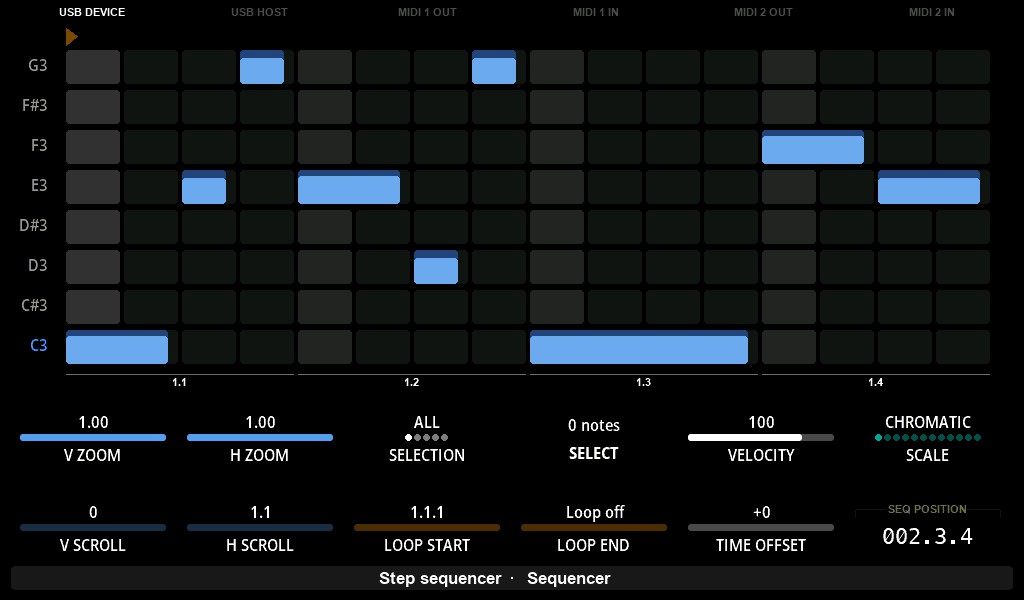
The Step Sequencer preset for Electra One Mk2 is an example of this. The pattern it edits is a capture.