

Version5.0.0 beta
Making a Number Say What It Means
What you will learn
- What a formatter is, and where you type its name.
- Just enough Lua to read one: what a function is, and what it gives back.
- Seven formatters to copy, for percentages, times, tunings, panning, note names, decibels and plurals.
- How to adjust one for your own instrument, and how to get help when the change is bigger than you fancy.
Introduction
A control on the Electra One shows a number, because a number is all a MIDI message carries. Your instrument's own screen shows something friendlier. Its filter does not say 64, it says 1.2 kHz. Its panner does not say -32, it says L 32. Its oscillator does not say 60, it says C3.
A formatter closes that gap. It is a short piece of Lua that the controller hands the value to, just before it draws it, and whose answer it draws instead. The value is untouched - the same number is still sent, still received, still stored. Only the text on the screen changes.
You do not need to know Lua to use this tutorial. Every formatter in it is written out in full and can be copied as it stands, and the last section is about changing one when your instrument wants something slightly different.
Expert mode
The Formatter field is part of the Expert toolbox. Flip the toggle at the bottom of the sidebar to Expert before you start; nothing else in this tutorial is any harder than it was in Basic.
What we will build
One preset, Poly Synth, one page, eight dials. The first has no formatter at all, and is there for contrast. The other seven each show a different way of turning a number into something a musician reads without thinking.
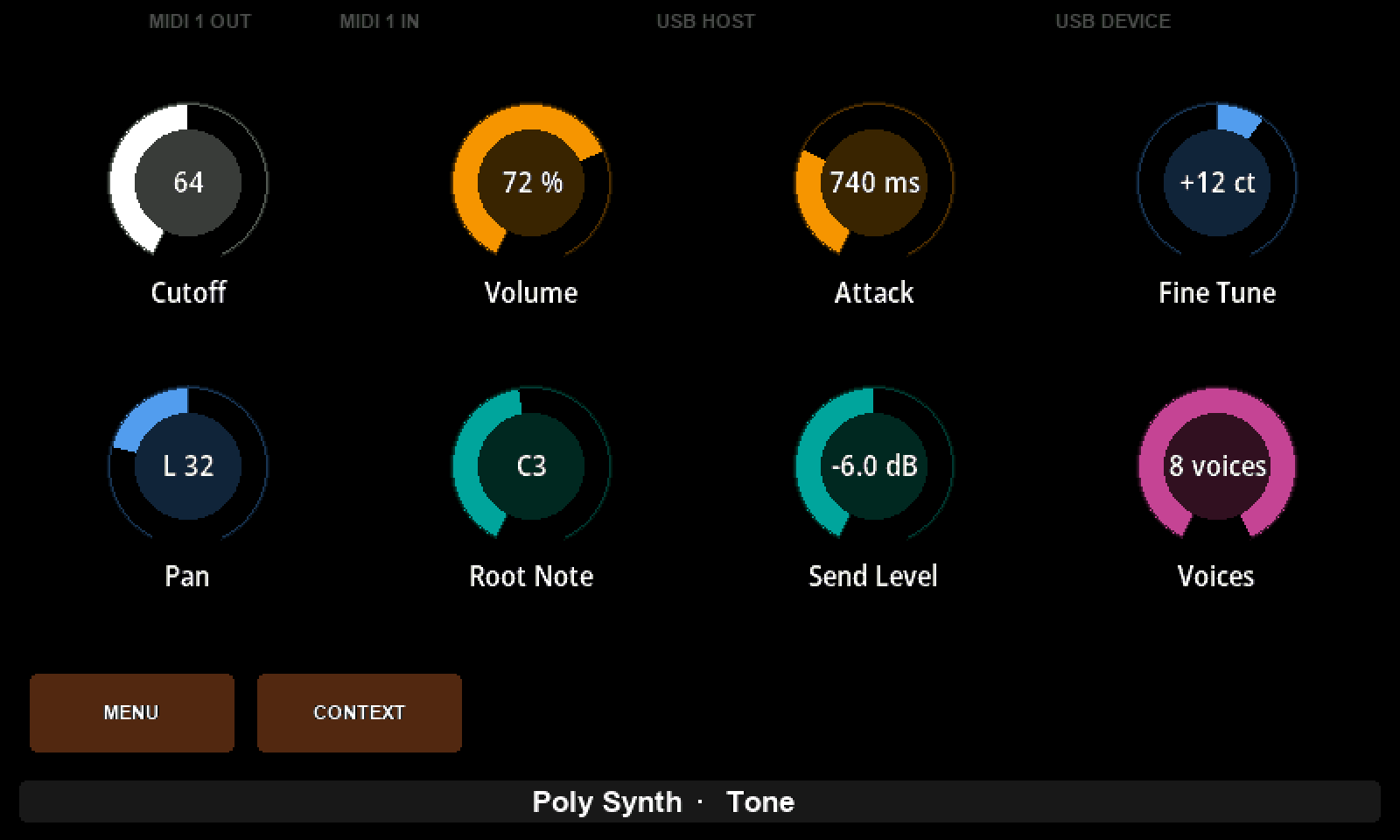
Cutoff says 64, which is what every one of them would say without a script. The others say 72 %, 740 ms, +12 ct, L 32, C3, -6.0 dB and 8 voices.
Gear required
An Electra One controller - the pictures are from a Mini, and an Mk2 works the same way - and the preset editor in Expert mode, with the controller connected. No instrument is needed: nothing here depends on anything answering.
1. Lua, in two minutes
Lua is a small programming language, and the Electra One runs a copy of it inside every preset. It is used for the things a preset cannot describe by filling in fields, and formatting a value is the smallest and most useful of them.
Everything in this tutorial is a function. A function is a named piece of work that takes something in and gives something back. Here is one:
lua
function double(number)
    return number * 2
end
Read it as four things. function starts it. double is its name, which is how something else asks for it. (number) is what is handed in - a name you choose, standing for whatever arrives. And return is the answer it gives back, after which the function is over. end closes it.
A formatter is that shape with the names fixed:
lua
function formatPercent(valueObject, value)
    return string.format("%d %%", value)
end
The controller calls it whenever the value changes, and once more when the preset loads. It hands in two things: valueObject, which is the value itself and which most formatters ignore, and value, which is the number on the screen - the display value, not the MIDI value. If a dial runs from 0 to 100 on screen while sending 0 to 127, a formatter sees 0 to 100.
Whatever you return is drawn on the control, cut to 20 characters. Return nothing, or something that is not text or a number, and the control keeps the text it had.
That is the whole contract. If you would like the language itself explained properly, the Lua part of the crash course starts from nothing, and its chapters on functions and conditions cover everything used below. The official Lua reference is the last word - the controller runs Lua 5.4 - and Programming in Lua is its free book.
2. Where a formatter goes
Put a dial on the page, call it Volume, and give it Min 0 and Max 100. Choose CC 7bit with Parameter 7 - a real volume control - and a Default of 72, so there is something to look at.
Now look at the VALUE card in the sidebar. Under the three range fields there is a field called Formatter, and this is the whole of the wiring: you type the name of a function, and the controller calls it.
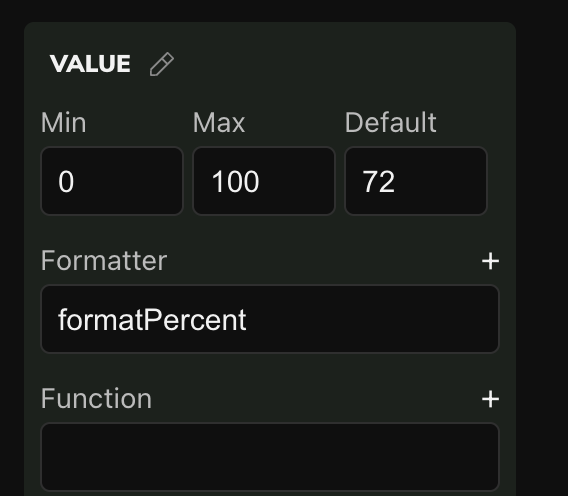
Type formatPercent into it. Then click the small + beside the label, and the editor writes an empty function of that name at the end of the preset's script, ready to fill in:
lua
function formatPercent(valueObject, value)
    -- your code goes here and it must return a value to display
    return(value)
end
The + is a convenience, not a requirement - a formatter is found by name, so a function you write yourself on the Lua tab works just as well. What matters is that the name in the field and the name in the script are spelled identically.
3. Your first formatter
Click the Lua tab, along the top of the editor. The whole preset has one script and this is it, so every formatter you write from here on goes in this one place - including the empty one the + just added.
Replace its body with a single line:
lua
function formatPercent(valueObject, value)
    return string.format("%d %%", value)
end
string.format builds a piece of text from a pattern and some values. %d means "put a whole number here", and everything else in the pattern is text that comes out as it went in. The doubled %% is how you write a single % sign, because a lone one would be read as the start of another instruction.
Click Send to Electra and turn the knob. It says 72 %.
Two things are worth noticing while you are here. The editor's own picture of the page still shows 72 - formatters run on the controller, not in the browser, so the editor shows you the number and the controller shows you the text. And the number really is untouched: the console still shows the same Control Change going out as before.
A formatter formats, and nothing else
Two rules, and both of them bite quietly.
It must always return something - a piece of text or a number, on every path through the function. Miss one, such as an if with no return after it, and the control simply keeps the text it had. On screen that is indistinguishable from a knob that has stopped working.
It must not change anything. No sending MIDI, no moving other controls, no editing the preset. A formatter runs for every step of a knob sweep, on whichever thread the value changed on, and work of that sort does not belong there. When you want a value to do something as well as read well, that is the Function field directly beneath Formatter - see Formatters and functions - or the parameterMap module from a script, which is how one control moves another.
4. Six more to copy
Each of these is a complete function. Paste it into the Lua tab, put its name in a control's Formatter field, and send to Electra.
Times that change unit
A number of milliseconds is easier to read as seconds once it gets long. This one switches over at a second:
lua
function formatTime(valueObject, value)
    local milliseconds = value * 20

    if milliseconds < 1000 then
        return string.format("%d ms", milliseconds)
    end

    return string.format("%.2f s", milliseconds / 1000)
end
local makes a name that belongs to this function alone. if ... then ... end runs a piece of code only when something is true, and because a return ends the function on the spot, anything after the if only happens when the condition was false. %.2f means a number with two decimal places.
On a dial of 0 to 127 this reads 740 ms in the middle and 2.54 s at the top. Change the 20 to suit your instrument's real range.
Numbers that need their sign
A detune of 12 means twelve cents up, and a reader should not have to guess:
lua
function formatCents(valueObject, value)
    return string.format("%+d ct", value)
end
%+d is %d with the sign always written, so 12 comes out as +12 and -7 as -7. Give the control a Min below zero - -50 to 50 here - and set its Mode to Bipolar so the ring draws outwards from the middle.
Left, centre and right
Panning wants a direction and a distance, not a signed number:
lua
function formatPan(valueObject, value)
    if value == 0 then
        return "Centre"
    elseif value < 0 then
        return string.format("L %d", -value)
    end

    return string.format("R %d", value)
end
elseif is a second question, asked only when the first answer was no. Note -value in the middle branch: the number is negative there, and the minus sign turns it back into how far left, so the control reads L 32 rather than L -32.
MIDI note numbers as note names
Nobody thinks in note numbers. This turns 60 into C3:
lua
local NOTE_NAMES =
    { "C", "C#", "D", "D#", "E", "F", "F#", "G", "G#", "A", "A#", "B" }

function formatNote(valueObject, value)
    local name = NOTE_NAMES[(value % 12) + 1]
    local octave = math.floor(value / 12) - 2

    return name .. octave
end
The list in curly brackets is a table, Lua's way of keeping several things under one name. NOTE_NAMES[1] is "C" - Lua counts from 1, not from 0, which is why there is a + 1. % is the remainder after dividing, so 60 % 12 is 0 and lands on C, and 61 % 12 is 1 and lands on C#. math.floor rounds down, and .. glues two pieces of text together.
The - 2 is the octave convention: it puts middle C at C3, which is what Yamaha and most manufacturers use. Change it to - 1 if your instrument calls that note C4.
Write the table outside the function, as shown. It is built once when the preset loads rather than every time the knob moves.
Decibels, and the value that has none
Levels read better in decibels, and silence needs a word of its own because it has no decibel value at all:
lua
function formatDecibels(valueObject, value)
    if value == 0 then
        return "-inf dB"
    end

    return string.format("%.1f dB", 20 * math.log(value / 127, 10))
end
math.log(x, 10) is the logarithm that decibels are made of. The guard above it matters: at zero the sum has no answer, and a formatter that fails leaves the old text on the screen, which looks like a stuck control.
One voice, but two voices
The smallest one, and the one people notice:
lua
function formatVoices(valueObject, value)
    if value == 1 then
        return "1 voice"
    end

    return value .. " voices"
end
Here .. glues the number straight onto the text. The same shape covers 1 step and 2 steps, 1 bar and 2 bars, and every other unit English insists on changing.
5. Seeing the awkward values
A formatter is only as good as its worst case, and its worst cases are the ends. Turn every knob to an extreme and look:
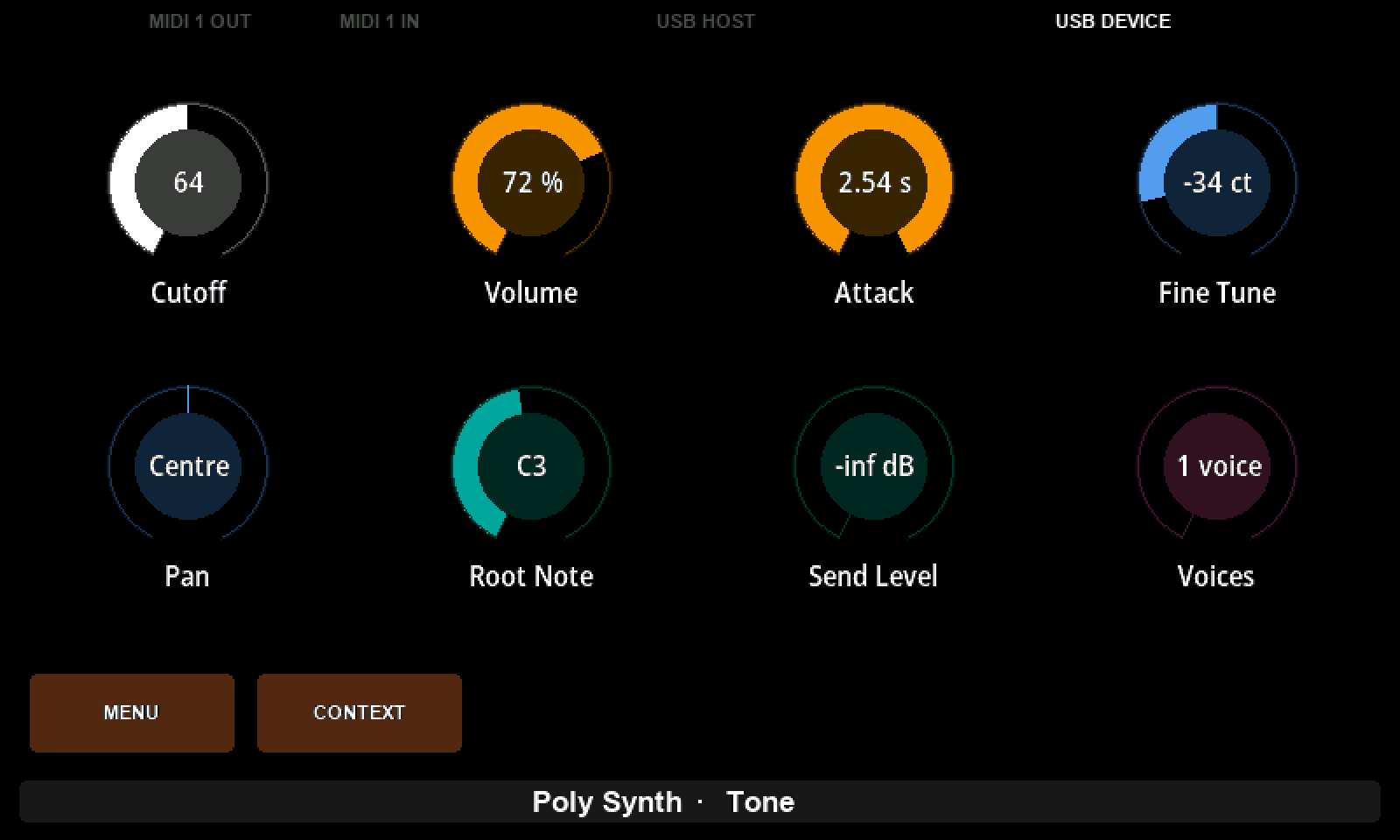
Attack has crossed into seconds, Fine Tune has gone negative, Pan sits at Centre, Send Level shows -inf dB where the arithmetic would have failed, and Voices has remembered to say voice rather than voices. Those five are exactly the cases the if lines were written for, and the only way to know they work is to go and look at them.
6. Making one your own
Every formatter above has the same three parts, and changing one means changing one of them:
- The units. The text in the pattern is only text. Change
" ms"to" Hz"and you have a frequency readout. - The arithmetic.
value * 20is where the display range becomes real units. If your instrument's attack runs to 8 seconds over 127 steps, that isvalue * 63. - The special cases. Each
ifis one value that deserves its own words - zero, the middle, the top.
Try the smallest change that could work, send to Electra, and look. That loop takes a few seconds, and it is much faster than reasoning about it.
Ask for help with the harder ones
Lua is worth knowing, and you do not have to know it today. An AI assistant - Claude, ChatGPT or another - will write or adjust a formatter for you if you ask precisely. Give it the shape and the facts:
Write an Electra One value formatter in Lua. The function signature is
function formatCutoff(valueObject, value)and it must return a string.valueruns from 0 to 127 and should be shown as a frequency from 20 Hz to 16 kHz on a logarithmic scale, as1.2 kHzabove a thousand and840 Hzbelow it.
Then paste what comes back into the Lua tab and look at the controller. Turn the knob to both ends. An answer that is wrong is usually wrong at the extremes, which is where you were going to look anyway.
7. When a formatter is the wrong tool
A formatter earns its place over a whole range of numbers. When what you have is a handful of named settings - four filter slopes, six LFO shapes - an overlay is the better answer: you type the names into the editor, they are stored with the preset, and the control becomes a list you can step through. No script is involved.
Where a value has both, the overlay wins.
What to remember
- A formatter is a Lua function named in the value's Formatter field. The name in the field and the name in the script must match exactly.
- It is handed the display value, not the MIDI value.
- Whatever it returns is drawn, up to 20 characters. Returning nothing leaves the old text in place, which is what a broken formatter looks like.
- It runs when the value changes and when the preset loads.
- The editor shows the number; the controller shows the text. Send to Electra to see your work.
- A formatter formats and nothing else. It must not send MIDI, move another control or change the preset. To make a value do something, use the Function field beside Formatter, or
parameterMapfrom a script. - Use an overlay instead for a few named values.