

Version5.0.0
How Events Put More on One Page
What you will learn
- What a knob's press and its touch can be made to do, and why one of them replaces a gesture while the other only adds to it.
- How one control can carry more than one MIDI message, so a page holds more than it has knobs.
- How a group that follows a parameter turns a label into a display that costs no knob at all.
- When an action wants a command or a few lines of Lua instead of a number.
Introduction
A page on an Electra One Mini has eight knobs, so a page holds eight parameters. That is the arithmetic every preset starts from, and it is wrong.
A knob can be turned, but it can also be pressed, and it can be touched. Each of those is a gesture a preset can claim for itself, and that is what events are: a control with an event still does its own job, and does something else besides - sends a second message, runs a command, calls a few lines of Lua.
The other half of the idea is a group that watches a parameter. A group is normally just a label over a row of controls; tell it to follow a MIDI parameter and it becomes a display, showing what that parameter is doing in a name and a colour of your choosing. It takes no knob, because there is nothing to turn.
Put the two together and one knob sends two parameters while a label reports on the second. The page still has eight knobs. It no longer holds only eight things.
Expert mode
Everything here lives in Expert mode. New to controls altogether? How Controls Work builds a page of them from nothing.
What we will build
One preset, Control Events, two pages, and five ideas.
| What | What it teaches |
|---|---|
a Cutoff dial whose press switches the filter between low pass and high pass | one knob, two parameters |
a button-like group above it, reading LOW PASS or HIGH PASS | a display that costs no knob |
| a second dial whose press cycles four filter types | where a little Lua earns its place |
| a pad on one of the Mini's buttons that changes the page | a command instead of a message |
| an envelope that says which of its four knobs you touched | events belong to the control, not to its values |
Gear required
- An Electra One controller. The pictures are from a Mini; the Mk2 works the same way, with a tap on the screen where the Mini has a knob press.
- The preset editor, with the controller connected.
- No instrument at all. The Console catches everything we send.
1. An empty preset, and the Expert switch
Go to MY PRESETS, click CREATE NEW PRESET with the controller connected, and name it Control Events. Then find the Basic / Expert toggle at the bottom of the toolbox and switch it to Expert.
The editor grows. Two of the new things are the whole subject of this tutorial: an EVENTS section at the foot of every control, and Follows parameter on every group. Nothing about the preset itself changes - the mode decides what the editor shows you, not what the preset is, and it is remembered by your browser rather than by the preset.
Put Layout and Console side by side in split view, and send.
2. A dial that also switches
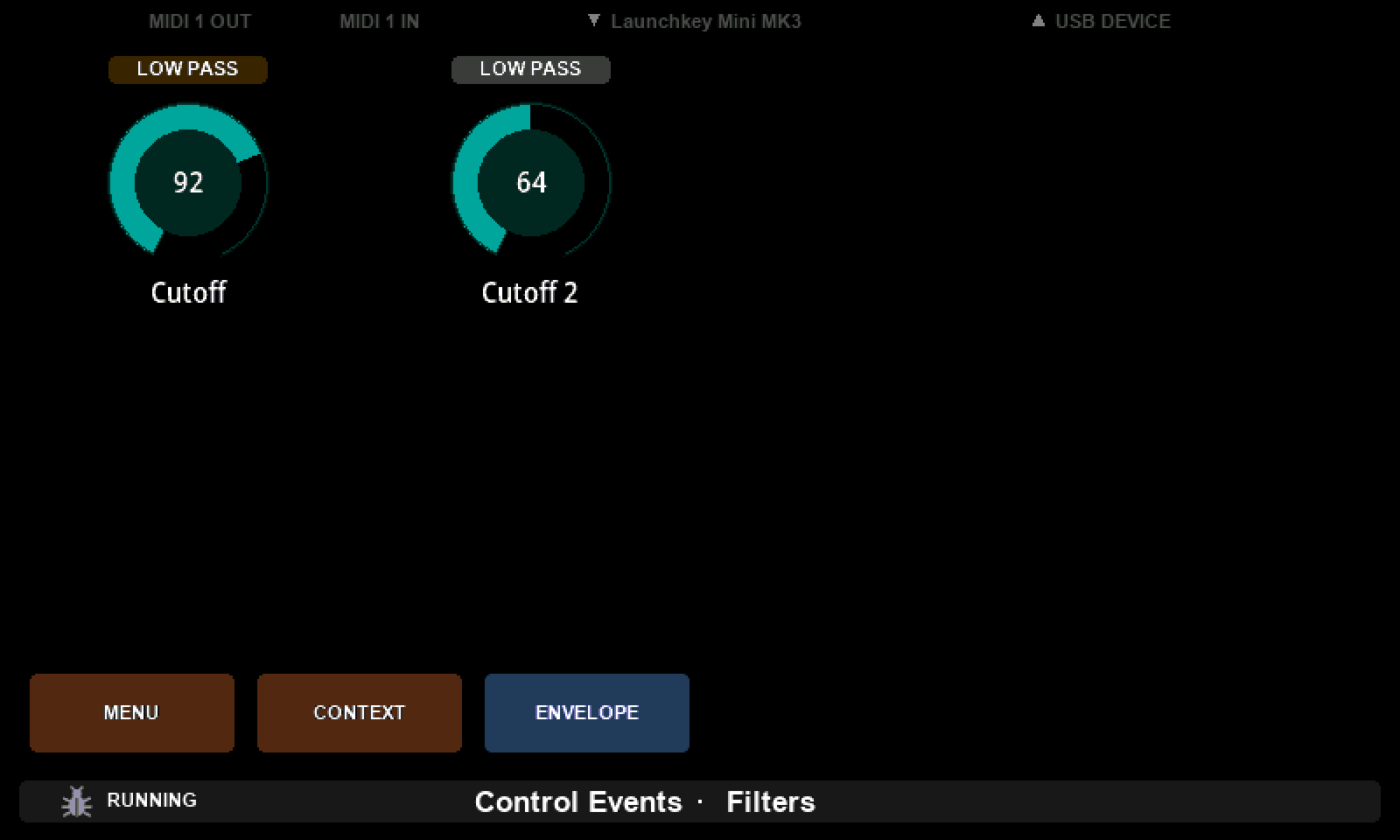
Build an ordinary control first, so that there is something to add to. Open the faders tile, pick the Dial, drop it on KNOB 1, and name it Cutoff with Message Type CC, 7 bits, parameter 1. Send and turn the knob: cc 1 … fills the console. Nothing new so far.
Now scroll the sidebar to EVENTS. Click ADD EVENT, choose Knob switch · Press, click ADD, and then ADD ACTION → MIDI message, CC, parameter 10, Value to send 1.
Send, and press the knob you have been turning. One cc 10 1 appears for every press - one knob, two parameters, and the press cost you no slot on the page.
It only ever says the same thing, though, which is what the next step is for.
A switch event takes the gesture over
A Knob switch event replaces what a press normally does rather than adding to it: a pad with one no longer toggles, a fader with one no longer opens its detail window. That is the point - but it also means an event with no actions in it quietly disables the gesture.
Knob touch events are the opposite. They only ever add, which is what step 7 is built on.
3. Two presses, two messages
A press that always sends 1 is a button with one thing to say, and a filter has two positions.
Set Knob Switch Mode to Toggle. In momentary mode a press runs the Press actions and letting go runs the Release ones; in toggle mode letting go does nothing at all, and the next press runs the Release actions instead. The two edges of one gesture become two alternating states.
So give it both edges. Leave the Press action sending 1, then ADD EVENT → Knob switch · Release, and give that one an action sending CC 10 value 0.
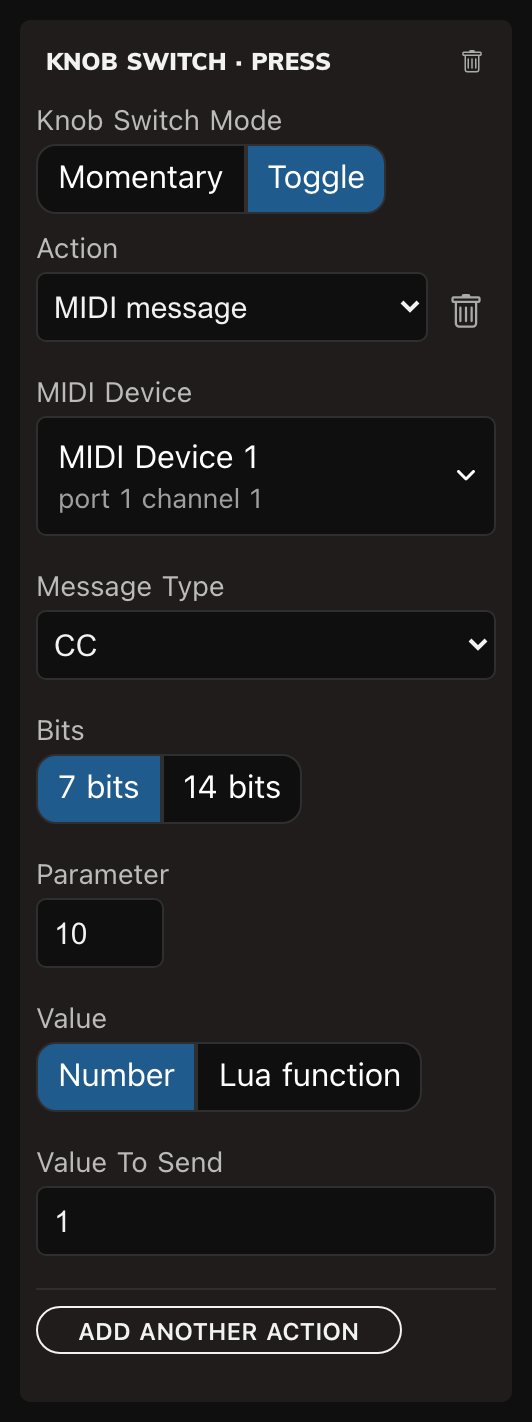
Send, and press the knob twice: cc 10 1, then cc 10 0, and round again. Read the times rather than the values, because momentary mode sends those very same two lines - one on the way down, one on the way up, a fraction of a second apart. In toggle mode there is a whole press between them.
Room to see what you are building
A control with two events makes for a long sidebar. Switch a view to the Selected tab and it lays the same settings out over the whole width of that view, with the values and the events side by side. Layout on the left and Selected on the right is a good pair for the rest of this tutorial.
4. The group that watches
Press the knob a few times and watch the Mini. Nothing on it changes. The filter type is real and going out on the wire, but nothing on the page is showing it.
A group can. Drag a Group label onto the thin row directly above Cutoff, name it Filter type, and set Variant to Button - which draws it as a pad-shaped label rather than a line. Then switch Follows parameter on, give it the same device, CC and parameter 10, and under Shown values name 0 LOW PASS and 1 HIGH PASS, each in its own colour.
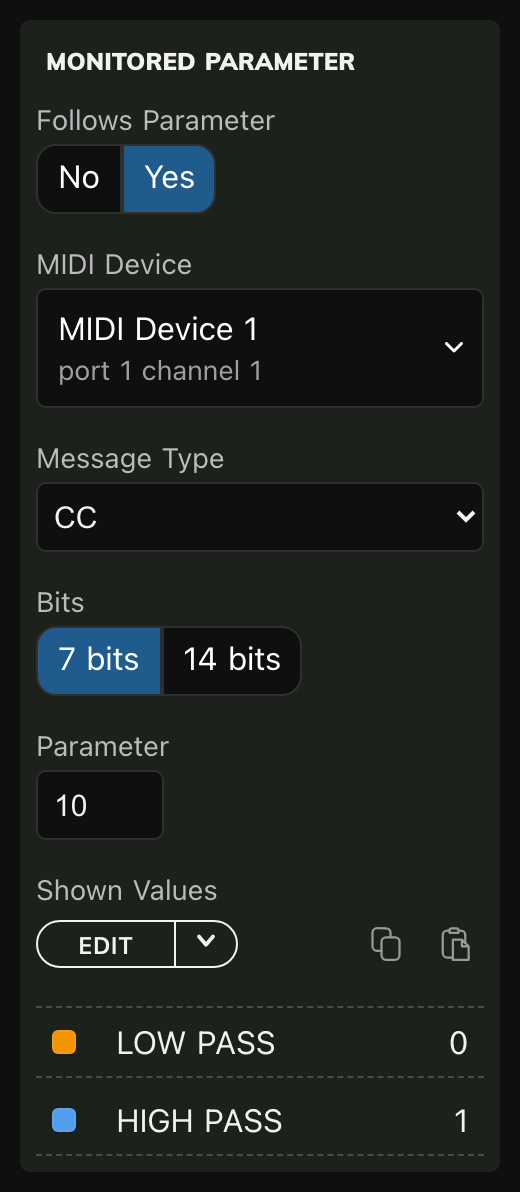
Send, and press the knob.
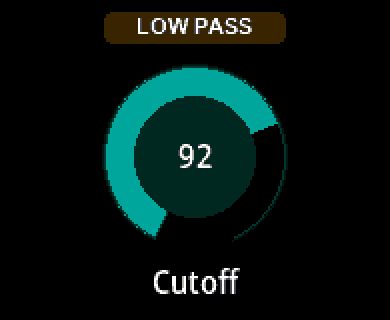
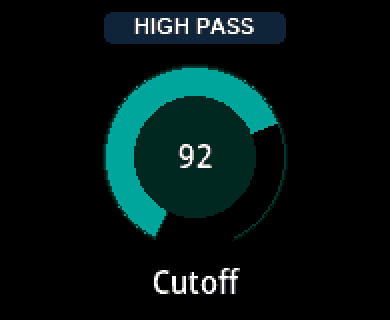
The label changes its name and its colour with every press, and it did so without a knob, without a slot you could have put a control in, and without a line of script. That is worth pausing on: a group never sends anything, it only ever shows what a parameter is doing, which is exactly why it can sit there watching a parameter that something else owns.
5. Four types need a little Lua
Two positions took two numbers. Four would take four, and a gesture has only two halves - so a press that steps 0, 1, 2, 3, 0, … has to work its value out rather than have it typed in. That is what the Value setting's second choice is for.
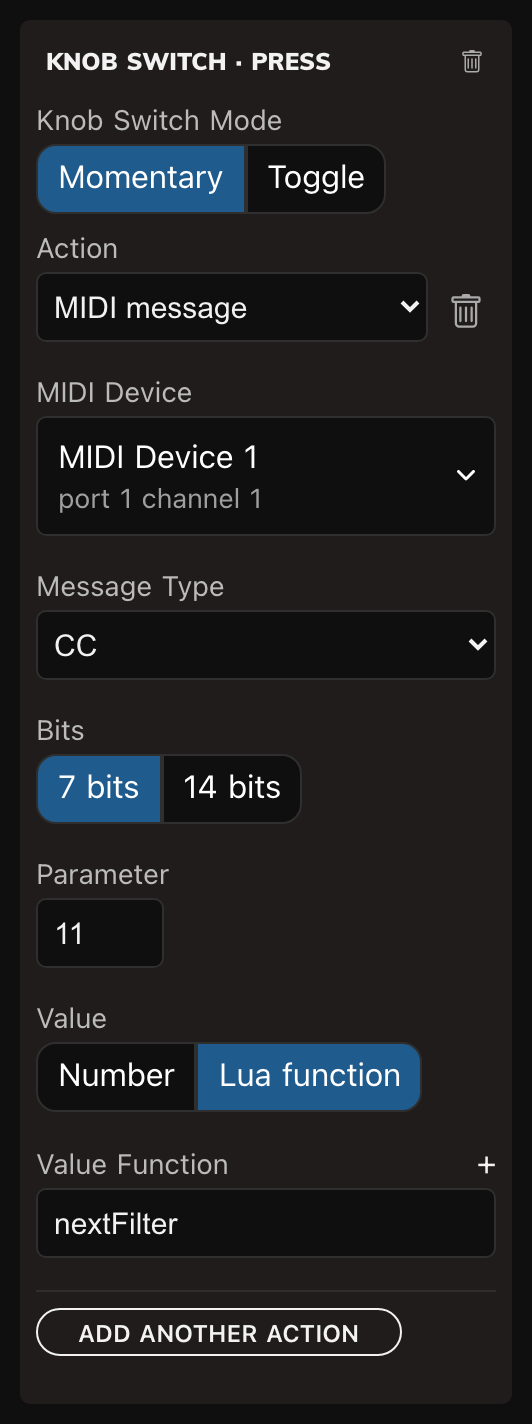
Drop another Dial on KNOB 2, name it Cutoff 2, give it CC, 7 bits, parameter 2, and add a Knob switch · Press event - leave this one Momentary, since there is nothing to alternate between - with one action: a CC message on parameter 11. Then open the Lua tab and write five lines.
lua
filterType = 0

function nextFilter()
    filterType = (filterType + 1) % 4
    print("filter type " .. filterType)
    return filterType
end
filterType lives outside the function so that it survives from one press to the next, and % 4 wraps 3 back round to 0. The print is not decoration: it goes to the log under the script, prefixed lua:, and it is the cheapest way there is to watch an event fire.
Back on the action, switch Value from Number to Lua function and name nextFilter.
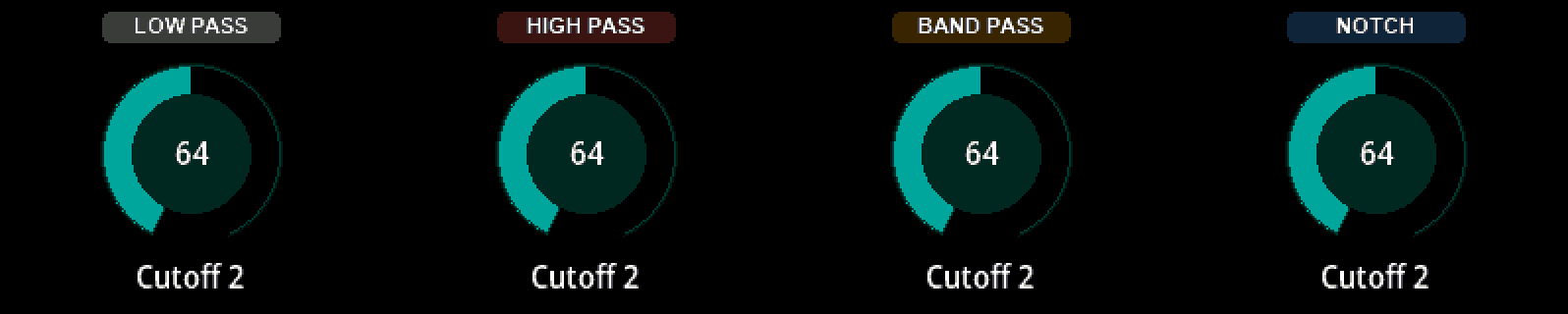
Give this dial a group of its own exactly as before - Filter type 2, Button, following CC parameter 11 - with four Shown values: 0LOW PASS, 1 HIGH PASS, 2 BAND PASS, 3 NOTCH. Send, and press the knob four times.
It must return a number
The function's return value is the value sent. One that returns nothing, or a string, sends no message at all - and says so in the log. That is the first mistake everybody makes here.
6. A pad that changes the page
An action does not have to be a MIDI message. The third kind is a Command, something the instrument does to itself, and the useful one to start with turns a pad into a page button.
Name this page Filters and PAGE 2 Envelope, so there is somewhere to go. Then drop a Pad on the first slot of the Mini's button row, name it ENVELOPE, set its Message Type to None, and give it a Knob switch · Press event with one action: Command, Switch to page, Page 2.
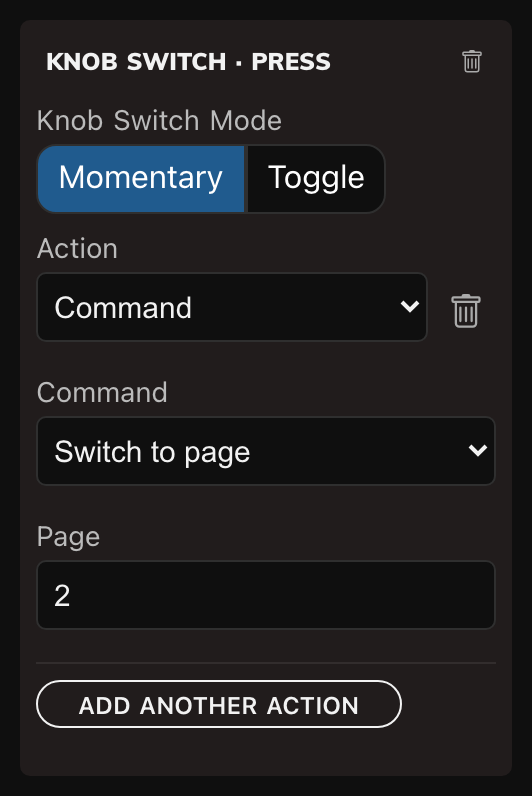
None is worth the moment it takes. A pad arrives with a message of its own and a pad that is really a button has no use for one - worse, a pad left on CC 1 is registered on the same parameter as Cutoff, so a CC 1 arriving from outside would drive them both.
Now go to Envelope and give it something to be: drag an ADSR from the envelopes tile onto the top row, name it Envelope, and set its four values to CC 73, 75, 79 and 72. Envelopes are not what this tutorial is about, but four knobs under one control are exactly what the last step needs. Then put a pad on the same button slot, name it FILTERS, message type None, and give it the same event with Page 1.
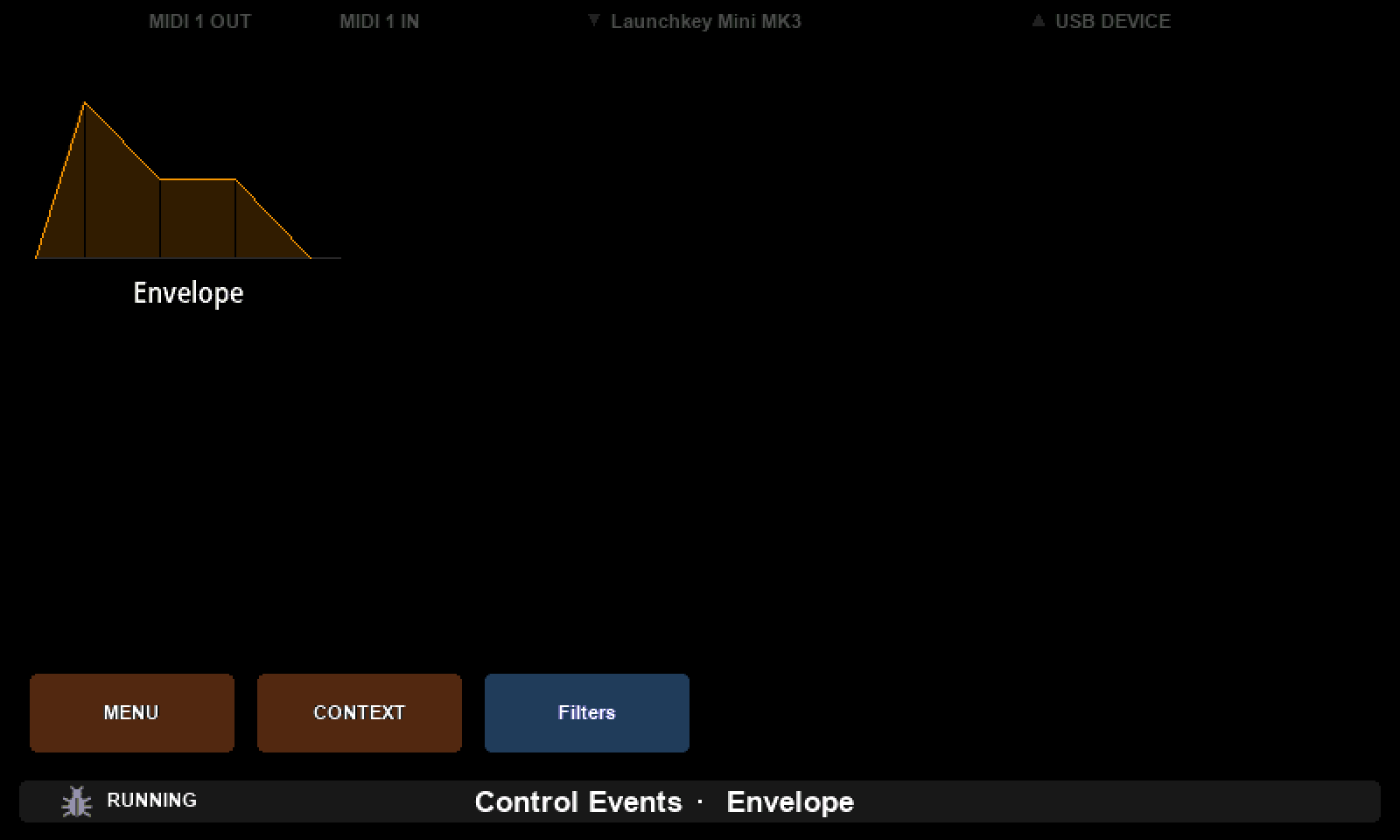
Send, and press the button under ENVELOPE. The page changes; press the one under FILTERS and you come back. On the Mini it is the third button along, because the first two are the instrument's own MENU and CONTEXT.

Notice what the pads do not do: they never light up, because they never toggle. That is the rule from step 2 doing real work - the switch event replaced the gesture, so the pad's own on and off is gone and the press is entirely yours. The name on it is a label now rather than a state.
Commands that take no number
Next page and Previous page are commands of their own, with nothing to fill in. Two pads carrying those walk a preset of any length, and neither has to be touched again when you add a page.
7. A touch that talks
One last source. The knobs of both models are touch-sensitive, and a Knob touch event runs the moment a finger lands on one, before anything has been turned. Add this to the script:
lua
function touched(control, source, event, pot, valueId, value)
    print(control:getName() .. " " .. valueId
          .. " on knob " .. pot .. " is " .. value)
end
Then select the ADSR, ADD EVENT → Knob touch · Begin, and give it one action: Lua function, touched.
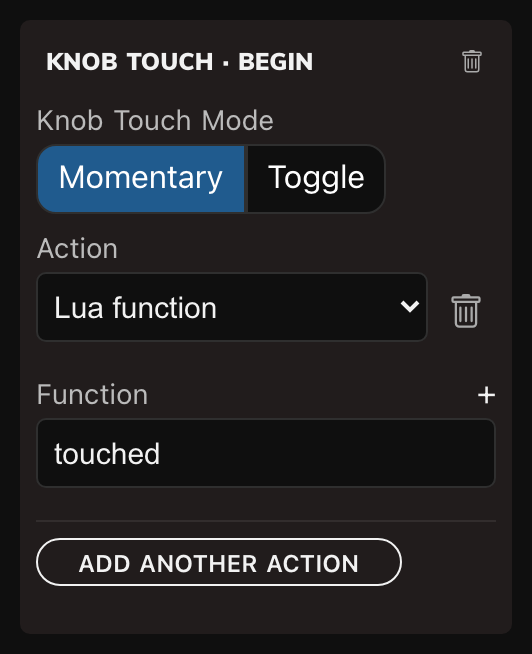
Send, and brush the four knobs in turn.
lua: Envelope attack on knob 1 is 86
lua: Envelope decay on knob 2 is 49
lua: Envelope sustain on knob 3 is 45
lua: Envelope release on knob 4 is 71
Look at what you did not do there. The envelope has four values on four knobs and you added one event, because events belong to the control, not to its values. There is no attack event and no release event; there is a knob touch event for the envelope, and it runs for whichever of the four knobs the finger landed on.
That is why the signature matters. Every Lua action is called with the control, which gesture it was and which edge of it, which knob, which of the control's values had the focus, and what that value reads. One event tells the four apart through valueId - which a one-value control always reports as value, so the same function would work on Cutoff too.
And nothing broke. The envelope still turns exactly as it did, because a touch event only ever adds. Only a switch event takes a gesture over.
What to remember
| Sources | Knob switch - a press on the Mini, a tap on the screen on the Mk2. Knob touch - a finger on the knob, on both. |
| Modes | Momentary: press runs Press, letting go runs Release. Toggle: presses alternate between the two. The mode belongs to the gesture, not to one edge of it. |
| Actions | A MIDI message, whose value is a number or a Lua function; a Lua function; or a Command the instrument runs on itself. An event runs its actions in the order they are listed. |
| The catch | A switch event replaces what the press normally did, so one with no actions in it disables the gesture. A touch event only adds. |
| Whose events? | The control's, never a value's. A four-knob envelope has one set of events, and a Lua action's valueId says which value was in hand. |
| Groups | A group that follows a parameter shows what that parameter is doing, in names and colours you choose. It never sends anything, and it costs no knob. |
And the arithmetic we opened with. A page of eight knobs has eight turns, eight presses and eight touches in it, and as many watching labels as there is room to draw - a good deal more than eight parameters, from a page that looked full before you started.