

Version5.0.0
A History Worth Keeping
What you will learn
- What a revision is, and why a sentence when you save is worth more than the save itself.
- How to tidy a history that has filled up with automatic saves.
- How to mark a version as a release, and what that changes for the people using your preset.
- How to go back, and how to start something new from an old version without disturbing the original.
Introduction
Your presets are kept on Electra One's servers, and those servers are backed up. If your laptop is stolen tonight, nothing is lost: sign in somewhere else tomorrow and your presets are there.
That is worth saying plainly, because it is also the limit of what a backup does. A backup answers is it still there? It cannot answer any of the questions you actually ask yourself while working:
Which version was the one that worked?
What did I change on Tuesday, and why?
Can I go back to before I rearranged the pages, without losing today's filter fixes?
Those are questions about your history, and only you can leave the answers behind as you go. A backup is insurance. A revision history is a record. This tutorial is about the second one, and it takes about ten minutes to start keeping.
No Expert mode, and no controller
Everything here happens in the browser, on the preset's own pages. Nothing is sent anywhere and nothing can be broken - the worst you can do is leave a description you would write differently tomorrow.
1. Saving, and saying why
Save in the editor opens a dialog asking for a short description. What you type there is the whole mechanism:
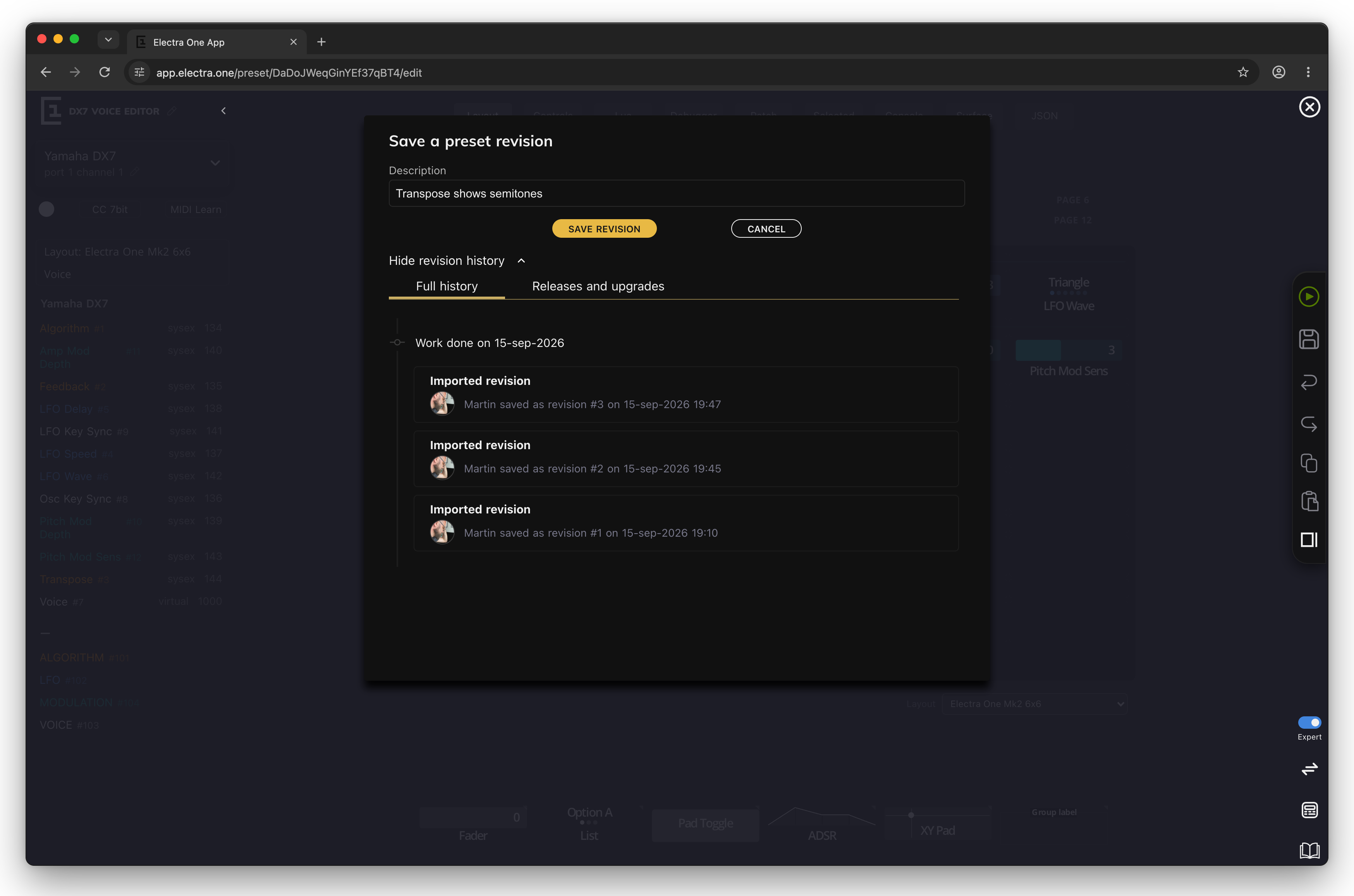
- Type a description and save, and the editor records a revision - a version you can come back to, with your sentence attached.
- Leave it empty and save, and the preset is saved but no revision is recorded. The change is in the current version and nowhere else.
Think of the description the way a programmer thinks of a commit message: not what changed - the editor knows that - but why. "Cutoff on knob 3" is worth more than "changes", and takes the same three seconds.
You do not need one every time. Save without a description while you are fiddling, and write one when you reach something you would be sorry to lose.
2. The automatic ones
The editor also records revisions on its own: when you send a changed preset to the controller, and when you leave the editor with unsaved changes. They are all described as "Saved automatically".
They exist so that nothing is ever lost, and they are the reason a history becomes unreadable. After a week of real work you have four revisions that mean something and forty that say "Saved automatically".
Open the history with project releases and revisions on the preset's page:
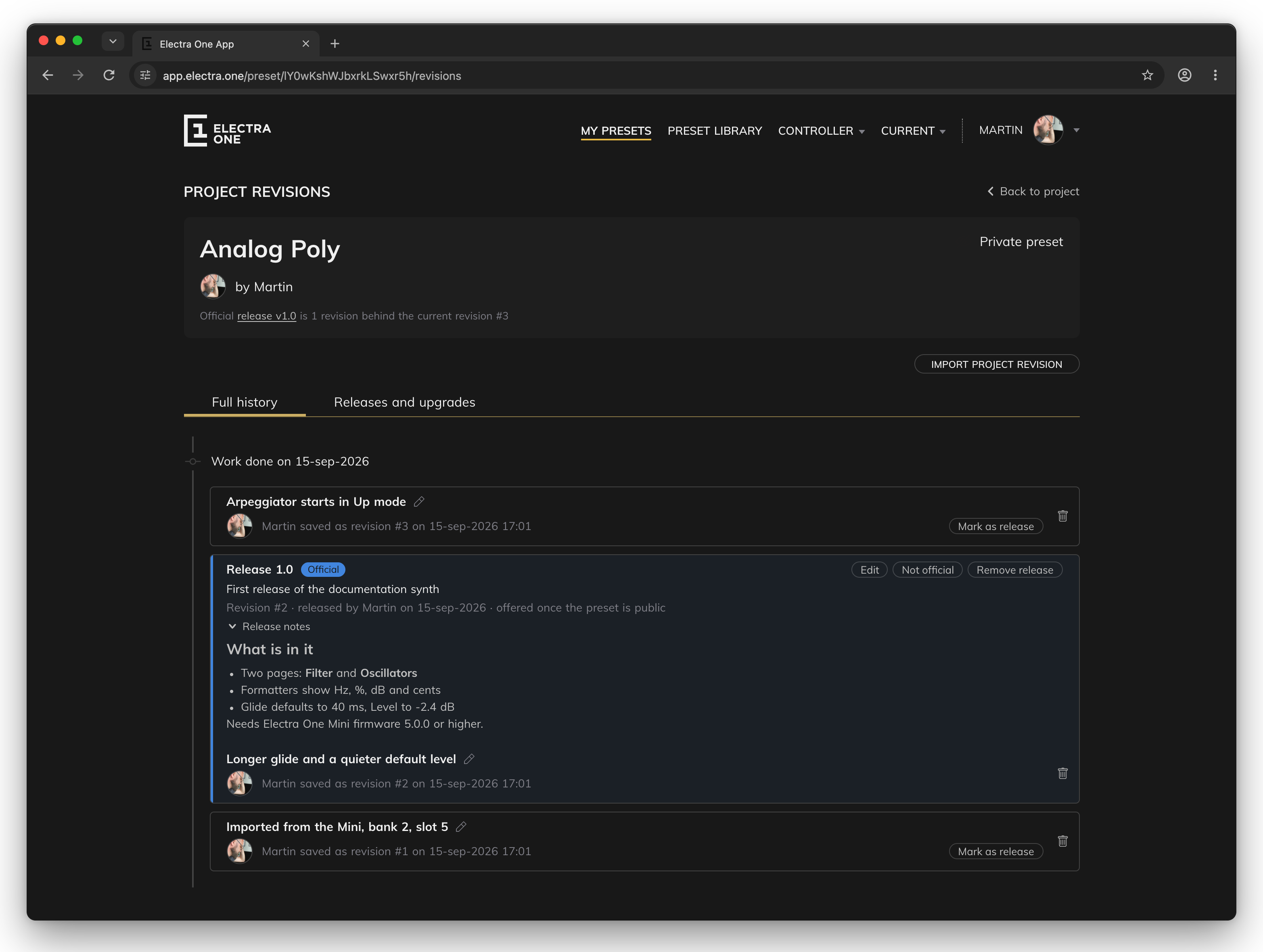
Two things here are worth the minute they take:
- The pencil beside a description edits it. An automatic revision you recognise - that was the one where the envelopes came right - deserves a sentence. Click outside the field and it is saved.
- The trash icon deletes a revision. Delete the automatic ones between the saves that matter and what is left is a history you can read. Deleting is confirmed first, the only revision of a preset cannot be deleted, and deleting the latest revision puts the preset back to the one before it - so that one is not simply tidying, it is undoing.
Tidy as you go, or set aside a few minutes at the end of a project. Either beats scrolling past forty identical lines a month later.
3. Naming a version
A release is a revision you have given a version number, like 1.0, with a short description and some notes. Mark as release on any revision opens the dialog:
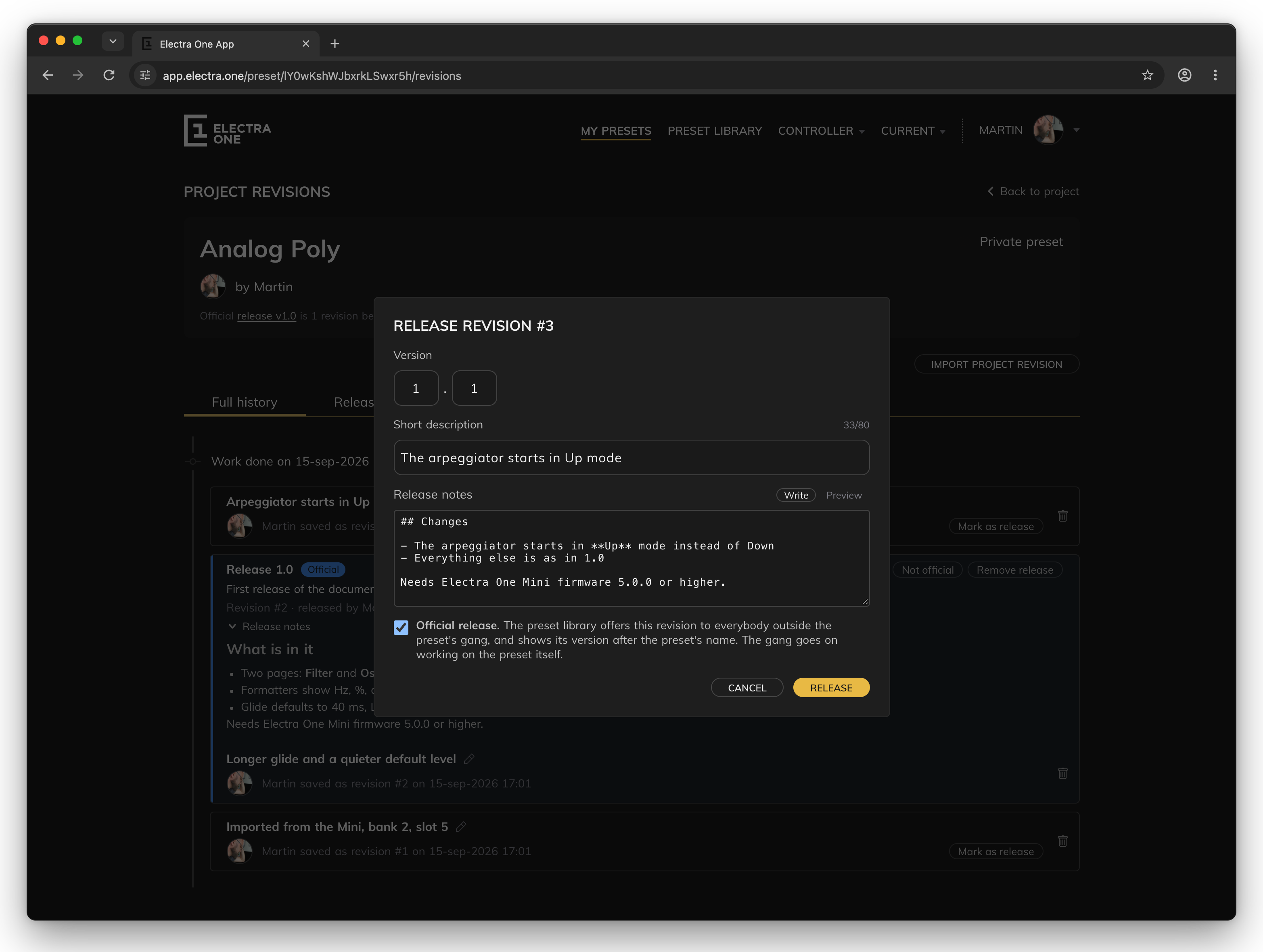
The version numbers are yours to choose; the dialog suggests the next free one and asks only that they go up over time. The notes are Markdown, and Preview shows how they will look.
For a preset you keep to yourself, a release is a bookmark: 1.0 is the one you play live, and you can find it in a year.
For a public preset it is more than that. One release can be the official one, and the official release is what everybody else gets - what the library shows, what SEND TO ELECTRA sends, what downloads contain. You and your gang always work on the latest version; everyone else stays on the official release until you say otherwise.
That is what lets you work on a published preset in daylight. Save fifty times, release when it is ready, and nobody downloading it in the meantime sees the half-finished middle.
A release is not automatic
After you make a release official, your later saves do not reach the library. When a change should go to your users, mark the new revision as a release and make it official too. If a release turns out to be broken, make the previous one official again and everybody has the older version back at once.
4. Going back
Click any revision to open its own page:
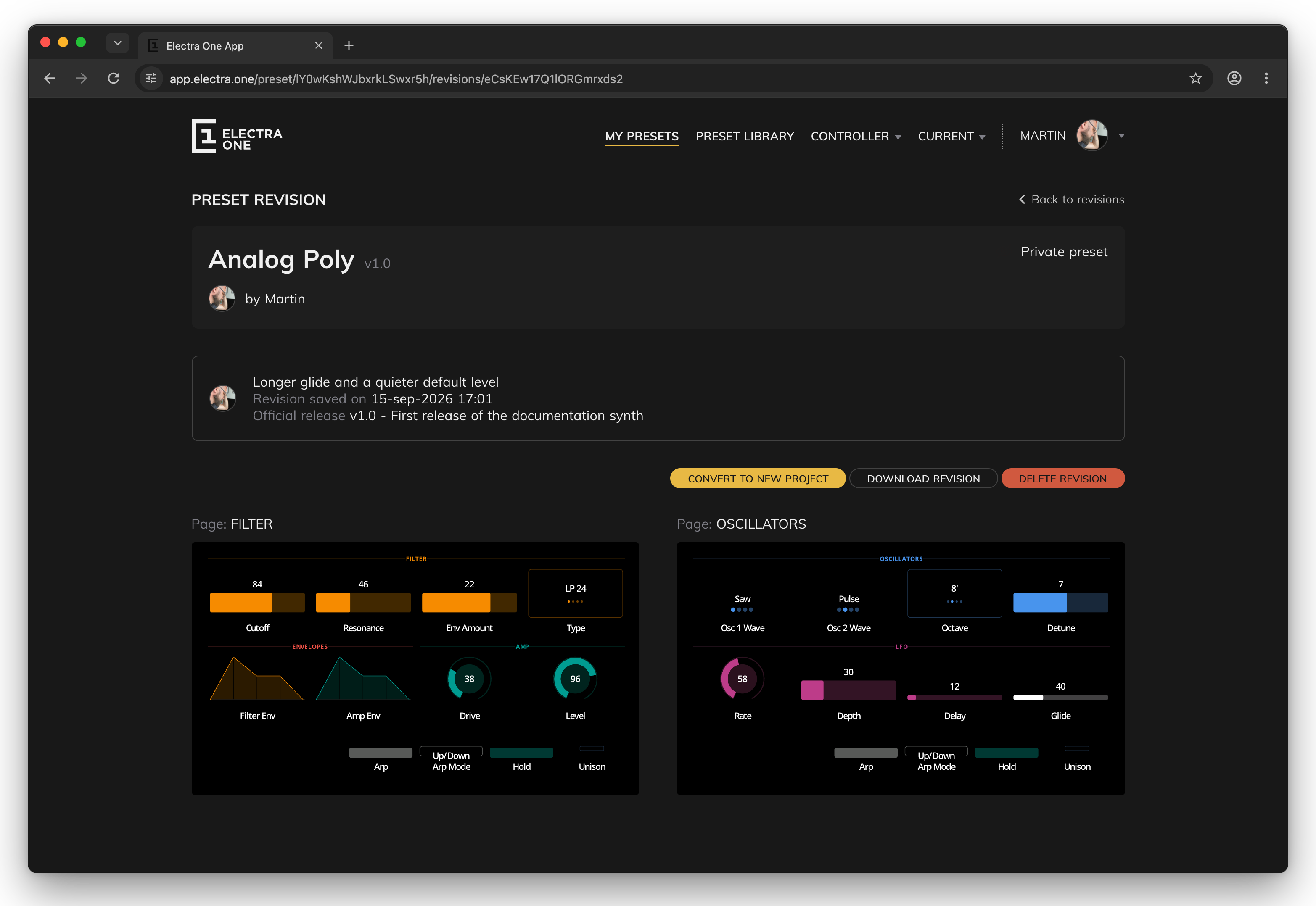
You get three ways back, and they differ in how much they disturb:
DOWNLOAD REVISIONsaves it to your computer as a project file. Nothing changes online. This is the cautious one: look at it, send it to the controller, decide.IMPORT PROJECT REVISION, on the history page, reads such a file back and makes it the preset's latest version, recorded as "Imported revision". Download then import is how you return a preset to an earlier state without losing anything: the versions in between stay in the history.DELETE REVISIONon the latest revision rolls the preset back one step. It is the blunt one, and the only one that throws something away.
5. Starting again from an old idea
CONVERT TO NEW PROJECT on a revision page makes a new preset in your library from that version, called "Revision #n of …".
This is the one people wish they had known about sooner. You had a preset that worked, took it somewhere else over two weeks, and now want to try a third direction from where it was before all that. Convert the old revision, and you have it as a preset of its own. The original is untouched, its history intact, and the two go their separate ways.
It is also how you experiment without fear on a preset other people use: branch off, break things freely, and either bring it back later or let it be.
What to remember
- A revision is recorded only when you save with a description. An empty description saves the preset and remembers nothing.
- The editor adds "Saved automatically" revisions of its own. Deleting the ones that mean nothing, and describing the ones that do, is what turns a list into a history.
- A release is a revision with a version number. On a public preset, the official release is what everybody else gets - so you can keep working in the open.
- Download, then import is the safe way back. Deleting the latest revision is the quick way, and the only one that loses anything.
CONVERT TO NEW PROJECTturns any old revision into a preset of its own, leaving the original alone.- Your presets are backed up by Electra One either way. The history is not there to keep them safe; it is there to keep them intelligible.