

Version5.0.0 beta
How to Debug a Preset's Lua Script
What you will learn
- How to stop a preset's script on the controller, at a line you choose, while the instrument is playing.
- How to read the variables, the call stack and the controller's threads while it is stopped.
- Every place a preset's Lua can run - formatters, value functions, events, timers, MIDI callbacks and painting - and how to stop in each.
- How to get an answer out of a script without another
print()and another upload.
Introduction
A preset can carry a Lua script - a small program that runs on the controller alongside it, formatting values, reacting to MIDI, drawing controls or playing notes.
That script runs on the controller, not in your browser, and that has always made it awkward to look at. When something went wrong you added a print(), sent the preset again, repeated whatever you did to trigger it, and read the log. Then you did it again, because the print() was in the wrong place.
The Preset Editor's debugger puts an end to that. It stops the script on the controller, at a line you choose, while the preset is running and the instrument is playing. At that moment you can read every variable, see which functions led to that line, and walk on one line at a time.
What we will do
We will load a small step sequencer and stop it everywhere a preset's Lua can run - seven places in all:
| A formatter | turns ROOT's number into a note name |
| A value function | tells the timer how fast to run |
| An event function | pressing the SCALE knob picks the next scale |
| A timer tick | the sequencer's clock, one tick per step |
parameterMap.onChange | sees every value that changes |
| A MIDI callback | writes a note you play into the pattern |
| A Custom control | draws the pattern and reads its four knobs |
Each is started by something different, and one of them runs on a different thread of the controller - which turns out to matter more than it sounds.
You need no Lua experience. There is almost nothing to type: the script comes with the preset, and the work is reading it while it runs.
Gear required
- An Electra One controller, mk2 or Mini
- A USB cable between the controller and the computer
- The Preset Editor at app.electra.one, in Expert mode - the Debugger tab is hidden in Basic
- The tutorial preset, Step Sequencer
Load the preset
Download the Step Sequencer project, click IMPORT PROJECT in the editor and choose the file. Open it, switch to Expert mode, and click Send to Electra.
Now press PAD 1 on the controller. Eight bars appear along the top row and a thin line starts moving under them, one step at a time - the sequencer playing a short pattern on Port 1, channel 1.
KNOB 1 – KNOB 4 | the step being edited, and its note, velocity and octave |
KNOB 5 – KNOB 8 | Tempo, Root, Scale, Length |
PAD 1 | start and stop |
PAD 2 | clear the pattern |
Look at the log first
Before reaching for the debugger, get into the habit of reading the log. It sits under the script in the Lua tab, and it is often the faster answer: errors turn up there with the line they happened on, along with everything the script prints.
This script prints a single line as it starts:
lua: Step Sequencer readyIf you cannot find that line, the script did not finish starting and nothing else here will work. Send the preset again.
print() or logger.write()
print() sends each argument as a message of its own, so print(a, b) scatters your values over several lines. When you want them together, use logger.write() - it works like string.format:
lua
logger.write("timer=%s period=%s", tostring(timer.isEnabled()),
                                   tostring(timer.getPeriod()))
Your first breakpoint
ROOT holds the MIDI note number 60, yet the control shows C3. A formatter is doing that - a Lua function the control calls whenever its value changes. Let's stop inside it while it works.
Open split view, with the Lua tab on one side and the Debugger on the other.
In the Lua tab, click line number 58,
local octave = ..., insidenoteName. A red dot marks the breakpoint.Click Attach, the first button of the debugger's toolbar. A bug icon appears in the controller's bottom bar with
RUNNINGbeside it.
The Mini's bottom bar with the bug icon and RUNNING, beside the running timer's icon Turn
KNOB 6(ROOT) one step.
Everything stops. On the controller the word beside the bug icon turns to a red STOPPED, the Lua tab highlights line 58, and the status reads stopped at 58 on Application Thread. The instrument is frozen mid-thought, waiting for you.
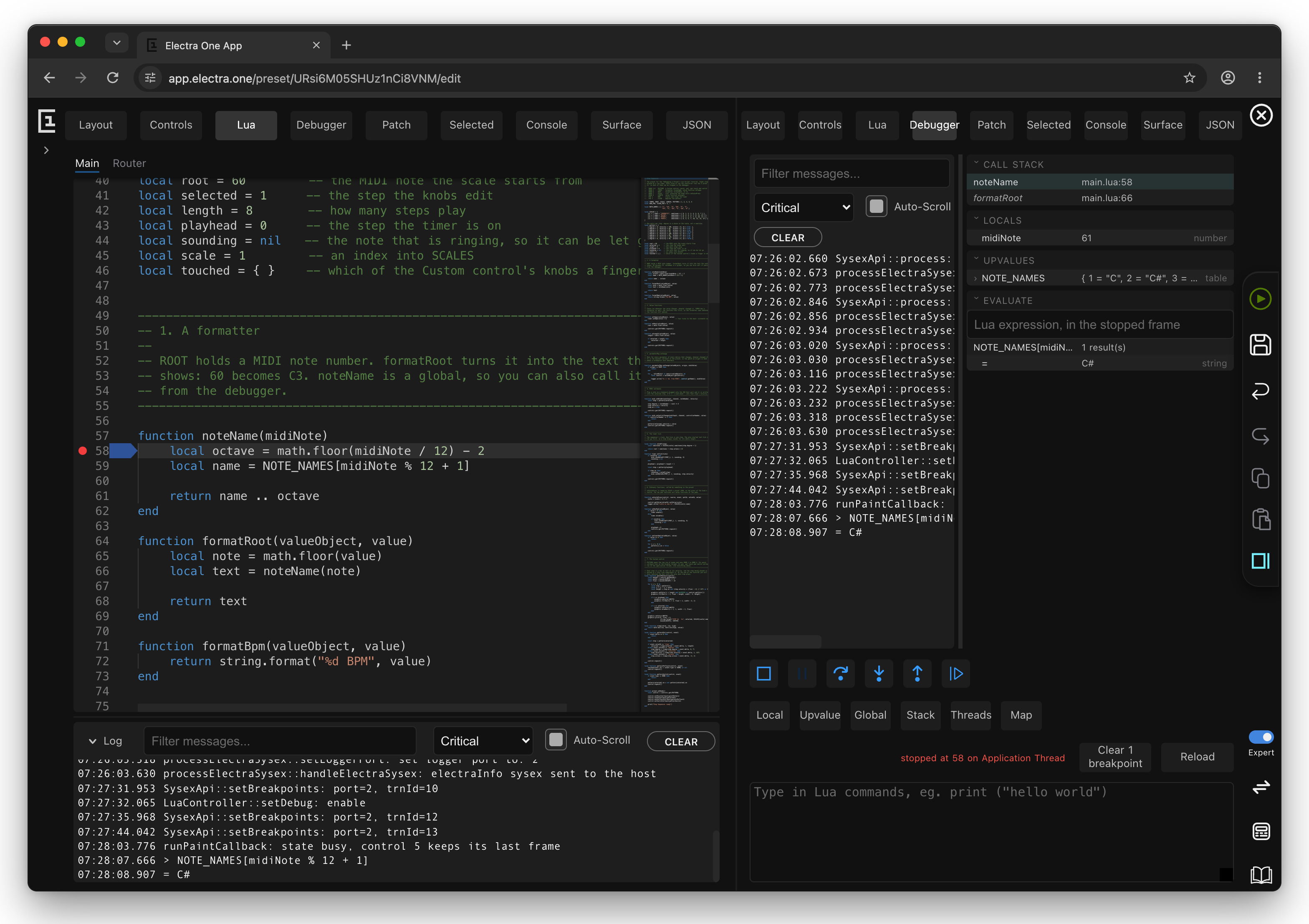
CALL STACK shows how the script got here, innermost first: noteName at main.lua:58, and beneath it formatRoot at main.lua:66, which called it. The second name is in italics, which is the editor's way of saying it read the name out of your script rather than being told it - the controller called formatRoot itself, so Lua never learned what it was called.
LOCALS shows midiNote, holding the note you turned to. Notice what is not there: octave and name are missing entirely, because their lines have not run yet, so those variables do not exist.
valueObject is different again - it is one of the script API's objects, so it says it is a ControlValue and offers a ›. Open it and the debugger asks the object what it holds: getValue, getText, getMin, getMax, getControl, each with its answer.
UPVALUES stays empty until you click the Upvalue button. Then NOTE_NAMES appears - it belongs to the script rather than to this function, which is exactly what an upvalue is.
EVALUATE runs any Lua you like, right where the script is standing. Type
lua
NOTE_NAMES[midiNote % 12 + 1]and press Enter: the answer is C#. Locals and upvalues are both in scope, so you can try a line here before you commit it to the script.
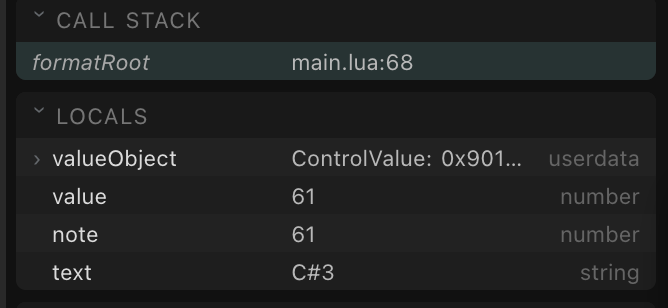
Now press Step out. The script finishes noteName and stops in formatRoot at line 68, where LOCALS has gained note and text, and text holds C#3 - the very string the control is about to draw.
Press Continue, and the controller comes back to life.
A frame missing? Look for a tail call
Had formatRoot been written return noteName(note), the call stack would show only one frame. That form is a tail call, and Lua reuses the caller's frame for it, so formatRoot would simply be gone. Whenever a function you expect is missing from the stack, look for a return f(...) just above where it should be.
Two breakpoints at once
One breakpoint tells you where the script is. A second tells you something more interesting: in what order things happen.
ROOT has two Lua functions attached to it, not one. onRoot is a value function, which keeps the note the scale starts from; formatRoot is the formatter that makes the text on screen. Both run when you turn the knob - but which goes first?
Keep the breakpoint on line 58 and add a second on line 89, root = math.floor(value). The toolbar should now read Clear 2 breakpoints. Attach, and turn KNOB 6 one step.
It stops at 89 - the value function. The call stack has a single frame, onRoot, because the controller called it directly and there is nothing above it.
Now press Continue, and keep your hands off the knob. It stops again at 58, inside noteName, with formatRoot beneath it. One turn of one knob, two stops, in order.
So the value function runs first and the formatter second - which is why a formatter can safely rely on whatever the function has just changed.
Continue goes to the next breakpoint, not to the end
Continue simply lets the script run until something stops it again. With several breakpoints set, a single gesture can walk you through all of them, in the order the controller reaches them.
Your breakpoints are remembered, by the way. Reload the editor and they are still on the lines you left them, and already back on the controller.
A function called by a gesture
Not every Lua function is reached through a value. SCALE on KNOB 7 names onScalePress in its preset JSON, on the press of the knob's switch, so this one runs on a gesture.
Clear the breakpoints, set one on line 193, scale = (scale + 1) % 4, Attach, and then press KNOB 7 in - press it, don't turn it.
LOCALS now has six arguments rather than two:
| This press | ||
|---|---|---|
control | Control | the control the gesture was on |
source | 1 | EVENT_SOURCE_SWITCH - the switch, not a touch |
event | 1 | EVENT_TYPE_PRESS - the press, not the release |
potId | 7 | KNOB 7, counted from one |
valueId | "value" | which of the control's values |
value | 1 |
In your own scripts, compare against the names - EVENT_TYPE_PRESS rather than 1 - so the code says what it means.
Opening an object
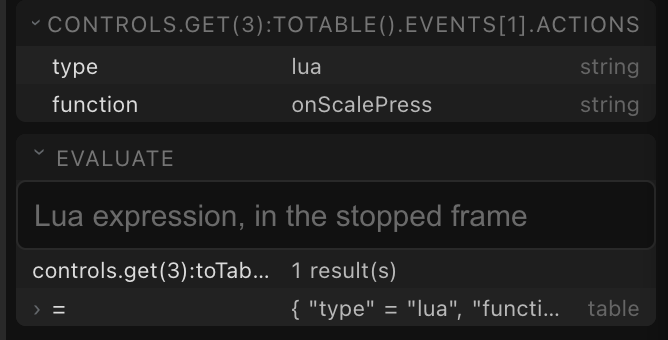
control has a ›, and this is where it gets satisfying. Open it and you get the control exactly as the preset file describes it: name, type, color, bounds, pageId, values, events. Any field that is itself a table opens in turn, so you can keep going down:
control:toTable().events[1].actions[1]
   function = onScalePress
   type     = lua
That is the preset's own wiring, read live off the controller - the event that called the function you are standing in.
Two kinds of object
An object that can describe itself - a control, a page, a group, a device - opens as its own shape, and its fields open further. One that cannot, such as the valueObject you met in the formatter, opens instead as the answers of its get functions, and those are the end of the line.
Something that runs on its own
Everything so far waited for you. The sequencer's clock does not: timer.onTick runs four times a second whether you touch anything or not, and stopping inside it feels quite different.
Clear the breakpoints and set one on line 172, playhead = playhead % length + 1. Make sure the sequencer is running, and Attach.
It stops immediately - there is no gesture to make, the tick was already due. LOCALS holds a single argument, ticks, at 1.
The music stops with it, and a note is left hanging. The note from the previous tick is released at the top of the next one, so for as long as you sit there, it sounds. Nothing is broken; that is simply what stopping a sequencer means.
Press Continue and it stops again almost at once, because the next tick is 125 ms away. A breakpoint inside something that runs constantly is a breakpoint you cannot easily get away from.
Stepping off the end of a callback
Press Step over a few times and walk down through the tick - the step is read out of pattern, noteOf works out the note, midi.sendNoteOn sends it.
Keep going past end on line 182 and watch where you land: line 167, the top of the next tick. A step that runs off the end of a callback stays armed and stops at the next line the script runs, whenever that turns out to be.
The timer tells you how far behind it is
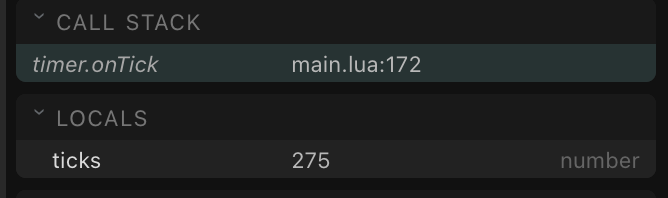
Look at ticks now. It is no longer 1:
ticks 275ticks is not a counter - it is how many periods this one call stands for. While you were reading, a few hundred of them came and went, and the tick you are in now stands for all of them. This is why a script that counts time should add ticks rather than 1: otherwise it loses time whenever the controller is busy.
The controller mentions it in the log, too:
timer.onTick of preset 16 is in trouble on its 123967 us period:
last 1879238 us, worst 1879238 us, ...
A tick that should take 124 ms took over a second - which was you, reading.
Evaluating a table shows what is in it
Type step into the box at a stop and you get the whole thing rather than an address:
= { "velocity" = 110, "octave" = 1, "degree" = 7, "on" = true }A MIDI callback, and where a message came from
midi.onControlChange runs for every Control Change that reaches the preset. Unlike everything so far, what triggers it comes from outside the controller.
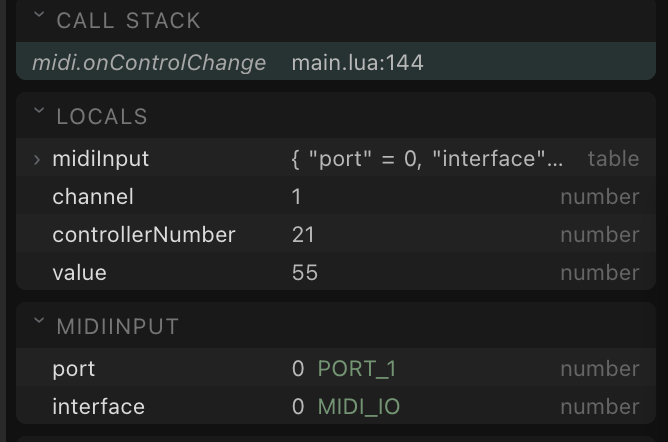
Clear the breakpoints, set one on line 144, if controllerNumber ~= 1 then, and Attach. Now send the controller a Control Change - move a knob on a keyboard plugged into the USB Host port, or send one from your computer.
LOCALS has the message in pieces: channel, controllerNumber, value, and midiInput, which is a table and has a ›. Open it, because it answers something no log line ever could:
port        0   PORT_1
interface   0   MIDI_IO
The green name beside each number is the debugger telling you which constant the value stands for. A bare 0 would say nothing - 0 is MIDI_IO, and PORT_1, and INTERNAL. So this particular message arrived through the MIDI DIN input, on port 1.
How we found a loop in the cabling
While this tutorial was being written, the sequencer kept quietly rewriting its own pattern - a step's velocity would change to the one the previous step had just played. A breakpoint here and one look at midiInput explained it: the notes the script was sending were coming back in through the DIN input, because something out there was echoing them.
midi.sendNoteOn(PORT_1, ...) names no interface, and a send with no interface goes to all of them, DIN sockets included. Nothing in the script was wrong. It was the cable.
A Custom control, and the second thread
PATTERN is drawn entirely by Lua. It spans the top row, owns KNOB 1 to KNOB 4, and has four callbacks of its own - one to draw it and three for the knobs.
The knobs
Clear the breakpoints, set one on line 278, local step = pattern[selected], Attach, and turn KNOB 2.
LOCALS has the control and an event table. Open it, then Continue and turn the knob again - once slowly, once with a flick:
{ "delta" = 1,  "type" = 2, "valueId" = "degree", "id" = 1 }
{ "delta" = 10, "type" = 2, "valueId" = "degree", "id" = 1 }
Same knob, same gesture, ten times the step. delta is not a count of detents - it is a figure the controller has already scaled for you, so a quick turn travels further.
id counts from zero
id is 1 for KNOB 2. In the last exercise potId was 7 for KNOB 7. One counts from zero, the other from one, and there is no getting around it. Prefer valueId, which names the value the knob drives and does not count at all.
Pressing the knob and touching it go to patternSwitch and patternPotTouch instead - one gesture, one callback.
The painting
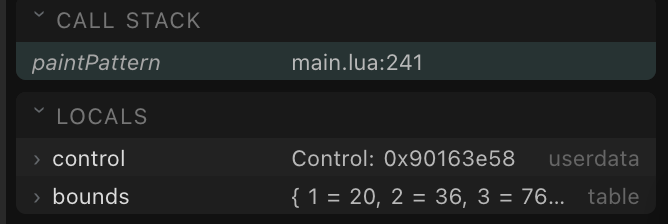
Now for the one callback in the preset that is not on the application thread. Move the breakpoint to line 241, inside paintPattern, leave the sequencer running, and Attach.
The status says something new:
stopped at 241 on Lcd ThreadThe picture freezes. The rest of the screen is still drawn - the bottom bar still reads STOPPED - but the Pattern control keeps the last frame it managed.
Now turn a knob. Nothing happens.
That is worth sitting with, because it is not obvious. The thread that reads the knobs is running perfectly well. It is the script that is stopped, and the knob's handler is part of that same script. A thread that wants to enter a stopped script is turned away rather than made to wait - so your turn is not saved up for later, it is simply gone.
Press Continue, and the debugger tells you what was given up while you looked.
Which thread, and why it matters
A stopped script freezes everything belonging to that preset, whichever thread stopped. What the thread name tells you is where the line runs - and a paint callback runs on the display thread, which is why it has to be quick. Anything slow in there shows up as a screen that will not keep up with the knobs, and you have just seen what that looks like.
Finally: make it show the notes
The sequencer draws a bar per step, as tall as that step's velocity, with a thin line under whichever is playing. Bars are not much use on a sequencer. What you want to see is which note each step plays and which step is playing now - and the script already knows both.
noteOf(step) works out a step's MIDI note, noteName() turns a note into text, and playhead is the step being played. Before writing anything, ask the controller whether that is really true.
Try the line before you write it
Set a breakpoint on line 172, inside timer.onTick, Attach with the sequencer running, and at the stop type:
lua
noteName(noteOf(pattern[playhead]))The answer is the note the sequencer is playing at that instant - E3, G3. The expression works, in the real script, with real values. Now it can be written down with some confidence.
Why it resolves
noteOf, pattern and playhead belong to the script rather than to any function - but timer.onTick uses them, so they are its upvalues, and EVALUATE runs in the stopped frame where upvalues are in scope. Stopped somewhere that does not use them, the same line would fail.
Write it in
Detach, and replace paintPattern with this:
lua
local function paintPattern(control)
    local bounds = control:getBounds()
    local width = bounds[WIDTH] // 8

    for i = 1, 8 do
        local step = pattern[i]
        local x = (i - 1) * width

        if i == playhead then
            -- the step being played: a filled block, its note in black
            graphics.setColor(control:getColor())
            graphics.fillRect(x + 2, 2, width - 4, bounds[HEIGHT] - 22)
            graphics.setColor(0x000000)
        elseif i > length then
            graphics.setColor(0x555555)
        else
            graphics.setColor(WHITE)
        end

        graphics.print(x,
                       bounds[HEIGHT] // 2 - 14,
                       step.on and noteName(noteOf(step)) or "--",
                       width,
                       CENTER)

        if i == selected then
            graphics.setColor(WHITE)
            graphics.drawRect(x + 1, 1, width - 2, bounds[HEIGHT] - 20)
        end
    end

    graphics.setColor(WHITE)
    graphics.print(0,
                   bounds[HEIGHT] - 16,
                   string.format("STEP %d   %s", selected, SCALES[scale].name),
                   bounds[WIDTH], CENTER)
end
Send to Electra, then Reload. Eight note names, a step turned off showing --, and the step being played filled in.
Turn KNOB 2 and watch a step change note under your hand. That is what the sequencer was doing all along - you just could not see it.
What to remember
- Read the log first. An error with a line number beats any breakpoint.
- A breakpoint that never stops is itself an answer. The line is not being reached, so go and look at whatever should be calling it.
- Put a breakpoint below a guard, not on it, when the function runs often. Breakpoints have no conditions - the condition belongs in the script.
- The call stack tells you who called, and a missing frame usually means a tail call.
- Open the objects. A control, a value or a MIDI message will tell you what it holds.
- Try the line before you write it. That is what EVALUATE is for.
- Detach when you are done.