

Version5.0.0
Building an Arpeggiator in One Prompt
What you will learn
- How the AI panel differs from Claude Code in a watched folder: no terminal, no shell — tools that read and change the open project directly.
- How to write one request specific enough to finish without a second message.
- How to read the panel's tool log and judge whether a result is actually right, not just applied.
- What a real session on real hardware costs.
Introduction
Building a Preset with AI uses Claude Code in a watched folder, with a terminal and a text editor alongside the app. The desktop editor also has an assistant of its own, in the AI tab of the Tools pane, with nothing to install and no folder to set up — it reads and edits the project you already have open.
This tutorial is one session with it, end to end: a single message describing an arpeggiator, and everything that happened after it without being asked again. It is here to show what a specific enough request gets you, not to walk you through retyping it — your own preset will want its own prompt.
You need the desktop app
The AI panel is part of the Electra One app, the offline desktop build. The browser editor has nowhere to keep an API key and cannot reach the controller's log, so it has no AI tab.
What you need
- An Electra One controller, connected by USB, with a preset open in the app. (A Mini is pictured below; any model works the same way.)
- An Anthropic API key, saved on Settings, Assistant. See The AI assistant, on your own key for how, and Workspace ID if your key is an organisation-level one.
The prompt
One message, written before anything else was open but the AI tab:
I would like to have an arpeggiator preset created. It should play held notes. At the very beginning I should be able to specify interface, port and channel of the source, and interface, port and channel of the destination. Place these on a second page called Config. On the first page, start with two knobs: the first one is tempo and the other one is pattern. Add common arp patterns.
Four things make this one message rather than the start of a back-and-forth: it says what the preset does (hold notes and arpeggiate them), it names the pages and what is on each one, it says what the two controls on page one are, and it leaves "common arp patterns" as the one thing the assistant is trusted to fill in on its own judgement.
What happened, unprompted
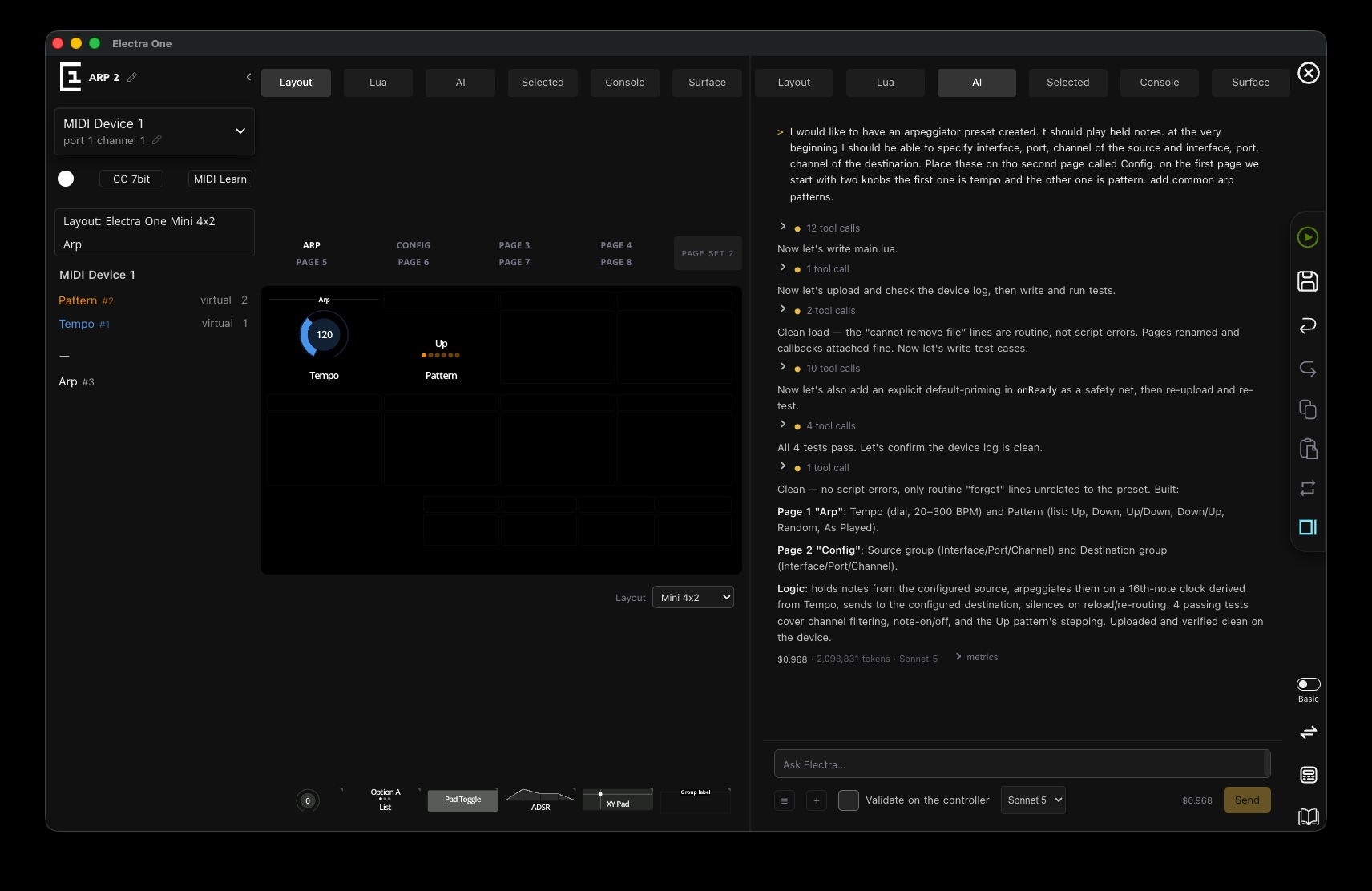
Nothing after the prompt was typed by hand. In order:
- 12 tool calls reading the project and the reference material, then
main.luawas written. - The preset was uploaded, and the controller's log was read back.
- 10 tool calls wrote test cases, then ran them.
- The log showed "cannot remove file" lines — routine on a clean reload, not script errors — so the assistant said so rather than treating them as a failure, renamed the pages, and confirmed the callbacks were attached.
- It added an explicit default in
onReadyas a safety net the request had not asked for, then re-uploaded and re-ran the tests: 4 tool calls. - All four tests passed. One last call confirmed the device log was clean.
The assistant's own summary of what it built:
- Page 1, "Arp": a Tempo dial, 20–300 BPM, and a Pattern list — Up, Down, Up/Down, Down/Up, Random, As Played.
- Page 2, "Config": a Source group (Interface/Port/Channel) and a Destination group (Interface/Port/Channel).
- Logic: holds notes from the configured source, arpeggiates them on a 16th-note clock derived from Tempo, sends them to the configured destination, and silences everything on reload or re-routing.
- Tests: four cases, covering channel filtering, note-on/note-off, and the Up pattern's stepping.
- Uploaded and verified clean on the device.
What it cost
$0.968, 2,093,831 tokens, on Sonnet 5 — the figure the panel shows beside Send is a running total for the whole session, and here the whole session was the one turn above. One prompt, fully working, and checked on the controller rather than only applied to it.
Why one prompt was enough
Nothing here is special to arpeggiators. It follows the same habits as How to ask it for things:
- Name the place. Two pages, named, with what is on each one, rather than "an arpeggiator with some settings".
- Say what to verify, or let the loop do it anyway. This request did not say "upload it and check the log" — the assistant did it unasked, because that is what Tests, and what they change and the device log are for. Saying so explicitly is still worth doing on a request you want checked a particular way.
- Leave the right things open. "Common arp patterns" is a judgement call a model can make well; the routing and the two controls on page one are not, and the prompt did not leave those to guesswork.
A vaguer version — "make me an arpeggiator" — would not have failed outright, but it would have spent a message finding out which patterns you wanted, where the routing should live, and what the first page should show before it could write a line of Lua.
Look at it yourself
Open the Lua tab and read main.lua and the test file the assistant wrote in main-tests.lua — both are ordinary preset files, yours to keep, change or throw away. Try one follow-up request of your own, in the same session:
Add a Swing knob on page 1 that delays every second step by up to 50% of a 16th note.
Read the tool log as it works, the way you would read a diff: it is how you catch a wrong assumption while it is one knob, not a whole page.
See also
- Vibe coding presets - what the built-in panel can see and do, in full
- Building a Preset with AI - the same loop with Claude Code and a watched folder
- The Desktop Editor - the Assistant tab, the API key and the Workspace ID field
- Lua tests - the test files the assistant wrote, explained in full