

Version5.0.0
The Desktop Editor
The Electra One Editor is the preset editor you already know, running on your own computer. Everything in the Preset Editor chapter describes it too: the same layouts and controls, the same control settings, SysEx templates, patch requests, Lua editor and debugger, and the same MIDI console.
What this page covers is the part that has no online counterpart, because each piece of it needs something that belongs to you — a disk, a keychain, or a USB port. Your presets are files in a folder you choose, a preset slot can be a folder on that disk, the AI assistant runs on your own Anthropic key, and the firmware needed to rescue a controller is in the application rather than on a server.
The desktop editor starts with no account and no network. Signing in is something you do when you want the shared preset library, and going offline again takes nothing away.
Settings
Everything described here is set up in one place: Settings in the main menu, with a tab per decision.
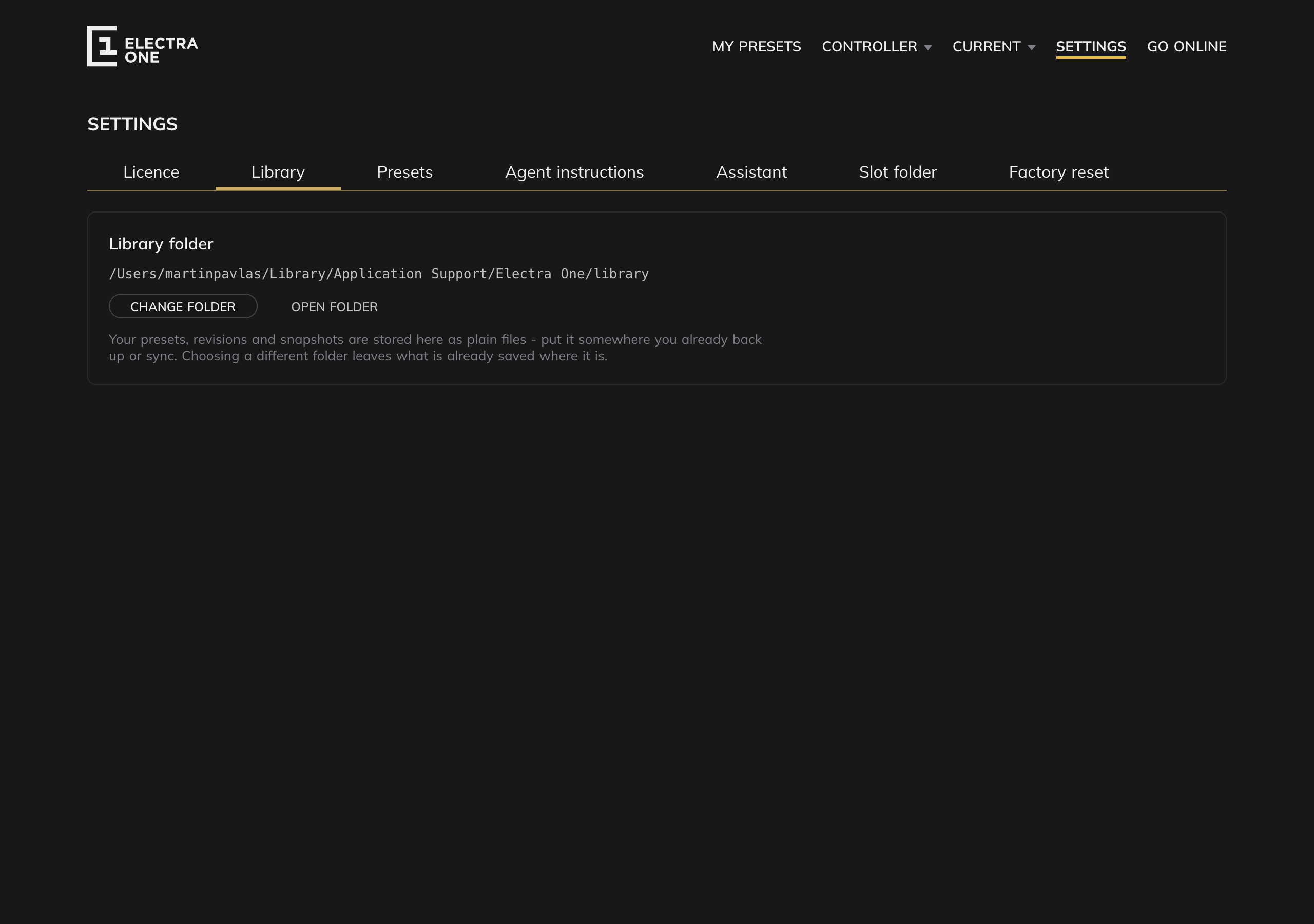
Your presets are files
Every project, revision, snapshot and Lua script is written into a library folder as plain JSON, one file per document. There is no database and nothing hidden: you can back the folder up, put it in Git, sync it between computers, or read it by hand when something has gone wrong.
The folder is yours to choose — a synced folder, an external drive, wherever you already keep your work. Change folder picks a new one and Open folder shows it in the file manager.
Two things worth knowing:
- Changing the folder does not move what is already saved. The presets stay where they are and the editor starts again from the new folder.
- A folder that has gone missing — an unplugged drive, a sync that has not finished — falls back to the default folder rather than leaving the editor unable to read or write anything.
Unlike the online editor, a preset here has no size limit. The cloud refuses a document over one megabyte; a file on your disk has no such ceiling.
Agent instructions
Both of the editor's agents — the assistant in the AI panel, and a Claude Code session working on a watched folder — can be given standing instructions: how you like Lua written, which controller is on your desk, what they must not touch.
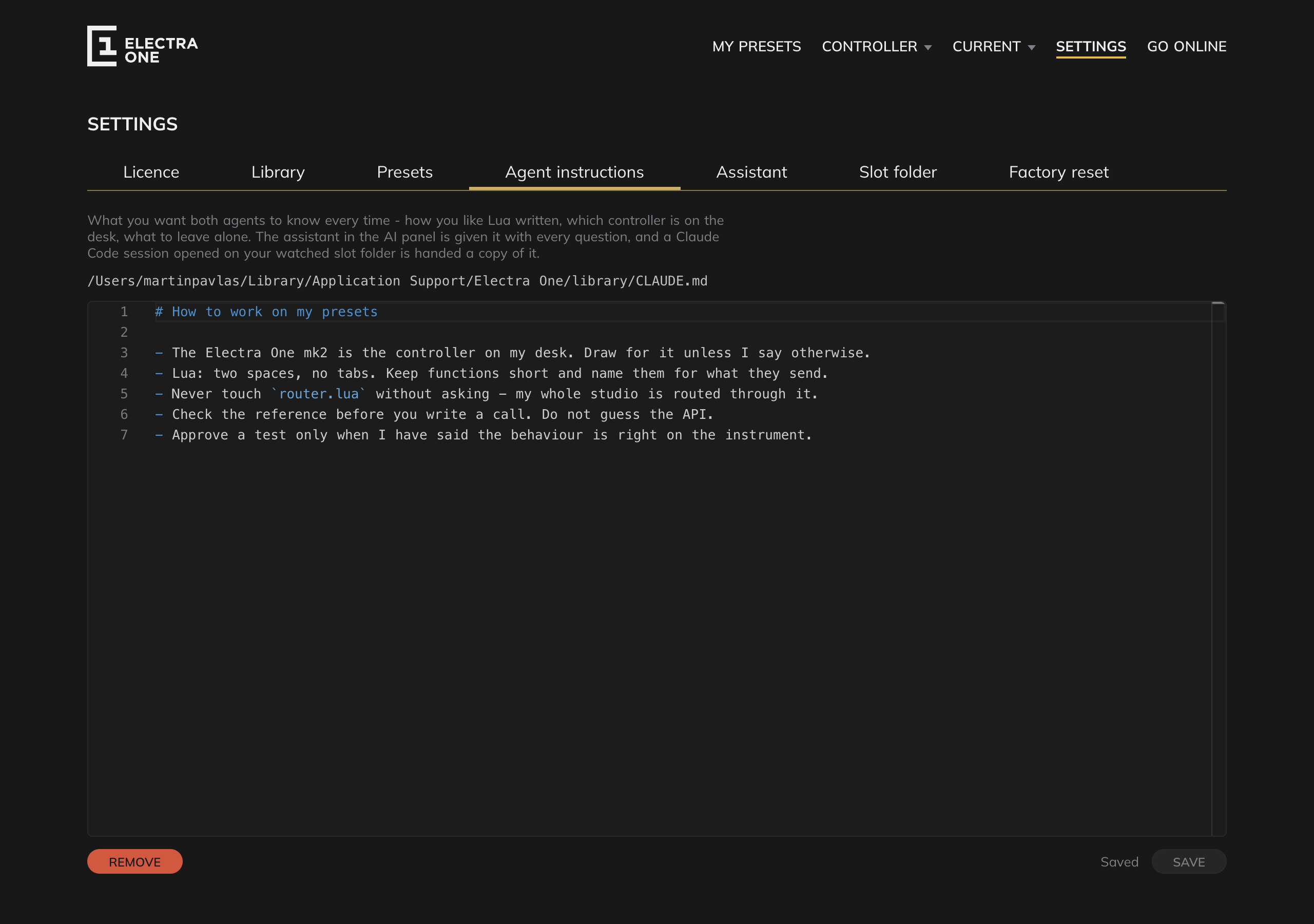
The Agent instructions tab edits a CLAUDE.md in your library folder. It is an ordinary markdown file, so you can also open it in any editor, keep it in Git, or copy it to another machine.
- The assistant in the AI panel is given it with every question.
- A copy is written into the watched slot folder as
.electra/instructions.md, and the folder's ownCLAUDE.mdtells an agent opened there to read it first.
Save writes the file, Remove deletes it. Removing is not a way of switching the instructions off and on — once the file is gone, neither agent is given anything until you write new instructions.
A preset slot as a folder
A preset slot is a handful of files, so the editor can treat one as a folder on your disk. Point a slot at a folder and its files — preset.json, main.lua, router.lua and the rest — appear there as ordinary files for any tool you like: an editor, Git, a diff, a coding agent.
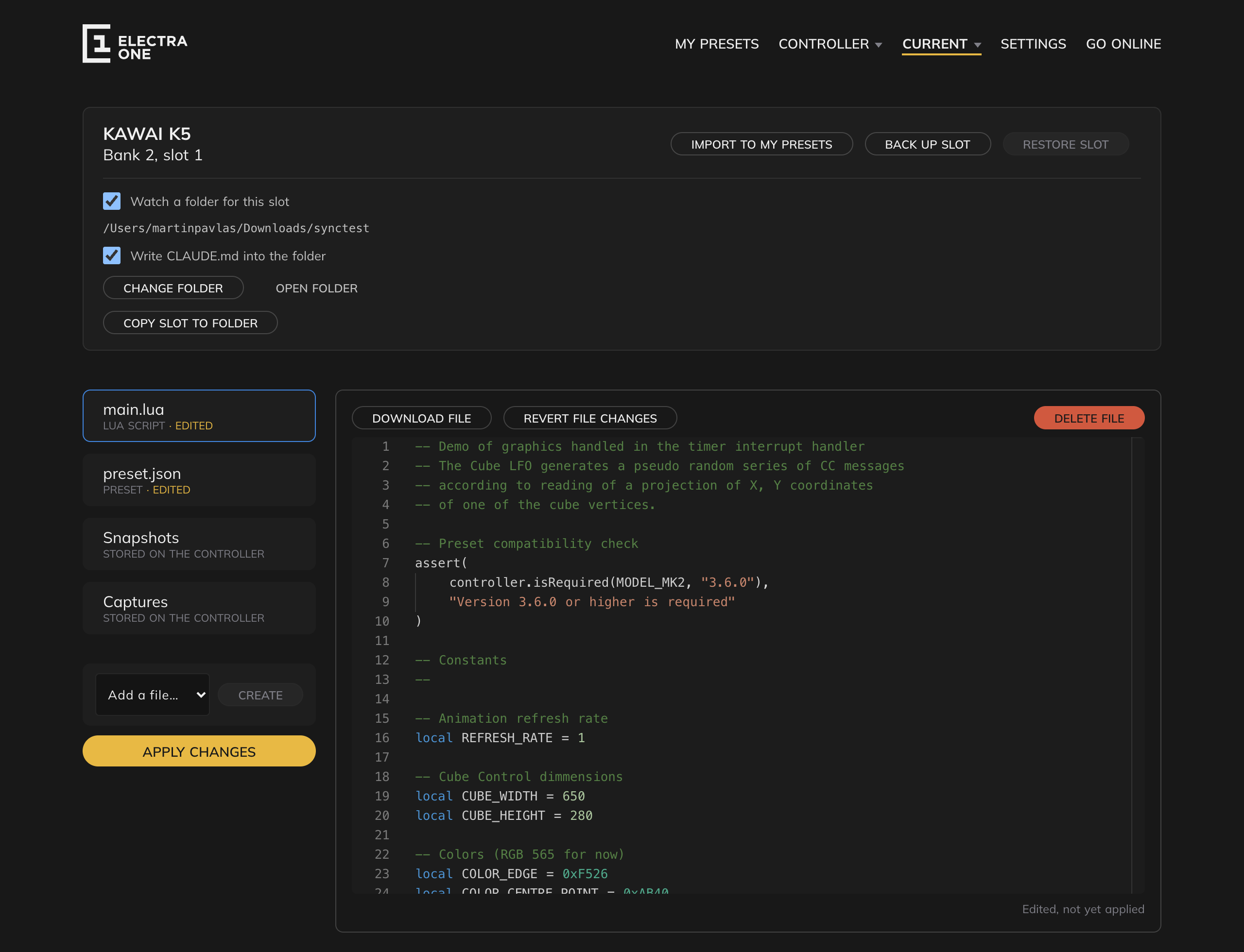
The watch is set up on the Current slot page, or in Settings, Slot folder.
Nothing reaches the controller on its own. A change on disk is staged and shown in the file list; Apply changes writes the changed files to the slot and reloads the preset. That is the deliberate act, and it is the only one.
The editor writes nothing into your folder except what is under .electra/:
| File | What it is |
|---|---|
request.json | written by a tool asking for something to be done |
status.json | what came of it, file by file |
log.txt | what the controller printed |
sysex.log | what the app and the controller said to each other |
screen.png | a picture of the controller's screen, when asked for one |
instructions.md | your agent instructions, copied from the library folder |
An upload is additive: a file the slot has and the folder does not is left running on the controller. Nothing here deletes anything from the device.
The Current slot page has to be open
The slot browser is what carries out a request from the folder. With the page closed, a request is answered with an error after 45 seconds rather than hanging — but it is not carried out.
VS Code
Once a slot is watching a folder, the Electra One extension makes that folder an ordinary VS Code project and uploading it the build task. One keystroke saves your open editors, writes every changed file, reloads the preset and runs the preset's tests, with a refused file or malformed JSON landing in the Problems panel on the character that broke it.
Three more tasks have shortcuts of their own: reload without writing, run the tests alone, and photograph the controller's screen into the folder.
The extension never talks to the controller itself — it asks the editor, and the editor does it.
The AI assistant, on your own key
The desktop editor has an AI tab in the preset editor. It is an agent: it reads and changes the preset you have open through the same actions the interface uses, reads the reference documentation shipped with the app, and — with a controller connected — uploads a preset, reads the controller's log and runs the preset's Lua tests.
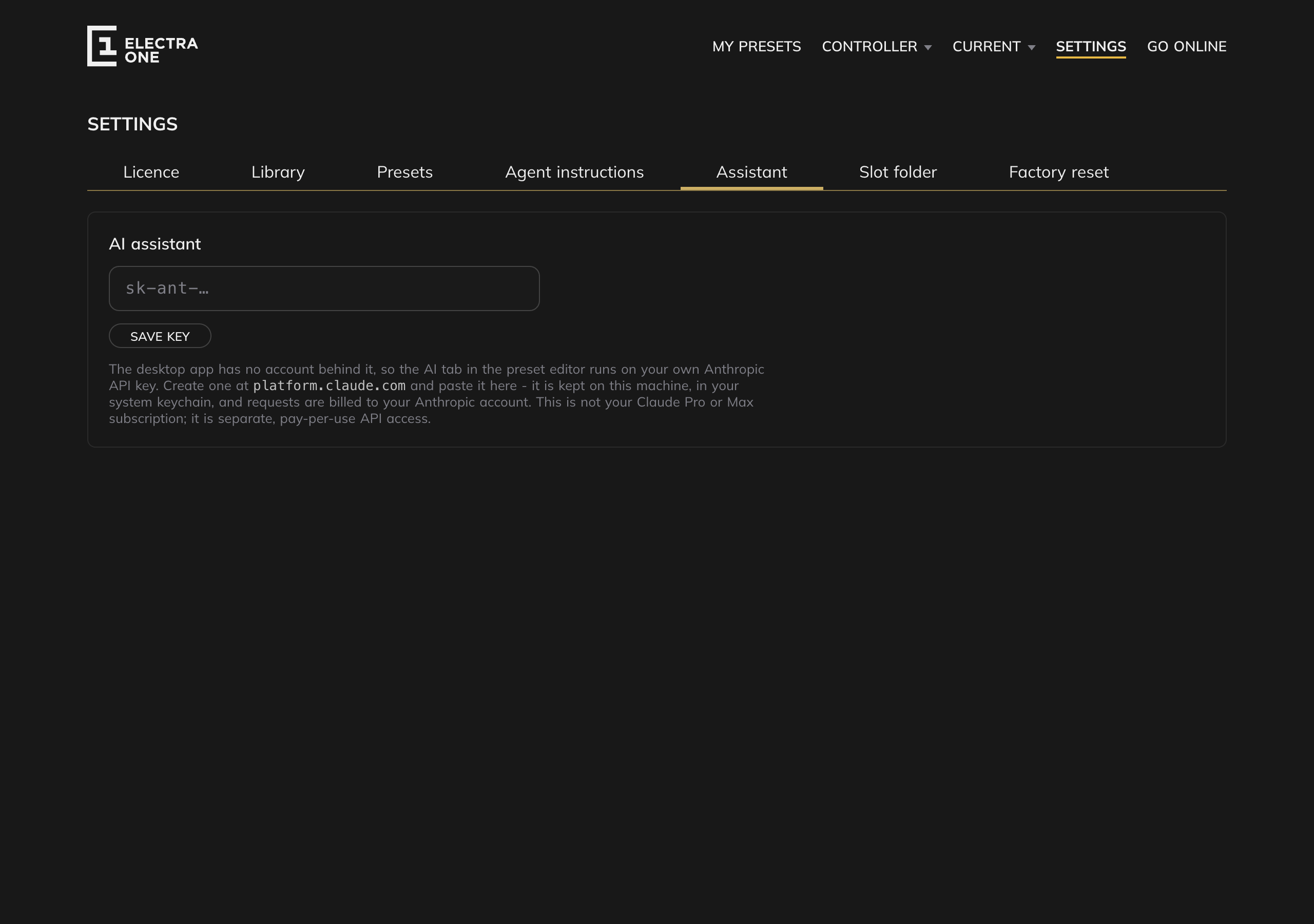
There is no account behind it. The assistant runs on your own Anthropic API key, created at platform.claude.com and pasted into Settings, Assistant. The key is kept in your system keychain, the requests are billed to your Anthropic account, and the key never leaves the machine.
This is pay-per-use API access, which is not the same thing as a Claude Pro or Max subscription.
Workspace ID, for an organisation-level key
A key created inside an Anthropic Console workspace already carries that scope, and the field below it on the Assistant tab can stay empty. A key created at the organisation level does not — Anthropic refuses it outright until a workspace is named, which shows up as an anthropic-workspace-id error the first time the assistant is asked anything.
Workspace ID on the Assistant tab is that name. The id is in the Console's own address bar when the workspace is open, in the form wrkspc_…. Paste it in and save; clearing the field and saving removes it, for when you swap back to a workspace-scoped key. It is an identifier, not a secret, so — unlike the key itself — it is read back and shown once saved.
A session's running cost, shown beside Send in the AI panel, is read from the usage Anthropic's API reports for each request; a workspace lets you see that same spending broken out in the Console, separate from anything else the organisation runs.
Going online, and going back
Go online signs the app into your Electra One account and opens the shared preset library inside it: presets published by other players to search, open and import, and your own to upload and share. A preset you import is written to your library folder like everything else.
Going online does not move your work into the cloud. The local library stays where it is and keeps being what the editor reads and writes. Go offline signs out again, and nothing stops working, because nothing was running somewhere else.
Rescuing a controller
Settings, Factory reset writes the firmware image that came with your copy of the editor into the controller's code flash, through the controller's own boot firmware. It talks to the hardware below the level of the running firmware, so a controller that no longer starts up properly can still be restored — with no network in the room and nothing to download first.
The controller has to be in boot mode, which is a hardware action: hold the boot mode button while powering it on. There is no command that leaves boot mode again, so the way back is a power cycle.
Choose the right model
In boot mode the controller cannot say which hardware it is, so you choose the model yourself and nothing checks it. Make sure you pick the image for the controller in front of you.
Only the code flash is written. The controller's own settings, kept in its data flash, are left alone.