

Version5.0.0
Custom Controls
A custom control is a control that draws itself. The preset's Lua script paints it and decides what its knobs do, so it can be anything: a ring of LEDs, a filter curve, a bank of eight mixer faders spread over a whole page. How to write one is shown in the tutorial Drawing a Custom Control.
The Electra One app can keep a custom control on its own, apart from the preset it was written in, and offer it to every preset you make. Such a control is called a control in the app, and it is a single file holding the control, the Lua that draws it and a picture of it.
This chapter covers:
- using a control that somebody published, or one of your own, in your presets,
- making a control from a preset you wrote,
- publishing it so that other people can use it.
Firmware
Custom controls need firmware 4.0.0 or newer. A control that has several values needs firmware 5.0.0. The card of each control says which firmware it needs.
Where controls are kept
Controls are on the Controls tab of two pages:
- Workspace → Controls lists the controls you made. This is where you add, publish and delete them.
- Library → Controls lists the controls other Electra One users have published, and your own public ones.
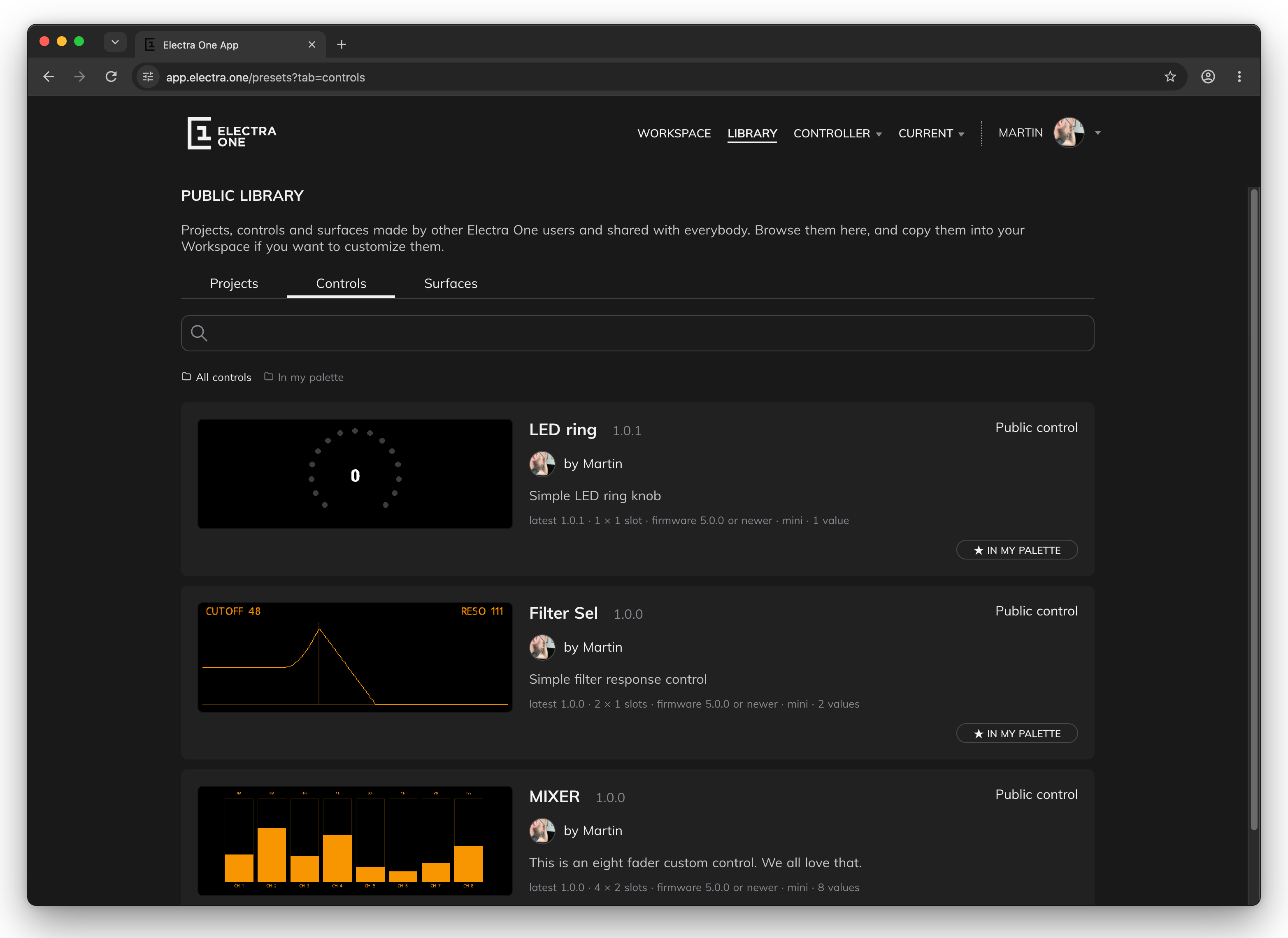
Each control is a card with the control's picture as the controller draws it, its name and version, its author, a one-line brief, and a line of facts:
| Fact | Example | What it means |
|---|---|---|
| Latest release | latest 1.0.1 | The newest version of the control. |
| Size | 4 × 2 slots | How many slots of a page the control covers, across by down. |
| Firmware | firmware 5.0.0 or newer | The oldest firmware the control works on. |
| Models | mini | The controllers the control was drawn for. |
| Values | 8 values | How many values, and so parameters, the control has. |
The search box narrows the list by name and brief as you type. Under it, All controls and In my palette switch between every control and only those you have put in your palette.
Click a control's picture or name to open its page.
Using a control
A control is used by dragging it from the Preset Editor's palette onto a page, like any other control. To get it into the palette, star it.
- Open Library → Controls, or Workspace → Controls for your own.
- Click ☆ ADD TO MY PALETTE on the control's card. The button changes to ★ IN MY PALETTE. Click it again to take the control out of the palette.
- Open a preset in the Preset Editor. The starred controls are one more tile in the control repository under the grid, stacked like the variants of the other tiles. Click the tile to open it and choose a control.
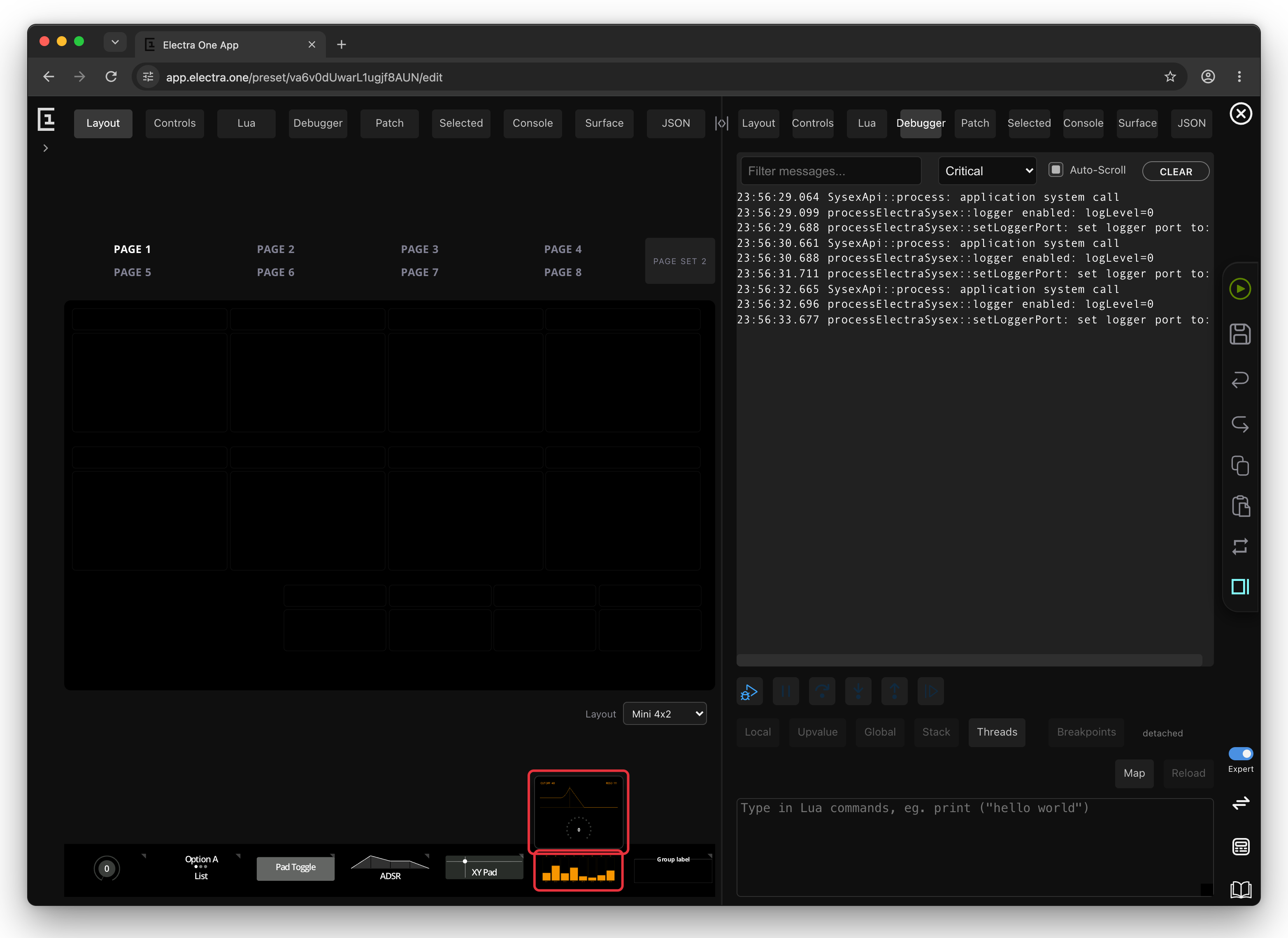
- Drag the control onto a slot of the page. A control larger than one slot covers the slots to the right and below. The editor adds the control's Lua to the preset's script, so there is nothing to copy by hand, and says that the control was added.
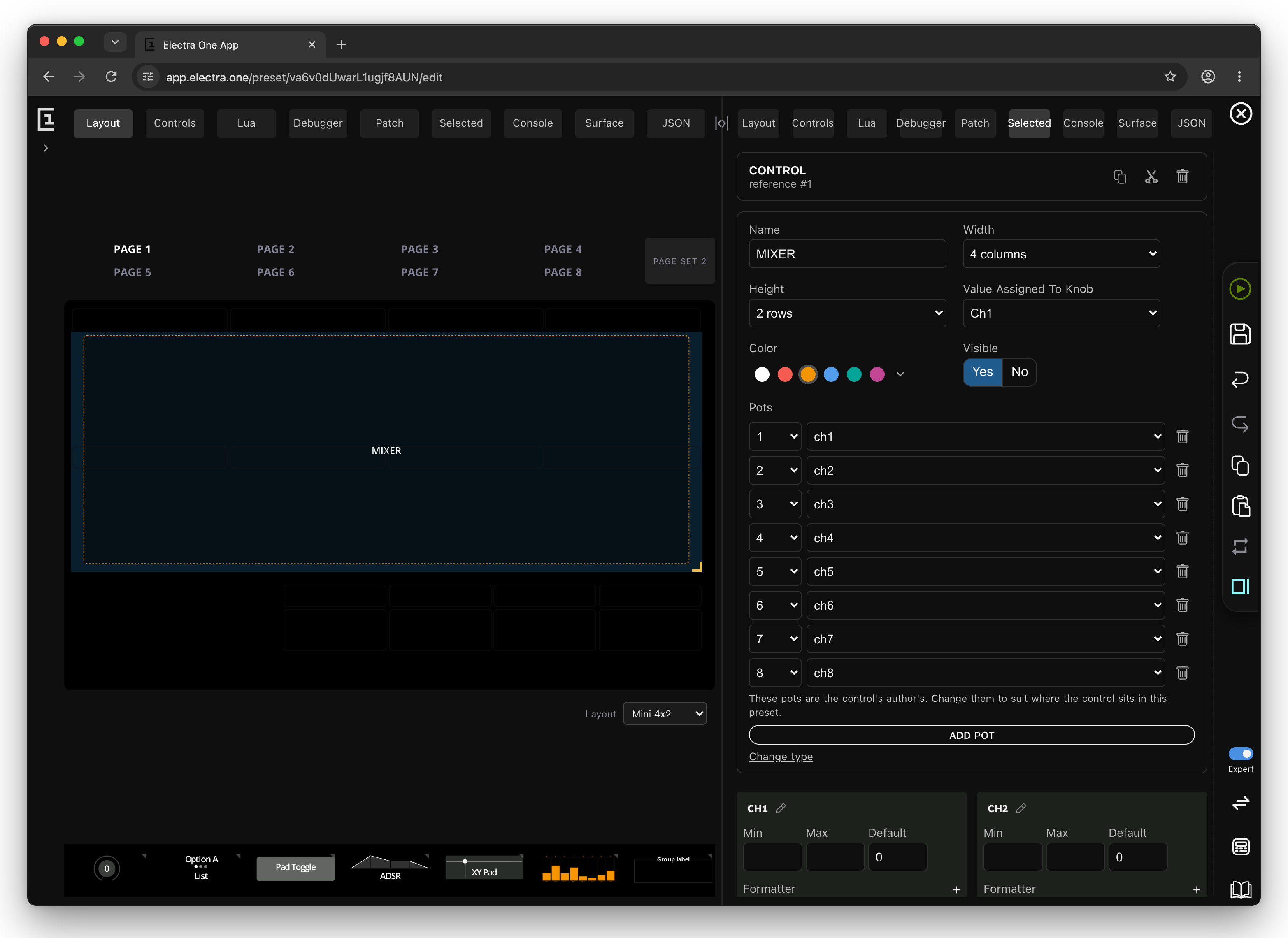
- Select the control. The editor cannot draw a custom control, so it shows its outline and name. Its settings list:
- Pots, the knobs that move each value. They are the ones the author chose. Change them in Expert mode to suit where the control sits in your preset.
- one card for each value, such as
CH1toCH8, with its range, its default and the MIDI message it sends. Set the device and parameter numbers here, as for any control.
- Send the preset to the controller to see the control drawn.
You can place a control as many times as you like, in as many presets as you like. Each placed copy has its own values and parameters, and they share the Lua that draws them.
Do not edit the control's Lua
The editor keeps the Lua of placed controls in a marked region at the end of the preset's main.lua. Write your own code above that region. A change made inside it is replaced the next time a control is placed or updated.
You can keep up to 40 controls in the palette.
The control page
The page of a control describes it in full and lists its releases.
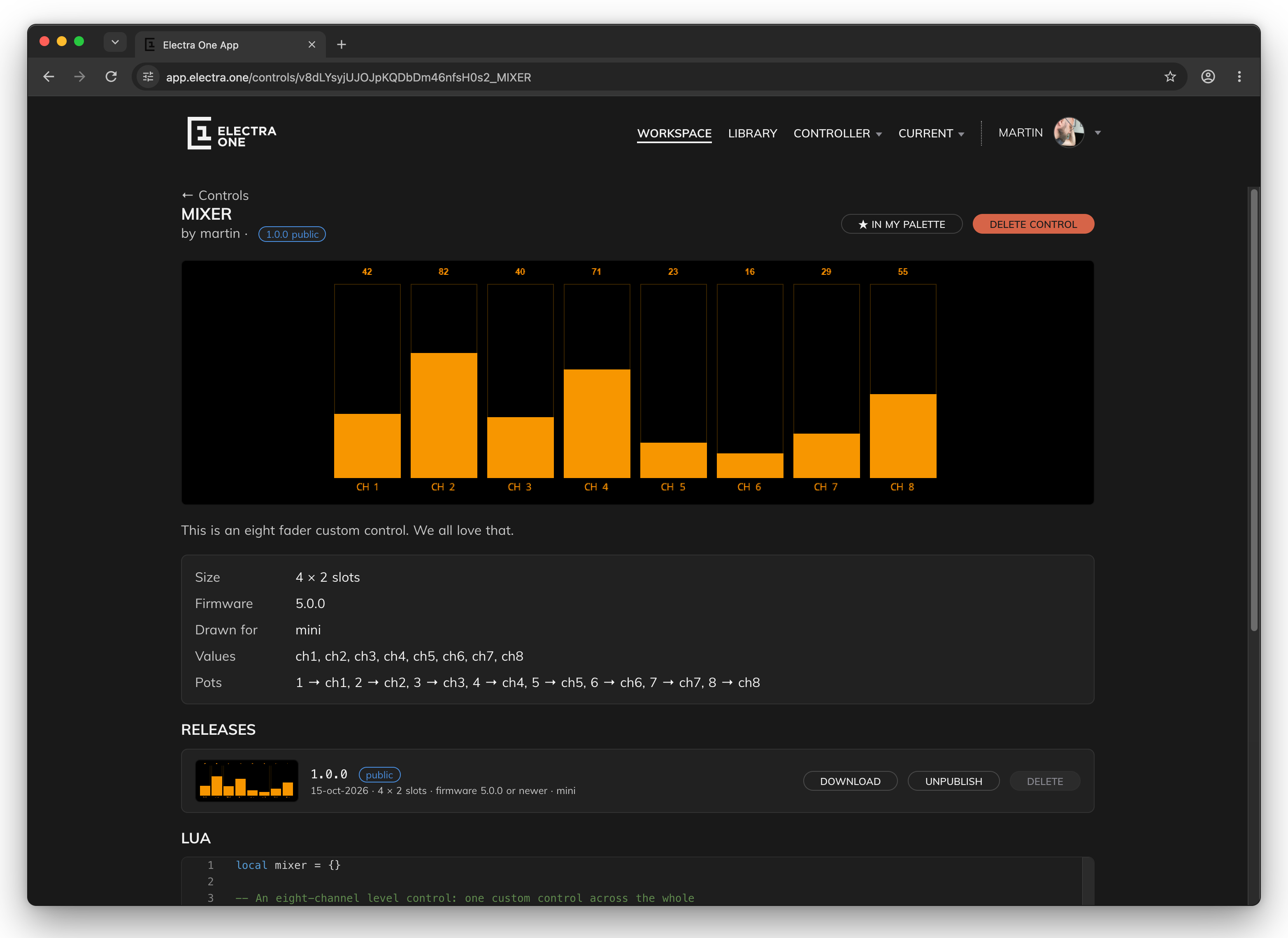
- Size, Firmware and Drawn for repeat the facts of the card.
- Values lists the names of the control's values. Each of them can send its own MIDI parameter.
- Pots says which knob moves which value, counted from the knob the control is placed on. A control that lists no pots is moved by its own knob alone.
- Releases lists the versions of the control, newest first, with the date, size, firmware and models of each.
DOWNLOADsaves a release as a control file (.ectrl). - Lua shows the script that draws the control. It is read only.
The button at the top stars the control into your palette, as on the card. The owner also sees DELETE CONTROL, and the publishing buttons of each release, described in Publishing a control.
Making a control
A control is written as a preset holding exactly that one control. That is also how you try it on the controller, because the controller runs Lua only as part of a preset.
Write the preset
- In Workspace, click
CREATE PROJECTand give the preset the name of the control. - Switch the editor to Expert mode and place a Custom control from the misc tile on the first knob slot of page 1. Stretch it over more slots if it needs them.
- Write the Lua that draws it. A control's script is written as a small module, so that it can live beside other controls in somebody else's preset. The editor checks the script when the control is saved and says what to change. The rules are summed up below.
- Send the preset to the controller and try the control until it does what it should.
The script is a table with an onReady function, which the preset calls once for each control of this kind:
lua
local ring = {}

function ring.onReady(control)
  control:setPaintCallback(ring.paint)
  control:setPotCallback(ring.onPot)
  control:repaint()
end

function ring.paint(control)
  -- draw the control
end

function ring.onPot(control, event)
  local value = control:getValue(event.valueId)
  value:setValue(value:getValue() + event.delta)
  control:repaint()
end

-- electra-control harness begin
function preset.onReady()
  ring.onReady(controls.get(1))
end
-- electra-control harness end

return ring- Keep every function on the module's table, or make it
local. A global function is refused, because two controls in one preset would overwrite each other's. - Do not set
preset.onReadyor a timer in the module. They belong to the preset the control is placed in. - Do not put events on the control. Use
control:setSwitchCallbackandcontrol:setPotTouchCallbackinonReadyinstead. - The lines between
harness beginandharness endrun the control in this preset only. They are not carried with the control. - The
returnat the end must start at the beginning of the line. - Call
control:repaint()at the end ofonReadyand whenever a value changes. A custom control is not repainted for you.
Set the type and make a release
On the preset's page:
- Click the pencil next to Type, choose Control and click
DONE. A preset stays of type Control only while it holds one custom control and nothing else. - Take a screenshot with
TAKE SCREENSHOT, with the control shown on the controller. The picture is cut from it, and a control cannot be published without one. - Write a Brief, one line that says what the control is. The Library shows it under the name.
- Make a release of the preset and make it official. See Revisions and releases. The control's version is the version of that release.
A preset of type Control cannot be made public as a preset. It is shared as a control instead.
Save the control
Open the arrow next to DOWNLOAD PROJECT. A preset of type Control offers two more choices:
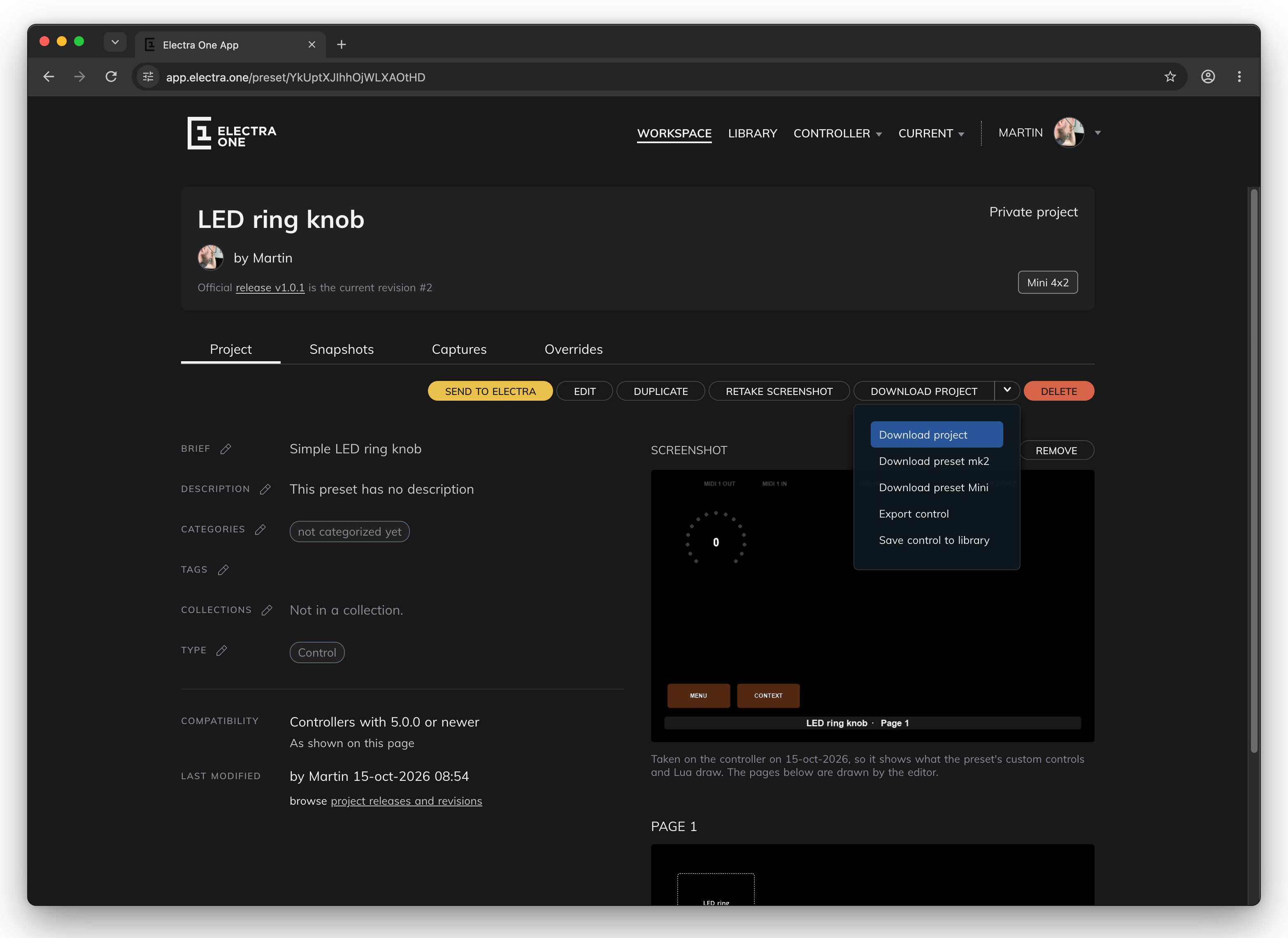
- Save control to library adds the official release to Workspace → Controls. Saving again after a new release adds that release to the same control.
- Export control downloads the control as a file (
.ectrl) that you can send to somebody.IMPORT CONTROLon Workspace → Controls reads such a file and adds it to your controls.
Publishing a control
A published control is in Library → Controls for everybody. Publishing is a request: you ask for one release to be published, and the Electra One team looks at it and publishes it, or declines it.
Your namespace
A published control carries its author's namespace, a short word that tells your controls from those of other people. Set it once, before the first request: click your name in the top bar and choose Namespace.
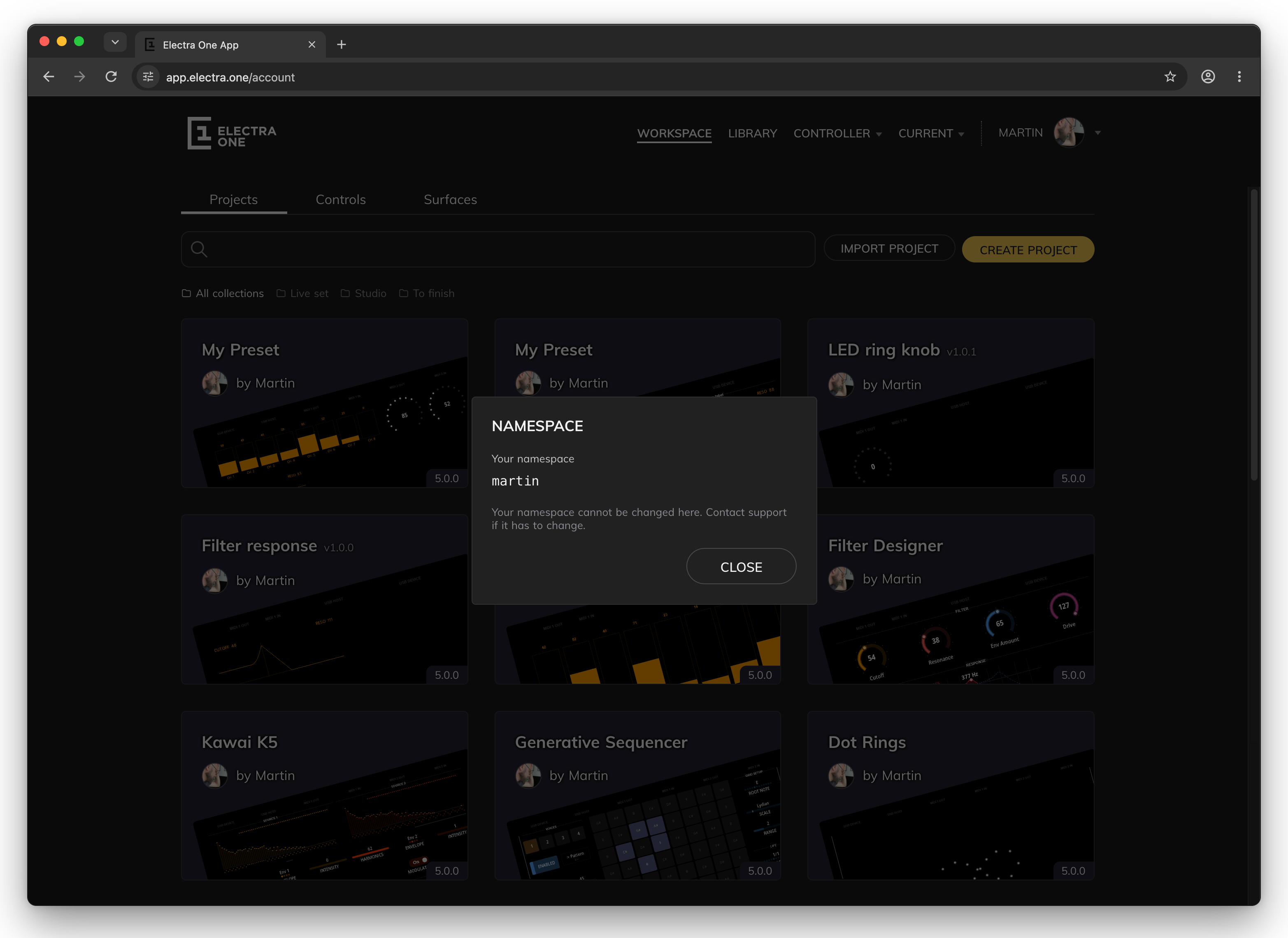
The namespace has 2 to 24 lowercase letters, digits or hyphens, and nobody else may use it already. It cannot be changed later. Once it is set, the dialog shows it, and asks you to contact support if it really has to change.
Requesting publication
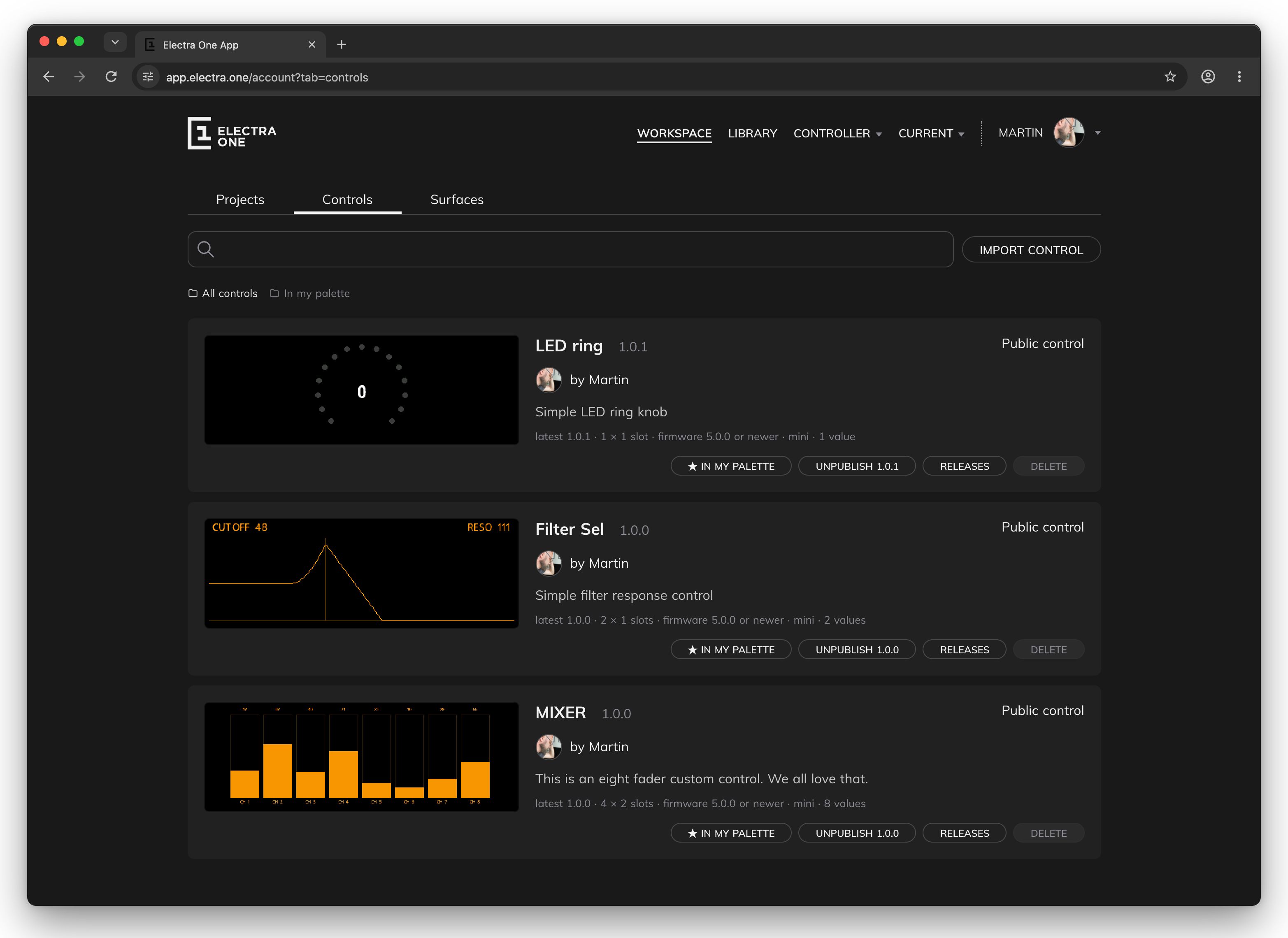
On Workspace → Controls, each control has these buttons:
| Button | What it does |
|---|---|
☆ ADD TO MY PALETTE | Puts the control in your editor palette. ★ IN MY PALETTE takes it out. |
REQUEST PUBLISHING 1.0.1 | Asks for the newest release to be published. The card then says the request is waiting. |
WITHDRAW REQUEST | Takes the request back before it is decided. |
UNPUBLISH 1.0.1 | Takes the public release out of the Library. |
RELEASES | Opens the control's page with its releases. |
DELETE | Deletes the control and all its releases. A public control has to be unpublished first. |
When a new release is published, it takes the place of the previous one. Until then, the Library keeps offering the release that was public before. Presets that already use the control keep the copy they were made with. Placing the newer release in such a preset updates every copy of the control in it.
The desktop Electra One app keeps your controls in its local library, next to your presets.