

Version5.0.0
Mouse and Keyboard
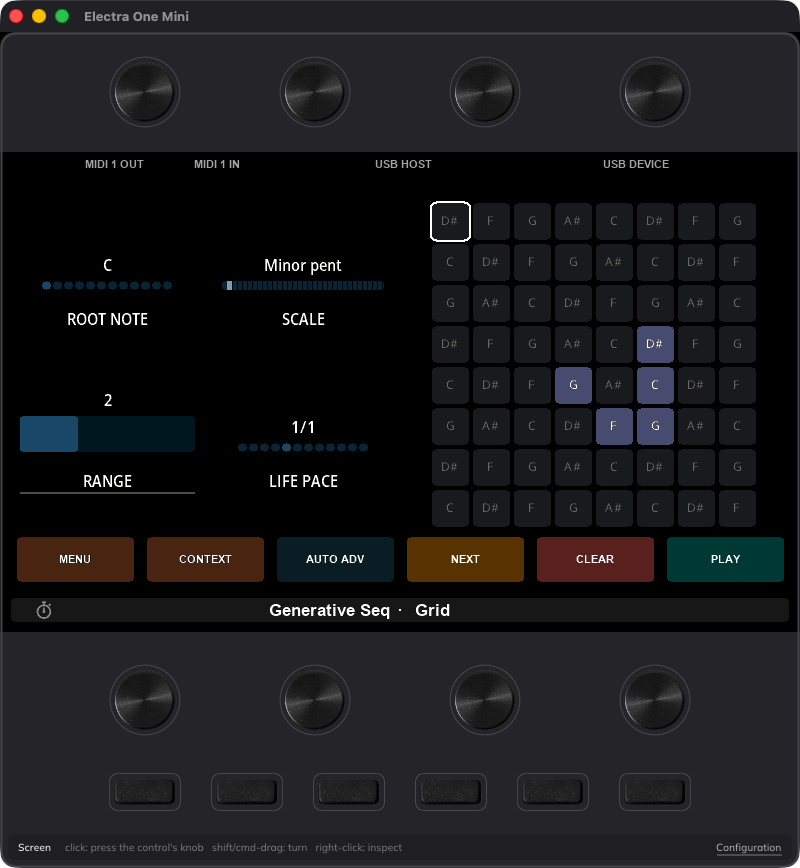
A mouse has one button and a pointer. The panel of an Electra One has knobs that turn and sense a touch, buttons that are pressed and held, and on the Mini knobs that can also be pressed. So the window has to say which of these a mouse gesture means, and it does so differently on the two models, because the two models are worked differently: the mk2 has a touch screen and the Mini has not.
The status line at the bottom of the window always says what the gestures do where the pointer is. When in doubt, look there.
The display
On the mk2
The display of an mk2 is a touch screen, and the mouse is your finger on it:
| Mouse | On the instrument |
|---|---|
| click | a tap: toggles a pad, picks an item, presses a button on screen |
| drag | a swipe: moves a fader, turns a dial, scrolls a list |
| hover over a control | a finger resting on the knob that drives the control |
| right-click | opens the inspector for the control under the pointer |
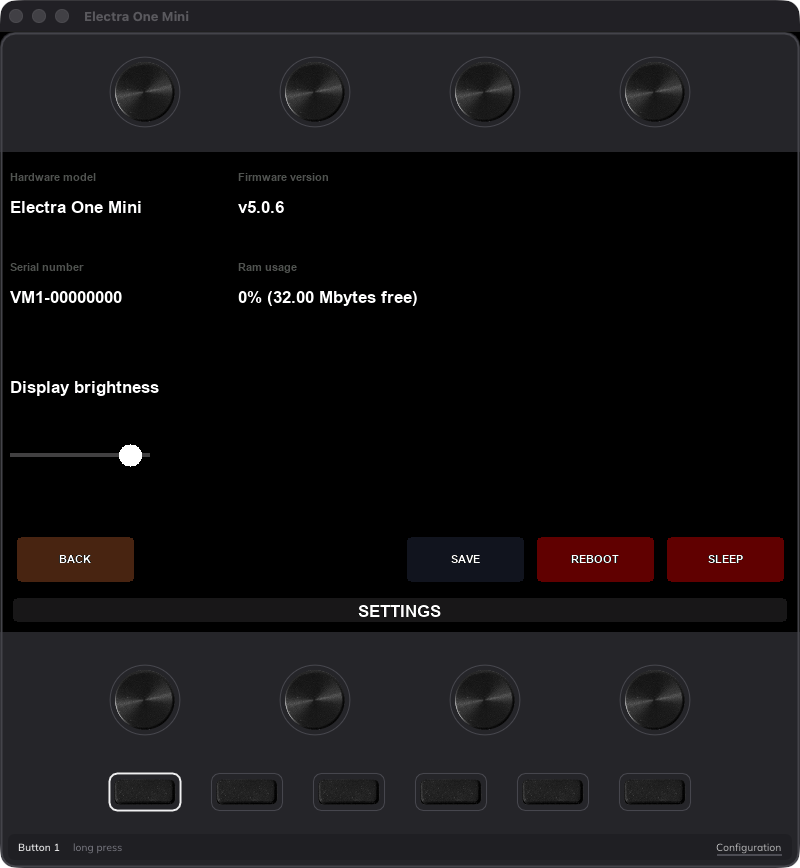
Menus, lists, detail windows and the Settings window all work by tapping and swiping, exactly as on the hardware.
Hovering over a control touches the knob the control is assigned to on the active control set. That is what makes a detail window open under the pointer as it opens under a fingertip, and what highlights the control on the display.
On the Mini
The Mini's display is not a touch screen. Its controls are worked by the knob each one is assigned to, and by that knob's switch, and there is nothing on the screen to press. So on the Mini the pointer is not a finger on the glass; it is a finger on the knob belonging to whatever is under it:
| Mouse | On the instrument |
|---|---|
| hover over a control | a finger arriving on the control's knob |
| click on a control | pressing the control's knob: toggles a pad, opens a list, steps a value |
| shift-drag, or cmd/ctrl-drag, up and down | turning the control's knob; upwards is clockwise |
| click on a button label at the bottom | pressing that button |
| right-click | opens the inspector for the control under the pointer |
Because the display is read as the knobs see it, a click on an empty part of a knob's area still presses that knob, and the six labels along the bottom of every screen are the six buttons under the display: clicking MENU presses the button under MENU.
A drag has to be told apart from a click, since both begin with the button going down and a control with a detail opens it on the press. That is what the modifier key is for: with shift, cmd or ctrl held, the press is a turn and nothing is pressed.
The knobs on the panel
The drawn knobs under and around the display are the instrument's knobs, and they are touch sensitive on both models:
| Mouse | mk2 | Mini |
|---|---|---|
| hover | a finger on the knob | a finger on the knob |
| click | a touch and a lift: chooses in a list, a menu or a page selection | nothing; the knob's switch is shift-click |
| shift-click | the knob's switch, held for as long as the button is | |
| cmd/ctrl-drag | turns the knob; up and right are clockwise | the same |
| right-click | assigns a MIDI control to the knob, see Panel MIDI | the same |
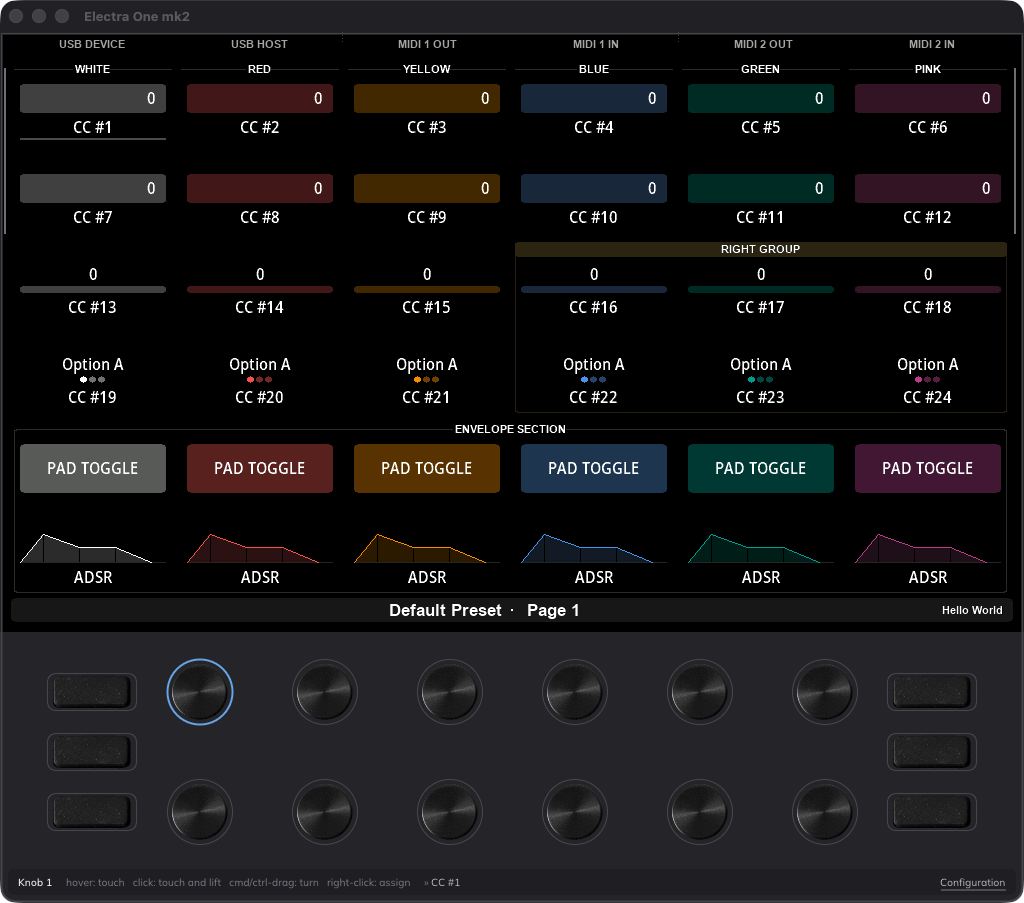
A finger resting on a knob is also how a page, a preset, a bank or a menu entry is chosen in the firmware's selection windows: on the hardware you touch the knob under the item. So where a touch would choose something, the pointer has to rest on the knob for about a quarter of a second before it counts as a touch. Crossing the panel to reach a knob does not choose every page on the way. Everywhere else the touch is immediate. On the mk2 a click on the knob touches it at once, so a click is the quickest way to choose.
The Mini's knobs have a switch, and the hardware presses it by pushing the knob down. On the virtual Mini that is a shift-click on the knob, and the switch stays pressed for as long as the mouse button is held, so a long press on a knob is a long shift-click.
The buttons on the panel
| Mouse | On the instrument |
|---|---|
| click | a press and a release |
| hold | a long press: the hold is a second long |
| right-click | assigns a MIDI message to the button, see Panel MIDI |
Many button actions differ between a short and a long press, and the firmware acts on the long press the moment the second is up, before the button is released. The window tells you when that is: while a button is down the status line reads held long press at 1 s, and when the second passes it changes to long press and the button's outline turns white.
The inspector
The right mouse button asks what a thing is rather than working it. On a control on the display it opens the inspector, a small window with the control's name, its type, its id and control set, the knob that drives it, the MIDI message it sends and its range, and its position on the screen.
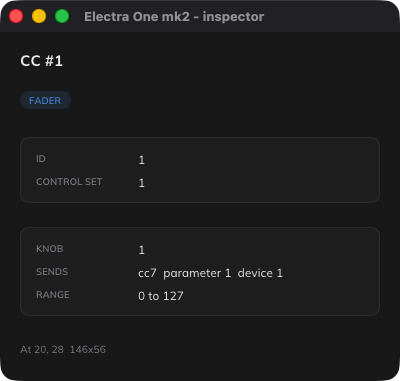
The inspector is a window of its own and stays open; right-clicking another control changes what it shows. On a knob or a button of the panel it shows the Panel MIDI binding instead.
Keyboard
The keyboard reaches the panel without the mouse, which is handy when the mouse is busy on the display.
Buttons
The keys 1 to 6, and F1 to F6 as well, press the six buttons in the order they sit in:
| Keys | mk2 | Mini |
|---|---|---|
1 2 3 | the left column, top to bottom | the first three buttons, left to right |
4 5 6 | the right column, top to bottom | the last three, left to right |
A key held is a button held, so a long press on the keyboard is a key held for a second.
Knobs
Each knob has a pair of keys, counter-clockwise and then clockwise, laid out along the keyboard as the knobs are laid out on the panel:
| Knob | mk2 keys | Mini keys |
|---|---|---|
| 1 | Q W | Q W |
| 2 | E R | E R |
| 3 | T Y | T Y |
| 4 | U I | U I |
| 5 | O P | A S |
| 6 | [ ] | D F |
| 7 | A S | G H |
| 8 | D F | J K |
| 9 | G H | |
| 10 | J K | |
| 11 | L ; | |
| 12 | ' \ |
A tap nudges the knob one step. A key held keeps turning at a steady pace, a full turn in about two and a half seconds, until it is let go. Pressing a knob's key also touches the knob first, as a hand arrives before it turns.
On the Mini, shift with either of a knob's keys presses that knob's switch, held for as long as the key is.
Everything else
| Keys | What it does |
|---|---|
C | opens and closes the configuration window |
Cmd Q on macOS, Ctrl Q elsewhere | closes the controller |
A key pressed with Cmd, Ctrl or Alt held belongs to the computer and never reaches the panel.