

Version5.0.0
Control Surfaces
A control surface is a drawing of another MIDI controller you own, such as an Akai MIDImix, a Korg nanoKONTROL or a keyboard with knobs. You draw its knobs, faders and buttons once, and say which MIDI message each of them sends. In the Preset Editor you then connect them to the controls of a preset, so that turning a knob on that controller moves a chosen control of the preset. This is the editor side of static remote knobs.
Beta
Control surfaces are a beta feature. They work, and they will grow.
Where surfaces are kept
Surfaces are on the Surfaces tab of two pages:
- Workspace → Surfaces lists the surfaces you drew.
NEW SURFACEopens an empty one. - Library → Surfaces lists the surfaces other Electra One users have published. Click one to open a copy of it. Saving the copy makes it one of your surfaces, and the original stays as it was.
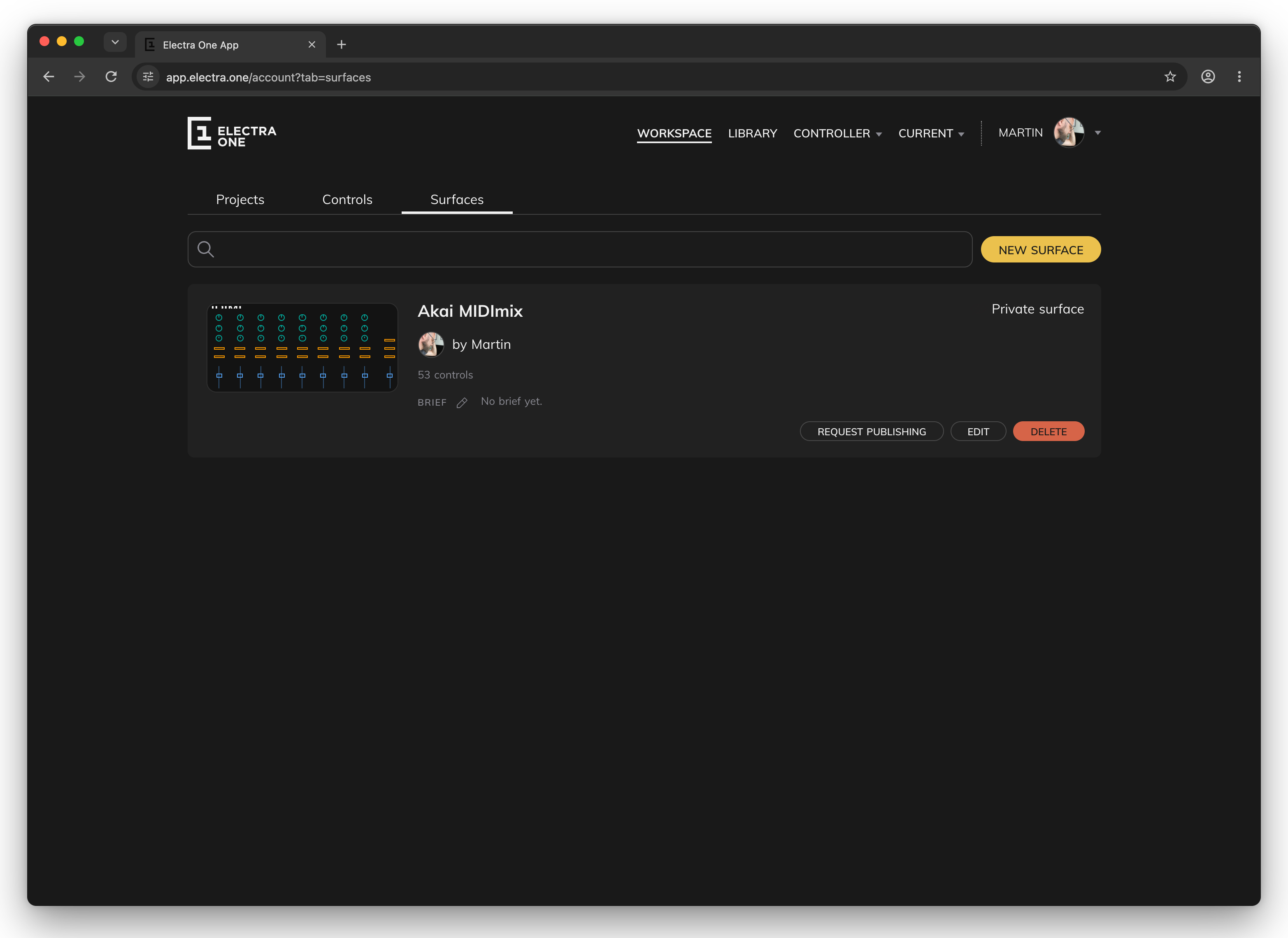
Each surface is a card with a picture of the drawing, its name, its author and the number of its controls. On your own surfaces:
- Brief. Click the pencil and write one line that says what the surface is. The Library shows it under the name.
EDITopens the surface in the surface editor. A click on the picture or the name does the same.DELETEdeletes the surface.REQUEST PUBLISHINGasks for the surface to be published in the Library. The Electra One team looks at it and publishes it, or declines it.WITHDRAW REQUESTtakes the request back, andMAKE PRIVATEtakes a published surface out of the Library.
The surface editor
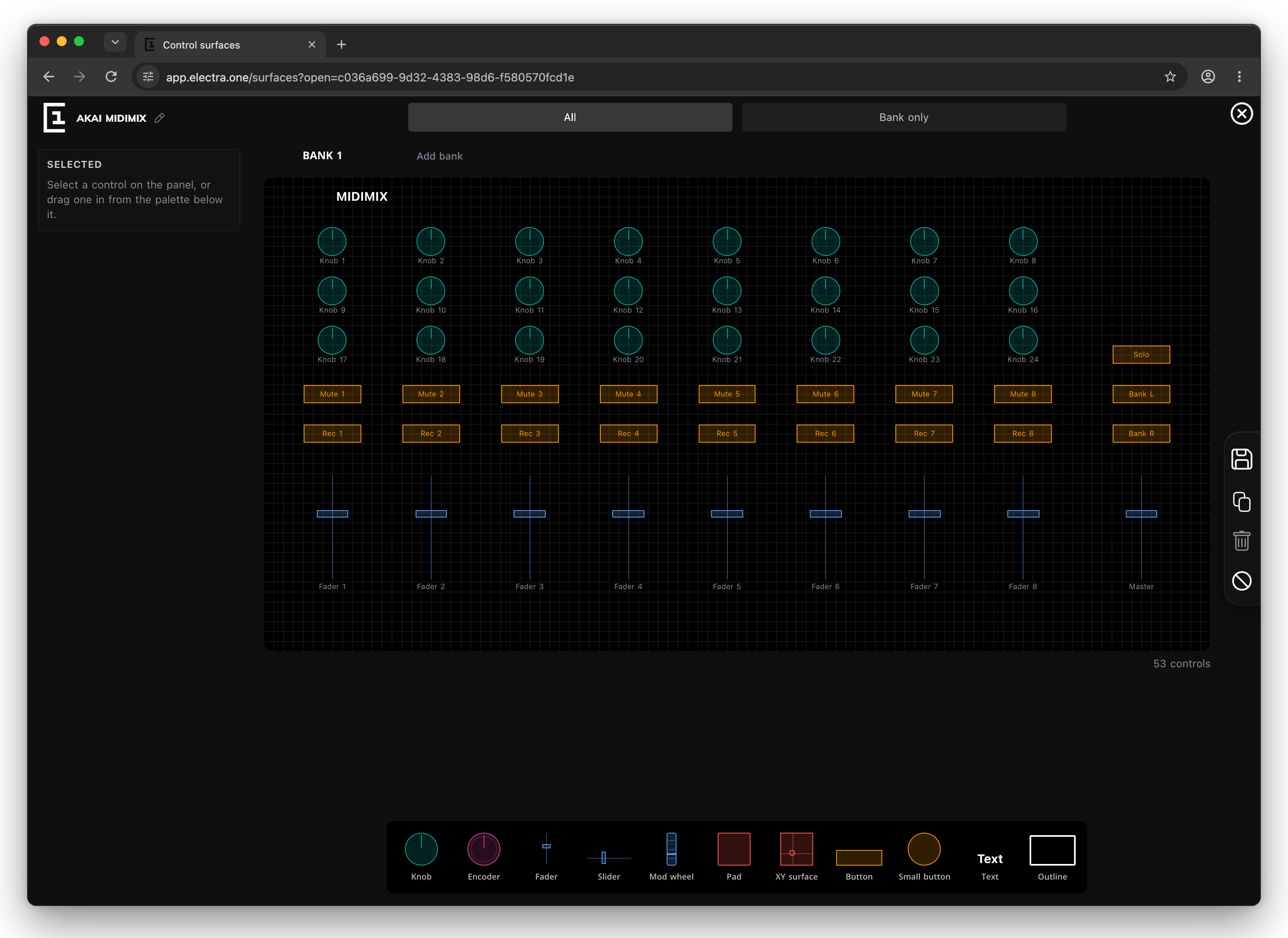
The surface editor is laid out like the Preset Editor: the panel in the middle, the selected control on the left, the palette under the panel and the toolbar on the right.
The name is at the top left. Click the pencil to rename the surface.
The panel is a grid of 48 by 16 cells, the shape of a wide controller.
- Add a control by dragging it from the palette under the panel onto the grid. The palette has Knob, Encoder, Fader, Slider, Mod wheel, Pad, XY surface, Button and Small button, and two decorations that send nothing: Text, for a heading or a label printed on the controller, and Outline, a frame around a part of it.
- Click a control to select it. Drag it to move it, and drag its corner to make it larger or smaller.
- With a control selected, the arrow keys move it, + and − resize it, and Delete removes it.
The number of controls on the panel is shown under it.
The selected control
The left column shows the control you selected:
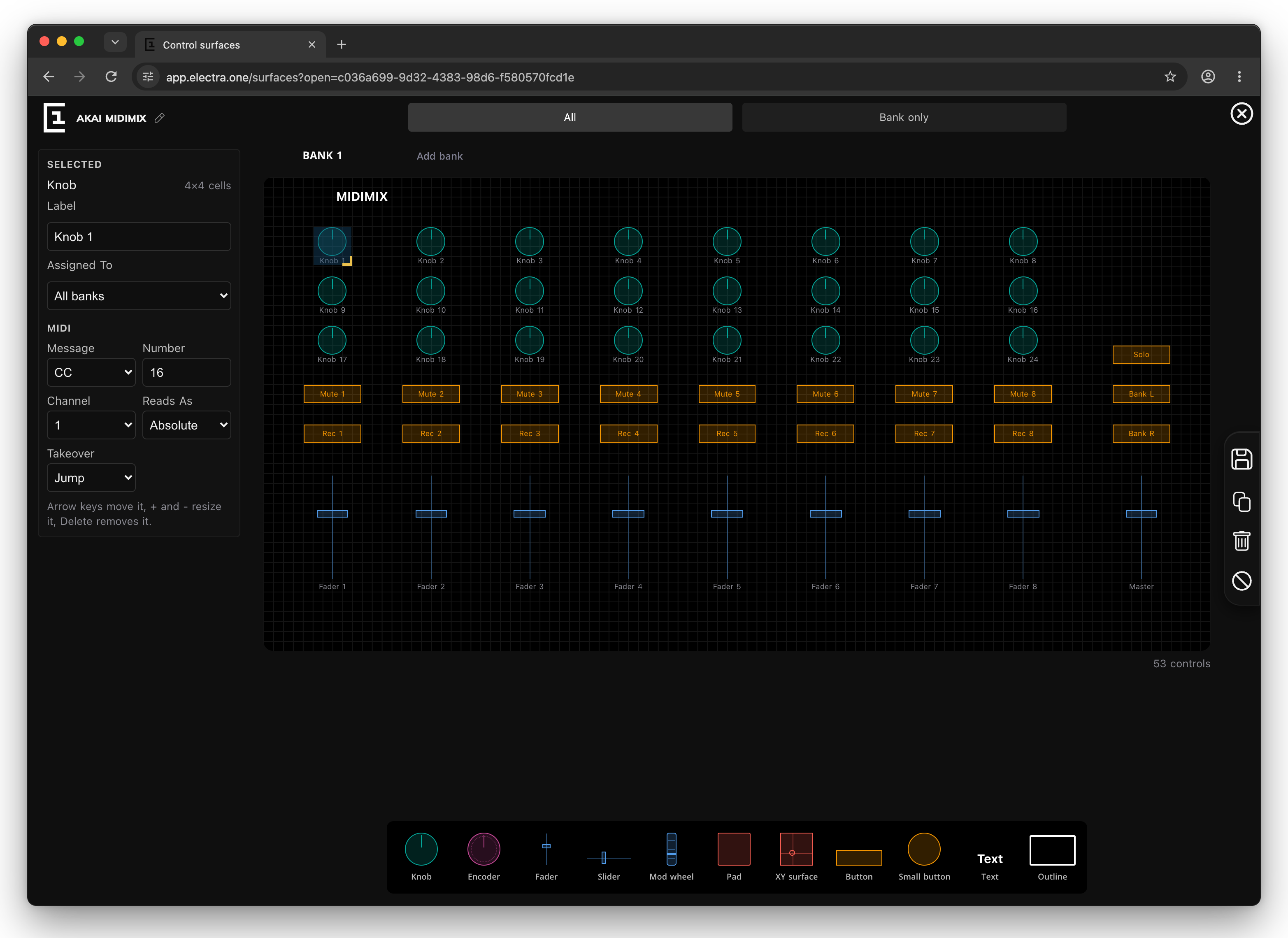
- Label. The name printed under the control, up to 24 characters. New controls are numbered for you: Knob 1, Knob 2 and so on.
- Assigned to.
All banksgives the control one message for every bank.Individual bankslets it send a different message in each bank. See Banks. - MIDI. The message the control sends:
- Message is
None,CCorNote. - Number is the CC number or the note, 0 to 127.
- Channel is 1 to 16, or
Any. - Reads as, for a CC, says how the value is sent:
Absolute, a position, the way faders and most knobs send it, orRelative, steps up and down, the way endless encoders send it. - Takeover, for an
AbsoluteCC, decides what happens when the knob is not where the control is. See Remote knobs.
- Message is
The message you set here is the message the editor expects from the knob. When the surface is used in a preset, the knob is ready to be connected to a control without learning it first.
Banks
Many controllers have a bank button that makes the same knobs send other messages. A surface can have up to 16 banks.
- The banks are listed above the panel. Click one to show it.
Add bankadds a bank. The pencil of the bank on show renames it.- The layout is the same in every bank. What changes is what a control set to Individual banks sends. A control left on
Nonein a bank does nothing there. - All shows every control. Bank only shows what the bank on show changes, with the controls assigned to all banks drawn quieter.
The toolbar
| Button | What it does |
|---|---|
| Save | Saves the surface to your Workspace. A new surface is saved as new. |
| Copy | Saves a copy of the surface as a new surface. |
| Delete | Removes the selected control from the panel. |
| Clear | Removes every control from the panel. |
The cross at the top right closes the editor and returns to the list.
Using a surface in a preset
Open a preset in the Preset Editor and choose the Surface view. Choose the surface in Control surface, then connect its knobs to the controls of the preset. The steps are in Surfaces of the Preset Editor chapter. Edit surfaces in the Surface view opens the surface editor.