

Version5.0.0
Virtual Controllers
A virtual controller is an Electra One running on your computer. It is the controller firmware itself, the same program that runs on the hardware, built as a desktop application with a window standing in for the panel: the display, the knobs and the buttons. There is one for each model, Electra One mk2 and Electra One Mini.
The virtual controller is designed as a tool for developing presets when Electra One hardware is not available. Of course, it lacks our premium hardware and ultra-low latency and precise timing, but it still gives you a fully functional Electra One. Pair it with any inexpensive MIDI controller, and off you go!
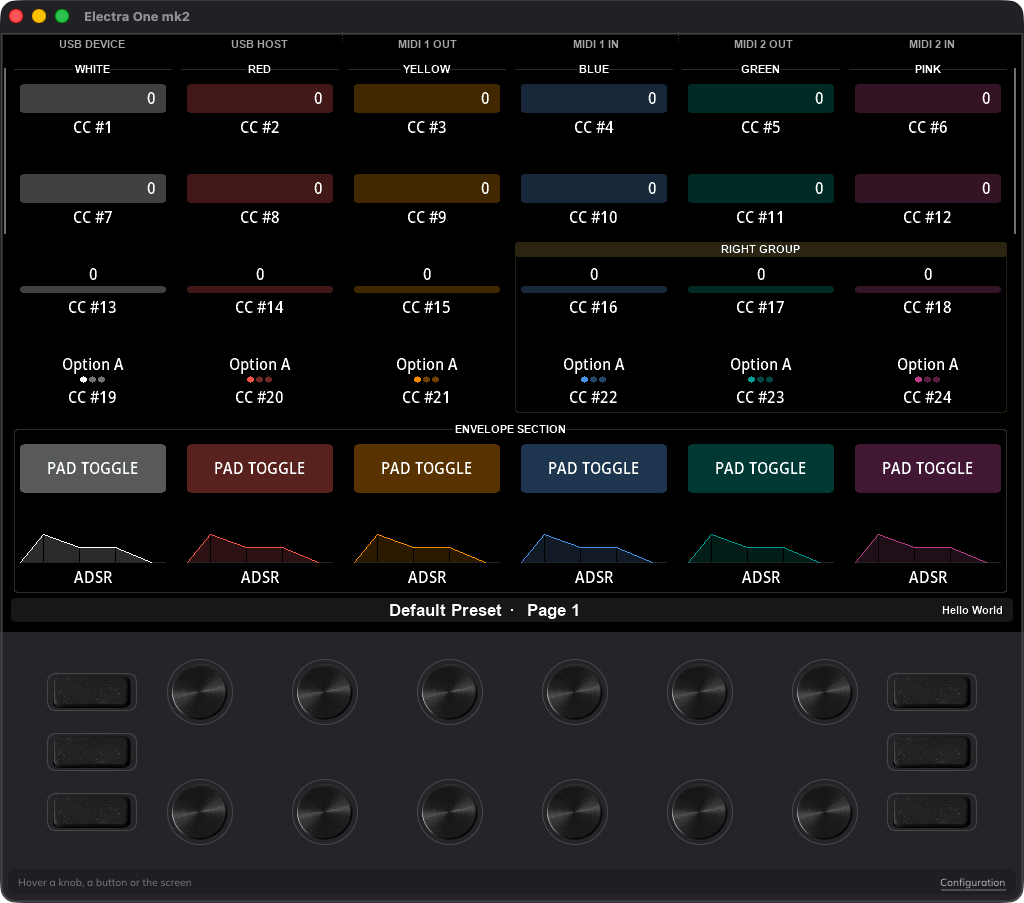
Everything the Mk2 and Mini user guides describe applies to the virtual controllers too: the menus, the settings, the preset banks, snapshots, captures, the router and the Lua scripts all work the same way, because it is the same firmware. What this guide covers is the part that has no hardware counterpart: how the controllers are started, how the mouse and the keyboard stand in for fingers, how the computer's MIDI ports become the controller's sockets, and how a MIDI controller on your desk can play the virtual knobs and buttons.
A virtual controller is useful when:
- you want to make or edit presets without a controller on the desk, or for the model you do not own,
- you want a second controller to test a preset, a Lua script or a router rule against,
- you want screenshots of a preset for its documentation,
- you want to run a preset on your computer, played from a MIDI controller, with no Electra One in the room.
The chapters of this guide
| Chapter | What it covers |
|---|---|
| Overview | starting a virtual controller, the window, the licence, where files are kept |
| Mouse and Keyboard | what a click, a drag and a hover do on each model, and the keyboard shortcuts |
| Configuration | the configuration window: the computer's MIDI ports as the controller's sockets |
| Panel MIDI | a MIDI controller playing the virtual knobs and buttons |
Starting a virtual controller
The virtual controllers come with the Electra One app, the desktop editor. They are installed with it and started from it: open the Go menu, then Controller, and choose Start virtual mk2 or Start virtual Mini.
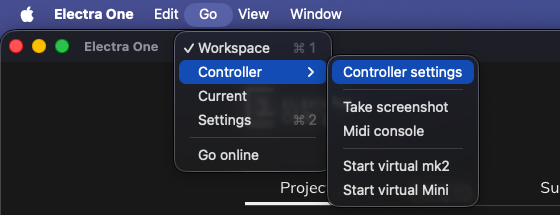
The controller opens in a window of its own. It is a separate application, with its own icon in the Dock or the taskbar, and it keeps running when you quit the editor. The editor finds it the way it finds a controller plugged in over USB: the virtual controller creates MIDI ports named Electra mk2 Port 1, Electra mk2 Port 2 and Electra mk2 CTRL (or Electra Mini …), and the editor connects to the CTRL port.
Choosing the same model again while it is running brings its window to the front rather than starting a second one. Both models can run at the same time, each with its own ports, its own presets and its own settings.
Windows and Linux
On Windows, the virtual controllers' MIDI ports are made by the Bome virtual MIDI driver, which the editor's installer installs with them. On Linux the editor ships without the virtual controllers.
A virtual controller can also be started on its own, without the editor: on macOS the two applications are inside the editor, at Electra One.app/Contents/Resources/hosts/. Started this way, the ports are named as the hardware names them, Electra Port 1, Electra Port 2 and Electra CTRL, so a DAW set up for the hardware needs no change.
The window
The window is a picture of the panel. The display is in the middle and the knobs and the buttons are drawn where they sit on the instrument: on the mk2 twelve knobs in two rows and six buttons in two columns under the display, on the Mini four knobs above the display, four below, and six buttons under them.
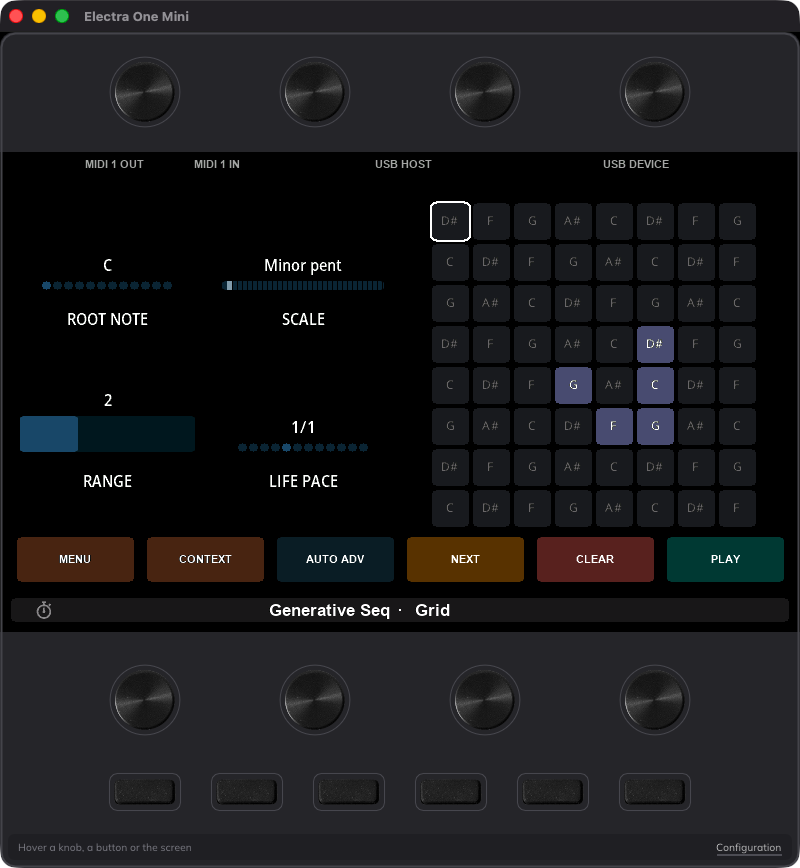
The line along the bottom is the status line. It says what the pointer is over, what the mouse gestures do there, and what that knob or button is assigned to in the loaded preset or the configuration: hovering a knob names the control it drives on the active control set, hovering a button names its action, and holding a button tells you when the press has become a long press. Configuration at its right end opens the configuration window.
The display is painted by the same graphics code as the hardware display, at the same resolution, so what you see is what the instrument shows, pixel for pixel.
Trial and licence
A virtual controller runs for 30 days, then it asks for a licence key. One licence covers the desktop editor and both virtual controllers, and it is activated once per computer.
The licence window has three buttons. Activate online opens the Electra One web app with this computer's machine code filled in; sign in, enter your licence code and copy the key the web app gives you into the window, then Use this key. Buy a licence opens the shop. The key is tied to the computer and is checked offline from then on, so a virtual controller never needs a network connection to start. Another computer needs another activation.
The licence line, with the days of trial left, is shown over the display for a moment at every launch.